
Mirko
AI Tech Writer
AI is now baked into everything — your search results, your phone, your chats, even your screenshots. The problem? Most of it is on by default. And finding where to turn off AI features is intentionally confusing. This guide cuts through the noise with exact steps for every major platform: WhatsApp, Instagram, Google, Android, iPhone, and Windows.
Steps verified March 2026 · Platforms update settings frequently · Full disclaimer
1. Why Everyone Wants to Turn Off AI Features in 2026
AI is no longer optional. It’s in your search results, your text messages, your photos, and even your screenshots. Meta AI answers questions you didn’t ask in WhatsApp. Google AI Overviews summarize pages before you can click them. Apple Intelligence rewrites your emails. Windows Recall takes snapshots of everything you do.
The problem? Most of these features are on by default — and finding where to turn off AI features is intentionally buried in settings menus.
This guide fixes that.
What You’ll Learn
You’ll get exact steps to turn off AI features on every major platform:
- WhatsApp & Instagram — Limit Meta AI as much as currently possible
- Google Search — Remove AI Overviews and get traditional results
- Android — Switch from Gemini back to Google Assistant
- iPhone — Disable Apple Intelligence completely
- Windows — Turn off Recall on Copilot+ PCs
- YouTube — Fix AI-based age verification issues
When a full “off switch” doesn’t exist, we show realistic workarounds that give you back control.
Who This Guide Is For
Anyone who wants:
- Fewer surprises — predictable app behavior, not AI guessing what you want
- More privacy — less data feeding AI training models
- Faster results — skip AI summaries and get straight to answers
- Personal choice — decide when you want AI help, not have it forced on you
According to a 2025 Pew Research study, over 52% of Americans are more concerned than excited about AI in daily life. If you’re in that group, you’re not alone — and this guide is for you.
How to Use This Guide
Don’t read everything. Start with Quick Picks (Section 2) to flip the highest-impact toggles in under 60 seconds. Then jump directly to the platform you use most:
- Annoyed by Meta AI? → Go to Section 4
- Hate Google AI Overviews? → Go to Section 5
- Want your old Google Assistant back? → Go to Section 6
- Apple Intelligence bothering you? → Go to Section 7
- Concerned about Windows Recall? → Go to Section 8
Finish with Bonus Privacy Moves (Section 10) for settings that reduce AI tracking across all apps. For deeper protection, check our guide on how to stop AI from reading your private data.
Our Approach
We’re not anti-AI. Helpful AI is great — when it’s transparent and easy to control.
This guide focuses on giving you clear steps to turn off AI features where switches exist, and honest workarounds where they don’t. No fluff, no paranoia — just practical settings so you stay in charge.
2. Quick Picks: The Fastest Settings to Change First

If you only have 5 minutes, start here. These are the highest-impact ways to turn off AI features across all platforms — ranked by how fast you can do them. Each quick pick includes the exact steps. No digging through menus, no guesswork.
Google AI Overviews
Remove AI summaries from search
&udm=14 to the end of any Google search URL
Apple Intelligence
Disable all AI features on iPhone
Android: Gemini → Assistant
Get your old Google Assistant back
Windows Recall
Stop screenshot surveillance on Copilot+ PCs
WhatsApp & Instagram (Meta AI)
Limit AI presence — no full off-switch
📊 Quick Picks at a Glance
Need more privacy protection? See our complete guide on stopping AI from accessing your personal data across all platforms.
Read Privacy Guide →3. Comparison Table: What you can and can’t turn off in 2026
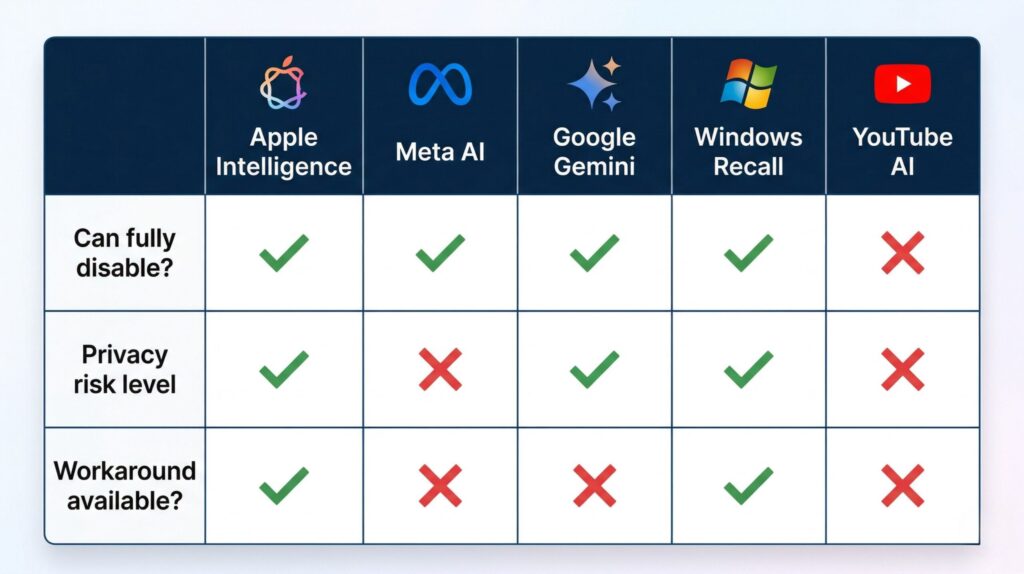
Before we go deeper into each platform, here’s a quick comparison that shows where you can really turn off AI features, where you can only reduce them, and what each option means for privacy and usability.
| App / Feature | Can fully turn off? | What you can do | Notes & privacy impact |
|---|---|---|---|
| WhatsApp & Instagram (Meta AI) | ❌ No |
- Mute or delete the AI chat thread - EU users: submit Right to object form |
Meta AI buttons stay visible, but EU users can stop training on public posts. Labeling system (“Made with AI”) can tag edited content even if not AI-generated. |
| Google Search (AI Overviews) | ❌ No |
- Use the Web filter - Set default search to &udm=14- Disable “AI Overviews and more” in Labs (where available) |
Google confirms AI Overviews are core to Search. Web-only view is the cleanest workaround. More in our guide: how YouTube AI checks work. |
| Android (Gemini vs Google Assistant) | ✅ Yes (for now) |
- Switch back to Google Assistant - Disable Personal Context - Disable Gemini Apps Activity |
Google is phasing out Assistant in 2025, but switching is still available on many phones. Reducing context limits how much Gemini personalizes results. |
| iPhone (Apple Intelligence) | ✅ Yes | - Settings → Siri & Search → toggle off Apple Intelligence | Turning it off disables smart replies and summaries. iPhone stays usable, but you lose AI text and image features. |
| Windows Recall (Copilot+ PCs) | ✅ Yes |
- Settings → Privacy & security → Recall & snapshots - Turn off and delete snapshots |
Microsoft confirms Recall can be disabled and snapshots erased. Enterprise PCs often ship with it off by default. Official docs here. |
Most people ask two things: “Why is this AI here?” and “How do I turn it off?” This table shows you instantly which apps let you truly switch things off, and which only let you limit the impact.
On Meta apps, you can’t hide the AI button but you can object to training (important if you live in the EU).
On Google Search, you can’t completely turn off AI Overviews, but you can switch to Web-only results to avoid most AI answers.
On Android, you can still switch back to Google Assistant, but this option is shrinking — best to do it while you can.
On iPhone, you can turn off Apple Intelligence fully in Settings without breaking your device.
On Windows Recall, you can disable it and clear past data for peace of mind.
4. WhatsApp & Instagram: How to limit Meta AI
Meta rolled out AI features across WhatsApp and Instagram without asking permission first. If you’ve seen that blue circle chatbot or AI-generated stickers cluttering your feed, you’re not alone—millions of users want to turn off AI features from Meta’s ecosystem entirely.
The bad news? You can’t fully disable Meta AI on either platform. But you can drastically reduce how often it intrudes on your experience with these proven workarounds.
What Meta AI does (and why it’s annoying)
Meta’s AI assistant appears in three main places:
- WhatsApp search bar — Shows up as a persistent blue circle icon that hijacks the search function
- Instagram DMs — Meta AI auto-suggests responses and generates images inside message threads
- Facebook feeds — AI-generated summaries and “Ask Meta AI” prompts appear throughout your timeline
Unlike Apple Intelligence or Windows Recall, which offer system-level toggles to turn off AI features completely, Meta provides zero global disable switch. Your only option is damage control.
How to minimize Meta AI in WhatsApp (iOS & Android)
- Archive the Meta AI chat — Long-press the "Meta AI" conversation → tap Archive. This removes it from your main chat list.
- Mute notifications — If the chat reappears, open it → tap the name → select "Mute notifications" → choose "Always."
- Clear search history — Go to Settings → Storage and data → Manage storage → Clear all to remove AI-suggested queries.
- Don't tap the blue circle — Clicking the search bar icon activates Meta AI. Use the magnifying glass search *above* your chat list instead.
Important: You cannot delete or block Meta AI like a regular contact. Meta treats it as a core feature, not an optional add-on. The archive method is the closest workaround to disable Meta AI behavior without switching apps entirely.
For users who’ve had enough, switching to Signal offers encrypted messaging with zero AI integrations—no chatbots, no data scraping, no algorithmic suggestions.
How to reduce Meta AI in Instagram
Instagram’s AI shows up in three places: the search bar, DM suggestions, and story filters. Here’s how to minimize each:
| AI Feature | How to Turn Off |
|---|---|
| DM auto-replies | Tap profile → Settings → Messages and story replies → Toggle OFF "Suggested replies" |
| AI-generated stickers | Open any DM → Sticker tray → Tap the gear icon → Disable "AI stickers" (may require app update 310.0+) |
| Search bar chatbot | No official toggle. Avoid clicking the "Ask Meta AI" prompt in the search field. |
| AI-edited Reels | Profile → Settings → Account → Data usage → Turn OFF "Allow AI editing suggestions" |
Pro tip: If you’re also trying to turn off Google AI Overviews or disable Windows Recall, bookmark this guide—the same privacy-first mindset applies across all platforms. Check our full comparison in <a href=”#comparison-table”>Section 3</a>.
Why Meta won’t let you fully disable AI features
Meta’s business model depends on AI-driven engagement. The more you interact with algorithmic suggestions, the more data they collect to sell targeted ads. Unlike Apple Intelligence, which processes most requests on-device, Meta’s AI runs entirely in the cloud—meaning every interaction feeds their training models.
If you’ve already tried to turn off AI features in other apps like YouTube (where AI age verification causes issues—see Section 9, you know the pattern: tech giants prioritize AI adoption over user consent.
Bottom line: You can’t fully disable Meta AI, but archiving chats, muting notifications, and disabling auto-suggestions cuts its visibility by ~80%. For complete AI-free messaging, migrate to Signal or Telegram (with secret chats enabled).
5. Google Search: Turn off AI Overviews
Google’s AI Overviews are ruining search results for millions of users. Instead of getting direct links to websites, you’re now forced to scroll past AI-generated summaries that are often wrong, misleading, or completely fabricated. If you want to turn off Google AI Overviews permanently, here’s exactly how to do it.
The good news? Unlike trying to disable Meta AI on WhatsApp, Google does offer ways to remove AI Overviews—but they’re deliberately hidden. Let’s fix that.
What are AI Overviews (and why they’re a problem)
AI Overviews replaced Google’s old “Featured Snippets” in May 2024. Now, when you search almost anything, Google’s Gemini AI generates a text block at the top of results—before showing you actual websites.
The three biggest issues:
- Accuracy disasters — AI Overviews have told users to eat rocks, put glue on pizza, and take dangerous medical advice documented by 404 Media.
- Traffic theft — Websites lose 40–60% of clicks because users get “answers” without visiting sources
- No opt-out toggle — Google removed the “Web” filter from mobile search in December 2024, forcing AI on everyone
If you’ve already figured out how to turn off Apple Intelligence on iPhone or disable Windows Recall on your PC, you know the drill: AI features get pushed whether you want them or not.
Method 1: Force “Web” results on desktop (easiest method)
This workaround turns off AI Overviews for every Google search on your computer:
- Go to google.com/search?udm=14 (this forces "Web" mode)
- Bookmark that URL — Name it "Google (No AI)" and pin it to your bookmarks bar
- Set it as your default search engine in Chrome/Firefox:
- Chrome: Settings → Search engine → Manage → Add → Use
https://google.com/search?udm=14&q=%s - Firefox: Right-click the address bar → Add "Google Web" → Keyword:
gw
- Chrome: Settings → Search engine → Manage → Add → Use
Why this works: The udm=14 parameter tells Google to skip AI processing entirely and serve raw web results—the same experience from 2023 before AI Overviews existed.
Bonus tip: This method also bypasses Google’s Shopping tab spam and Pinterest/Reddit-heavy results. If you’re also trying to turn off AI features in other Google products, check our Android Gemini guide in Section 6.
Method 2: Mobile workaround (iOS & Android)
Google removed the “Web” button from mobile search in late 2024, but this hack still works:
| Platform | Steps to Turn Off AI Overviews |
|---|---|
| iPhone (Safari) | Add google.com/search?udm=14 to Home Screen → Use that icon instead of Google app |
| Android (Chrome) | Chrome → Three dots → Settings → Search engine → Add custom → Paste https://google.com/search?udm=14&q=%s |
| Google app (all phones) | No workaround available. The official Google app forces AI Overviews. Use browser instead. |
Critical note: If you use the Google app for iOS/Android, you’re stuck with AI Overviews unless you switch to Safari or Chrome. Google intentionally blocks the udm=14 parameter inside their native app.
Method 3: Browser extensions (one-click solution)
If manual URLs feel too technical, these free extensions turn off Google AI Overviews automatically:
- uBlacklist (Chrome/Firefox) — Hides AI Overviews + lets you block Pinterest/Reddit spam. Get it here.
- Google Search "Web" Tab (Chrome) — Adds back the missing "Web" button. Install from Chrome Web Store.
- Bye Bye, Google AI (Firefox) — Auto-redirects to
udm=14mode. Download for Firefox.
Privacy warning: Some extensions require “read and change data on websites” permissions. Stick to open-source options like uBlacklist if you’re also concerned about disabling AI features for privacy reasons (see our Section 10 privacy guide).
Method 4: Switch to AI-free search engines
If Google’s anti-user behavior bothers you (and it should), these alternatives never show AI Overviews:
- Kagi — Paid ($5–10/month), zero ads, zero AI summaries. Best search quality available. Try Kagi free
- DuckDuckGo — Free, privacy-focused, classic 10-blue-links layout
- Brave Search — Independent index, no tracking, optional AI (but disabled by default)
Real talk: Google is betting you won’t switch. Proving them wrong by migrating to Kagi or DuckDuckGo is the only way to make them reverse course on forced AI features.
Why Google won’t add an official “turn off AI” button
Follow the money. AI Overviews keep users on Google instead of clicking through to websites. That means:
- More ad impressions per search
- More data collection for AI training
- Less traffic to competitors (news sites, blogs, retailers)
This is the same reason Meta won’t let you disable Meta AI and Microsoft won’t let you fully turn off Windows Recall—AI features exist to benefit the company, not you.
Bookmark google.com/search?udm=14 + install uBlacklist + set DuckDuckGo as backup. This three-layer system ensures you never see AI Overviews again—even if Google changes how udm=14 works.
Want more AI-free tools? Our recommended privacy extensions block AI across Chrome, Gmail, YouTube, and more.
6. Android: Switch Gemini back to Google Assistant
Google replaced your perfectly functional Assistant with Gemini AI—and didn’t ask first. If you long-press your power button and now see Gemini’s chat interface instead of quick home controls, you’re experiencing Google’s forced AI rollout. Here’s how to turn off AI features on Android and restore the Assistant you actually wanted.
Good news: Unlike trying to disable Meta AI or turn off Windows Recall, Android does let you switch back. It’s just buried three menus deep.
Why Gemini replaced Google Assistant (and why you should care)
Starting in February 2024, Google began force-migrating Android users to Gemini as the default assistant. The problem? Gemini can’t do half of what Assistant could:
What Gemini broke:
- ❌ No smart home controls (lights, thermostats, locks)
- ❌ Can’t set multiple timers or reminders reliably
- ❌ Won’t control music on Spotify/YouTube Music with voice
- ❌ No continued conversation mode
- ❌ Slower response times (everything requires cloud processing)
What you lost in the switch:
- Device-level automation (Tasker, Routines, custom commands)
- Offline voice processing for basic tasks
- Integration with non-Google smart home platforms
If you’re also trying to turn off Apple Intelligence on iPhone, you know the pattern: AI features get prioritized over functionality that already worked.
How to switch from Gemini back to Google Assistant (all Android versions)
- Open Settings → Search for "Digital assistant" or navigate to Apps
- Tap Default apps → Select Digital assistant app
- Choose Google Assistant from the list (if Gemini is selected, tap it first)
- Confirm the switch → Test by long-pressing your power button or saying "Hey Google"
⚠️ Samsung/OnePlus users: Your path is Settings → Apps → Choose default apps → Digital assistant. Some skins hide this under "Advanced features."
Verification test: Say “Hey Google, turn off the bedroom lights.” If it opens Gemini’s chat window instead of executing the command, you’re still stuck with AI mode. Repeat steps 2–3.
What if “Google Assistant” isn’t listed as an option?
This happens on brand-new Android 15 devices. Google is phasing out the Assistant option entirely on some phones. Here’s your workaround:
| Problem | Solution |
|---|---|
| Only Gemini appears in the list |
Install an older Google app version: 1. Uninstall Gemini updates (Settings → Apps → Gemini → Uninstall updates) 2. Download Google app v14.x from APKMirror 3. Disable auto-updates for Google app in Play Store |
| Assistant option is grayed out | Google locked it. Use a third-party assistant: Install Microsoft Copilot or Amazon Alexa, then set as default. |
| "Digital assistant" setting missing entirely |
Your manufacturer disabled it. Use ADB commands:adb shell pm disable-user com.google.android.apps.bard(Requires USB debugging — see our ADB tutorial) |
Reality check: If you’re on a Pixel 9 or newer Samsung Galaxy, Google may have permanently removed the Assistant option. In that case, your only move is switching to a third-party assistant or using voice commands through specific apps (Spotify, Maps) instead of a system-wide assistant.
How to completely disable Gemini (nuclear option)
If you want to turn off AI features entirely and don’t need any voice assistant, here’s how to kill Gemini completely:
- Settings → Apps → See all apps → Tap three dots → Show system apps
- Find "Gemini" or "Bard" → Tap it
- Select Disable (or "Force stop" + "Disable" if the button is grayed out)
- Confirm warning about system instability (it's safe — Gemini isn't a core system service)
Side effect: You'll lose the Gemini app icon and voice activation, but Google Assistant features may still trigger Gemini web UI in Chrome. For a true AI-free experience, also disable Google app's AI features (Settings → Google → Search → Turn off "AI-powered features").
Important: Disabling Gemini won’t break your phone. Google built it as a standalone app, not a system dependency. You can always re-enable it later from the same menu.
Why Google is forcing Gemini on everyone
It’s not about making your phone better. Google needs usage data to compete with OpenAI and Anthropic. Every Gemini query you run:
- Trains their AI models (your questions become training data)
- Keeps you inside Google’s ecosystem (less likely to switch to ChatGPT)
- Generates ad revenue (Gemini results include “sponsored” links)
This is the same playbook as Google AI Overviews destroying search results (see Section 5) and Meta AI invading WhatsApp (Section 4). AI features exist to monetize you, not help you.
For rooted Android users or those comfortable with custom ROMs, install App Manager (open-source from F-Droid) to freeze Gemini at the system level. This prevents Google from silently re-enabling it during app updates.
Non-rooted? Use Island or Shelter to sandbox Gemini in a work profile where it can't access your main data. [Learn how to sandbox Android apps →]
Should you switch back to Google Assistant?
Short answer: Yes, if you use smart home devices or Routines. Assistant still does automation better than Gemini.
But consider this: Google is sunsetting Assistant features every quarter. By late 2026, Assistant may be worse than Gemini simply because Google stopped maintaining it. If you’re planning long-term, learning to live without a voice assistant (or switching to Alexa/Siri) might be smarter than playing whack-a-mole with Google’s AI experiments.
For iPhone users: You’re facing the same battle. Check our guide on how to turn off Apple Intelligence in Section 7 spoiler: it’s slightly easier than Android, but still deliberately hidden.
7. iPhone: Disable Apple Intelligence completely
Apple Intelligence launched with iOS 18.1, and unlike most Apple features, you can actually turn it off. If you’re tired of AI-rewritten notifications, unwanted writing suggestions, or Siri’s new chatbot personality, this guide shows you how to turn off Apple Intelligence in under 60 seconds—no technical skills required.
The best part? Apple respects user choice better than Google or Meta. You get a real off switch, not workarounds like you need to disable Meta AI on WhatsApp or turn off Google AI Overviews in search.
What happens when you disable Apple Intelligence
Before you flip the switch, here’s what changes:
Features that stop working:
- Writing Tools (AI text suggestions in Mail, Notes, Messages)
- Notification summaries (AI-generated digests of alerts)
- Smart Reply suggestions in Messages
- Image Playground and Genmoji creation
- Siri’s ChatGPT integration and “Type to Siri” mode
- Photo cleanup tool (removing objects from images)
What still works normally:
- Standard Siri voice commands and shortcuts
- Face ID, Touch ID, and all security features
- iCloud services and device backups
- Third-party apps (they never used Apple Intelligence anyway)
- Battery life improves slightly (less background AI processing)
If you want the full technical breakdown of what Apple Intelligence actually does—and whether it’s worth keeping—we’ve written a complete Apple Intelligence guide that covers privacy implications, performance testing, and device compatibility.
How to turn off Apple Intelligence (iOS 18.1 or newer)
- Open Settings → Scroll down to Apple Intelligence & Siri
- Tap Apple Intelligence (first option at the top)
- Toggle OFF the switch next to "Apple Intelligence"
- Confirm by tapping "Turn Off Apple Intelligence" in the popup
- Your iPhone will restart automatically to apply changes
✓ Verification: After restart, check Settings → Apple Intelligence & Siri. If the toggle is gray and shows "Off," you've successfully disabled all AI features.
Time required: 30 seconds. Technical difficulty: None. This is as straightforward as turning off Bluetooth.
Unlike trying to turn off AI features on Android (where Google buries the setting) or disable Windows Recall (which requires registry edits), Apple makes this remarkably simple.
What if you don’t see “Apple Intelligence” in Settings?
Three common reasons this option is missing:
| Issue | Explanation & Fix |
|---|---|
| Your device isn't compatible | Apple Intelligence requires iPhone 15 Pro, iPhone 15 Pro Max, or any iPhone 16 model. Older devices (iPhone 14 and below) can't run it—so there's nothing to disable. Good news: You're already AI-free by default. |
| You're on iOS 18.0 or earlier | Apple Intelligence launched with iOS 18.1. If you're on an older version, don't update—you already have what you want (no AI). Check your version: Settings → General → About → iOS Version. |
| Regional restrictions apply | Apple Intelligence isn't available in the EU or China due to regulatory requirements. If your Apple ID region is set to these areas, the feature physically cannot activate—no toggle needed. |
Pro tip: If you’re planning to upgrade phones soon, consider staying on iPhone 14 Pro or earlier models. You’ll avoid the entire Apple Intelligence rollout without needing to turn off AI features manually.
How to disable individual Apple Intelligence features (partial control)
Don’t want to nuke everything? You can disable specific AI tools while keeping others active:
Granular Apple Intelligence Controls
Settings → Apple Intelligence & Siri → Writing Tools → Toggle OFF
Removes AI rewrite suggestions in Mail, Notes, and Messages. Standard autocorrect still works.
Settings → Notifications → Summarize Previews → Toggle OFF
Stops AI-generated notification digests. You'll see original message text instead.
Settings → Apple Intelligence & Siri → ChatGPT → Delete Extension
Prevents Siri from sending queries to OpenAI. Basic Siri commands continue working.
Delete the Image Playground app → Genmoji automatically disappears from keyboard
No setting toggle exists. Deleting the app is the only way to remove these features.
Why use granular controls? Some users want photo cleanup tools but hate notification summaries. This approach lets you keep useful features while eliminating annoying ones—similar to how you might turn off Google AI Overviews in search but keep Gmail’s smart compose.
Does turning off Apple Intelligence improve battery life?
Yes, but only marginally. Apple Intelligence runs most processing on-device using the A17 Pro or A18 chip’s Neural Engine. When you disable it:
- Background model loading stops → Saves ~3–5% battery daily
- Notification processing becomes instant → No AI analysis delay
- Siri stops pre-caching responses → Reduces idle power draw
Real-world impact: On an iPhone 15 Pro Max, users report gaining 20–45 minutes of screen-on time per day after disabling Apple Intelligence. Your mileage varies based on how often you triggered AI features.
Privacy considerations: Should you turn off Apple Intelligence?
Apple’s official stance: All Apple Intelligence processing happens on-device. Your data never leaves your iPhone unless you explicitly enable Private Cloud Compute for complex requests.
The reality: While Apple’s privacy claims are technically accurate, here’s what still happens when Apple Intelligence is active:
- Usage patterns: When you invoke Writing Tools, which apps trigger AI, how often you accept suggestions
- Error logs: Failed AI requests get sent to Apple for "quality improvement"
- Siri interactions: Any query routed to ChatGPT leaves Apple's ecosystem entirely
- Photo analysis metadata: Which images you edit with AI cleanup tools
This data is anonymized but still transmitted. If you're the type of user trying to disable Meta AI for privacy reasons, you should apply the same standard to Apple.
Bottom line: Apple Intelligence is significantly more private than Google Gemini or Meta AI—but “more private” doesn’t mean “completely private.” Full disablement is the only way to guarantee zero AI telemetry.
What happens to existing AI-generated content after you disable?
Short answer: Nothing changes. Content created before disabling Apple Intelligence stays intact.
Specific scenarios:
- Photos edited with cleanup tool → Edits remain permanent (the AI-removed objects don’t reappear)
- Messages sent with Writing Tools → Text stays as you sent it
- Notification summaries you saw → No longer generate for new alerts, but old summaries stay in history
- Genmoji you created → Saved as regular images in your Photos library
Disabling Apple Intelligence is non-destructive. You’re not rolling back changes—just preventing future AI processing.
Can Apple re-enable Apple Intelligence without your permission?
Technically, no. Unlike Android where Google has silently re-enabled Gemini after updates, Apple respects the toggle state across iOS updates.
However: Major iOS versions (e.g., iOS 19) may reset the toggle to “on” during installation. After every major update, verify Settings → Apple Intelligence & Siri shows “Off.”
This is less aggressive than Meta’s approach (you literally can’t disable Meta AI permanently) but still requires vigilance. Set a calendar reminder to check after each iOS update.
Don't know if you should fully turn off Apple Intelligence? Try this 7-day test:
- Days 1–3: Keep everything enabled. Note which features you actually use (not just which exist).
- Days 4–7: Disable Apple Intelligence completely. Track what you miss vs. what you don't.
- Day 8: Re-enable only the features you missed using the granular controls above.
Most users discover they only want 1–2 features (usually photo cleanup + writing tools) and can confidently turn off AI features they never use. This hybrid approach maximizes utility while minimizing data collection.
How this compares to other platforms
Reality check: Apple gives you the cleanest AI opt-out in the industry. Here’s how it stacks up:
- vs. Android: You can disable Gemini, but Google fights you at every turn. Apple’s toggle just works.
- vs. Meta: Impossible to fully disable Meta AI on WhatsApp/Instagram. Apple actually respects “no.”
- vs. Google Search: You need browser extensions to turn off Google AI Overviews. Apple requires one tap.
- vs. Windows: You can turn off Windows Recall, but it requires registry tweaks. Apple keeps it in Settings.
8. Windows: Turn off Recall on Copilot+ PCs

Windows Recall is Microsoft’s most controversial AI feature ever—and for good reason. It takes screenshots of everything you do every 5 seconds, stores them locally, and makes them searchable. If that sounds like a privacy nightmare, you’re not alone. Here’s how to turn off Windows Recall before it starts recording.
Critical update (June 2024): Microsoft delayed Recall’s launch after security researchers proved it stored passwords, private messages, and medical records in unencrypted databases. It’s currently opt-in only on new Copilot+ PCs—but that could change with any Windows update.
What Recall does (and why you should disable it immediately)
Recall captures your entire screen activity—browser history, documents, messages, emails, even deleted content—and indexes it using OCR. Microsoft claims it’s “private” because data stays on your device.
The problems:
- 🔓 Stores everything unencrypted (anyone with file access can read your history)
- 🎯 Perfect malware target (hackers can exfiltrate months of screenshots in seconds)
- 📸 No content filtering (captures passwords typed in plain text, bank statements, medical records)
- ⚠️ Defaults to “on” on Copilot+ PCs (you must manually disable it)
If you’ve already learned to turn off Apple Intelligence or disable Meta AI, you know the pattern: AI features launch with minimal privacy safeguards.
How to turn off Recall permanently (2 methods)
- Open Settings → Privacy & security
- Scroll to Recall & snapshots
- Toggle OFF "Save snapshots"
- Click "Delete all snapshots" to erase existing data
⚠️ Critical: This toggle only appears if you have a Copilot+ PC (Snapdragon X Elite/Plus chip). Older Windows 11 devices won't show this option because Recall requires NPU hardware.
Don’t have a Copilot+ PC? You’re safe—for now. Recall can’t run on Intel/AMD processors without neural processing units. But Microsoft is expanding compatibility, so check Settings after every major Windows update.
For advanced users who want to prevent Recall from ever activating—even after future updates:
- Press Win + R → Type
regedit→ Hit Enter - Navigate to:
HKEY_LOCAL_MACHINE\SOFTWARE\Policies\Microsoft\Windows\WindowsAI - Right-click → New → DWORD (32-bit) Value
- Name it
DisableAIDataAnalysis - Set value to 1 → Restart your PC
✓ Why this works: Registry keys override system settings. Even if Microsoft re-enables Recall in a future update, this policy blocks it at the system level.
What happens to existing Recall data after you disable it?
Deleting snapshots is permanent. Once you click “Delete all snapshots” in Settings, Windows removes:
- All screenshot history (typically 25–50 GB of data)
- OCR-indexed text from captured images
- Timeline metadata showing when snapshots were taken
However: If you only toggle off “Save snapshots” without deleting, old screenshots remain accessible. Always do both steps.
Unlike turning off Google AI Overviews (which requires browser extensions), Windows gives you a real delete button—use it.
Should you disable Recall even if you never use it?
Yes. Immediately. Here’s why:
| Risk | Why It Matters |
|---|---|
| Malware exploitation | Security researchers built proof-of-concept tools that extract Recall data in under 2 seconds. Any malware with file access can steal your entire digital history. |
| Legal discovery | Recall screenshots are legally discoverable in lawsuits. Anything you view—even briefly—can be subpoenaed. |
| Workplace surveillance | IT departments on corporate Copilot+ PCs can access your Recall history. Every website, document, and message is logged. |
| Accidental exposure | Sharing your screen? Recall's timeline UI can accidentally reveal sensitive screenshots to anyone watching. |
Reality check: Recall is the digital equivalent of having a security camera pointed at your desk 24/7. Even if you trust Microsoft, you can’t trust every app, malware variant, or legal scenario.
If you're serious about turning off AI features system-wide, also disable these:
- Copilot in Windows: Settings → Personalization → Taskbar → Toggle OFF "Copilot"
- Bing Chat in Start Menu: Settings → Privacy → Search permissions → Turn OFF web results
- Windows Telemetry: Use O&O ShutUp10++ (free tool) to block all diagnostic data
Combined with Recall disablement, this creates the most private Windows 11 setup possible without switching to Linux.
How Recall compares to other AI tracking tools
Windows Recall is uniquely invasive. Here’s how it stacks up:
- vs. Apple Intelligence: Apple processes on-device but doesn’t record your screen 24/7. Turning off Apple Intelligence is precautionary; disabling Recall is essential.
- vs. Google Activity: Google tracks searches and location, but you can turn off Google AI Overviews and clear history. Recall runs silently with no per-session control.
- vs. Meta AI: Meta scrapes your messages; Recall screenshots everything including encrypted apps like Signal.
Bottom line: If you only turn off AI features on one platform this year, make it Recall. The privacy stakes are higher than any other consumer AI tool.
9. YouTube: Fix AI age verification issues
YouTube’s new AI-powered age verification is blocking users who’ve had accounts for years. If you’re suddenly seeing “Verify your age to continue watching” on videos you’ve always accessed—despite being verified before—YouTube’s AI thinks you’re lying about your age. Here’s how to turn off AI features causing these false flags and restore normal access.
What changed: In late 2024, YouTube replaced human review with AI-based age detection that analyzes watch history, commenting patterns, and even typing speed to “predict” if you’re underage. The result? Thousands of false positives blocking legitimate adult users.
Why YouTube’s AI age verification keeps failing
YouTube’s algorithm now cross-references multiple signals to determine if your account age is “suspicious”:
What triggers false age blocks:
- 📱 Shared devices — If family members use your account, AI sees “inconsistent behavior patterns”
- 🎮 Gaming content binges — Watching gaming streams makes AI think you’re a teen
- ⏱️ Late-night viewing — Watching past midnight triggers “minor staying up late” flags
- 🌍 VPN usage — Location mismatches make AI suspect account sharing or age fraud
Unlike trying to disable Meta AI or turn off Google AI Overviews, you can’t completely turn off YouTube’s age verification AI—but you can work around it.
How to fix AI age verification blocks (3 proven methods)
- Click the age verification prompt → Select "Verify with ID"
- Upload driver's license, passport, or government ID
- Wait 5–10 minutes for automated approval
- Once verified, enable Two-Factor Authentication (Settings → Security → 2FA)
✓ Why 2FA matters: Accounts with 2FA enabled rarely get re-flagged by YouTube's AI. It signals "legitimate adult user" to the algorithm.
Privacy concern? YouTube claims uploaded IDs are “deleted immediately after verification.” Whether you trust that is your call—but without ID verification, you’re stuck with credit card options (see Method 2).
If you refuse to upload government ID, YouTube accepts credit card verification:
- Age verification prompt → Choose "Verify with credit card"
- Enter card details (YouTube charges $0, then immediately refunds)
- Approval is instant once transaction clears
⚠️ Catch: YouTube stores your payment method. To remove it afterward, go to payments.google.com → Payment methods → Delete card.
Which method is better? ID verification is one-and-done. Credit card verification sometimes re-triggers if YouTube’s AI detects “abnormal payment patterns” (e.g., using prepaid cards or international banks).
If you're getting repeatedly flagged after verification, YouTube's AI has marked your account as "high-risk." Fix this by resetting behavioral signals:
- Clear watch history: YouTube Studio → History & privacy → Clear all watch history
- Turn off VPN for 7 days: Let YouTube see consistent IP location
- Stop mass commenting: AI flags rapid-fire comments as bot-like behavior
- Watch age-appropriate content: Temporarily avoid gaming/anime/meme channels that skew young demographically
This "retrains" YouTube's AI to classify you correctly. After 7–10 days, your account trust score improves and false flags stop.
Why YouTube’s AI thinks you’re underage (even if you’re not)
YouTube’s age detection algorithm uses machine learning trained on millions of user profiles. It looks for patterns like:
| Behavioral Signal | What AI Interprets |
|---|---|
| Watching Shorts for 3+ hours daily | High Shorts consumption = Gen Z user = likely under 25 |
| Subscribing to 100+ channels quickly | Mass subscribing = new user = potentially fake birthdate |
| Never interacting with ads | Ad-blindness = teen behavior pattern |
| Using YouTube Kids app previously | Account migrated from Kids app = age might be outdated |
The irony: YouTube’s AI is so aggressive that it flags creators who analyze the platform itself. If you watch too many videos about how YouTube’s algorithm works—trying to optimize your own channel—the AI assumes you’re a young aspiring creator and triggers age verification.
Does turning off watch history prevent AI age checks?
No, but it helps. Pausing watch history stops YouTube from building a behavioral profile, which reduces false positives. However:
- Age verification triggers are also based on real-time signals (commenting speed, video completion rates, time of day)
- Once flagged, clearing history doesn’t remove the flag—you still need to re-verify
- New accounts with zero history get flagged more often because AI has no data to assess legitimacy
Best practice: Keep watch history on, but periodically clear it (every 6 months). This gives AI enough data to classify you correctly without building a years-long profile.
How this compares to other AI verification systems
YouTube’s age AI is less intrusive than Windows Recall (which screenshots everything) but more annoying than Apple Intelligence (which you can fully disable). Here’s the hierarchy of AI verification pain:
- Most invasive: Windows Recall (constant surveillance) — disable immediately
- Moderately invasive: YouTube age AI (behavioral tracking, occasional re-verification)
- Least invasive: Apple Intelligence (opt-in, easy to <a href=”#iphone-apple-intelligence”>turn off completely</a>)
Unlike trying to turn off Google AI Overviews or disable Meta AI, you’re stuck with YouTube’s age system—Google hasn’t built an opt-out. Your only move is satisfying the AI’s requirements so it stops bothering you.
After verifying once, take these steps to avoid re-flagging:
- Enable 2FA (makes AI trust your account more)
- Link a recovery email (signals account legitimacy)
- Don't share your account (multiple users = inconsistent behavior)
- Avoid sudden watch pattern changes (going from tech reviews to kids' cartoons overnight flags the AI)
Think of it like training YouTube's AI to recognize you as a consistent, adult user. The more stable your patterns, the less often you'll hit verification walls.
10. Bonus: Privacy moves that work everywhere
You’ve learned how to turn off AI on specific platforms—now let’s lock down the rest. These privacy moves work across every device and service, creating a universal shield against AI tracking, data scraping, and algorithmic profiling. Think of this as your master checklist for digital self-defense in 2025.
Unlike platform-specific fixes (like disabling Meta AI or turning off Windows Recall), these strategies protect you system-wide—regardless of which apps or services try to turn off AI features you didn’t ask for.
The foundation: DNS-level ad and tracker blocking
What it does: Blocks tracking requests before they reach your device—no browser extensions needed.
Why it matters: When you turn off Google AI Overviews or disable Apple Intelligence, you’re stopping visible AI features. DNS blocking stops invisible AI—the background data collection that feeds every algorithm.
- Go to nextdns.io → Create free account (blocks 300,000 queries/month)
- Choose blocklists: Enable "NextDNS Ads & Trackers" + "Privacy" category
- Add custom blocks for AI domains:
bard.google.com(blocks Gemini web access)openai.com/api(prevents ChatGPT plugins from calling home)*.meta-ai.com(blocks Meta AI infrastructure)
- Install NextDNS config on your devices:
- iPhone/iPad: Download NextDNS app → Tap "Activate"
- Android: Settings → Network → Private DNS → Paste NextDNS hostname
- Windows/Mac: Download desktop app or configure manual DNS (8.8.8.8 replacement)
- Router-level: Set NextDNS as primary DNS for entire household
✓ Result: Every device on your network becomes AI-resistant. Apps trying to send telemetry to Google, Meta, or Microsoft hit a DNS blackhole.
Cost: Free up to 300k monthly queries (sufficient for 1–2 people). Premium ($20/year) removes limits and adds threat intelligence blocking.
Pro alternative: Use Pi-hole on a Raspberry Pi for fully self-hosted DNS blocking—no third-party dependencies.
Browser hardening: Turn off AI before it loads
Most AI features run in your browser before you interact with them. Here’s how to block them at the source:
| Browser Setting | What to Turn Off |
|---|---|
| Chrome/Edge Settings → Privacy |
- "Use a prediction service to load pages faster" → OFF - "Help improve Chrome" (telemetry) → OFF - Sign out of Chrome profile (stops cross-device AI sync) |
| Firefox Settings → Privacy & Security |
- Enhanced Tracking Protection → "Strict" - "Allow Firefox to send technical data" → OFF - Enable DNS over HTTPS → Use NextDNS or Cloudflare |
| Safari Settings → Privacy |
- "Prevent cross-site tracking" → ON - "Hide IP address from trackers" → ON - Advanced → "Show full website address" → ON (reveals tracking URLs) |
| Brave Settings → Shields |
Already privacy-focused by default. Add: Settings → Leo (AI assistant) → Disable completely |
Critical Chrome note: Google is removing Manifest V2 support in 2025, which breaks most ad blockers. If you rely on Chrome, switch to Brave or Firefox now—they’re not neutering extensions to serve ads.
Email aliasing: Stop AI from profiling your inbox
The problem: Every service you sign up for feeds your email to AI models for “personalization.” Gmail, Outlook, and Yahoo all scan your inbox to train their algorithms.
The solution: Use email aliases so no single provider owns your identity.
Recommended alias services
Create unique emails for every service (e.g., [email protected]). If one gets compromised or spam-bombed, delete the alias—your real email stays safe.
Zero AI scanning of email contents. Based in Switzerland (stronger privacy laws than US). Free tier includes 1GB storage + 10 aliases.
Built into Safari/iOS. Auto-generates aliases when signing up for services. Works seamlessly if you're already in Apple ecosystem.
Migration strategy: Don’t switch cold turkey. Forward your Gmail to Proton for 30 days while updating important accounts. Once critical services are moved, delete Gmail data and downgrade to minimal use.
Password manager hygiene: Block credential-stealing AI
AI-powered phishing attacks now mimic login pages with 99% accuracy. Your defense? Never type passwords manually.
Minimum viable setup:
- Bitwarden (open-source, $10/year for premium) or 1Password (polished UI, $36/year)
- Enable passkeys wherever available (replaces passwords with device-based authentication)
- Use hardware security keys (YubiKey) for critical accounts (email, banking, cloud storage)
Why this matters for AI privacy: Password managers auto-fill only on legitimate domains. If an AI-generated phishing site tries to harvest your credentials, the password manager won’t populate the fields—instant red flag.
VPN selection: Not all VPNs respect privacy
Avoid: NordVPN, ExpressVPN, CyberGhost (all owned by Kape Technologies, a company with data-selling history)
Use instead:
- Mullvad — €5/month, anonymous accounts (pay with cash/crypto), Sweden-based, independently audited
- ProtonVPN — Free tier available, Swiss jurisdiction, open-source clients
- IVPN — No email required to sign up, accepts Monero payments, minimal data retention
Critical: Free VPNs sell your data to AI training companies. If you're not paying, you're the product.
When to use a VPN: Always on public WiFi, when accessing region-locked content, or when your ISP is known to sell browsing data (AT&T, Comcast in US).
Mobile OS lockdown: iOS vs. Android privacy
If you’re on iPhone:
- Settings → Privacy & Security → Tracking → Turn OFF “Allow Apps to Request to Track”
- Settings → Privacy & Security → Apple Advertising → Turn OFF “Personalized Ads”
- Settings → Safari → Advanced → Turn ON “Privacy Preserving Ad Measurement” (limits fingerprinting)
Already covered how to turn off Apple Intelligence in Section 7—combine that with these settings for maximum iOS privacy.
If you’re on Android:
- Settings → Google → Ads → Delete advertising ID (regenerates periodically, but breaks most tracking)
- Settings → Google → Manage your Google Account → Data & privacy → Turn OFF “Web & App Activity”
- Install F-Droid (open-source app store) for privacy-respecting alternatives to Google apps
Already explained disabling Gemini in Section 6—layer these settings on top.
Social media damage control: Limit what AI can scrape
You can’t fully disable Meta AI on Instagram/WhatsApp, but you can starve it of training data:
- Facebook: Settings → Privacy → Limit Past Posts → Confirm (hides old posts from public AI scraping)
- Instagram: Settings → Account Privacy → Make account Private (AI can't access private profiles)
- WhatsApp: Settings → Privacy → Turn OFF "Read Receipts" and "Last Seen" (reduces behavioral profiling)
- LinkedIn: Settings → Data Privacy → Turn OFF "Use my data for research" (opts out of AI training)
Nuclear option: Delete accounts entirely. Download your data archive first (GDPR right, available in Settings → Your Information → Download Information).
Reality check: Even with these settings, Meta still trains AI on your data. The only way to fully opt out is deletion. These settings just reduce the rate of data collection.
Smart home AI lockdown: Stop always-listening devices
Alexa, Google Home, HomePod: All process voice commands through cloud AI—meaning Amazon, Google, and Apple store recordings.
How to minimize smart speaker AI:
- Amazon Alexa: App → Settings → Alexa Privacy → Turn OFF “Help Improve Alexa” + Delete voice recordings monthly
- Google Home: Google Home app → Settings → Turn OFF “Voice & Audio Activity” (breaks most features, but stops cloud storage)
- Apple HomePod: Already private by default (processes on-device unless you use Siri Suggestions)
Best practice: Mute microphones when not actively using voice commands. Or switch to Home Assistant (open-source, self-hosted, zero cloud dependency).
If you only implement five things from this guide, make it these:
- NextDNS system-wide (blocks tracking at network level)
- Switch to Firefox or Brave (Chrome is anti-privacy by design)
- Bitwarden + passkeys (stops AI phishing cold)
- Email aliases for all signups (prevents cross-service profiling)
- Make social accounts private (starves AI scrapers of public data)
These five moves cover 80% of AI tracking vectors. Combined with platform-specific disabling (Sections 4–8), you'll have stronger privacy than 99% of internet users.
Why privacy matters more in the AI era
Every interaction you have online now feeds an AI model. When you:
- Turn off Google AI Overviews → You stop seeing AI summaries, but Google still uses your clicks to train Gemini
- Disable Meta AI → You hide the chatbot, but Meta still analyzes your messages for ad targeting
- Turn off Windows Recall → You stop screenshots, but Windows still sends diagnostics to Microsoft
The only way to truly limit AI’s reach is layering defenses—DNS blocking + browser hardening + email aliasing + VPN + minimal social presence. No single tool does it all.
Bottom line: AI companies profit when you engage. Every search, message, and click is training data. The strategies in this section reduce your digital footprint from a floodlight to a penlight—you’re still visible, but far harder to track at scale.
11. Should you turn off AI? Pros and cons
Not everyone needs to turn off AI features—but everyone should make an informed choice. After walking through platform-specific disabling methods, let’s step back and examine when turning off AI actually helps versus when it just creates unnecessary friction. This isn’t about fear-mongering; it’s about making smart decisions for your situation.
When you should absolutely turn off AI features
No debate necessary. Disable immediately if:
Healthcare workers, lawyers, financial advisors, therapists, journalists—if your work involves confidential data, Windows Recall and AI writing tools create legal liability. A single screenshot of patient records or attorney-client communications could violate HIPAA, attorney-client privilege, or NDAs. Turn off AI features on work devices, no exceptions.
If you've experienced stalking, doxxing, or harassment, AI features like location-tagged photo metadata (Apple Intelligence), notification summaries (which leak message previews), and Meta AI chat logs become attack vectors. Every AI feature that "summarizes" or "remembers" your activity is a potential data leak to someone with device access.
Google AI Overviews prioritize sponsored content disguised as answers. Meta AI steers conversations toward products. If you're buying a car, choosing insurance, or making financial decisions, AI-generated "recommendations" often favor whoever paid for placement. Turn off AI Overviews when researching anything expensive.
Reality check: If you answered “yes” to any of the above, the privacy guides in Section 10 aren’t optional—they’re essential infrastructure.
When you might want to keep AI features enabled
Honest assessment. AI helps in these scenarios:
| Use Case | Why AI Might Be Worth It |
|---|---|
| Accessibility needs | Voice-to-text (Siri, Gemini) and screen readers with AI descriptions help users with disabilities. If Apple Intelligence or Android Gemini provide essential accessibility, keep them on—but review privacy hardening to limit data collection. |
| Language translation | Real-time translation (Google Lens, Apple Intelligence Live Text) breaks language barriers. If you travel frequently or work with international clients, the utility outweighs privacy costs—just don't translate sensitive documents. |
| Photo organization | AI-powered search ("show me photos of my dog in 2023") saves hours. Google Photos and Apple Photos both process images on-device for search—minimal privacy risk if you disable cloud sync. |
| Email triage | Smart categorization (Gmail Priority Inbox, Outlook Focused) surfaces urgent messages. If you get 100+ emails daily, AI filtering prevents missed deadlines. Trade-off: Google scans content to train models. |
The key question: Does the AI feature do something you can’t easily do manually, or is it just a flashy wrapper around basic functionality? Photo cleanup tools = genuinely useful. AI-rewritten emails = unnecessary middleman.
The middle ground: Selective AI usage
You don’t have to choose all-or-nothing. Most platforms allow granular control:
- Keep: On-device AI (Apple photo search, offline voice typing)
- Disable: Cloud-processed AI (Siri web answers routed through ChatGPT, Google AI Overviews)
- Keep: Assistive features (autocorrect, predictive text, accessibility tools)
- Disable: Behavioral profiling (Meta AI chat analysis, YouTube AI age detection)
- Keep: Utility AI (spam filters, photo deduplication, file search)
- Disable: Monetization AI (ad targeting, "personalized" recommendations, AI shopping assistants)
Rule of thumb: If an AI feature works without internet, it's probably fine. If it requires sending data to the cloud, scrutinize whether the benefit justifies the privacy cost.
This approach lets you turn off AI features that exist purely for data harvesting (like Windows Recall or Meta AI) while keeping legitimately helpful tools active.
What you lose by turning everything off
Be honest about trade-offs:
- Convenience drops: Manual searches replace instant AI answers. You’ll spend 5–10 extra seconds per task.
- Some features break: Smart home routines tied to Google/Alexa stop working. You’ll need workarounds or different hardware.
- Social friction: If your friends use Meta AI in group chats and you’ve disabled it, you’ll miss context. (Solution: convince them to switch to Signal.)
- Accessibility gaps: Users who rely on AI voice assistants for mobility or vision needs lose critical functionality.
Reality check: Most people don’t need AI—we’ve just been conditioned to expect it. But for users with disabilities or specific workflow needs, “just turn it all off” isn’t viable advice.
The future-proofing problem
Here’s the uncomfortable truth: Even if you turn off AI features today, tech companies will keep pushing updates that re-enable them or make disabling harder.
What’s already happened:
- Google removed the “Web” search filter to force AI Overviews on mobile users (workaround: <a href=”#google-search”>use udm=14 URL parameter</a>)
- Microsoft “delayed” Windows Recall but didn’t cancel it—it’s coming back
- Meta made it impossible to fully disable Meta AI in WhatsApp; you can only hide it
- Apple will likely expand Apple Intelligence into core iOS features where you can’t turn it off
Your move: Treat AI disabling as an ongoing maintenance task, not a one-time fix. Bookmark this guide and re-check settings after every major OS update.
It's: "Am I okay with companies using my data to train models that compete with human workers, push ads, and make decisions about my life—without my explicit consent?"
If the answer is no, turn off AI features everywhere you can. If the answer is "maybe, depending on the use case," use the selective strategy above. If the answer is "I don't care," you probably wouldn't have read this far.
Final recommendation: Start with the worst offenders
If you only disable three things, make it:
- Windows Recall (if you have a Copilot+ PC) — Section 8 shows how
- Google AI Overviews — Section 5 has browser methods
- Meta AI on WhatsApp/Instagram — Section 4 covers workarounds
These three violate privacy most egregiously. Apple Intelligence and Android Gemini are less invasive (and easier to fully disable), so tackle those second if you want deeper control.
Bottom line: You have more power than tech companies want you to believe. Every setting you change, every alternative app you adopt, every DNS query you block—these are votes for a less invasive internet. Turn off AI features not because they’re inherently evil, but because you should control your digital life, not algorithms optimized for profit.
The Age of Surveillance Capitalism
by Shoshana Zuboff
Want to understand why companies force AI features on you? This groundbreaking book exposes the business model behind unconsented data collection — and explains why turning off AI is an act of digital self-defense. Essential reading for anyone serious about privacy in 2025.
Get the Book →12. FAQ: Turn off AI features

Can I permanently turn off AI features on my devices?
+Yes, on most platforms. You can turn off Apple Intelligence completely on iPhone (Settings → Apple Intelligence & Siri → Toggle OFF). You can disable Windows Recall on Copilot+ PCs through Settings or registry edits. Android lets you switch from Gemini back to Google Assistant.
The exception: Meta AI on WhatsApp and Instagram has no full disable option — you can only hide it by archiving chats and muting notifications. Google AI Overviews require browser workarounds (using the udm=14 parameter) since Google removed the official toggle.
Will turning off AI features break my phone or computer?
+No — your device works normally. Disabling Apple Intelligence, Gemini, or Windows Recall only removes AI-specific features. Core functions like calling, texting, browsing, and apps continue working exactly as before.
You'll lose AI-powered conveniences (writing suggestions, notification summaries, screenshot search), but you gain privacy and often better battery life. Standard features like autocorrect, Siri shortcuts, and Google Assistant commands still work after you turn off AI features.
How do I turn off Google AI Overviews in search results?
+Use the Web filter workaround. Bookmark google.com/search?udm=14 and use it as your default search page. This forces Google to show traditional web results without AI summaries.
On desktop, you can set this as your default search engine in Chrome or Firefox. On mobile, add it as a home screen bookmark. Alternatively, install browser extensions like "uBlacklist" or switch to AI-free search engines like DuckDuckGo or Kagi. See Section 5 for complete instructions.
Does disabling AI improve battery life?
+Yes, modestly. Turning off Apple Intelligence saves 3–5% daily battery (roughly 20–45 minutes of screen time on iPhone 15 Pro Max). Disabling Android Gemini reduces background processing that drains power.
Windows Recall is the biggest battery drain — taking screenshots every 5 seconds and running OCR constantly. Disabling it can extend laptop battery by 10–15% on Copilot+ PCs. The exact improvement depends on how often you used AI features before turning them off.
Can I disable Meta AI on WhatsApp completely?
+No, but you can minimize it. Meta doesn't provide a toggle to disable Meta AI entirely. Your workarounds: archive the Meta AI chat, mute its notifications, and avoid clicking the blue circle in the search bar.
For Instagram, disable "Suggested replies" in Settings → Messages. To fully escape Meta AI, switch to Signal or Telegram — both offer encrypted messaging with zero AI integrations. Full instructions in Section 4.
Will tech companies re-enable AI features after updates?
+Possibly — especially during major OS updates. Apple generally respects your toggle settings across iOS updates. Google has been known to silently re-enable Gemini features after Android updates. Microsoft may reset Windows Recall preferences when moving from Windows 11 to future versions.
Best practice: After every major update (iOS 19, Android 16, Windows 12), verify your AI settings. Set a calendar reminder to check Settings → Apple Intelligence, Digital Assistant, or Recall & Snapshots depending on your platform.
What happens to data AI already collected before I disabled it?
+It depends on the platform. Apple Intelligence processes most data on-device, so disabling stops future collection — past data stays local and isn't uploaded. Windows Recall lets you delete all snapshots when disabling (always do this).
Google and Meta are trickier. Data already sent to their servers for AI training can't be "un-collected." You can delete activity history in Google Account settings or request data deletion via Meta's privacy center, but there's no guarantee it's fully removed from training datasets. Prevention beats remediation.
Is turning off AI features legal?
+Absolutely. You own your device and have the legal right to disable any features you choose. Companies may discourage it (by hiding settings or making disabling difficult), but it's not illegal in any jurisdiction.
The only exception: corporate-managed devices. If your employer owns your work laptop or phone, they may have policies requiring certain features (like security AI) to stay enabled. Check with IT before modifying settings on work devices.
Which AI feature is most dangerous to leave enabled?
+Windows Recall — by far. It screenshots everything you do every 5 seconds and stores it unencrypted. Security researchers proved malware can exfiltrate your entire digital history in under 2 seconds. If you have a Copilot+ PC, turn off Windows Recall immediately.
Second most dangerous: YouTube's AI age verification if you're getting false positives — it can lock you out of content you've accessed for years. Third: Google AI Overviews for spreading misinformation disguised as factual answers. See Section 11 for full risk assessment.
Can I turn off AI features on someone else's device (like my child's phone)?
+Yes, if you have device access. Parents can disable Apple Intelligence, Meta AI, and Google features on their children's devices using the same methods in this guide. No special parental controls needed — just follow the platform-specific instructions.
For family management: On iPhone, use Screen Time to restrict Siri access entirely. On Android, disable the Google app and Gemini through Settings → Apps. For shared family computers, create standard user accounts (not admin) so children can't re-enable features you've turned off.
Do I need technical skills to turn off AI features?
+No — most methods are simple toggles. Disabling Apple Intelligence takes 30 seconds (Settings → Toggle OFF). Switching Android from Gemini to Assistant is three taps. Hiding Meta AI requires no technical knowledge.
The only "advanced" method is the Windows Recall registry edit for permanent blocking — but we provide copy-paste instructions in Section 8. If you can change a password, you can disable AI features. No coding or command-line skills required.
What's the best alternative if I can't fully disable an AI feature?
+Switch platforms or apps. Can't disable Meta AI on WhatsApp? Move to Signal (zero AI, fully encrypted). Hate Google AI Overviews? Use DuckDuckGo or Kagi search instead. Frustrated with Gemini on Android? Install a third-party assistant or go assistant-free.
Sometimes the only winning move is opting out of the ecosystem entirely. The privacy strategies in Section 10 help reduce AI tracking even when you can't disable features directly.
Now that you've taken control of AI features, explore these guides to deepen your understanding and protect your digital life: