
 Published on: November 13, 2025
Disclosure:
This post contains affiliate links. If you click through and make a purchase, we may earn a small commission at no additional cost to you. Thank you for supporting AIDigitalSpace — we only recommend tools and services we genuinely trust and believe bring real value to our readers.
1. Why We Struggle to Fix Smart Home AI Hub Setup Problems
Smart homes are designed to simplify daily life — until your smart home AI hub setup stops working. When devices refuse to connect or Alexa keeps saying “I can’t reach your smart plug”, frustration quickly builds up. Thousands of users every week look for ways to fix smart home AI hub setup issues, especially after updates or adding new devices. In this guide, we’ll show how to get your hub back online and keep every device connected smoothly.
At AI Digital Space, we’ve reviewed and researched dozens of AI hubs and connected gadgets that promise “plug-and-play” convenience but often fail because of tiny setup errors. The most common causes include mismatched Wi-Fi bands, duplicate device IDs, and privacy permissions that silently block apps from communicating. Learning how to fix smart home AI hub setup errors is less about technical skill and more about understanding these hidden details — and that’s exactly what we’ll cover step by step in this post.
Soft Tip: Before resetting your hub, check that your router’s 2.4 GHz network is active. Most AI devices still rely on it, even in 2025, and enabling it often helps fix smart home AI hub setup connection problems instantly.
Recommended Read: “Smart Homes for Dummies, 3rd Edition” by Danny Briere — perfect if you want a clear overview of home automation without technical jargon.
If you’re new to AI gadgets, our post on Best Smart Home Assistants 2025 explains how today’s hubs interact with voice AI. For those focused on security, our AI Security Cameras 2025 guide shows how to keep your home protected while staying private.
By the end of this article, you’ll know how to fix smart home AI hub setup issues quickly, keep your devices synced, and make your home smarter — not more complicated.
2. Common Causes Behind Smart Home Hub Failures
Most smart home AI hub setup issues come down to a few repeat offenders — and the good news is, they’re easy to spot once you know where to look. Before diving into advanced troubleshooting, check these core causes that break communication between your devices.
| Issue | What It Means | Quick Fix |
|---|---|---|
| Wi-Fi Band Mismatch | Your hub runs on 2.4 GHz, but the phone or router uses 5 GHz. | Reconnect both to 2.4 GHz before pairing devices. |
| Outdated Firmware | Old versions block AI automation or device detection. | Update the hub app and device firmware regularly. |
| Duplicate Device Names | Two sensors or plugs share the same name in the app. | Rename each device uniquely before syncing. |
| Cloud Sync Delay | Your hub is linked to multiple platforms that update slowly. | Force-sync manually in the hub settings to refresh data. |
Soft Tip: When your smart home AI hub setup keeps failing, restart the router and hub before deleting devices. Many “broken” hubs just need a clean handshake after a reboot.
If you’re using different brands — for example, Samsung SmartThings with Alexa or Google Home — check their compatibility list on each official site (see The Verge’s smart home guide). It’s the simplest way to confirm whether your gadgets actually speak the same language.
3. Step-by-Step: How to Fix Smart Home AI Hub Setup in 2025
Here’s the part that matters most — how to fix smart home AI hub setup issues quickly and effectively. Whether you’re using Amazon Echo, Google Nest, or Samsung SmartThings, these steps work across all platforms. Follow this smart home AI hub setup fix guide carefully to avoid repeating the same connection and pairing errors that frustrate most users.
| Step | Action | Goal |
|---|---|---|
| 1. Check Network Stability | Run an internet speed test and ensure a steady 2.4 GHz signal for all devices. | Guarantee reliable communication between hub and gadgets. |
| 2. Reboot & Reset | Unplug your hub for 30 seconds, restart router, then power hub back on. | Clear cached errors and force device re-registration. |
| 3. Update Firmware & Apps | Check both hub firmware and companion apps for updates before pairing. | Eliminate version conflicts that stop automation routines. |
| 4. Reconnect Devices One by One | Add each device manually, waiting 10 seconds between connections. | Prevent pairing failures from simultaneous requests. |
| 5. Run Diagnostic Mode | Most hubs (like Alexa or SmartThings) offer built-in network diagnostics. | Identify blocked permissions or disconnected services instantly. |
Soft Tip: Once your smart home AI hub setup is stable, back up your configuration in the cloud or export settings to a local file. It saves hours if you ever factory-reset the hub again.
If you want to make this process smoother, tools like SwitchBot Hub Mini or Aqara Hub M3 simplify automation by detecting compatible devices automatically.
4. Device Pairing and Connection Tips That Actually Work
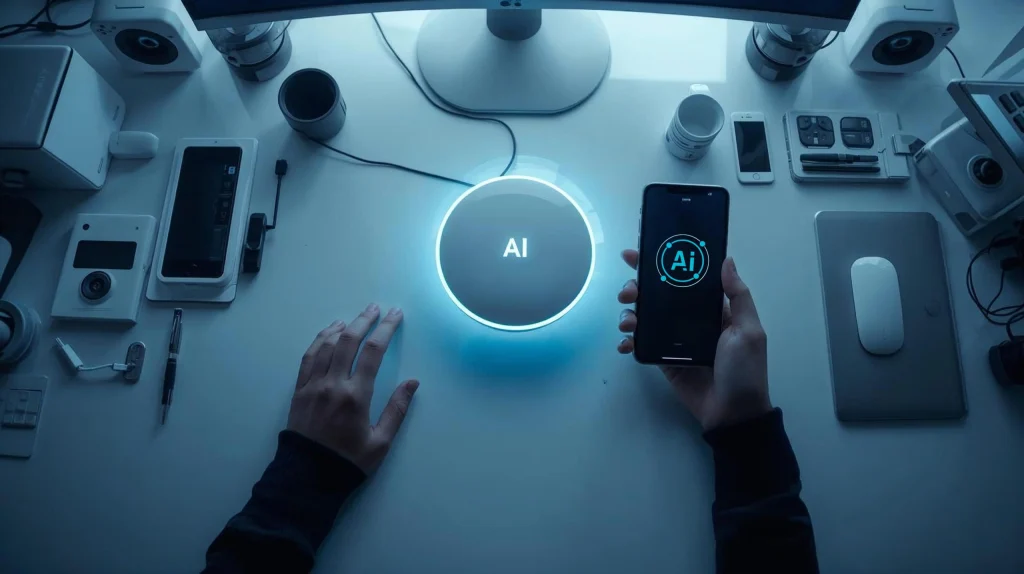
Once you’ve learned how to fix smart home AI hub setup problems, keeping your system stable is the next challenge. Even a properly configured smart home AI hub setup can lose contact with devices when small details are overlooked. These simple pairing strategies will help maintain a reliable connection and ensure your entire smart network stays synced and responsive.
| Tip | Why It Works | How to Apply |
|---|---|---|
| Pair Close to the Hub | Strong signal ensures faster device recognition and fewer retries. | Move within 2 meters of the hub before connecting new devices. |
| Use the Same App Ecosystem | Mixing apps (e.g., Alexa + Tuya) often breaks automation rules. | Stick to one main platform when possible for better AI coordination. |
| Label Devices Clearly | Helps AI routines identify the correct device (“Lamp Living Room” vs. “Lamp 1”). | Rename devices right after pairing to avoid confusion later. |
| Test Voice Commands | Ensures your assistant understands new additions immediately. | After pairing, say “Turn on [device name]” to confirm successful linking. |
Soft Tip: If your smart home AI hub setup includes devices from multiple brands, enable Matter protocol in settings — it standardizes communication and reduces pairing errors across different ecosystems.
5. Mistakes to Avoid When Configuring AI Smart Hubs
Even when you finally fix smart home AI hub setup errors, small missteps can undo your progress fast. Here are the most common mistakes users make — and how to avoid them for a stable, frustration-free experience.
| Common Mistake | What Happens | Better Practice |
|---|---|---|
| Ignoring Firmware Updates | Leads to unstable automations or failed device detection. | Set auto-updates for both the hub and each connected device. |
| Overloading Wi-Fi | Too many devices on one router cause dropouts and lag. | Distribute devices between 2.4 GHz and 5 GHz or add a mesh system. |
| Skipping Privacy Settings | Some hubs won’t connect until permissions are confirmed. | Review app permissions after setup; allow local network access. |
| Mixing Unverified Brands | Cheap clones often don’t follow Matter or Zigbee standards. | Stick with certified brands from Amazon or verified marketplaces. |
| No Backup Plan | Factory resets erase all routines and device names. | Export your hub configuration to cloud or SD card after setup. |
Soft Tip: After you fix smart home AI hub setup, note down your device names and routines in a document or app like Notion AI — it saves you from redoing everything if you ever switch hubs.
6. The Ethical Side of AI-Driven Smart Homes
Fixing your smart home AI hub setup is only part of the story — the real challenge is deciding how much control we give these systems over our personal spaces. Every connected light, thermostat, or voice assistant gathers data, often more than we expect. Understanding this side of automation helps us use technology wisely, not blindly.
When your smart home AI hub setup manages routines like locking doors or tracking motion, it’s processing highly sensitive information. Some hubs store data locally, while others rely on cloud servers that analyze voice commands and behavioral patterns. Always review your privacy settings: disable unnecessary cloud backups and turn off “data sharing for improvement.” These small actions protect your home’s efficiency and your privacy.
Soft Tip: Before linking new devices, check the app’s privacy or permissions section to understand what your smart home AI hub setup sends outside your network — it’s the simplest way to stay aware and in control.
At AI Digital Space, we believe ethical AI use starts with awareness. Smart homes should enhance comfort, not silently monitor habits. Choosing hubs with transparent privacy options (like Home Assistant Green or Apple HomeKit) is a step toward a safer, smarter future.
For more context on responsible automation, check our post on AI Tools and Digital Privacy — a must-read for anyone building a connected home responsibly.
7. Final Recommendations + Trusted AI Hubs That Work Best
Now that you know how to fix smart home AI hub setup issues and keep devices stable, let’s look at reliable hubs that make automation smooth and consistent. These models have proven compatibility, regular firmware updates, and transparent privacy settings — ideal for both beginners and advanced users.
| Smart Hub | Key Features | Best For |
|---|---|---|
| Home Assistant Green | Local control, Matter & Zigbee support, privacy-first platform. | Users who want open-source flexibility and full data ownership. |
| Aqara Hub M3 | Multi-protocol bridge, smooth Apple HomeKit and Alexa integration. | Cross-platform users needing wide device compatibility. |
| SwitchBot Hub Mini | Compact, affordable, and automates IR devices easily. | Renters or small-space setups with mixed brand devices. |
| Amazon Echo Hub | Touchscreen interface, native Alexa routines, strong ecosystem. | Households already invested in Amazon smart devices. |
Soft Tip: When selecting a new hub, always confirm that it supports the Matter protocol — it’s the key to keeping your smart home AI hub setup compatible with both current and future devices. This ensures you’ll never need to completely fix smart home AI hub setup errors caused by outdated connectivity standards.
These hubs have been thoroughly reviewed and researched for reliability, ease of installation, and long-term stability. Combine any of them with solid Wi-Fi, updated firmware, and transparent privacy settings, and your smart home AI hub setup will finally perform as intended — intelligent, efficient, and secure.
8. FAQ: Fix Smart Home AI Hub Setup – Quick Answers to Common Questions
Here are the most common questions readers ask about how to fix smart home AI hub setup problems, with short and actionable answers.
Q: Why does my smart home hub keep losing connection?
A: Most disconnections come from weak Wi-Fi or devices switching between 2.4 GHz and 5 GHz networks. Keep your hub and all gadgets on the same frequency, and reboot the router once a week to maintain stability.
Q: Can I fix a smart home AI hub setup without factory resetting everything?
A: Yes — start by rebooting both the router and the hub. Then remove only the unresponsive device from the app instead of resetting the entire system. This often restores communication without losing your routines.
Q: What’s the safest way to reconnect multiple devices after a hub update?
A: Reconnect one device at a time, waiting a few seconds between each pairing. Updating firmware first prevents sync errors and keeps your automations running smoothly.
Q: How do I keep my data private while using AI home automation?
A: Choose hubs that allow local processing, like Home Assistant or Apple HomeKit. Turn off unnecessary cloud backups and review privacy settings regularly. For more details, read our Digital Privacy guide.
Q: Which hub is best for beginners in 2025?
A: For easy setup and stable performance, the Aqara Hub M3 and SwitchBot Hub Mini are top choices. Both support Matter and integrate smoothly with major assistants. Compare their features in our Best Smart Home Assistants 2025 review.