

Mirko
AI Tech Writer
You've heard the hype about Claude AI—but does it actually make you faster, or just add another subscription to ignore? After testing 17 real-world workflows, I found where Claude beats ChatGPT (and 3 cases where it doesn't). This guide cuts through the noise: you'll get copy-paste prompts, honest pricing breakdowns, and workflow blueprints that save hours every week. No fluff, no affiliate bias—just measurable productivity gains you can implement today.
Best for: Technical writing, code reviews, research summaries, and multi-step workflows · Free plan: 5 messages/hr · Pro: $20/mo for unlimited access · API available for power users
📋 What's Inside
Some links are affiliate links · You support the blog at no extra cost · Details
📘 Table of Contents
1. Intro – What Claude AI is (in 60 seconds)
The way we work is changing fast — and Claude AI has become one of the most practical tools for anyone who needs clear thinking, fast writing, and fewer wasted hours. At AI Digital Space, we don’t care about hype: we care about what actually saves time in real life — emails, docs, meetings, research, and planning.
Built by Anthropic, Claude AI stands out for long-context understanding (it can handle large documents without losing the thread) and a tone that feels surprisingly natural when you need polished output. If you want to go deeper on how Claude works and what it’s designed for, you can check Anthropic’s official Claude documentation.
Here’s the key idea: Claude isn’t just “another chatbot”. Used well, it becomes a work multiplier — turning messy notes into a plan, turning a long PDF into decisions, or turning a rough draft into something you can actually send. And if you care about working on the move, privacy, or low-signal situations, you’ll also love our guide on offline AI tools.
In this guide (updated March 2026), we’ll break down 17 practical ways to use Claude AI to work faster — with copy-paste prompts, quick workflows, and a simple “what to use when” setup.
2. Quick Verdict: Should we use Claude AI?

Yes — we should use Claude AI if our goal is better writing, cleaner thinking, and faster output from long documents. It's not just a chatbot for quick answers — it shines when we're dealing with messy notes, big PDFs, multi-step planning, and "make this clearer" work.
✅ Best for
- Summarizing long docs (reports, contracts, meeting notes)
- Writing + rewriting with a human tone (emails, proposals, content drafts)
- Thinking support: turning chaos into clear steps
- Code help + structured reasoning (especially when you need explanations, not just snippets)
⚠️ Not ideal for
- People who only need one-line answers and never work with documents
- Anyone who expects "perfect facts" without verifying sources (we still need human judgment)
- Work that requires sensitive data without proper policies (always follow company rules)
In practical terms, we can use Claude AI directly on claude.ai or via integrations with tools like Notion, Slack, and Asana. The workflow is simple: upload a file, ask for a structured output, and refine it in 1-2 passes. That's where Claude AI becomes a real productivity tool, not a "fun toy".
Our rule of thumb: treat Claude as a co-pilot, not a replacement — it helps us think faster, write better, and execute smarter.
If we want a future-proof productivity stack, it's worth understanding why everyone's talking about open-source AI models — it changes what we can run, customize, and trust long-term. Learn more about Claude's architecture and safety approach.
Want to try Claude AI in 2 minutes?
Quick test: paste an email or upload a document and ask Claude AI for key points, action items, and a clean final draft.
3. 17 Practical Ways to Work Faster with Claude AI
Claude AI isn’t popular because it “chats well” — it’s popular because it finishes work. When we use it the right way (with clear inputs + the right output format), Claude AI can turn long documents, messy notes, and vague ideas into ready-to-use results in minutes.
Below are 17 practical ways to work faster with Claude AI — the kind of workflows we can repeat daily without overthinking.
| # | Practical way (what we do) | What to ask Claude AI | Why it saves time |
|---|---|---|---|
| 1 | Turn long docs into a 1-page brief | “Summarize this into: key points, risks, decisions, next steps.” | Instant clarity without rereading. |
| 2 | Extract action items from meetings | “Create action items with owner, deadline, priority. Output a table.” | No more “what did we decide?” loops. |
| 3 | Rewrite emails in your tone | “Rewrite: shorter, confident, polite. Give 2 versions.” | Cleaner comms in 60 seconds. |
| 4 | Turn bullet notes into a structured doc | “Turn these notes into a doc with H2s, steps, checklist.” | From chaos to publish-ready format. |
| 5 | Create a project plan in minutes | “Build a 14-day plan with milestones + daily tasks.” | Planning becomes copy-paste simple. |
| 6 | Convert goals into a weekly routine | “Create a weekly routine with time blocks and priorities.” | Less decision fatigue. |
| 7 | Compare options (tools/vendors) fast | “Compare A vs B in a table: pros, cons, best for.” | Decision-making gets faster. |
| 8 | Draft an SOP / step-by-step guide | “Create an SOP with steps + common mistakes.” | Repeatable process, less rework. |
| 9 | Summarize research into a POV | “Give me a point of view: what matters + what to ignore.” | Cuts noise, keeps signal. |
| 10 | Turn feedback into a priority list | “Turn this into fix now / fix next / ignore with reasons.” | Instant prioritization. |
| 11 | Generate multiple headlines/hooks | “Give me 15 headline options with different angles.” | Higher CTR with less effort. |
| 12 | Build a content brief + outline | “Create a brief: audience, intent, outline, FAQs.” | No blank-page anxiety. |
| 13 | Turn a doc into a slide outline | “Create a 7-slide outline with titles, bullets, speaker notes.” | Fast presentations. |
| 14 | Create checklists for recurring tasks | “Make a checklist + QA checks for this process.” | Fewer mistakes, faster execution. |
| 15 | Explain code in plain English | “Explain what this code does + edge cases + improvements.” | Less debugging time. |
| 16 | Rewrite for clarity (no fluff) | “Rewrite: clearer, shorter sentences, keep my tone.” | Professional output in minutes. |
| 17 | Create a “next best action” plan | “Given this situation, list the next 5 actions and why.” | Stops overthinking, starts execution. |
| Tip: For best results, end your prompt with the output format you want (e.g., table, checklist, or step-by-step). That’s the easiest way to make Claude AI “work like a tool,” not a chat. | |||
Each of these workflows is simple, but the compounding effect is real: Claude AI helps us move from “thinking about the work” to actually finishing it. The fastest wins come when we ask for a specific format (table, checklist, steps) instead of a generic answer.
At AI Digital Space, we’ve seen Claude AI perform best when we treat it like a workflow assistant: we feed it context once, then reuse the same structure daily — summaries before meetings, action items after calls, and drafts that only need small edits.
4. Prompt Pack (Copy-Paste): the fastest wins
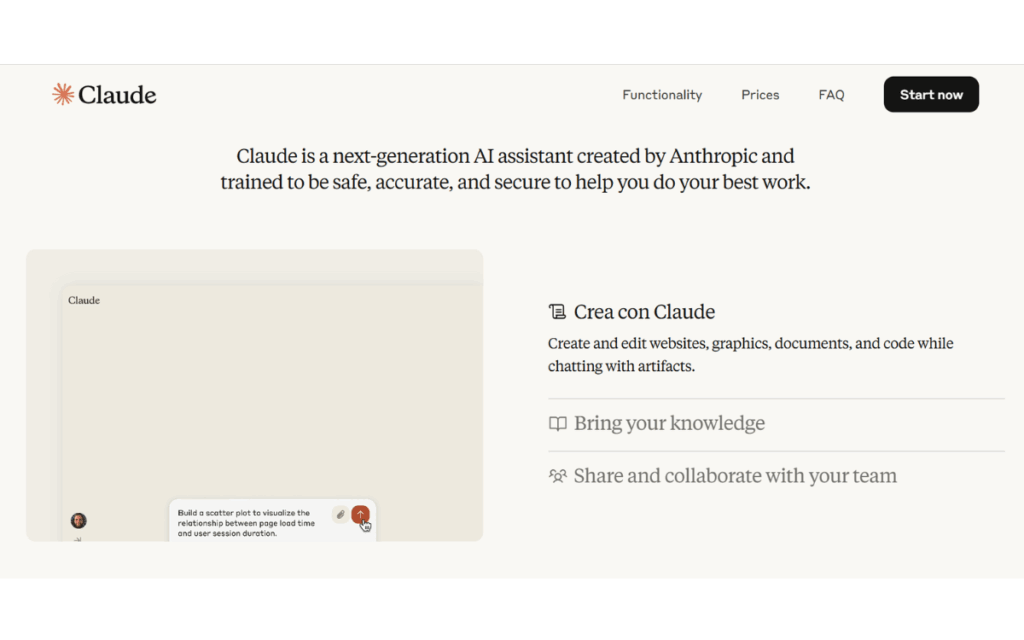
What makes Claude AI truly useful is how quickly it turns messy inputs into clean outputs — as long as we ask for the exact format we want. That’s the “secret”: not fancy prompts, just clear instructions + output control.
If you want to level up beyond copy-paste, this is the single best reference: Anthropic’s official prompt engineering guide.
How to use this pack: pick one prompt, replace the [brackets], and end with “Output as a table/checklist/steps” — you’ll instantly get more consistent results.
Business & Operations (meetings, planning, decisions)
1) Meeting → action items (table)
You are my operations assistant. Summarize the notes below into a table with: Action, Owner, Deadline, Priority, Notes.
Notes: [PASTE NOTES]
Output as a table.
2) One-page brief from a long doc
Read this document and produce a 1-page brief: TL;DR, Key Points, Risks, Decisions Needed, Next Steps.
Document: [PASTE OR UPLOAD]
3) Decision support (fast and rational)
I’m deciding between [Option A] and [Option B]. Create a comparison table with: Pros, Cons, Cost/Risk, Best for, My recommendation.
Context: [PASTE CONTEXT]
Content Creation & Marketing (clarity, hooks, outlines)
4) Rewrite to be clearer (same meaning)
Rewrite this to be clearer and more direct. Keep my tone. Remove repetition.
Text: [PASTE TEXT]
Output: 1 improved version + 3 bullet key changes.
5) 15 viral hooks (different angles)
Generate 15 hook lines for this topic. Use different angles: curiosity, contrarian, social proof, “mistake”, “quick win”.
Topic: [YOUR TOPIC]
6) SEO outline (reader-first)
Build a reader-first outline for a blog post targeting: [FOCUS KEYWORD].
Include: Quick Verdict, Quick Picks, How-To steps, FAQ, Verdict.
Output as H2/H3 headings.
Coding & Product (debug, explain, document)
7) Explain code like I’m busy
Explain what this code does in plain English. Then list edge cases and 2 improvements.
Code: [PASTE CODE]
8) Debug checklist
I have this bug: [DESCRIBE BUG].
Create a step-by-step debug checklist and the most likely causes.
Output as a checklist.
9) Documentation draft
Write clean documentation for this function/module: Purpose, Inputs, Outputs, Examples, Common pitfalls.
Code/spec: [PASTE]
Education & Research (summaries, notes, synthesis)
10) Academic paper → practical takeaways
Summarize this paper into: What it says, Why it matters, Limitations, What to do with it.
Text/PDF: [PASTE OR UPLOAD]
11) Notes → study sheet
Turn these notes into a study sheet with: definitions, examples, quiz questions, summary.
Notes: [PASTE]
12) Compare multiple sources
Compare these sources and produce: agreements, disagreements, what’s most credible, what’s missing.
Sources: [PASTE LINKS/TEXT]
The “output control” prompts (these are cheat codes)
13) “Ask me 5 questions first” (avoids bad outputs)
Before you answer, ask me 5 clarifying questions you need to produce the best result.
14) “Give me 3 versions”
Provide 3 versions: (1) short, (2) balanced, (3) detailed — and tell me which is best for my goal.
15) “Make it a checklist”
Convert this into a checklist that I can follow step by step: [PASTE]
16) “Make it a table”
Convert this into a table with clear columns and short entries: [PASTE]
17) “Quality check”
Review your output for: missing info, unclear parts, assumptions, risks. Then provide a revised version.
5. Claude Code: what it is + workflows
Claude Code is Claude AI in “builder mode”: instead of only chatting, it can help you work across a real codebase with multi-file context and step-by-step execution (the key is to keep it structured and safe). If you want the official reference from Anthropic, here it is: Claude Code official documentation.
What Claude Code is best at
Fixing bugs with a clear plan (not random edits)
Refactoring without breaking everything
Explaining unfamiliar code fast (so you can move on)
Writing docs + tests after the work is done
Quick rule (saves hours): ask Claude Code to propose a plan first, then approve changes step by step.
3 workflows we actually use (copy-paste prompts)
Workflow 1 — Bug fix (fast but safe)
Prompt
“Scan the repo for the files involved in [BUG]. Explain likely causes, then propose a 3-step fix plan. Don’t change code until I approve.”
Why it works: you get diagnosis + a clean plan before any risky edits.
Workflow 2 — Refactor without regressions
Prompt
“Refactor [MODULE/FILE] for readability and maintainability. Keep behavior the same. Add a small test plan and list edge cases. Show a diff-style summary of changes.”
Why it works: refactor becomes controlled, not chaotic.
Workflow 3 — Documentation + onboarding
Prompt
“Create a short onboarding doc for this project: setup, run, folder structure, key scripts, common errors. Keep it beginner-friendly.”
Why it works: documentation is the first thing people skip — and the first thing that slows teams down.
Mini checklist (so Claude Code outputs better results)
Be specific: name the file, module, feature, or bug
Ask for steps first, not instant edits
Request the output format: checklist / table / diff summary
End with: “Ask me questions if anything is unclear.”
6. Claude Pricing: Free vs Pro (what to pick)
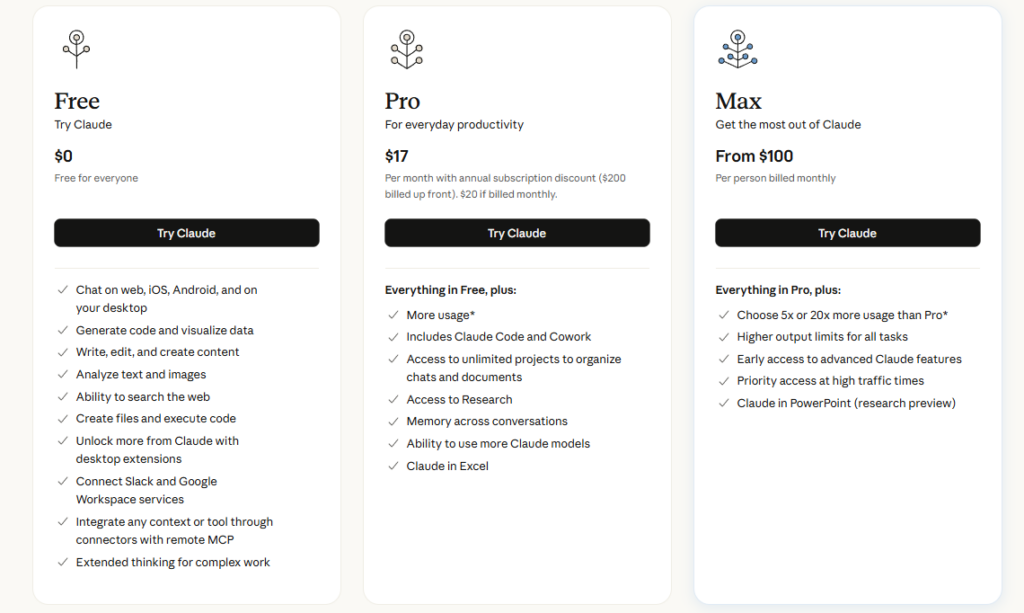
Claude AI has a free plan and a Pro plan, and the “best one” depends on how you work. The simplest way to choose is to look at how often you hit limits and whether you rely on big documents + long sessions. For the latest official details, you can always double-check Claude’s plans & pricing.
Quick Verdict (most people)
Pick Free if you use Claude AI a few times a week for short tasks.
Pick Pro if you use Claude AI daily, work with long docs, or want fewer interruptions from usage limits.
| What matters | Free | Pro |
|---|---|---|
| Best for | Occasional use, quick tasks, testing Claude AI | Daily productivity, long sessions, heavy documents |
| Usage | Limited usage (you may hit caps) | More usage / fewer limits for consistent work |
| Projects & organization | Basic | More advanced organization features |
| Power features | Core experience | Extra features & broader access (varies by plan) |
| Our pick | Start here if you’re not sure | Upgrade if Claude is part of your daily workflow |
| Tip: If you hit limits even once per day, Pro usually pays for itself in saved time. For current plan details, see the official pricing page. | ||
Choose Free if:
you use Claude AI a few times per week
you mainly do short rewrites, summaries, quick brainstorming
Choose Pro if:
you use Claude AI every day
you rely on long documents, big context, or long sessions
you want fewer interruptions from usage limits
For the most up-to-date plan details, check Claude’s official pricing page.
7. Opus vs Sonnet: which model for which task
When we say “Opus vs Sonnet”, we’re really choosing between depth and efficiency. In simple terms: Opus is the heavy-duty option for complex, high-stakes work, while Sonnet is the fast, reliable default for day-to-day productivity.
If you want the official recommendation from Anthropic, here’s the best reference: Choosing the right Claude model.
Quick verdict (what we pick most days)
Pick Sonnet if you want the best balance for writing, summaries, planning, and “lots of tasks” workflows.
Pick Opus when the task is hard, multi-step, and you’d rather pay more (or use more resources) to reduce mistakes.
| Task type | Use Sonnet when… | Use Opus when… |
|---|---|---|
| Daily productivity | You need fast writing, clean summaries, planning, repeatable workflows | You’re handling a complex project and want maximum depth and consistency |
| Large documents | You’re processing many docs quickly and want solid, efficient outputs | You need deeper cross-doc reasoning (legal/finance/technical) with fewer misses |
| Coding | You want speed for debugging, small changes, explanations, docs | You’re doing high-complexity refactors, multi-file reasoning, or agentic tasks |
| Best “default” choice | Yes — best balance for most people | Only when the task is “worth the premium” |
| Rule of thumb: Start with Sonnet. Switch to Opus only when you need deeper reasoning, higher reliability, or long-running complex work. | ||
If you’re unsure, answer these two questions:
Will a mistake cost me real time/money/reputation?
→ If yes, lean Opus.Do I need to do many tasks quickly (summaries, drafts, planning)?
→ If yes, pick Sonnet.
(And if you want the official “capabilities vs speed vs cost” framework, Anthropic explains it here.)
8. Claude App: daily setup & best habits
If we want Claude AI to actually save time (not just feel impressive), we need a repeatable daily setup. The goal is simple: fewer tabs, fewer rewrites, and a “default workflow” we can reuse every day — especially for emails, documents, and planning.
8.1 The 5-minute setup (do this once)
Step 1 — Create 3 “default” chats
Daily Brief (planning + priorities)
Writing & Comms (emails, rewrites, tone)
Documents (PDFs, notes, summaries)
Step 2 — Save one “output format” rule
Use this line at the end of most prompts (it improves output instantly):
“Output as a table + action items + next steps.”
Step 3 — Set a simple boundary
Claude AI works best when we tell it what not to do:
“If you’re unsure, ask me 3 clarifying questions before answering.”
8.2 The 3 habits that make Claude AI “stick”
Habit #1 — Morning: 90-second Daily Brief
Prompt:
“Here are my tasks today: [LIST]. Create a plan with time blocks, top 3 priorities, and 1 ‘quick win’.”
Why it’s powerful: it reduces decision fatigue and helps us start faster.
Habit #2 — Before meetings: 1-page prep
Prompt:
“Summarize this doc into: goals, risks, questions to ask, and a 30-second summary.”
Upload: agenda / notes / PDF.
Why it’s powerful: we show up prepared without spending 30 minutes reading.
Habit #3 — End of day: clean wrap-up
Prompt:
“Turn today’s notes into: what I completed, what’s blocked, and next actions for tomorrow.”
Why it’s powerful: tomorrow starts “already half done”.
8.3 The “copy-paste” daily templates (fast wins)
Use these as mini commands:
Email polish: “Rewrite this email: shorter, confident, polite. 2 versions.”
Doc summary: “Summarize into TL;DR + key points + risks + next steps.”
Decision table: “Compare A vs B in a table. Give a recommendation.”
Re-ask upgrade: “Expand point #3 with examples and keep it concise.”
8.4 Quick privacy note (keep it practical)
If we’re using Claude AI for work, the safe habit is: don’t paste sensitive personal data or confidential company info unless you’re allowed to. For the official reference, see Anthropic’s privacy policy.
Try the “Daily Brief” habit today
Paste your task list and ask Claude AI for time blocks, top 3 priorities, and next steps. It’s the fastest way to feel a real productivity boost.
9. Claude API: who needs it (and why)

Most people don’t need the Claude API — until they do. If you’re happy using Claude AI in the chat interface, you can stop there. The Claude API becomes valuable when we want to embed Claude into our tools, automate repeatable work, or process content at scale.
If you want the official starting point, here are the Claude API docs.
You probably don’t need the Claude API if:
you use Claude AI occasionally for writing/summaries
you prefer a simple chat workflow
you don’t need automation
You should consider the Claude API if:
you want to automate work across tools (CRM, email, docs, dashboards)
you need the same workflow repeated 100+ times
you want Claude inside your product (SaaS, internal tool, customer support)
Real-world use cases
1) Automations for teams
auto-summarize meeting notes → send action items to Slack
turn tickets into structured tasks (owner, priority, due date)
generate weekly reports from raw notes + metrics
2) Content & SEO workflows
turn research into outlines, briefs, FAQs at scale
generate snippet variants (title/meta) for CTR tests
rewrite content into multiple tones/styles while keeping facts consistent
3) Customer support & operations
draft replies based on internal knowledge base
classify incoming requests (refund, bug, feature request)
extract key fields from messy messages (order ID, issue type, urgency)
The Claude API isn’t about “better answers”. It’s about turning Claude AI into a repeatable system — so the work happens automatically while we focus on decisions.
Mini checklist before using an API (practical + safe)
Define the output format (table / JSON / checklist)
Add a “verify” step for sensitive tasks (don’t auto-send without review)
Avoid sending confidential data unless your policy allows it
Start small: 1 workflow → measure time saved → then scale
If you’re not building automations yet, the fastest move is to test the workflow inside Claude AI first (prompts + output formats). When it works reliably, then it’s worth moving it to an API.
10. Claude vs ChatGPT for productivity
Both tools are top-tier — but they “win” in different productivity scenarios. Claude AI tends to shine when we need structured thinking, long-document work, and clean professional outputs. ChatGPT is often the faster pick for rapid ideation, broad experimentation, and a flexible workflow across many tasks (official overview here).
Quick verdict:
If your daily work involves documents, summaries, planning, and serious writing, Claude AI is usually the smoother productivity choice. If your day is more about creative iteration and quick experimentation, ChatGPT can feel more dynamic.
If you’re also comparing the bigger ecosystem (not just Claude vs ChatGPT), we break it down here: ChatGPT vs Gemini vs Seedream 4.0.
| Feature | Claude AI | ChatGPT |
|---|---|---|
| Best for productivity | Long documents, structured summaries, planning, “clean final drafts” | Fast brainstorming, iteration, broad experimentation across many tasks |
| Writing & tone | Often more consistent for professional tone and structured outputs | Very flexible tone; great for creative and fast variations |
| Docs & files | Strong for document-heavy workflows and long-context work | Strong, especially when you need quick multi-purpose help |
| Coding support | Great when you need reasoning + structured plans (and Claude Code workflows) | Great for fast debugging ideas, snippets, and broad problem exploration |
| Our recommendation | Use as your “work finisher” (docs → decisions → next steps) | Use as your “idea engine” (iterate → explore → generate options) |
| Best combo: brainstorm in ChatGPT, then finalize in Claude AI with a structured output (table + action items + next steps). | ||
Pick Claude AI if you:
work with long docs, PDFs, meeting notes, reports
want structured outputs (tables, checklists, action plans)
care about clean tone for emails, proposals, client comms
Pick ChatGPT if you:
need rapid iteration and idea generation
bounce between many tasks and want a flexible “all-round” assistant
11. Limits, privacy & safe use (quick notes)
Claude AI is powerful, but like any AI assistant it has limits. If we treat it like a co-pilot (not an oracle), it becomes far more reliable — and safer to use in real work.
11.1 The 5 limits to remember (so we don’t waste time)
It can sound confident and still be wrong. For facts, ask for sources or verify key details.
Garbage in = garbage out. If the input is messy, ask Claude AI to ask you 3 clarifying questions first.
Context ≠ permanent memory. Don’t assume it “remembers” across new chats unless you restate the essentials.
Sensitive topics need a human check. Legal/medical/finance: use it for drafting and structure, not final decisions.
Policy + compliance matters. In work settings, follow your company rules before sharing data.
11.2 Privacy: what we should and shouldn’t paste
Safe to paste (usually)
public information
drafts you wrote yourself
meeting notes without sensitive details
anonymized data (remove names, IDs, addresses)
Avoid pasting
passwords, API keys, 2FA codes
personal IDs, banking details, medical details
confidential company info (unless explicitly allowed)
anything you wouldn’t be comfortable seeing in a screenshot
Quick habit: replace sensitive fields with placeholders like [CLIENT NAME], [ORDER ID], [PRICE].
11.3 The “safe prompt” that prevents bad outputs (copy-paste)
Use this at the end of important prompts:
“If anything is unclear or risky, ask me 3 questions before answering. If you’re not sure, say so.”
It reduces hallucinations and forces clarity.
11.4 Best practice: use Claude AI like a workflow tool
To keep outputs consistent:
Ask for a format: table / checklist / step-by-step
Ask for a quick self-check: “List assumptions and what could be wrong.”
Do a final pass: “Rewrite shorter, keep my tone, remove repetition.”
12. FAQs
Q: Is Claude AI free to use?
A: Yes. Claude AI has a free plan that’s great for testing the core experience. If we use Claude AI daily (especially with long documents), the paid plan usually feels smoother because we hit fewer limits.
<br>
Q: What is Claude AI best for in real work?
A: Claude AI is best for document-heavy productivity: summarizing long files, drafting clean emails, turning notes into plans, and producing structured outputs like tables, checklists, and action items.
<br>
Q: What is Claude Code (and who is it for)?
A: Claude Code is designed for developer workflows: understanding codebases, debugging with a plan, refactoring safely, and generating documentation. It’s most useful when we work on multi-file projects and want a structured, step-by-step approach.
<br>
Q: Can I upload PDFs and files to Claude AI?
A: Yes. We can upload PDFs, text files, and other documents, then ask Claude AI to summarize them, extract insights, compare sections, or turn them into action items.
<br>
Q: Does Claude AI “remember” things across chats?
A: Not automatically. Claude AI can keep context within a conversation, but for important tasks we should restate key details (goals, constraints, tone) at the start of a new chat.
Q: Opus vs Sonnet: which model should I use?
A: Start with Sonnet for day-to-day productivity (writing, summaries, planning). Switch to Opus when the task is complex, high-stakes, or needs deeper reasoning and consistency.
Q: How much does Claude cost (Free vs Pro)?
A: Pricing can change, but the decision is simple: Free is fine for occasional use, while Pro makes sense if we rely on Claude AI daily or frequently hit usage limits.
Q: Is Claude AI better than ChatGPT for productivity?
A: It depends on the workflow. Claude AI often wins for long documents, structured planning, and polished professional writing. ChatGPT often wins for rapid brainstorming, fast iteration, and broad creative exploration.
Q: Can I use Claude AI for business and team workflows?
A: Yes. Claude AI works well for meeting summaries, project plans, internal docs, and standard operating procedures—especially when we ask for structured outputs (tables, checklists, timelines).
Q: Does Claude AI store my data?
A: Claude follows Anthropic’s privacy and data handling policies. As a safe habit, we should avoid pasting passwords, API keys, personal IDs, or confidential company information unless we’re explicitly allowed to.
Q: What’s the fastest way to get better answers from Claude AI?
A: Ask for a format. End prompts with: “Output as a table + action items + next steps.” If the task is important, add: “Ask me 3 clarifying questions before answering.”
12. Final Verdict + next step
If we want an AI assistant that feels serious, reliable, and genuinely useful for day-to-day work, Claude AI is an easy yes. The real win isn’t “better answers” — it’s getting structured output faster: summaries, action items, clean drafts, and plans we can actually execute.
Our final verdict:
Use Claude AI as your work finisher (docs → decisions → next steps).
Use your other tools as the idea engine when you need speed and experimentation.
Together, that’s a productivity stack that feels modern — without becoming chaotic.
Next step (do this in 2 minutes)
Pick one real task you already have today and run this exact test in Claude AI:
Paste a messy input (meeting notes, email draft, or a doc excerpt).
Ask: “Turn this into a table with key points + action items + next steps.”
Then re-ask: “Rewrite the final version shorter and clearer, same tone.”
If that test saves you even 10 minutes, you’ll know Claude AI is worth keeping in your daily workflow.
Ready to try Claude AI?
Start with the 2-minute test above. If it clicks, Claude AI becomes the easiest “daily upgrade” for writing, docs, and planning.
🚀 Build Your AI Productivity Stack
Claude AI is one of those tools that doesn't just feel smart — it actually helps us finish work faster when we use it with the right structure (tables, checklists, action items). The best part is that we don't need a complicated setup: once we lock in a few reusable prompts and habits, Claude becomes a daily workflow upgrade we can rely on. If you want to go deeper, the next step is simple: build a small "AI productivity stack" around Claude — one tool for planning, one for automation, and one for comparing the wider AI landscape.