

 Published on: December 21, 2025
Affiliate Disclaimer:
Some of the links in this post are affiliate links. This means we may earn a small commission if you click through and make a purchase, at no extra cost to you. We only recommend tools we truly believe offer value.
1. Why AI Agent Workflows Fail and How We Can Fix Them
Trying to set up an AI agent workflow can feel great at first… until emails don’t turn into tasks, reminders duplicate, or your calendar ignores half the events. I went through this too, and the biggest realization was simple: AI doesn’t magically understand how we organize things. It only works when we give it a clear structure.
Here’s the core issue in plain language:
email labels rarely match task categories
task lists use different names than calendar events
personal vs work calendars confuse AI agents
messy inbox = messy workflow
So the problem isn’t the AI agent workflow itself — it’s the foundation it relies on. If your inputs are unorganized, automation turns into chaos instead of support.
A quick example:
If your Gmail uses “Important,” “Priority,” and “To-Do,” but your task app uses “Urgent,” “Today,” and “Later,” the AI doesn’t know how to map them. That mismatch creates missed tasks, wrong deadlines, or double reminders.
The good news?
Once you align the basics — labels, lists, and calendars — you’ll see:
fewer sync issues
cleaner task generation
more accurate reminders
predictable automation
There’s a helpful reminder from Zapier’s automation blog showing how unpredictable triggers become when fields aren’t mapped well. It’s a good example of why structure matters more than fancy AI features.
Our goal in this guide:
help you build an AI agent workflow that feels like a real assistant, not another layer of noise. And we’ll do it step-by-step, keeping things simple and practical.
A practical guide to mapping triggers and actions — the mindset you need before adding AI agents.
2. The hidden chaos behind AI agent workflows
Before we fix anything, we need to name the real problem: most of the chaos doesn’t come from the AI agent workflow, it comes from how our tools are already set up.
Here’s what usually happens:
emails become tasks in three different lists
due dates don’t land on the main calendar
reminders fire at random times or twice
you have “urgent” in email, “priority” in tasks, and “ASAP” in notes
From the AI’s point of view, this is just noise. The agent workflow sees labels, dates, and projects that don’t match, so it guesses. That’s when tasks disappear, events don’t sync, or an old project keeps getting new tasks you don’t care about anymore.
The second issue is multiple accounts. Many of us have:
work Gmail + personal Gmail
a main calendar + shared calendars
two or three task apps “just to try them”
When an agent doesn’t know which inbox or calendar is “the source of truth”, it spreads automation everywhere. The result: missed emails in the right account, meetings saved in the wrong time zone, and tasks you never see.
A simple mindset shift helps: one primary inbox, one primary calendar, one primary task manager. Every agent workflow should point to those three first. If you want a quick reference, Google’s guide on creating a single primary calendar is a good place to start.
3. The core stack your AI agent workflow needs
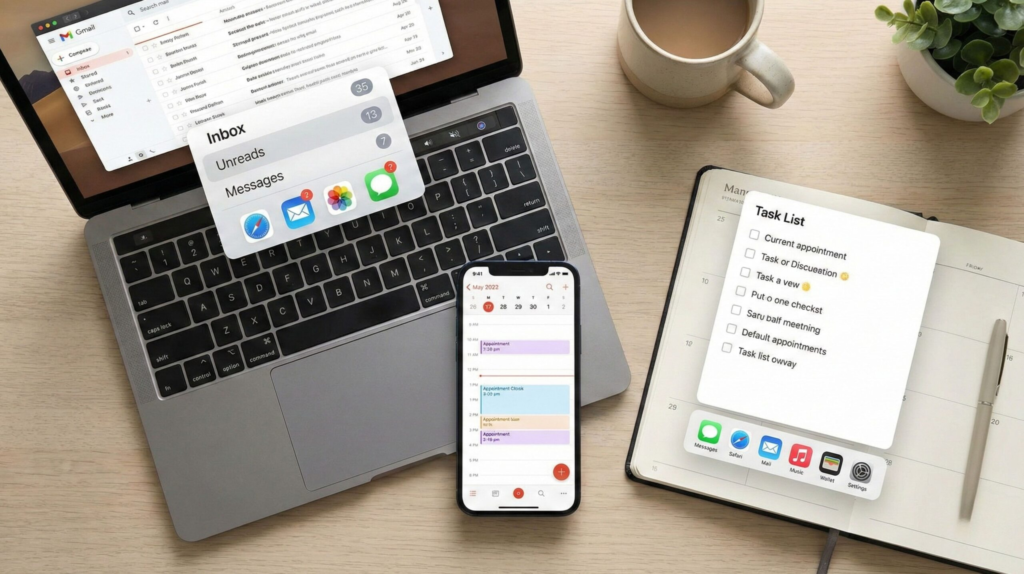
Now that we know where chaos comes from, we can give your agent workflow a clean base. Before you think about “smart agents,” you only need three reliable pillars:
one primary email
one primary calendar
one primary task manager
Once those are clear, the AI agent workflow can finally behave in a predictable way.
1. Email – the inbox where everything starts
Pick the account that really matters for work (usually Gmail or Outlook) and treat it as your “command center.” All rules, filters, and AI summaries should point here. Other inboxes can be used, but they shouldn’t drive the workflow.
2. Calendar – the single source of time truth
Choose one main calendar (Google Calendar or Outlook) and make sure every meeting, reminder, and deadline lands there. Your workflow will use this to avoid overlaps and missed events.
3. Task manager – where decisions become actions
This is where AI-created tasks should live: Notion, Todoist, Akiflow, Motion, or Taskade. The tool doesn’t matter as much as the rule: one home for tasks. If you like a flexible workspace, our Taskade AI guide shows how tasks, notes, and projects can stay in one place.
Once this core stack is defined, the rest becomes easier. In the next section, we’ll connect these tools step by step so your workflow can move information smoothly from email → tasks → calendar without creating new chaos.
4. Step-by-step: connecting email, calendar, and tasks with an AI agent workflow
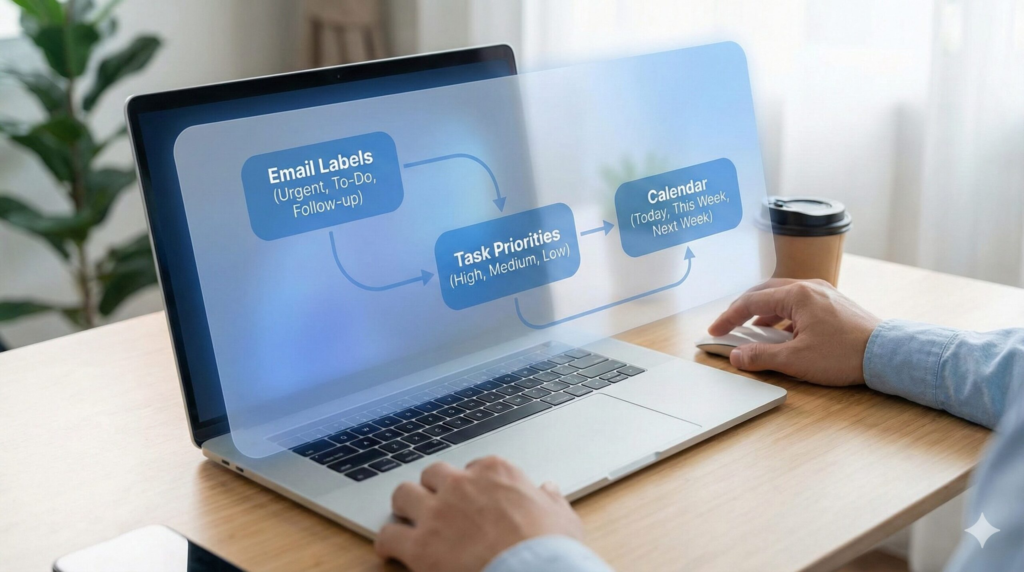
Now that the core stack is clear, we can start wiring everything together. The goal is simple: make your AI agent workflow move information from email → tasks → calendar without duplication or confusion. Here’s the cleanest way to start:
Step 1 — Set one primary inbox
Choose Gmail or Outlook as your main account.
Create three labels only:
Action
Waiting
Reference
Your workflow will use these labels to decide what becomes a task and what gets archived.
Step 2 — Map inbox labels to task priorities
This is where many automations fail.
Use a simple mapping:
| Email Label | Task Priority | Notes |
|---|---|---|
| Action | Today | High urgency |
| Waiting | Upcoming | Follow-up tasks |
| Reference | Someday | No deadlines |
This gives the workflow a clear rule set instead of guessing urgency.
Step 3 — Sync one calendar as the default destination
Make your task manager push deadlines to a single calendar.
Tools like Akiflow and Motion do this easily and avoid duplicate events.
Example:
“Every task with a due date becomes an event on Google Calendar.”
Step 4 — Test the workflow on a small scale
Don’t automate the entire inbox right away.
Start with:
10 emails
5 tasks
3 events
Confirm the AI agent workflow doesn’t duplicate or mislabel anything.
Step 5 — Add optional integrations last
Only when the basics are stable:
meeting recorders
note extractors
AI email summaries
task auto-prioritization
Many people rush this part. In my experience, adding features too early creates chaos instead of clarity. Keeping the workflow lean first is the smartest move.
With these steps, your workflow has a logical path:
email → task → calendar.
5. Common mistakes and smart tips for a stable AI agent workflow
Even with a clean stack, it’s easy to break a workflow without noticing. Here are the mistakes we see most often, plus simple fixes you can apply today.
Mistake 1 – Turning on every integration at once
If you connect email, calendar, tasks, notes, CRM, and Slack on day one, the AI agent workflow becomes impossible to debug.
Smart tip: start “small and boring” – email → tasks → calendar only. Add one extra tool per week and test it.
Mistake 2 – Letting AI change fields you depend on
Some tools let AI agents auto-edit titles, due dates, or priorities. That sounds helpful, but it often causes silent chaos.
Smart tip: lock your key fields. Let the AI agent workflow suggest changes in a note or comment, and you confirm manually.
Mistake 3 – No clear naming rules for projects and labels
If a project is called “Client A,” “A – Client,” and “A project” in three different apps, the automation won’t link them.
Smart tip: define one naming pattern and stick to it (for example: Client – Project – Year). Notion AI users can keep this consistent with simple templates.
Mistake 4 – Ignoring time zones and work hours
An AI agent workflow that doesn’t know your time zone will happily book tasks at midnight.
Smart tip: set default working hours in your calendar and task tool, and make sure the automation uses that same time zone.
Mistake 5 – No weekly review of what AI did
When AI runs in the background, it’s easy to miss when something breaks.
Smart tip: schedule a 10-minute weekly review:
scan new tasks created by the AI agent workflow
check a few events it added or moved
delete or adjust anything that looks off
Think of this as “training” the workflow. A short review keeps trust high and prevents slow, hidden drift that would otherwise push you back into manual mode.
6. The ethical side of AI agent workflows: data, control and trust
When we set up a workflow, we’re not just moving emails and tasks around. We’re also deciding which apps can read our messages, scan our calendars, and see who we work with. That has a real ethical and privacy impact, even if everything feels “normal” inside a productivity setup.
A simple rule helps: only give an AI agent the access you’d be comfortable giving a real assistant. If you wouldn’t hand a stranger your full inbox, don’t connect a random browser extension to every email and calendar either.
Before you switch on any AI agent workflow, it’s worth checking three things:
-
What data it sees – emails, attachments, contacts, internal docs?
-
Where that data is stored – on the vendor’s cloud, locally, or both?
-
How long it’s kept – is there a clear retention and deletion policy?
Most tools have a “security” or “privacy” page; it’s a good habit to scan those before trusting them with work or client information. If your company has its own rules (for example, no customer data in external AI tools), your AI agent workflow should respect that from the start.
There’s also a responsibility side: automation can easily create “silent” actions—sending follow-up emails, resharing notes, or adding people to meetings. We should always keep a human-in-the-loop for anything that affects other people directly (clients, colleagues, students). AI can suggest, but we stay in charge of what is actually sent or scheduled.
A balanced AI agent workflow is one that saves time without turning into a black box. Clear permissions, minimal data sharing, and regular reviews keep the benefits of automation while protecting privacy and trust—both ours and the people we work with.
7. Final recommendations and smart tools to try today
At this point, you should have a clear structure for your AI agent workflow and a better understanding of how email, calendar, and task tools work together. The next step is choosing software that makes automation simple rather than overwhelming. Below is a curated list of tools that consistently perform well for mapping email → tasks → calendar without chaos.
Each of these supports a clean AI agent workflow, offers stable integrations, and avoids unnecessary complexity for beginners.
| Tool | Best Use | Why It Helps | Try |
|---|---|---|---|
| Motion | Automated calendar + scheduling | Great for time-blocking and reducing overload. | Try it here |
| Akiflow | Email → tasks → calendar hub | Ideal for unified daily planning and fast capture. | Try it here |
| Notion AI | Notes, tasks & documentation | Great if you want a flexible workspace. | Try it here |
| Bardeen AI | Browser & workflow automations | Removes repetitive admin tasks at scale. | Try it here |
If you want the simplest starting point, Akiflow or Motion gives you a strong base because they keep your AI agent workflow focused on one inbox, one calendar, and one task system. As you get comfortable, adding a browser automation tool like Bardeen can remove repetitive admin work—email filing, meeting creation, or copy-paste tasks.
This mix keeps your workflow:
simple
scalable
privacy-aware
and easy to debug
In short, automation should feel like an assistant—not a second job. The tools above are the ones that get closest to that goal today.
8. Frequently asked questions about AI agent workflows
Q: Do I need to use the same ecosystem for everything (Google vs Microsoft)?
A: No. While keeping tools in one ecosystem can simplify an AI agent workflow, it’s not required. You can mix Gmail with Outlook Calendar or pair Google Calendar with Motion or Akiflow. What matters most is choosing one primary inbox, one calendar, and one task app—regardless of vendor.
Q: Will AI read all my emails and events if I connect my accounts?
A: Only if you grant full access. Most automation tools let you restrict visibility to specific labels, folders, or calendars. A privacy-aware AI agent workflow limits access to work-related items and avoids personal or irrelevant email.
Q: Can an AI agent handle multiple calendars without causing conflicts?
A: Yes, as long as you set one default calendar for tasks and scheduling. Shared calendars can stay for visibility, but your AI agent workflow should send deadlines and events to a single “main” calendar to prevent duplicates.
Q: What if the AI adds wrong tags or creates incorrect tasks?
A: Start small. Test a limited number of emails and tasks, then review weekly. Treat it like onboarding a new assistant—the structure becomes stronger as the AI agent workflow learns consistent naming and labels.
Q: Is automation worth it if I only get a few emails per day?
A: Yes. The value is not just volume—it’s mental clarity. Even with light usage, a basic AI agent workflow keeps email, tasks, and calendars aligned, reducing cognitive load and freeing extra time throughout the day.
If you want to take your AI agent workflow further and build a stronger productivity system, these guides pair perfectly with what we covered here:
→ Akiflow AI – Best Daily Planner for Remote Workers?
→ Taskade AI – Your Second Brain for Team Productivity
→ Bardeen AI – Automate Browser Tasks Without Coding