

 Published on: October 26, 2025
- Introduction – Fathom AI Setup for Smarter Meetings
- Step 1: Create Your Free Fathom AI Account and Log In
- Step 2: Connect Fathom AI with Zoom, Google Meet, and Microsoft Teams
- Step 3: Fathom AI Setup – Customize Notes & Permissions
- Step 4: Automate Summaries, Exports, and Integrations (CRM, Notion, Zapier)
- Troubleshooting – Fix Common Fathom AI Setup Issues
- Ethical AI Reflection – Recording and Sharing Meeting Data Responsibly
- FAQ – Fathom AI Setup (Quick Answers)
Disclosure:
This post may contain affiliate links. If you purchase through them, we may earn a small commission — at no extra cost to you. This helps support our research and keeps AI Digital Space running. Thank you!
1. Introduction – Fathom AI Setup for Smarter Meetings
If you’ve ever left a meeting wondering who took notes or how to find the action points later, the Fathom AI setup can change that. It automatically records, transcribes, and summarizes your Zoom, Google Meet, or Microsoft Teams calls — giving you a full recap in seconds. No more scattered notes or missed insights.
At AI Digital Space, we’ve tested dozens of AI meeting tools, and Fathom stands out for its simplicity. The Fathom AI setup takes just a few minutes, requires no technical skills, and works seamlessly in the background once connected. It’s a free, privacy-aware productivity tool that saves time while keeping your conversations searchable and organized.
According to a 2025 survey by Zapier, over 70% of remote workers still spend more than three hours weekly writing meeting summaries manually. With Fathom, that task becomes nearly instant. If you already use Notion AI or have read our Fireflies AI Review , adding Fathom completes your meeting-to-execution workflow — from discussion to actionable notes in one click.
Before diving into how to complete your Fathom AI setup, let’s quickly look at its available plans and what’s included in each.
| Plan | Price | Best For | Summary |
|---|---|---|---|
| Free | $0 | Individuals testing Fathom AI setup |
✔ Unlimited recordings & transcripts. ✘ Limited to basic features. |
| Premium | $16 / user | Professionals needing advanced summaries |
✔ Custom summaries & AI action items. ✘ Single-user focused. |
| Team Best value | $14 / user (min 2) | Small teams and startups |
✔ Collaboration & shared notes. ✘ Requires 2+ seats. |
| Business | $20 / user (min 2) | Larger organizations with compliance needs |
✔ CRM sync, AI scorecards, retention tools. ✘ Higher total cost. |
2. Step 1: Create Your Free Fathom AI Account and Log In
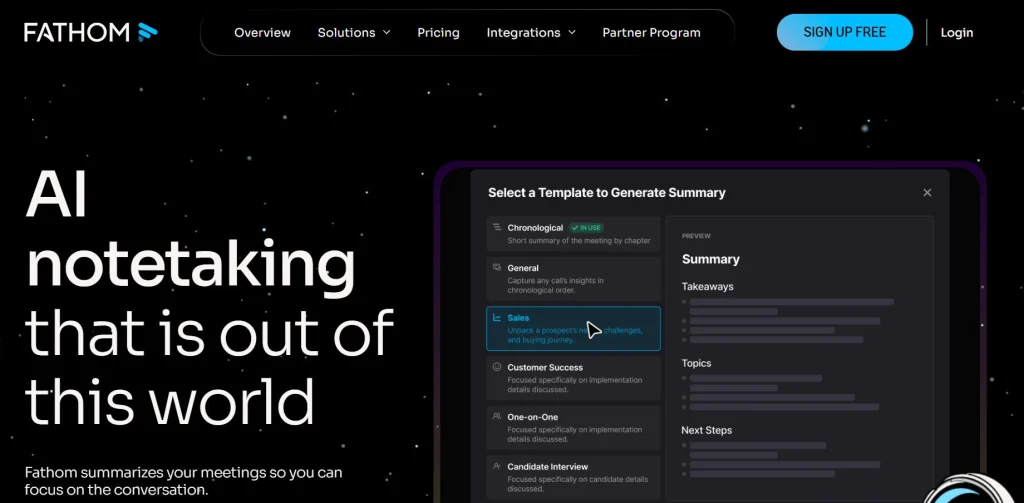
Setting up your account with Fathom AI is quick and effortless — the entire Fathom AI setup takes under two minutes. Start by visiting the official Fathom AI website and clicking “Sign Up Free.” You can register using your Google or Microsoft account, ensuring instant compatibility with Zoom, Google Meet, and Microsoft Teams.
Once you’re logged in, the Fathom AI dashboard will appear — a minimalist workspace showing your latest calls, transcripts, and smart summaries. This is where every meeting you record is automatically converted into searchable, time-stamped notes. The Fathom AI setup runs entirely in your browser, meaning there’s no extra app to install or configure. Everything connects securely via the official Zoom and Microsoft APIs, maintaining reliability and compliance with Zoom’s API documentation .
Before moving on, check that your browser has camera and microphone permissions enabled. Fathom AI only accesses these during live meetings, and all recordings remain private within your account. At AI Digital Space, we always recommend reviewing privacy settings during your initial setup — especially if you plan to use Fathom in professional or client-facing environments.
3. Step 2: Connect Fathom AI with Zoom, Google Meet, and Microsoft Teams
Once your account is ready, the next step in your Fathom AI setup is connecting it with your favorite meeting platforms. This simple integration lets the assistant automatically join, record, and summarize calls — so you’ll never have to start it manually again.
From the Fathom AI dashboard, open the Integrations tab in the left menu. You’ll see three main options: Zoom, Google Meet, and Microsoft Teams. Select your platform and follow the quick steps below.
Zoom: Click Connect to Zoom, authorize access, and confirm recording permissions. Fathom will then appear as a participant in your meetings automatically whenever a session starts or is scheduled.
Google Meet: Sign in with your Google account and approve Fathom AI’s integration request. The tool runs quietly in the background — a small “Fathom Active” indicator confirms that transcription is in progress.
Microsoft Teams: Click Connect to Teams and grant transcription access. Fathom AI connects securely via Microsoft’s OAuth protocol, keeping your Teams workspace fully compliant and protected.
For hybrid professionals who switch between platforms, linking all three ensures seamless performance across every meeting type. And for extra productivity, you can sync Fathom with tools like Notion AI or Zapier via Zapier’s official site , automatically pushing meeting summaries and action items straight into your workspace.
4. Step 3: Fathom AI Setup – Customize Notes & Permissions
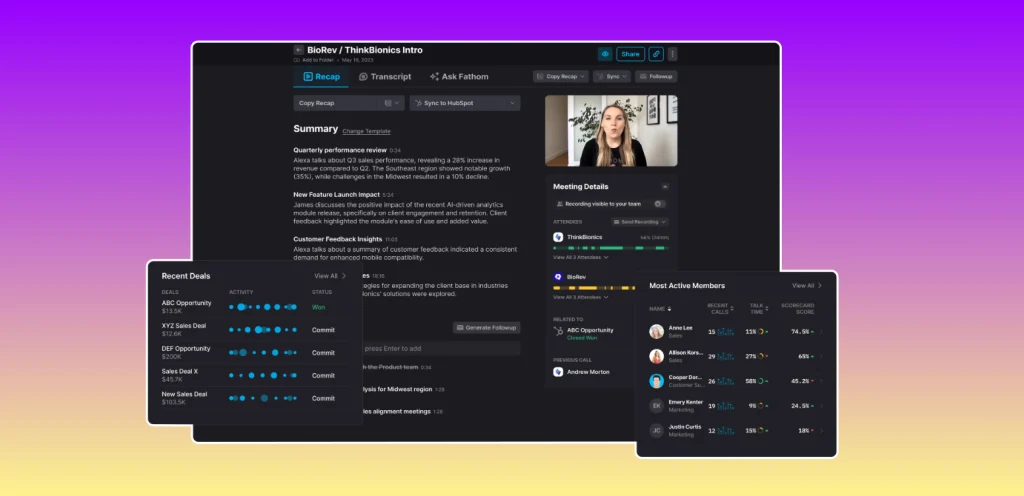
Once your integrations are connected, it’s time to personalize your Fathom AI setup so it matches your workflow and privacy standards. These quick adjustments help you get more accurate notes, faster sharing, and stronger compliance across every meeting.
Go to your Fathom AI dashboard and open Settings → Preferences. Here are the key options worth configuring first:
• Note Templates: Choose how you want your summaries to appear. Fathom offers several formats — Action-Focused, Detailed Transcript, and Key Insights. If you regularly manage projects or follow-ups, start with Action-Focused, as it emphasizes decisions and next steps automatically.
• Auto-Share Options: Enable automatic sharing to Google Docs, Notion, or email. This saves time on manual copy-pasting and ensures teammates receive meeting summaries right after each call.
• Permissions & Recording Notices: The Fathom AI setup is designed with transparency in mind. You can enable “Recording in Progress” notifications for every participant — an important feature for GDPR compliance and client-facing meetings.
• Highlight Shortcuts: Add quick keyboard shortcuts to mark essential quotes, metrics, or decisions during calls. These highlights are saved instantly in your transcript and can be exported later for reports or presentations.
By fine-tuning these options early, your Fathom AI setup will feel more natural — a quiet assistant that works in the background while you stay focused on the conversation.
Tip: If you also use AI task tools like Taskade AI, connect them to automatically turn Fathom highlights into to-do lists.
5. Step 4: Automate Summaries, Exports, and Integrations (CRM, Notion, Zapier)
Now that your Fathom AI setup is complete, it’s time to unlock the real productivity boost — automation. Fathom’s integrations let you instantly export your meeting notes and summaries to the tools you already use every day.
From the dashboard, open the Integrations tab again and explore the automation options:
Notion: Connect your Notion workspace so Fathom AI automatically creates a page for every meeting summary. Each transcript and key takeaway appears in a clean, readable format that your team can comment on.
Zapier: Use Fathom’s Zapier integration to link it with 5,000+ other apps. For example, you can send action points to Trello, Slack, or Asana right after each meeting ends.
CRM Tools (HubSpot, Salesforce): Fathom can sync call notes directly into your CRM, so sales teams don’t waste time copying summaries or deal insights manually.
These automations make the Fathom AI setup much more than a meeting assistant — it becomes part of your daily workflow. When configured well, you can have transcripts, highlights, and follow-ups waiting in your workspace seconds after hanging up.
This integration layer is where Fathom AI shines — saving time, improving collaboration, and ensuring nothing gets lost between meetings and execution.
Pro tip: Try pairing Fathom AI with GetResponse AI to automate client follow-ups after calls — it’s a powerful combo for small teams and freelancers.
6. Troubleshooting – Fix Common Fathom AI Setup Issues
Even though the Fathom AI setup process is typically smooth, you might encounter a few small hiccups the first time you connect accounts or record your initial meeting. Here’s how to troubleshoot the most common issues — fast — so you can keep your workflow uninterrupted and your meeting data safe.
1. Fathom doesn’t join the meeting
Make sure your meeting invitation uses the same email linked to your Fathom AI account. If you manage multiple Google or Microsoft profiles, the system may connect the wrong one. Open Settings → Integrations and confirm that your Zoom or Teams authorization is active and up to date.
2. No audio recorded
Fathom AI captures sound through your meeting platform’s cloud service, not your local microphone. In Zoom, check that Cloud Recording is enabled in your account settings (Zoom Help Center). For Google Meet, ensure that your browser — preferably Chrome — has microphone access enabled.
3. Summary not generated
This can happen if your meeting lasts less than one minute or if recording stops early. Refresh your Fathom AI dashboard after a few minutes; summaries often appear with a short delay as transcripts process in the background.
4. Data not syncing to Notion or Zapier
Recheck your integration tokens in Settings → Connected Apps. If another platform updated its API key or permission scope, simply reconnect it. To test, run a short mock meeting and verify that a new Notion page or Zapier task is automatically created.
5. Fathom extension not visible in browser
Use Chrome or Edge for the best experience — Safari and Firefox may block extensions by default. If the issue persists, clear your browser cache and restart. You can also access Fathom AI directly from the dashboard without the extension.
7. Ethical AI Reflection – Recording and Sharing Meeting Data Responsibly

Whenever we talk about automation and note-taking, it’s essential to pause and reflect on how we use tools like Fathom AI responsibly. The convenience of recording meetings and generating instant summaries also introduces new responsibilities — especially regarding privacy, consent, and data security.
When using your Fathom AI setup, always inform participants that the meeting will be recorded and transcribed. Fathom already displays an automated notice when recording starts, but it’s good practice to mention it verbally too. This small step ensures transparency and builds trust among your team and clients. In some regions (like the EU), it’s also a legal requirement under GDPR.
We also recommend periodically reviewing your storage and access settings inside the Fathom dashboard. Delete old recordings that are no longer relevant, especially if they contain sensitive client information. The same applies if you export data to tools like Notion or HubSpot — only share what’s necessary for collaboration.
At AI Digital Space, we support the use of AI that amplifies human productivity while maintaining respect for people’s privacy. Tools like Fathom AI can be transformative, but their true value appears when we use them with awareness and purpose — keeping human judgment at the center of every workflow.