 Published on: November 10, 2025
Disclosure:
Some links in this post are affiliate links. If you click and purchase, we may earn a small commission at no extra cost to you. Thank you for supporting AIDigitalSpace.com and helping us keep this content free and useful.
1. Introduction
You finally craft the perfect AI image prompt, hit “Generate,” and—boom—nothing. Just that frustrating “image failed to generate” message staring back at you. Whether it’s a ChatGPT image not working, a DALL-E error fix gone wrong, or a Midjourney image issue that freezes your Discord screen, the result feels the same: creative momentum lost in one click.
We’ve all been there. AI image generator failed messages can feel like roadblocks, but here’s the twist—most of them aren’t permanent. In fact, in 90% of cases, you can fix image-generation errors in under five minutes. Once you understand the pattern behind these glitches, you’ll stop wasting time refreshing and start creating again.
This 2025 quick guide focuses on what really matters: why AI image-generation errors happen, what to check first, and how to prevent them from coming back. Think of it as your AI reboot button—simple, effective, and built for real-world creators. By the end, you’ll know not only how to get your visuals back on track but also how to keep your AI tools—like ChatGPT, DALL-E, and Leonardo AI—running smoothly for higher quality and stability every time. (And if you want to master smarter prompts, explore our Midjourney Prompt Hacks or Leonardo vs Midjourney comparison—they’ll instantly level up your creative flow.)
Our take: don’t panic when AI fails—understanding why it breaks gives you total control over how to fix it. Ready to see what’s really going on under the hood? Let’s start.
2. Why AI Image Generation Sometimes Fails
The most common cause of an image-generation error isn’t your prompt — it’s the system’s limits. Tools like ChatGPT, DALL-E, or Leonardo AI rely on massive cloud servers that process millions of creative requests every minute. When usage spikes, even the best models can lag, leading to the familiar “AI image generator failed” or “ChatGPT image not working” message.
In many cases, these image-generation errors have nothing to do with what you typed. Unstable internet connections, overloaded browser cache, or expired sessions often interrupt the request before the model even starts drawing. Some users also face DALL-E error fix attempts that fail because of temporary account desync or session timeout.
Another hidden cause involves built-in safety filters. When your prompt includes certain words, poses, or visual elements that the AI interprets as risky, the system automatically blocks the generation. This happens across all platforms — from ChatGPT and DALL-E to Midjourney, where even a small Midjourney image issue might trigger a content-filter refusal.
In short, most AI image-generation errors stem from overload, connectivity, or safety protocols — not from your creativity. Understanding these triggers is the first step to finding quick, reliable fixes that keep your workflow uninterrupted.
| Cause | What Happens | Quick Fix |
|---|---|---|
| Server Overload | AI is processing too many requests simultaneously. | Wait 1–2 minutes, refresh session, retry prompt. |
| Browser Cache | Stored data blocks image rendering or causes lag. | Clear cache and cookies, relaunch browser. |
| Safety Filter | AI flags certain terms or visuals as unsafe. | Rephrase prompt, remove sensitive words. |
| Network Instability | Interrupted data transfer breaks the image request. | Switch to stable Wi-Fi or wired connection. |
Most users don’t realize how small technical hiccups can block full image generation. The good news: once you identify the cause, you’re only one step away from solving it—and that’s exactly what we’ll cover next.
Our comment: every “error” hides a reason. The faster we understand it, the quicker creativity gets back in motion.
3. Tool-Specific Troubleshooting (ChatGPT, Midjourney, Leonardo, Canva AI)
If your AI keeps throwing “image failed to generate” alerts, don’t worry—each tool has its own quirks. Understanding how to fix image-generation errors in ChatGPT and other platforms like DALL·E, Midjourney, and Leonardo AI makes all the difference between wasting time and getting your visual done right away.
Below is a clear comparison of the main platforms and how to quickly handle issues such as ChatGPT image not working, AI image generator failed, or DALL·E error fix.
| AI Tool | Typical Error | Cause | Fix |
|---|---|---|---|
|
ChatGPT
DALL·E 3 |
Image failed to generate or blank preview | Server overload or temporary model freeze | Refresh chat, retry prompt, or wait 2–3 minutes before resubmitting |
| Midjourney | Bot doesn’t respond or sends error emoji | Network lag or overloaded Discord session | Use /relax mode or switch to another server channel |
| Leonardo AI | “Something went wrong” message | API instability or model update in progress | Log out/in, clear browser cache, check Leonardo’s status page |
| Canva AI | Image generation freezes or takes too long | Browser extension conflict or temporary overload | Disable ad-blockers, switch browser, then retry |
If you’re dealing with ChatGPT image not working, the fastest solution is often the simplest: open a new chat and retry after a short delay. OpenAI temporarily limits image requests, so this quick refresh alone can fix image-generation errors in most cases.
When an AI image generator failed alert pops up in Midjourney, switch to “relax” mode or move your prompt to another Discord server. This helps you bypass queue overloads that cause the typical Midjourney image issue seen during peak hours.
For Leonardo AI users facing DALL-E error fix-type glitches, logging out, clearing browser cache, and signing back in usually resolves the problem instantly. These steps reset your session and force the system to reconnect to stable API servers.
AI Digital Space tip: Always check your tool’s official status page before assuming something’s wrong on your side. Many image-generation errors stem from temporary maintenance, software updates, or traffic spikes rather than user mistakes.
Our comment: once you understand how each AI platform behaves under pressure, every glitch becomes predictable—and that’s the real power behind learning how to fix image-generation errors efficiently and consistently.
4. Advanced Fixes: Account, API, and System Factors
When basic troubleshooting doesn’t fix image-generation errors, the problem usually runs deeper — tied to your account, API settings, or local system resources. Understanding these hidden factors helps you prevent recurring AI image generator failed messages across every platform.
1. Account Sync & Login Issues
If you’re facing persistent ChatGPT image not working errors or repeated disconnects in Leonardo AI, your session might be out of sync. This often happens when you’re logged in on multiple devices at once.
Fix: log out everywhere, clear cookies, and sign back in. Make sure only one session remains active to avoid conflicts that cause images to fail or hang.
2. API Rate Limits or Key Conflicts
Developers and power users often overlook API caps. When your AI hits too many requests per minute, it starts rejecting new tasks. That’s why AI image generator failed alerts appear even when your prompt is correct.
Fix: check your API usage dashboard and wait a few minutes before retrying. If the issue persists, regenerate your API key to restore proper access.
3. Browser Cache & Extension Conflicts
A cluttered browser is a silent trigger for image-generation errors. Ad-blockers, VPNs, and script extensions may interrupt connections to DALL-E or Leonardo’s API.
Fix: open a private/incognito tab or disable all extensions temporarily. If the error disappears, reactivate extensions one by one to find the conflict causing your DALL-E error fix to fail.
4. System or GPU Resource Limits
Even cloud-based tools rely partly on your local hardware to display previews. Low RAM, outdated GPU drivers, or overused browser tabs can result in missing thumbnails or blank outputs.
Fix: close other programs, clear temporary files, and restart your device. For large image projects—or frequent Midjourney image issue warnings—work from a desktop with stronger specs for smoother generation.
5. Platform Status & Regional Servers
Occasionally, the AI tool isn’t the problem — its servers are. Different regions may experience outages or throttling.
Fix: before wasting time debugging, check each platform’s official status page or their Twitter/X support feed for real-time updates.
Keeping these system and account layers healthy ensures that most image generation errors never reach your creative workflow again. When things fail, treat it like a short diagnostic cycle — check account → cache → system → status — and you’ll usually be back generating visuals within minutes.
5. How to Prevent Future AI Image Errors
Once you’ve learned how to fix image-generation errors, the next step is making sure they don’t happen again. Prevention isn’t complicated—it’s about creating a clean, stable environment where your AI tools can work without interruption. Most failures come from the same small issues: slow connections, outdated browsers, or too many cached sessions competing in the background.
Start with the basics: always use a stable Wi-Fi network, keep your browser up to date, and clear your cache weekly if you generate images often. Tools like ChatGPT, Midjourney, and Leonardo AI rely on active server connections—so a dropped signal or heavy multitasking can easily trigger an AI image generator failed message. When possible, close unnecessary tabs and disable browser extensions that inject code (like ad blockers or grammar checkers), as these can block image rendering scripts.
Prompt quality also matters. Using cleaner, shorter, and more specific descriptions reduces the chance of hitting safety filters or server overloads. For example, instead of long creative paragraphs, focus on clear structure: subject, style, lighting, and context. If you frequently encounter ChatGPT image not working alerts, switch to the desktop browser version instead of mobile, which tends to have fewer timeout errors.
For creators who want consistently strong results, see our Midjourney Prompt Hacks to refine wording and stability, or our Leonardo vs Midjourney comparison to pick the platform that best fits your workflow. You can also read the OpenAI Help Guide
6. Ethical AI Reflection: When the Model Refuses for a Reason
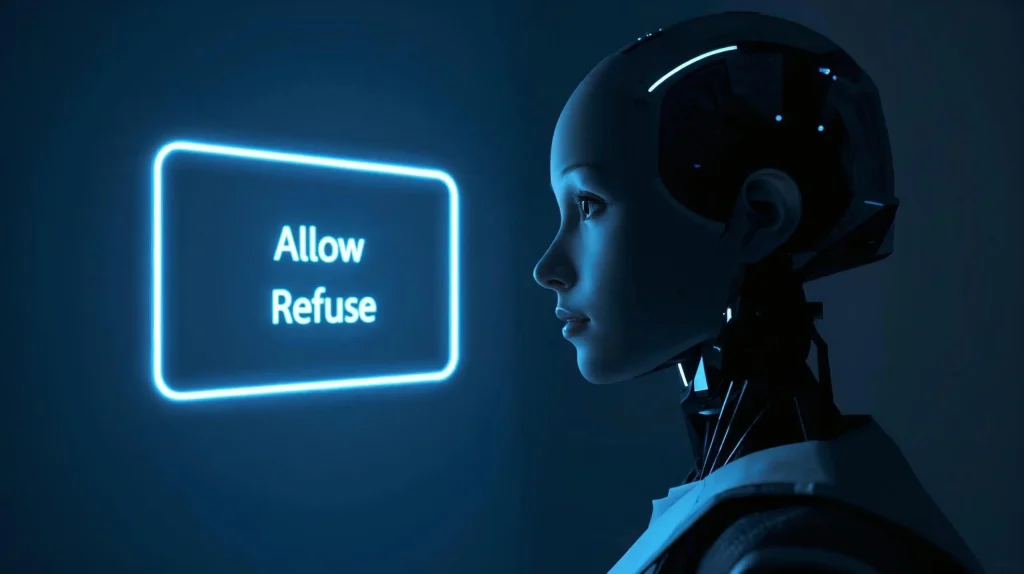
Not every image-generation error means something is broken. Sometimes, when ChatGPT or DALL·E refuses to create an image, it’s actually the system protecting itself—and you. These AI image-generation errors often occur because your prompt triggers built-in safety filters. Rather than a bug, it’s a boundary—a signal that the AI detected sensitive or restricted content.
Modern AI tools include guardrails to ensure responsible use. Prompts containing words related to violence, nudity, politics, or copyrighted material can automatically stop a generation request. That’s why you might experience ChatGPT image not working or AI image generator failed messages even when your connection and setup are flawless. In some cases, an attempted DALL-E error fix won’t help either—because the block is intentional.
These restrictions exist to protect privacy, prevent misinformation, and reduce biased or unsafe outputs. Even Midjourney image issue reports can come from similar ethical filters, not from system bugs.
We see these limits as creative challenges, not frustrations. Rephrasing prompts allows you to fix image-generation errors responsibly while keeping your artistic intent alive. For instance, instead of “realistic photo of a person holding a gun,” you could write “cinematic scene of a futuristic guard holding a glowing staff.” The second version keeps your concept powerful, compliant, and visually stunning—showing that ethical creativity can still look extraordinary.
If you want to understand the philosophy behind these guardrails, OpenAI’s usage policy offers a clear explanation of what’s allowed and why. For a deeper, book-worthy exploration, we highly recommend:
Both books are worth reading if you want to see how these “errors” reflect deeper questions about human control, creativity, and responsibility in the AI age.
Our comment: great AI design isn’t just about making perfect images—it’s about knowing when not to. The moment we understand why an image fails, we’re not just fixing a glitch; we’re learning how to create responsibly.
7. Final Checklist & Recommended Tools
Before you close this tab and retry your prompt, let’s make sure you’ve covered every base. Here’s a quick recap to help you fix image-generation errors fast and keep them from coming back. Bookmark or screenshot this checklist—it’ll save you time the next time your AI tool freezes or shows a blank screen.
| Step | What to Check | Why It Matters |
|---|---|---|
| 1. Refresh or Restart | Close your chat or session and reopen it. | Resets temporary overload or browser freeze. |
| 2. Clear Cache | Delete cookies or old browser data. | Fixes stored conflicts blocking image rendering. |
| 3. Check Server Status | Visit each tool’s official status page. | Confirms if it’s a system-wide issue or local glitch. |
| 4. Rephrase Your Prompt | Use descriptive, neutral phrasing. | Avoids content filters or blocked terms. |
| 5. Keep Browser Updated | Always use the latest Chrome or Edge version. | Ensures compatibility with rendering scripts. |
| 6. Use a Stable Connection | Switch to reliable Wi-Fi or cable. | Prevents timeout errors and partial uploads. |
These are the same steps professional creators use daily when ChatGPT image not working or an AI image generator failed alert appears. Once you make these habits part of your workflow, generation errors become rare—and your projects stay on track.
At AI Digital Space, we’re constantly testing new AI tools and sharing real fixes, comparisons, and time-saving guides. If you find posts like this useful, don’t miss future updates—we send exclusive how-tos, ethical insights, and early trend reports straight to your inbox.
Good fixes save time—but staying informed saves effort. Each week, we share real, working solutions and the latest AI news that keeps creators ahead of every glitch.
8. FAQ
Q: Why do I keep seeing “image failed to generate” in ChatGPT?
A: Most cases come from temporary server overload, expired sessions, or safety filters. Start by refreshing, clearing cache, and checking the official OpenAI Status page. If the issue persists, rephrase your prompt to avoid restricted terms — it often helps fix image-generation errors instantly.
Q: How do I fix “ChatGPT image not working” without losing my chat?
A: Duplicate your chat, then refresh or retry in a new message. If the issue continues, log out/in or switch to desktop Chrome or Edge, which handle rendering more reliably.
Q: What triggers safety filters that stop images from generating?
A: Prompts with violence, nudity, politics, self-harm, or copyrighted characters can activate AI safety systems. Replace sensitive phrases with neutral descriptions (e.g., “futuristic guard with glowing staff”). See OpenAI’s usage rules{:rel=”nofollow”} for details.
Q: Is there a quick checklist to fix image-generation errors across tools?
A: Yes: refresh → clear cache → check status → shorten or rephrase prompt → disable extensions → retry after a few minutes. These steps solve most AI image generator failed issues across ChatGPT, DALL·E, Midjourney, and Leonardo.
Q: Midjourney shows nothing or an error emoji. What should I do?
A: Use /relax mode, try another Discord channel, or wait briefly before resending your prompt. If the AI image generator failed repeatedly, restart both Discord and your router.
Q: Leonardo AI says “Something went wrong.” How can I fix it?
A: Log out, clear your cache, and check Leonardo’s server status. Shorten prompts and avoid running too many jobs at once to prevent overload.
Q: DALL·E gives errors only on certain prompts — why?
A: Overly long or detailed prompts can exceed model limits or trip filters. Simplify to subject + style + lighting + context to achieve a smooth DALL·E error fix.
Q: Can VPNs or browser extensions cause generation failures?
A: Yes. Ad-blockers, script filters, or strict VPN settings can interrupt image rendering. Temporarily disable them and retry the prompt.
Q: Does upgrading to ChatGPT Plus reduce these errors?
A: It doesn’t bypass safety filters, but it does lower queue times and improves stability during heavy usage periods.
Q: How can I prevent this from happening again?
A: Keep your browser updated, clear cache weekly, ensure a stable connection, and write concise prompts. For smarter results, see our guides Midjourney Prompt Hacks and Leonardo vs Midjourney.