Published on: October 2, 2025
- 1. Introduction – Why Google Mixboard Matters
- 2. What Is Google Mixboard and How It Works
- 3. Setting Up Google Mixboard: First Steps
- 4. Key Features That Make Mixboard Stand Out
- 5. Google Mixboard vs Other AI Brainstorming Tools
- 6. Practical Use Cases – From Designers to Content Creators
- 7. Tips to Get Better Results with Google Mixboard
- 8. Ethical AI Reflection – Creative Ownership
- 9. Pricing, Availability, and How to Access Mixboard
- 10. Final Thoughts and FAQ
Affiliate Disclaimer:
Some of the links in this post are affiliate links. This means we may earn a small commission if you click through and make a purchase, at no extra cost to you. We only recommend tools we truly believe offer value.
1. Introduction – Why Google Mixboard Matters for Creative Work in 2025
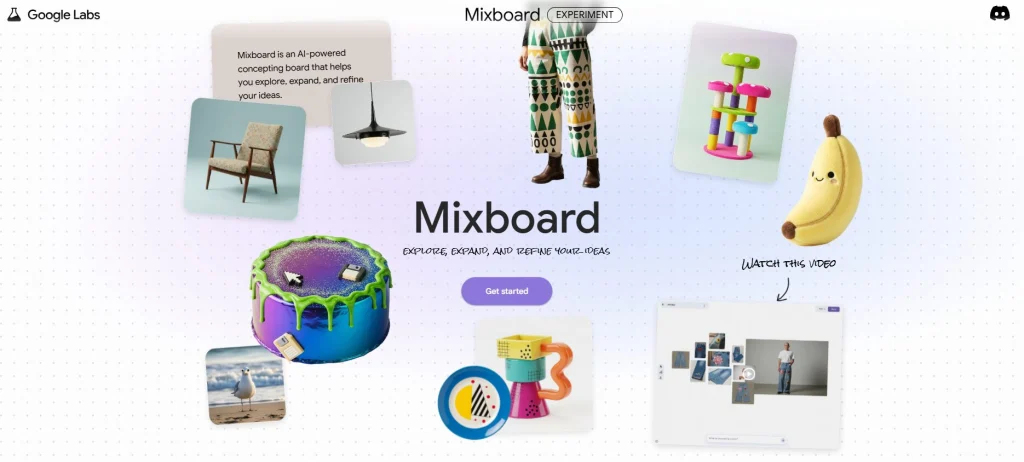
We at AI Digital Space believe that starting a creative project is often the hardest part. That’s exactly where Google Mixboard steps in — it’s an AI-powered moodboard and concepting tool designed to help you brainstorm visually and iteratively, without needing design skills. Mixboard is currently in public beta via Google Labs and uses the Gemini model plus the new Nano Banana image engine to let you input prompts like “cozy reading nook with plants” or “retro travel poster vibes” and see concept boards generated in real time (theverge.com).
With this guide, we’ll show you how to use Google Mixboard right from Day 1 — from prompt crafting, through refining visuals, to integrating it into your creative workflow. We’ll also explain why it matters now (AI visual ideation is surging) and highlight common questions people are asking online:
Can I upload my own images?
How do I tweak a generated board with text-based commands?
What makes Mixboard different from Pinterest, Canva, Firefly, etc.
If you’ve already read our deep dive on Top AI Tools for Designers or our piece on generative image engines, this will feel like the visual companion. Let’s get started — here’s how we transform creative ideas into visual boards with Mixboard.
2. What Is Google Mixboard and How It Works
Google Mixboard is Google’s new AI-powered brainstorming tool that acts like a smart, interactive moodboard. Instead of starting with a blank page, you type a short prompt — for example, “urban coffee shop logo with minimal vibes” — and Mixboard instantly generates a board filled with colors, imagery, and layout ideas. The idea is simple: reduce creative block and help people get to their first draft faster.
Unlike static tools such as Pinterest or Canva templates, Mixboard is dynamic. You can refine the board with text-based edits (e.g., “make it brighter,” “add travel elements”), upload your own images, or combine AI-generated visuals with your existing assets. Under the hood, Mixboard is powered by Google’s Gemini model and the Nano Banana engine, which specializes in quick visual iterations. This means it can produce results in seconds and adapt them as you keep giving feedback.
For creators and teams, the advantage is clear: Mixboard doesn’t just save time, it keeps your ideas organized in one place. While tools like Canva Pro or Firefly are great for execution, Mixboard focuses on the ideation stage, where most projects risk stalling. According to Google’s own updates, the tool is still in beta, but early feedback shows it can already replace the traditional “sticky note + moodboard wall” workflow.
3. Setting Up Google Mixboard: First Steps for New Users
Getting started with Google Mixboard is straightforward, but a few steps can save you from common frustrations. Since Mixboard is still in public beta via Google Labs, not everyone has access yet — here’s the simplest way to begin.
Sign in with your Google Account
Mixboard is linked to your existing Google login. If you already use Docs or Drive, you’re ready.
Access it directly through Google Labs.
Check availability in your region
As of late 2025, Mixboard is gradually rolling out in Europe and North America. If you don’t see it, you can request access from the Labs page.
Start a new board
You’ll be prompted with a blank canvas where you can type a prompt like “coastal holiday poster” or “futuristic office interior.”
Mixboard immediately generates a first draft moodboard that you can refine.
Learn the command system
Short text edits like “make it brighter,” “add softer colors,” or “show more typography options” help you iterate fast.
You can also upload your own images to blend AI suggestions with your real assets.
4. Key Features That Make Mixboard a Powerful Brainstorming Tool
What makes Google Mixboard stand out isn’t just that it generates visuals — it’s the way it helps you organize and evolve your ideas. Here are the features that matter most for creatives and why they’re useful.
1. AI-Generated Moodboards
Mixboard turns a simple text prompt into a fully arranged board with colors, images, and typography ideas. Instead of spending hours searching Pinterest or stock sites, you get a ready-made starting point in seconds.
2. Real-Time Edits with Natural Language
You can refine your boards by typing commands like “make it warmer,” “show more fonts,” or “add travel vibe.” This keeps you in a creative flow without switching between menus.
3. Upload and Blend Personal Assets
Got a logo draft or an inspiration photo? You can upload your own files and Mixboard will integrate them into the board. This is especially useful for client work or branding projects.
4. Collaboration with Teams
Just like Google Docs, Mixboard supports shared editing. Team members can suggest prompts, vote on iterations, and comment directly on the board.
5. Organized Project Boards
Boards are saved in your Google account and can be duplicated or archived. That means no more scattered files or losing track of ideas across different tools.
| Feature | Why It Matters |
|---|---|
| AI Moodboards | Generates structured boards instantly, avoiding blank-page block. |
| Text-Based Editing | Iterate quickly without complex design menus. |
| Upload Assets | Blend your own logos/photos with AI suggestions. |
| Team Collaboration | Invite teammates to refine and brainstorm together. |
| Project Organization | Keep all boards neatly stored in your Google account. |
💡 Our take: Mixboard feels like the “Google Docs moment” for brainstorming — light, accessible, and built for iteration. It doesn’t try to replace Canva or Photoshop, but it gives you a fast ideation layer that those tools never had.
5. Google Mixboard vs Other AI Brainstorming Tools
Whenever a new AI creativity tool appears, the first question most people ask is: “How does it compare to what I’m already using?” Google Mixboard doesn’t live in isolation — it sits alongside Canva, Adobe Firefly, and Kittl, all of which already offer moodboard or ideation features.
Here’s where Mixboard stands out:
It’s lighter and faster than Canva or Adobe Firefly, which are full design platforms.
It’s integrated with Google’s ecosystem, making collaboration more natural if you already work in Docs, Slides, or Drive.
It’s still in beta, so features may change rapidly, while other platforms are more stable for daily work.
At the same time, Mixboard lacks some advanced design tools you’ll find in Canva Pro or Firefly, like direct export to polished social posts or one-click brand kits. For many users, the workflow may be Mixboard for ideation, Canva/Firefly for execution.
| Tool | Strengths | Limitations | Best For | Try Now |
|---|---|---|---|---|
| Google Mixboard | AI-generated moodboards, fast idea iteration, Google integration | Still in beta, limited export options | Brainstorming, early-stage ideation | Try Mixboard |
| Canva Pro | Templates, brand kits, Magic Design + Magic Write AI | Less flexible for advanced design | Social media, marketing content | Try Canva |
| Adobe Firefly | High-quality generative images, integrated in Photoshop/Illustrator | Requires Adobe subscription | Professional design & editing | Try Firefly |
| Kittl | Typography-focused, quick logos/posters, AI suggestions | Not as broad as Canva or Adobe | Hobbyists, small branding projects | Try Kittl |
Our take: If you’re in the idea phase, Mixboard is unbeatable for speed. But once you move into production, pairing it with Canva Pro
or Adobe Firefly makes sense. This “stacking approach” is also the best way to integrate affiliate-ready alternatives for readers who want something Mixboard doesn’t yet offer.
6. Practical Use Cases – From Designers to Content Creators
1. Brand and Logo Exploration
Workflow: Generate 3 mood directions → refine colors and typography → upload draft logo → export board for client feedback.
Prompt Example: “Minimal coffee roastery brand, warm neutrals, serif headline + sans body, artisan vibe, include packaging inspiration.”
2. YouTube and TikTok Thumbnails
Workflow: Define theme → ask for layout and color ideas → export to Canva or Photoshop for final.
Prompt Example: “Tech tutorial thumbnail ideas, high contrast, neon accent, face-left composition, 3 style variations.”
3. Landing Page Hero Section
Workflow: Describe audience and value → request hero layout + imagery → fix palette → pass to designer.
Prompt Example: “AI study planner SaaS hero, trust badges, CTA button in first screen, cool blues + friendly illustrations.”
4. Presentation or Slide Deck Themes
Workflow: Generate visual theme → select typography → export palette → apply in Google Slides.
Prompt Example: “Conference talk theme, modern, accessible contrast, muted palette, clean cover slide options.”
5. Social Media Carousels
Workflow: Ask for 3 visual themes → request slide-by-slide mood → refine for campaign consistency.
Prompt Example: “Instagram carousel for productivity tips, bold typography, minimal icons, consistent cover style.”
6. Product Photography Direction
Workflow: Define brand tone → ask for lighting/backdrop props → export checklist for photoshoot.
Prompt Example: “Desk gadget shoot, soft daylight, matte textures, notebook + plant props, clean tech style.”
7. Content Rebrand Refresh
Workflow: Paste current palette/keywords → ask Mixboard for 2–3 fresh visual alternatives → compare boards.
Prompt Example: “Refresh for AI blog visuals, clarity + trust, editorial feel, less neon, more muted tones.”
7. Tips to Get Better Results with Google Mixboard
Even though Google Mixboard is designed to be simple, the way you prompt and refine makes a big difference. Here are practical tips we’ve tested and gathered from early users to help you get the most out of it.
Start broad, then refine
Begin with general prompts (“modern travel poster, warm palette”) and then add refinements. Mixboard works best when it has space to interpret before narrowing down details.
Use style and mood keywords
Words like minimalist, playful, retro, editorial, cinematic make results far closer to your intent. Without them, boards may feel generic.
Upload reference images
Mixboard can blend your own logos, sketches, or mood shots with AI-generated visuals. This keeps boards on-brand and makes them unique.
Iterate in steps, not all at once
Instead of writing a long prompt with 10 details, use short iterative edits: “add more contrast” → “show bolder fonts” → “make it darker.” This keeps results clean and avoids clutter.
Compare side by side
Save multiple boards and compare them before choosing. This mimics traditional moodboarding where you pin multiple directions on a wall.
Pair with execution tools
Mixboard is strongest for brainstorming, not final design. Once you’ve chosen a direction, move to tools like Canva Pro or Adobe Firefly to polish.
Pro tip: Many creators keep one “wild board” in the mix — a prompt that goes beyond the safe choice. This often leads to unexpected but useful directions you wouldn’t normally consider.
8. Ethical AI Reflection – What It Means for Creative Ownership
Every time we use a tool like Google Mixboard, we’re not only boosting our creative process but also entering the ongoing debate around AI and originality. It’s important to pause and ask: who really owns the work generated with Mixboard?
Authorship and credit
Mixboard uses Google’s Gemini model and training data drawn from large datasets. This means that while the output feels unique, it may be influenced by patterns from existing works. For professional use — logos, branding, campaigns — creators should still apply their own input and refinements before publishing.
Transparency with clients and audiences
If you’re a designer or marketer, it’s best practice to tell clients when AI has been part of your brainstorming process. This avoids misunderstandings and shows professionalism.
Data and privacy
Since Mixboard is connected to your Google account, any uploaded files (logos, brand palettes, sketches) are processed within Google’s ecosystem. Always double-check what type of data you’re comfortable sharing in a beta tool.
Impact on human creativity
AI brainstorming tools can save time, but they shouldn’t replace personal taste or creative decision-making. The real value comes when humans use Mixboard as a jumping-off point, not as the final voice.
Our stance at AI Digital Space: we see Mixboard as a creative accelerator, not a replacement. It removes friction, but the spark — the storytelling, the brand feel, the human judgment — must still come from us.
9. Pricing, Availability, and How to Access Mixboard
At the moment, Google Mixboard is available as a free beta under Google Labs. You’ll need a Google account to access it, but there are no subscription costs yet.
Here’s what we know so far:
Availability
As of late 2025, Mixboard is rolling out gradually in the US, UK, and parts of Europe.
If you don’t see it in your Labs dashboard, you can request early access.
Full global availability is expected once Mixboard exits beta.
Pricing
Currently free in beta.
Based on Google’s model with Gemini Advanced and Workspace, it’s likely Mixboard will be included in Google One / Workspace premium tiers once officially launched.
Paid tiers may unlock higher-resolution boards, faster processing, or advanced collaboration tools.
Access steps
Go to Google Labsand sign in with your Google account.
Find Mixboard in the Labs projects list.
Click “Join Waitlist” if it’s not active in your region yet.
Once approved, you’ll be able to create your first board directly in the browser.
| Plan | Features | Status |
|---|---|---|
| Beta Access | Free use, basic AI moodboards, limited export options | Available now (limited regions) |
| Future Paid Tier (expected) | Advanced exports, team collaboration, higher-quality visuals | Not yet announced |
10. Final Thoughts and FAQ
Final Thoughts
Google Mixboard is shaping up to be a fresh addition to the creative toolkit. It’s not here to replace Canva, Firefly, or Photoshop — it’s here to solve the blank page problem and give us a fast way to brainstorm visuals. For now, it’s free in beta, which makes it the perfect time to test it out.
Our take at AI Digital Space: Mixboard works best as the first step in a workflow. Use it to spark ideas, then refine with tools like Canva Pro or Adobe Firefly when you’re ready to polish. This “stacked workflow” gives you speed plus quality.
FAQ
Q: Is Google Mixboard free?
A: Yes, Mixboard is currently free while in beta under Google Labs. Pricing for premium tiers hasn’t been announced yet.
Q: How do I access Mixboard if it’s not in my region?
A: Visit Google Labs and join the waitlist. Access is rolling out gradually across different countries.
Q: Can I use Mixboard for client work?
A: You can, but it’s best to treat Mixboard outputs as brainstorming drafts. Always refine final visuals in professional tools before delivering to clients.
Q: What makes Mixboard different from Canva or Firefly?
A: Mixboard focuses on ideation and moodboards, while Canva and Firefly are built for design execution. Many users combine them in one workflow.
Q: Who owns the content generated in Mixboard?
A: Since it’s AI-assisted, final ownership may vary depending on usage. Always check Google’s terms of service and apply your own creative input to ensure originality.
Q: Does Google offer an affiliate program for Mixboard?
A: No, Mixboard doesn’t have a direct affiliate program. Instead, you can explore affiliate-ready alternatives like Canva Pro, Adobe Firefly, and Kittl.