

 Published on: December 28, 2025
Affiliate Disclaimer:
Some of the links in this post are affiliate links. This means we may earn a small commission if you click through and make a purchase, at no extra cost to you. We only recommend tools we truly believe offer value.
1. How to Use Notion AI as a Powerful Daily Work Dashboard
If your workday feels scattered — tasks in one app, notes in another, decisions stuck in your head — learning how to use Notion AI as a daily work dashboard can simplify everything.
The idea isn’t to build a complex system.
It’s to create one calm place where we can see:
what needs attention today
what we’ve already captured
what decisions are still open
When we use Notion AI this way, productivity becomes less about speed and more about clarity.

What we mean by a “daily work dashboard”
A daily work dashboard is not a fancy template.
It’s a single Notion page that combines:
Tasks → what we must do today
Notes → what we’re thinking or learning
Decisions → what needs a clear next move
Notion AI helps by:
summarizing messy notes
turning thoughts into action items
helping us decide what matters first
This is why so many people search for how to use Notion AI instead of just “Notion templates”.
What you’ll be able to do after this guide
By the end of this walkthrough, we’ll be able to:
Use Notion AI as a single daily work dashboard
Turn rough notes into clear next actions
Ask Notion AI what to focus on today
Reduce context switching without adding tools
We’ll keep everything practical and realistic — no automation for the sake of automation.
Before we start (important)
To follow along smoothly, you only need:
An active Notion account
Access to Notion AI
A blank page (or an existing daily page)
If you’re new to Notion AI, their official overview explains how the assistant works inside pages and databases (website resource Notion help).
Why this setup works for real workdays
Most productivity systems fail because they:
require constant maintenance
separate thinking from doing
Using how to use Notion AI as a daily dashboard works because:
we write naturally
AI helps structure later
the system adapts to our workday, not the opposite
In the next section, we’ll make sure you’re fully ready before building the dashboard — so nothing breaks halfway.
2. What You Need Before Setting Up Notion AI Daily
Before we build the dashboard, we need to make sure the basics are in place.
This step matters more than it sounds — most people struggle with how to use Notion AI simply because the foundation is messy.
Let’s fix that first.
Step 1: Make sure Notion AI is active
Notion AI is not a separate app. It works inside pages and databases, helping us write, summarize, and decide.
To follow the next sections, you need:
A Notion account
Notion AI enabled on your workspace
You can quickly verify this by:
Opening any Notion page
Typing
/and checking if Ask AI appearsOr highlighting text and looking for the AI option
If it’s missing, Notion’s official guide explains how AI access works.
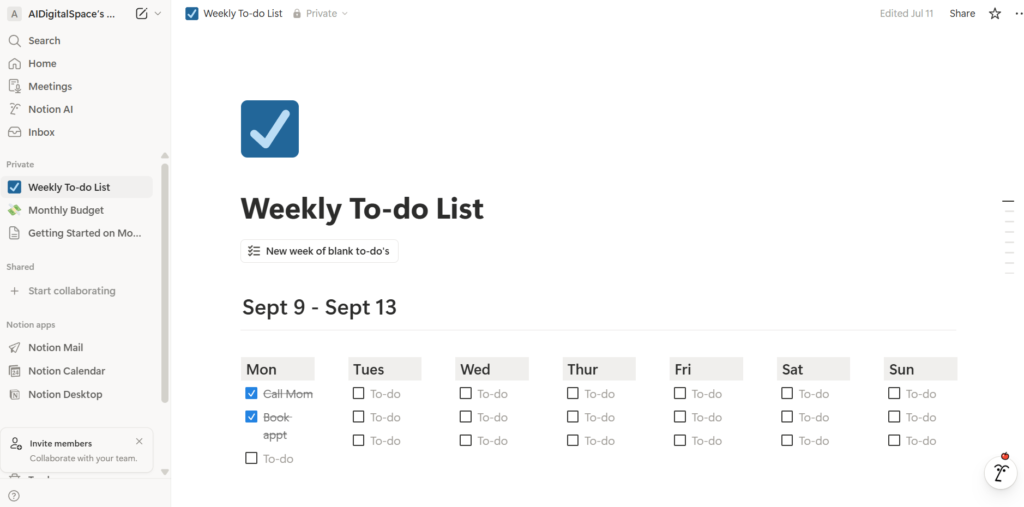
Step 2: Decide what “daily work” means for you
Before asking AI to help, we need clarity.
Take one minute and answer this for yourself:
What do I actually deal with every day?
For most people, daily work includes:
Tasks that must be done today or this week
Notes from meetings, calls, or ideas
Small decisions we postpone because they feel unclear
This guide on how to use Notion AI assumes we want one place for all three — not separate systems.
Step 3: Start with a simple page (not a template)
It’s tempting to download a complex template.
We recommend the opposite.
Create:
One blank Notion page
Give it a simple name like Daily Dashboard
Why this works:
Notion AI performs better with clear, simple structure
We avoid fighting someone else’s system
We can adapt the page as our work changes
We’ll add structure gradually — with AI helping, not dictating.
Step 4: Clear your inboxes before you begin
This step is often skipped, and it causes friction later.
Before building the dashboard:
Move loose notes into one place (even roughly)
Don’t organize yet — just collect
Think of this as a brain dump
This mirrors classic productivity principles like capture-first, organize-later, but Notion AI will help with the organizing part in the next section.
Why this preparation matters
When people say “Notion AI didn’t help me”, it’s usually because:
the starting point was chaotic
expectations were unclear
too much structure came too early
Setting this up properly makes how to use Notion AI feel natural instead of forced.
In the next section, we’ll build the actual daily dashboard — step by step — for tasks, notes, and decisions.
3. How to Set Up a Notion AI Dashboard for Tasks Notes and Decisions
Now we build the core.
This is where how to use Notion AI becomes practical — not theoretical.
We’ll create one simple page that handles three things:
what we need to do
what we’re thinking or capturing
what we still need to decide
No advanced databases yet. Just a structure that works every day.
Step 1: Create the dashboard structure
Open the blank page you created earlier and add three clear sections.
Use simple headings like:
Today’s Tasks
Notes & Inputs
Open Decisions
This matters because Notion AI understands context better when sections are clearly labeled.
At this stage:
Don’t format too much
Don’t add widgets
Keep it readable
Simple structure = better AI output.
Step 2: Add tasks the human way first
Under Today’s Tasks, write tasks naturally — not perfectly.
For example:
finish client proposal
reply to supplier email
decide timeline for new post
Then use Notion AI like this:
Highlight the list
Click Ask AI
Prompt it with:
“Rewrite these as clear, actionable tasks for today.”
This is one of the most effective ways to learn how to use Notion AI:
we write first, AI refines second.
Step 3: Capture notes without organizing them
Under Notes & Inputs, paste or write anything that comes in during the day:
meeting notes
ideas
voice note summaries
rough thoughts
Don’t clean it up yet.
When the section gets messy, ask Notion AI:
“Summarize the key points and extract action items.”
This is where AI saves time — after thinking, not before.
Step 4: Turn uncertainty into decisions
This section is often missing from productivity systems.
Under Open Decisions, write things like:
Should we delay this project?
Which tool should we use?
Is this task really necessary?
Then ask Notion AI:
“Help me evaluate this decision and suggest next steps.”
Used this way, becomes about clarity, not automation.
Step 5: Use AI to connect the sections
Once all three sections have content, select the whole page and ask:
“Based on this dashboard, what should I focus on today?”
This single prompt often delivers:
a clearer priority list
hidden dependencies
tasks that can be postponed
Notion’s own documentation confirms that AI performs best when working across structured blocks.
4. How We Use Notion AI During a Real Workday
To really understand how to use Notion AI, it helps to see it in action during a normal workday — not an ideal one.
This is how the dashboard actually supports us from morning to afternoon.
Morning: turning noise into a clear plan
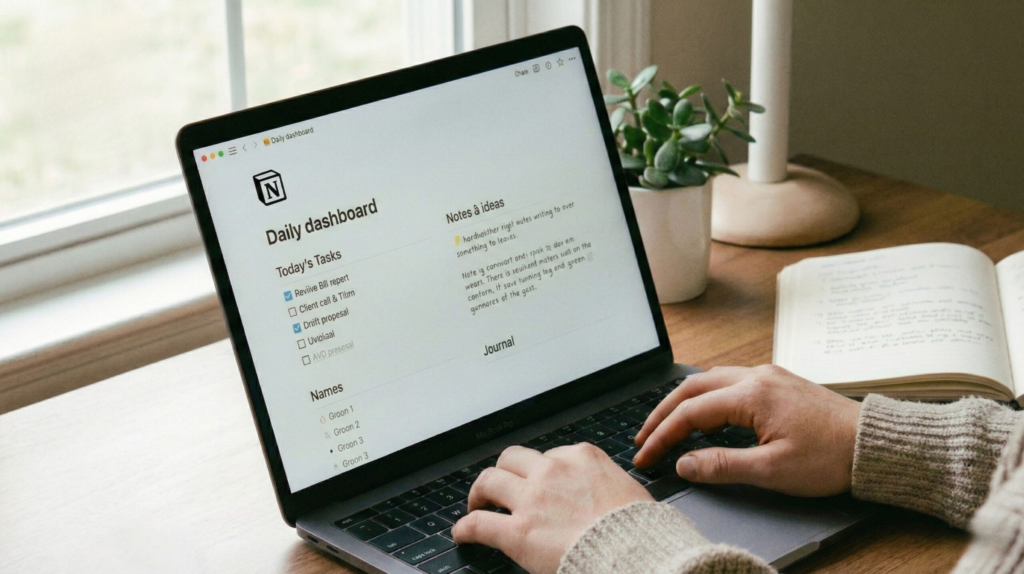
We start the day by opening our Daily Dashboard — nothing else.
First action:
Read what we wrote the day before
Don’t change anything yet
Then we select the entire page and ask Notion AI:
“Summarize this dashboard and tell me what deserves attention today.”
This does three useful things:
surfaces urgent vs optional tasks
highlights unfinished decisions
removes emotional weight from the list
This is a key moment in how to use Notion AI effectively: we let AI reflect, not command.
Midday: updating tasks as work changes
During the day, work shifts. New requests arrive. Priorities change.
Instead of reorganizing manually, we:
add new tasks under Today’s Tasks
paste quick notes under Notes & Inputs
Then we ask:
“Reorder today’s tasks based on urgency and effort.”
Because the dashboard already has context, Notion AI responds with more relevant prioritization than a blank prompt would.
Afternoon: resolving open decisions
This is where many productivity tools fail.
When energy drops, we go to Open Decisions and pick just one item.
We ask Notion AI:
“Help me decide this using pros, cons, and a clear next step.”
We don’t always follow the suggestion — but we almost always:
gain clarity
reduce hesitation
move forward
This improves productivity: it reduces mental friction, not just workload.
End of day: preparing tomorrow in 2 minutes
Before closing the laptop:
We select the whole page
Ask Notion AI:
“Prepare a short summary and suggested focus for tomorrow.”
Then we:
move unfinished tasks forward
keep notes as they are
leave decisions visible
This keeps the dashboard alive, not perfect.
5. Mistakes That Make Notion AI Feel Useless (and How to Fix Them)
If Notion AI ever feels “meh”, it’s usually not because the tool is bad — it’s because the workflow is unclear.
This section makes how to use Notion AI actually work by fixing the most common problems fast.
| Common Mistake | What Happens | Fix (Do This Instead) | Best Notion AI Prompt | Quick Result |
|---|---|---|---|---|
| Starting with a complex template | You spend more time managing the system than working. | Use one simple page with 3 sections: Tasks, Notes, Decisions. Add structure later. | “Turn this page into a simple daily dashboard with Tasks, Notes and Decisions.” | Instant clarity, less friction. |
| Asking AI without context | AI answers feel generic or off-topic. | Highlight the relevant section first, then ask. Context = better output. | “Based on this section, what should I focus on today and why?” | More accurate priorities. |
| Trying to be perfect while writing notes | You capture less, and the dashboard stays empty. | Dump messy notes first. Let Notion AI clean them later. | “Summarize this and extract action items with owners and deadlines.” | Notes become tasks fast. |
| Mixing tasks and notes together | Everything feels noisy, and you avoid opening the dashboard. | Keep tasks under Tasks, notes under Notes. Use AI to link them. | “Link the tasks that come from these notes, and rewrite them clearly.” | Cleaner daily view. |
| Using AI to decide everything | You lose confidence and feel dependent. | Use AI for options, then choose. Keep decisions transparent. | “Give me 3 options, the trade-offs, and the safest next step.” | Better decisions, less stress. |
| Never reviewing the dashboard | The system becomes stale and stops helping. | Do a 2-minute end-of-day reset using AI. | “Summarize today, carry forward open tasks, and suggest tomorrow’s focus.” | Daily momentum stays alive. |
Mini checklist (quick fix in 30 seconds)
Keep the dashboard simple
Give Notion AI context (highlight section first)
Capture messy notes, then refine
Use AI for clarity, not control
If we apply these rules, how to use Notion AI becomes consistent and genuinely helpful — not a random feature you forget exists.
6. Ethical Use of Notion AI Without Losing Focus or Control
Using AI every day can quietly influence the way we think and make decisions. That’s why learning how to use Notion AI isn’t only about getting more done — it’s about staying aware, intentional, and in control.
Notion AI works best as a thinking partner, not as an authority. It’s extremely helpful for summarizing, reframing, and suggesting options, but the final choice should always remain ours. When AI starts deciding instead of supporting, productivity might improve for a short time, but confidence and clarity tend to fade.
A daily work dashboard naturally collects unfinished ideas, rough thoughts, and decisions in progress. That’s healthy. What matters is being intentional about what we store. Sensitive personal information or confidential work details should stay minimal or abstract. Notion explains how AI features interact with user content in its official privacy documentation.
Another common trap is over-optimization. If we rewrite every sentence, refine every task, and analyze every decision with AI, the system slowly becomes heavier instead of lighter. How to use Notion AI effectively means knowing when to use it — and when not to. If things are already clear, AI doesn’t need to step in.
A good Notion AI dashboard should still feel human. It should allow incomplete notes, imperfect thoughts, and moments of uncertainty. Writing in our own words first, then asking AI for support, keeps the system personal instead of generic.
When this balance is respected, how to use Notion AI becomes sustainable. The dashboard reduces mental load, supports better decisions, and helps us stay focused — without quietly taking control of how we work.
7. Is Notion AI Worth Using as a Daily Work Dashboard?
So, is learning how to use Notion AI as a daily work dashboard actually worth it?
For most people, the answer is yes — if clarity matters more than automation. Notion AI works best when we want one calm place for tasks, notes, and decisions, without forcing rigid workflows or constant scheduling logic.
It’s not the right tool if you want AI to run your day for you. But if you want support in thinking, prioritizing, and reducing mental overload, it fits naturally into daily work — especially if you already use Notion.
To put this into context, here’s how Notion AI compares to other popular tools with similar goals.
Notion AI vs Other Daily Productivity Tools
| Tool | Best For | AI Strength | Daily Dashboard Style | Try It |
|---|---|---|---|---|
| Notion AI | Tasks, notes & decisions in one place | Summaries, rewriting, decision support | Flexible, human-driven | Try Notion AI |
| Akiflow | Calendar & task consolidation | Light AI prioritization | Schedule-centric | Try Akiflow |
| Taskade | Team workflows & structured tasks | Task generation, outlining | Structured & collaborative | Try Taskade |
| ClickUp | Project-heavy teams | Task writing & summaries | Complex, task-first | Try ClickUp |
| Motion | Automatic task scheduling | Calendar-driven AI planning | AI-controlled schedule | Try Motion |
Quick takeaway
If you want AI to think with you, Notion AI is a strong daily dashboard.
If you want AI to schedule for you, tools like Motion or Akiflow may fit better.
8. FAQ: How to Use Notion AI for Daily Productivity
Q: How do I start using Notion AI for daily work if I’m a beginner?
A: The easiest way to start is with a single page. Create a blank page, divide it into Tasks, Notes, and Decisions, then begin writing naturally. Once content is there, ask Notion AI to summarize, prioritize, or extract action items. This is the simplest and most effective way to learn how to use Notion AI without feeling overwhelmed.
Q: Can Notion AI really replace other productivity apps?
A: Notion AI doesn’t replace every tool, but it can replace several at once. If your main needs are managing tasks, capturing notes, and clarifying decisions in one place, a daily dashboard with Notion AI is often enough. If you need automatic scheduling or strict time blocking, complementary tools may still help.
Q: Is Notion AI worth paying for just for productivity?
A: It’s worth it if you already use Notion daily and feel mental overload more than lack of features. Notion AI adds value by reducing friction — summarizing notes, clarifying priorities, and supporting decisions. If you rarely open Notion or prefer rigid task managers, the benefit may be limited.
Q: How often should I use Notion AI during the day?
A: Use it intentionally, not constantly. A good rhythm is once in the morning to clarify priorities, once during the day when things change, and once at the end of the day to prepare tomorrow. Knowing how to use Notion AI well also means knowing when not to use it.
Q: Is my data safe when I use Notion AI every day?
A: Notion states that user content is handled according to its privacy policies and that AI features are designed to respect workspace controls. Still, it’s best practice to avoid storing highly sensitive personal or confidential information in any AI-assisted workspace. Staying mindful keeps your daily dashboard useful and responsible.
If you want to go deeper and strengthen your AI-powered productivity system, these guides pair perfectly with what we covered here:
→ Taskade AI – Your Second Brain for Team Productivity
→ Akiflow AI – Best Daily Planner for Remote Workers?
→ How to Use AI to Turn Notes Into Tasks (Without Losing Context)