
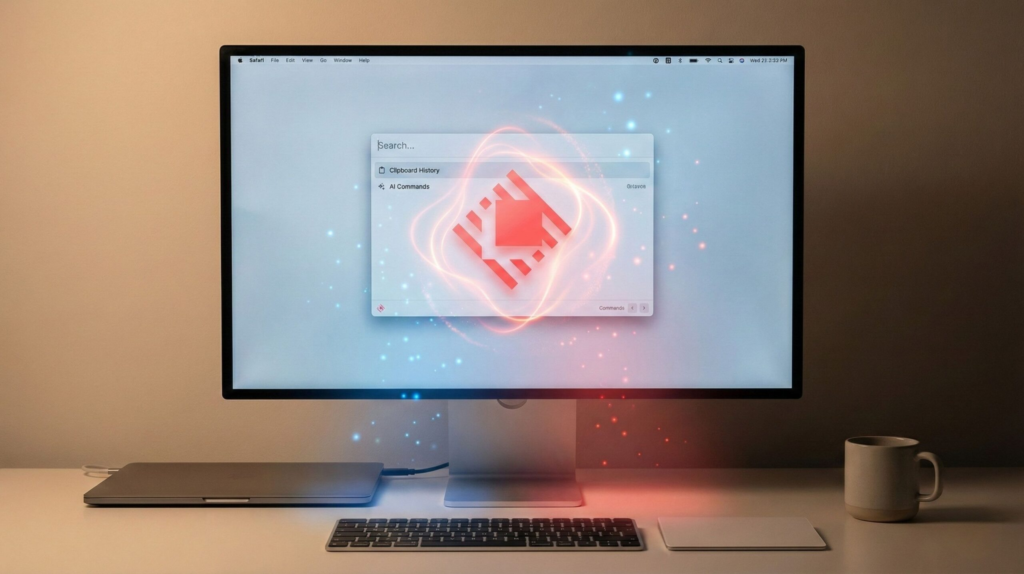
 Published on: January 6, 2026
Affiliate Disclaimer:
Some of the links in this post are affiliate links. This means we may earn a small commission if you click through and make a purchase, at no extra cost to you. We only recommend tools we truly believe offer value.
1. Why Raycast AI Workflows Save Time on macOS (What We’ll Fix Today)
If we’re honest, most of us don’t lose time because we’re lazy — we lose it because small actions pile up. Searching for a file, switching between apps, rewriting the same message, or copying notes from one place to another. Each task is quick, but together they quietly drain our focus.
We usually notice this only at the end of the day, when work feels busy but not truly productive. And that’s frustrating — especially on macOS, where we expect things to feel smooth and efficient.
This is exactly where Raycast AI workflows come in.
In this guide, we’ll show how tools like Raycast can turn those repeated micro-actions into single, intentional commands. Not by adding yet another app to manage — but by simplifying how we already work.
What we’ll focus on isn’t theory or advanced setups. Instead, we’ll look at:
why daily macOS workflows break down in real life
how AI-driven commands can remove friction instead of adding complexity
and how we can start automating small tasks without losing control or clarity
If you’ve ever felt that your computer should be helping more — not asking for constant attention — you’re in the right place.
2. The Real macOS Productivity Problem: Too Many Apps, Too Many Steps
Most of us don’t struggle because we don’t know what to do — we struggle because doing it takes too many small steps.
We open one app to search for a file, another to write a message, a third to check a task, and maybe a fourth to look up a quick answer. None of these actions are hard. The problem is the constant switching, the interruptions, and the mental effort required just to stay oriented.
This isn’t just a feeling. Research from the American Psychological Association shows that frequent task switching increases mental load and reduces efficiency, even when tasks feel simple or familiar. In short, our brain pays a cost every time we jump between tools (complete article here).
On macOS, this feels especially frustrating. The system is powerful, fast, and beautifully designed — yet our daily workflow often ends up fragmented. Even with macOS productivity tools, shortcuts, pinned apps, browser tabs, and reminders, everything still feels disconnected instead of working as one system.
Over time, this creates three common issues many of us quietly accept while trying to stay productive on Raycast AI macOS setups:
We repeat the same actions every day without realizing how much time they cost
We forget steps or postpone small tasks because they feel annoying to start
We spend more energy managing tools than actually doing focused work
What’s tricky is that most productivity apps don’t really fix this. They add structure, lists, or dashboards — but they still require us to stop what we’re doing and go somewhere else, breaking our flow.
This is the gap we’ll address next: not by adding another layer of complexity, but by rethinking how Raycast AI workflows and smart Raycast automation let actions happen exactly where our attention already is — making AI workflows for work feel natural instead of forced.

3. What Raycast AI Workflows Are and How They Actually Work
At its core, Raycast is a command-first workspace built for macOS productivity. Instead of opening apps and clicking through menus, we trigger actions with a few keystrokes — right where our attention already is, which is why Raycast AI macOS workflows feel so natural to use.
When we add AI into the mix, those actions become adaptive. A Raycast AI workflow can understand context, interpret natural language, and return something useful — not just execute a rigid script like traditional automation.
Here’s the simplest way to think about it:
Commands are single actions (open a file, search a note, start a timer).
Workflows connect multiple actions into one smooth step using Raycast automation.
AI helps decide what to do with the input — summarize, rewrite, organize, or suggest — making these AI workflows for work far more flexible.
So instead of manually copying text, opening another app, pasting it, and deciding what to do next, we can trigger one command and let the system handle the routine part — all inside a single Raycast AI workflow.
This is where Raycast feels different from traditional automation tools. It doesn’t force us to predefine every rule. We give it intent, and it fills in the gaps — while still keeping us in control on macOS.
A good mental model is this:
We keep decision-making and judgment
Raycast handles execution and repetition through AI-powered workflows
That balance is important. The goal isn’t to automate everything, but to remove the friction that slows us down during normal work. In the next section, we’ll move from concepts to practice and set up a first workflow step by step — no technical background required.
4. How to Set Up Your First Raycast AI Workflow Step by Step
Let’s keep this practical. We’ll set up a first workflow that shows the value immediately, without touching code or advanced settings.
Step 1: Install Raycast and enable AI
Download Raycast and open it once.
From Preferences, enable the AI features and choose your shortcut (most people stick with ⌘ + Space or ⌥ + Space). This becomes our single entry point for actions.
Step 2: Start with a simple, repeatable task
The best first workflows are things we already do every day:
summarizing text from emails or articles
rewriting short messages
extracting action points from notes
We’re not automating a big process yet — just removing friction from something familiar.
Step 3: Create a basic AI workflow
Open Raycast, type what you want to do in plain language (for example: “Summarize this text into 3 bullets”), and save it as a reusable command.
From now on, that action is one shortcut away.
Step 4: Decide what stays manual
This matters more than it sounds. A good workflow doesn’t replace thinking — it supports it.
We let AI handle formatting, structure, and repetition, while we keep decisions and context.
To make this clearer, here’s a simple reference we can use when building workflows:
| Task Type | Best Approach | Why It Works |
|---|---|---|
| Summarizing articles or emails | Use AI workflow | Removes repetition and speeds up understanding |
| Rewriting or polishing text | Use AI workflow | Improves clarity without mental effort |
| Extracting action points | Use AI workflow | Keeps focus on execution, not parsing |
| Setting priorities or decisions | Keep manual | Requires context and human judgment |
| Tone, intent, or sensitive content | Keep manual | Prevents over-automation and mistakes |
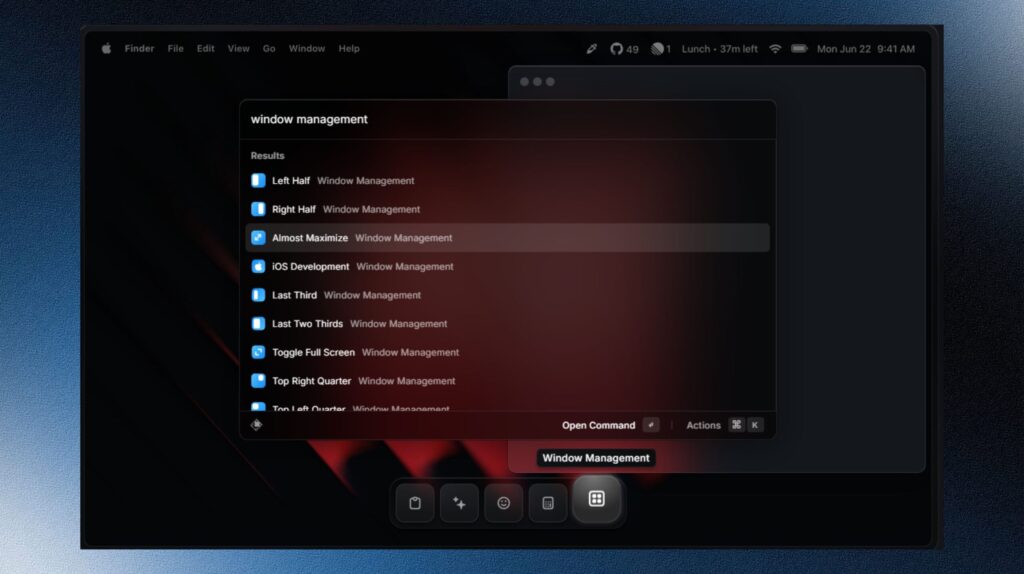
A good Raycast AI workflow doesn’t try to replace how we think — it supports how we work.
The simplest rule we can follow is this: let AI handle structure and repetition, while we keep control over judgment and intent. When we respect that balance, Raycast automation feels helpful instead of intrusive.
Using AI for tasks like summarizing, rewriting, or extracting action points saves time and mental energy. Keeping decisions, priorities, and tone manual ensures we stay aware and responsible for the outcome.
Once this distinction is clear, setting up Raycast AI workflows stops feeling risky or complex. It becomes a practical way to reduce friction — not to surrender control.
5. The Most Useful Raycast AI Workflows for Daily Work
This is the point where things become immediately practical. The workflows below are designed around tasks we already repeat every day — the kind that quietly eat time and attention.
What matters isn’t doing more. It’s removing unnecessary steps so we can stay focused on what actually moves work forward. With Raycast, these workflows live one shortcut away, without forcing us to change how we think.
High-impact workflows we can use right away
| Workflow | What It Does | Why It’s Useful |
|---|---|---|
| Text summarizer | Condenses emails, docs, or articles into key points | Cuts reading time without losing meaning |
| Message rewriter | Polishes short messages or replies | Improves clarity while keeping our tone |
| Action-item extractor | Pulls tasks from notes or meeting summaries | Prevents missed follow-ups |
| Quick research helper | Summarizes a topic or explains a concept | Speeds up understanding without tab overload |
| File renaming assistant | Renames files based on content or rules | Keeps folders clean with zero friction |
Common mistakes that reduce the value of workflows
There are two patterns that often make automation feel disappointing.
Automating too much, too soon
When everything becomes a command, we lose awareness. Instead of feeling supported, we feel detached from our own work. Research summarized by the American Psychological Association shows that excessive automation can reduce situational awareness and decision quality when humans stop actively engaging with tasks (source here).
Letting AI decide instead of assist
Workflows should support our judgment, not replace it. If a task involves priorities, sensitivity, or nuance, that step should remain manual. AI is strongest when it prepares information — not when it makes choices for us.
The best workflows feel invisible. They don’t ask us to adapt or think differently — they quietly adapt to how we already work.
In the next section, we’ll pause and look at how to use AI automation responsibly, so productivity gains don’t come at the cost of control or trust.
6. Using Raycast AI Responsibly in Daily Workflows
Before wrapping things up, it’s worth pausing for a moment. Productivity tools don’t just change how fast we work — they also influence how we think and what we pay attention to.
Used well, Raycast helps us stay focused by removing friction. Used poorly, any automation tool can quietly distance us from our own decisions. The difference isn’t technical — it’s intentional.
A simple principle works well here:
AI should reduce effort, not responsibility.
That means being mindful in three areas:
Privacy and context
Not every piece of information needs to be processed by AI. Personal notes, sensitive work, or unfinished thoughts deserve extra care. We should always know what we’re sending and why.Over-automation
When everything becomes automatic, we stop noticing patterns and priorities. If a workflow hides too much, it’s probably doing too much. The best setups still leave room for awareness.Human judgment
AI can summarize, organize, and suggest — but meaning, tone, and decisions remain human work. Keeping that boundary clear protects both quality and trust.
When we approach automation this way, productivity gains feel calm and sustainable. We’re not chasing speed for its own sake — we’re creating space to think, decide, and work with more clarity.
In the final section, we’ll bring everything together and look at how to get started with Raycast AI in a practical, low-risk way, including when it makes sense to try it — and when it doesn’t.

7. Raycast AI Workflows FAQ
Q: What are Raycast AI workflows in simple terms?
A: Raycast AI workflows are custom commands that let us automate repeated actions on macOS using natural language. Instead of switching between apps, we trigger one shortcut that summarizes, rewrites, organizes, or retrieves information for us.
Q: Do I need technical skills or coding to use Raycast AI workflows?
A: No. Raycast AI workflows are designed for non-technical users. We describe what we want in plain language, save it, and reuse it. More advanced options exist, but they’re completely optional.
Q: Is Raycast AI safe to use with work-related information?
A: Raycast provides clear controls over what data is sent to AI features. Still, we should avoid using AI workflows for sensitive or confidential content unless we fully understand the data handling settings and our company’s policies.
Q: How is Raycast AI different from other macOS automation tools?
A: Traditional automation tools rely on fixed rules and complex setups. Raycast AI focuses on intent: we say what we want, and the workflow adapts. This makes it faster to set up and easier to maintain for everyday tasks.
Q: Is Raycast AI worth paying for?
A: It’s worth considering if we repeat the same small tasks every day and want to reduce friction. For occasional use, the free features may be enough. The paid AI plan makes sense when automation becomes part of our daily workflow.
If you want to go a step further and turn these workflows into a system that actually holds up over time, these guides pair naturally with what we explored here:
→ Taskade AI – Your Second Brain for Team Productivity
→ Akiflow AI – Best Daily Planner for Remote Workers?
→ Best Free AI Tools with No Login Required (2025)
→ AI Workflow Bots: Automate Your 9–5 and Reclaim Your Time
Each of these focuses on a different layer of the same challenge: reducing mental load, keeping context intact, and using AI as support — not as a replacement for thinking.