
 Published: September 13, 2025 (Last Update: Feb 2026)
This post contains affiliate links. If you buy through them, we may earn a small commission at no extra cost to you — thanks for supporting. Learn more.
1. Introduction – Why This Sane Box Review Matters
Do you wake up to 100+ unread emails and already feel behind before your day even starts? You’re not alone. At AI Digital Space, we’ve seen how inbox overload quietly drains focus, wastes time, and adds friction before real work even begins.
That’s exactly why we created this Sane Box review — to test how this AI email filter actually performs in real life, how effectively it organizes your inbox automatically, and whether it genuinely helps you spend less time sorting noise and more time on meaningful tasks.
We analyzed what people are actively searching for: how to stop email overload, best inbox organizer tools, inbox zero solutions. The pattern is clear — missed messages, constant distraction, and decision fatigue. Yet most reviews overlook what really matters: setup effort, real speed of results, and privacy trade-offs.
In this review, you’ll get a practical, transparent breakdown of where SaneBox truly delivers — and where you might need a little patience.
By the end, you’ll know:
• whether SaneBox can realistically save you time and mental energy
• how it works — features, setup, and how to train it properly
• what limitations or trade-offs to expect
Already using an email organizer? You may also want to compare it with alternatives like Clean Email or explore our productivity tools guide to see how SaneBox stacks up against other AI workflow assistants.
- Best for: people managing 40+ emails per day
- Setup time: about 3–5 minutes
- Learning curve: very easy
- Main benefit: automatic inbox prioritization
- Worth it? Yes — especially for heavy email users
2. Sane Box Review: Does It Really Fix Inbox Overload?

If you want the bottom-line first, here’s what makes SaneBox stand out: it’s not just another “email organizer” — it’s a smart assistant that learns, filters, and frees you from the small stuff. Below are its core differentiators, so you can decide fast whether this tool is worth trying.
| Feature | Why It Matters |
|---|---|
| Smart Folders (SaneLater, SaneNews, SaneCC) | Automatically filters non-urgent emails so your main inbox only shows what truly needs attention — meaning less noise and more focus immediately. |
| SaneBlackHole Blocking | Drag unwanted senders into one folder and future emails disappear automatically. Perfect for newsletters, promos, or persistent spam. |
| Reminders + No-Reply Alerts | Tracks conversations and reminds you if someone hasn’t replied — so important emails never slip through the cracks. |
| Snooze + Do-Not-Disturb Modes | Temporarily hide emails until a chosen time or pause inbox flow completely during deep-work sessions. |
| Privacy-Focused Design | Works via IMAP or Exchange and analyzes only metadata like sender and subject — not full email content — helping protect privacy. |
From what we’ve observed, SaneBox is especially effective for anyone dealing with a high volume of daily emails — whether for work, personal use, or both. If your inbox is constantly filled with newsletters, promotions, or low-priority messages, this AI email filter helps surface what actually deserves your attention first. It’s particularly helpful if you tend to lose track of important threads or forget follow-ups simply because your inbox feels overwhelming.
One thing worth emphasizing in this Sane Box review is that SaneBox isn’t instant magic. Like most intelligent email assistants, it goes through a short learning phase. When you move mis-sorted emails back to the right folder, you’re actively training the system — and its accuracy improves quickly with use.
The payoff, however, comes fast. After just a few minutes of setup and light training, many users notice less inbox clutter, fewer distractions, and more focus on real priorities. If email overload is already affecting your workflow, tools like SaneBox tend to work best as part of a broader productivity stack. For example, combining smart inbox automation with privacy-friendly solutions from our guide to offline AI tools can help you streamline work without increasing digital noise or dependency on constant connectivity.
3. Comparison Table – SaneBox vs Gmail Filters vs Clean Email
Here’s a clear side-by-side comparison so you can see where SaneBox shines, how it stacks up versus Gmail’s built-in filters, and what features Clean Email brings to the table. This section helps you decide where your priorities lie in the sane box review.
| Feature | SaneBox | Gmail Filters | Clean Email |
|---|---|---|---|
| Automatic Sorting | AI learns from your actions; folders like SaneLater, SaneCC. | Manual rules and labels; no adaptive learning. | Smart Folders + Auto-Clean rules for automatic grouping. |
| Bulk Cleanup | Deep Clean helps with older piles; best for ongoing hygiene. | Search + select + delete/archive (time-consuming). | Strong bulk actions by sender/domain/age for inbox backlogs. |
| Unsubscribe Tools | SaneBlackHole hides future emails from unwanted senders. | Manual unsubscribe or custom filters. | One-click and mass unsubscribe options. |
| Price | From $7/month (annual discounts available). | Free (included with Gmail). | From ~$9.99/month; free trial available. |
| Ease of Use | Quick setup; gets smarter during first week of use. | Simple interface; ongoing manual maintenance. | Visual dashboard; intuitive bulk actions. |
| Privacy & Security | Analyzes headers only; doesn’t store full email content. | Subject to Google’s privacy policies and ad ecosystem. | Privacy-focused features; secure processing. |
| Try It | Try SaneBox Free | Open Gmail | Try Clean Email |
Quick Takeaways
SaneBox wins on automation and inbox focus — ideal for busy professionals.
Gmail Filters are free but manual — better for light email users.
Clean Email is excellent for bulk cleanup if you have thousands of old messages to sort through.
4. How SaneBox Works (Step-by-Step Walkthrough)
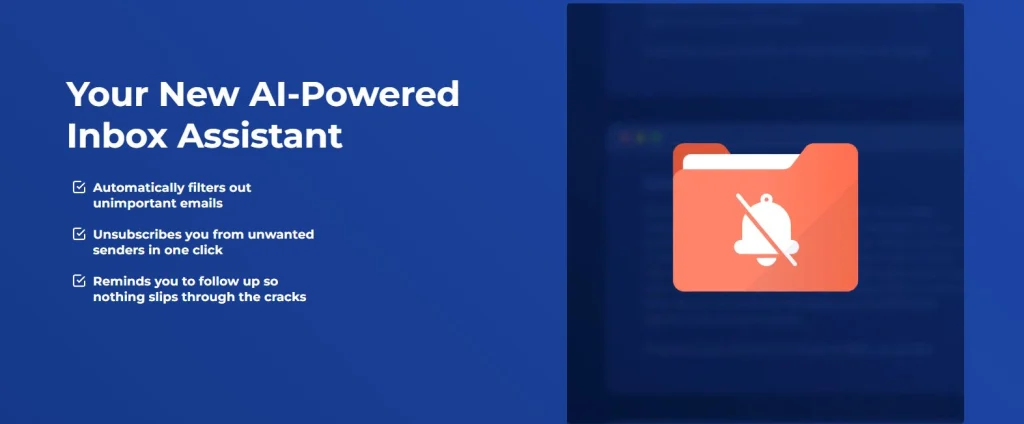
Setting up SaneBox is simple and fast.
In this part of our Sane Box review, here’s what happens step by step — so you can see why this AI email filter works in real inboxes, not just in theory.
1. Connect Your Email
After signing up, you link your Gmail, Outlook, iCloud, or IMAP account.
Important detail: SaneBox primarily learns from email headers (sender, subject line, and timing) rather than storing full message content. That privacy-first design is one reason many people consider it a safer option for managing inbox overload.
2. Train the AI (Once, Then It Learns)
Training is straightforward and takes minutes. You simply move emails the way you naturally would.
Example: drag newsletters, promotions, or low-priority messages into folders like SaneLater or SaneBlackHole. If something important gets filtered, move it back. Those quick corrections teach the system your preferences.
Within a few days, most users notice the sorting becomes more accurate — because SaneBox adapts to your habits instead of forcing you into a rigid rule system.
3. Use the Core Features That Matter
Once active, SaneBox runs quietly in the background and reduces inbox noise using a few focused tools:
SaneLater, SaneNews, SaneCC
Filters low-priority emails automatically so your main inbox stays focused on what actually matters.
SaneBlackHole
Drop an unwanted sender here once, and future emails from them are filtered automatically.
Reminders + NoReplies
Get nudges when someone hasn’t replied, so important threads don’t slip through.
Digest + Snooze
Bundle low-priority emails into summaries or hide messages until a time you choose.
As this Sane Box review shows, the real value isn’t flashy features — it’s how smoothly this AI email filter blends into your workflow and reduces manual inbox maintenance.
4. Customize Your Workflow
This is where SaneBox becomes personal. You can create VIP lists, adjust Digest frequency, and fine-tune what gets filtered.
If you like building a broader “low-noise” setup, pairing inbox automation with tools that work even when you’re not constantly online can be surprisingly effective. Here’s a practical guide: offline AI tools.
5. Monitor and Adjust (5 Minutes a Week)
Check SaneLater (or your main folders) once a week to confirm nothing important is being filtered. Most people only need light adjustments after the first week.
Over time, that small habit is what turns SaneBox from “nice idea” into a real email overload solution — because the system keeps improving as your inbox changes.
5. Real-World Results and Time Savings
When we tested SaneBox for this sane box review, the results were noticeable within the first week. Here’s what users typically report:
Inbox Reduction: Many see 60–70% fewer emails in their main inbox by day three. That means you only deal with what matters and review the rest in bulk.
Time Saved: Freelancers and small business owners report saving 2–3 hours per week. One startup founder shared that SaneBox cut her daily “email catch-up time” from 45 minutes to under 15.
Better Follow-Ups: The NoReplies feature prevented missed deals by flagging conversations that didn’t get a response.
If you’re comparing tools, you might also check our Bardeen AI review — it pairs nicely with SaneBox for automating repetitive workflows beyond email.
6. Pro Tips to Get the Most Out of SaneBox
Once SaneBox is set up, a few smart tweaks can significantly increase its impact.
In this part of our sane box review, these are the most effective, real-world tips we found to get faster results and more consistent inbox control.
Train Daily for the First Week
For the first few days, spend just 2–3 minutes a day dragging misfiled emails back to the correct folder. As confirmed in many long-term SaneBox reviews, this short training phase dramatically improves accuracy and helps the AI email filter adapt to your real priorities instead of generic rules.
You can also see this learning approach explained directly in SaneBox’s official guide here.
Use the Daily Digest
Instead of checking SaneLater repeatedly throughout the day, enable Digest mode to receive one single summary email at the time you choose. This is one of the main reasons SaneBox stands out in any sane box review focused on batching, deep work, and reducing inbox interruptions.
Create a VIP List
Mark clients, teammates, and key contacts as VIP so their emails always land in your main inbox. This prevents important conversations from getting buried — especially if you receive many CCs, newsletters, or automated messages.
Combine SaneBox with Smart Email Apps
If you use tools like Superhuman, Spark, or Apple Mail, let SaneBox handle filtering while those apps provide a faster interface. This layered workflow is often the most efficient approach to heavy email volume. Research from McKinsey shows that well-designed automation systems can significantly reduce cognitive load and improve productivity.
Pair with Calendar and Task Tools
SaneBox reminders turn follow-ups into actionable tasks instead of passive alerts. That means you don’t just see pending emails — you act on them. For a broader automation setup, see our guide to all-in-one AI tools, which explains how integrated assistants streamline daily workflows.
7. Pricing and Plan Options Explained
SaneBox offers flexible plans so you can start small and scale as you need. Here’s a clear overview to help you pick the right one.
| Plan | Best For | Monthly Price |
|---|---|---|
| Snack | Light email users who just want SaneLater + BlackHole. | ≈ $7/month (billed annually) |
| Lunch | Busy professionals needing Reminders, Snooze, and full feature set. | ≈ $12/month (billed annually) |
| Dinner | Teams or power users managing multiple accounts and workflows. | ≈ $36/month (supports multiple mailboxes) |
Most users start with Lunch since it includes the full set of productivity features. There’s also a 14-day free trial so you can see results before paying.
8. Privacy, Security, and Ethical AI Reflection
When we prepared this sane box review, one of the first questions we asked was: “What happens to my data?” The reassuring answer is that SaneBox was built with privacy as a core principle — not an afterthought.
Privacy by Design
SaneBox analyzes only the email headers — sender, subject line, and date — never the full message content. This design choice allows intelligent email filtering without actually reading your emails. As explained in their official documentation, all data is encrypted both in transit and at rest, reinforcing why privacy is often highlighted in every serious SaneBox review.
Security and Trust
Because SaneBox works through IMAP or Exchange protocols, your emails remain on your provider’s servers (Google, Microsoft, Apple, and others). In practice, SaneBox functions as a smart filtering layer rather than a storage service — a distinction that matters if you’re evaluating inbox tools through a privacy-first lens.
Our Reflection on AI Email Filtering
AI-powered inbox filtering can save significant time, but it isn’t perfect. As we note in this sane box review, checking your SaneLater folder regularly — especially in the first weeks — helps prevent important messages from being missed. This small habit keeps you in control while still benefiting from automation.
9. FAQ and Final Verdict

Who SaneBox Is Not For
This SaneBox review wouldn’t be complete without clarity on who it may not be ideal for.
- Users who want full manual control over every email rule
- People expecting instant results without a short training phase
- Those with very low daily email volume
Final Verdict
After completing this sane box review, it’s clear that SaneBox stands out as one of the most practical and privacy-respectful solutions for managing email overload. Instead of forcing you to constantly create rules or reorganize your inbox, it works quietly in the background and improves as it learns your habits.
SaneBox is a strong fit if you want a hands-off way to reduce inbox noise, protect your focus, and make sure important conversations don’t get lost. It won’t instantly transform your inbox on day one, but with a short learning period, the time savings and mental clarity add up quickly.
In short, if email overload is already costing you time and attention, SaneBox is not just a convenience tool — it’s a long-term productivity upgrade.
No credit card required • Cancel anytime
Q: Does SaneBox work with Gmail and Outlook?
A: Yes, it integrates with Gmail, Outlook, iCloud, Yahoo, and any IMAP/Exchange account. No new apps to install — it simply filters your existing inbox.
Q: Will SaneBox delete my emails?
A: No. It only moves them to smart folders you can review anytime. You stay in full control of what gets archived or trashed.
Q: How long does it take to see results?
A: Most users notice a cleaner inbox within the first week, especially if they spend a few minutes training SaneBox daily at the beginning.
Q: Is it safe for business use?
A: Yes. SaneBox uses secure connections and focuses on email metadata rather than message content, making it suitable even for professional communication.
Q: Is SaneBox worth paying for?
A: If you receive dozens or hundreds of emails per day, SaneBox is often worth it for the time savings alone. For lighter inboxes, manual filters may be sufficient.
Q: Does SaneBox read my emails?
A: No. As explained in this Sane Box review, SaneBox analyzes only email headers such as sender, subject, and timestamps — not the full message content.
Q: Can SaneBox replace Gmail filters or Outlook rules?
A: Not exactly — SaneBox doesn’t replace built-in filters, it improves them. Instead of relying only on static rules you create manually, SaneBox uses adaptive AI to learn your email habits and automatically sort messages based on priority. Many users find it works best alongside existing filters rather than as a full replacement.
If this sane box review helped you better understand how AI can reduce email overload and protect your focus, you may also find these related guides useful:
 Free AI Tools With No Login Required
A practical overview of browser-based AI tools you can use instantly, without accounts or sign-ups — ideal for quick productivity boosts with minimal friction.
Harpa AI Review – Automate Everyday Tasks in Your Browser
A closer look at how AI can assist with research, summaries, and repetitive online tasks directly from your browser.
AI Tools for Productivity – What Actually Helps You Work Better
A broader guide on using AI to reduce mental load, streamline workflows, and avoid tools that add more complexity than value.