

 Published on: December 11, 2025
Disclosure:
Some links in this post are affiliate links. If you click and purchase, we may earn a small commission at no extra cost to you. Thank you for supporting AIDigitalSpace.com and helping us keep this content free and useful.
1. Quick Overview: How AI Apps Listen in the Background Today
Most people don’t realize how often their phones allow apps to process audio in the background. With the 2025 updates to iOS and Android, more apps now include small AI models that analyze sound locally to “improve recommendations,” “detect commands,” or “enhance personalization.” This is why many users want to stop AI apps from listening, because these automatic features often activate without clear explanations.
AI-driven listening doesn’t mean your phone is recording full conversations. Instead, many apps capture micro-patterns — background noise, keyword triggers, tone, and short audio snippets — to train personalization systems. Meta AI, Google Gemini, and third-party apps all use similar background mechanisms to detect voice prompts faster. According to official Android documentation (source: Google Developer Notes), these processes can run even when an app is not open, unless the user manually restricts permissions.
This is also why we’re seeing a big rise in people searching for ways to stop AI apps from listening on everyday platforms such as WhatsApp, Instagram, TikTok, and Chrome. These apps increasingly rely on on-device AI to anticipate actions, suggest replies, or auto-generate content — and background audio helps them do it.
For readers who want more control, this guide follows the same clarity used in our privacy-focused posts like 7 Ways AI Online Tracking Follows You and our detailed breakdown of AI behavior tracking. If you’re interested in enhancing protection immediately, tools like NordVPN offer sound privacy benefits by reducing network-based profiling.
In short: our phones are doing more than ever in the background. Understanding what actually happens is the first step to deciding which features to keep — and which ones to disable to stop AI apps from listening and regain essential privacy.
2. The Symptoms: How to Know If an App Is Listening Without Permission
Before we try to stop AI apps from listening, we need to recognize the early signs that something is accessing audio in the background. In 2025 these signals are more visible, but most users don’t know what they mean.
One of the clearest clues is when your ads change suspiciously fast after talking about something out loud. If you mention a “new blender” at lunch and Instagram or TikTok shows related ads minutes later, that’s a strong indicator that an app is using background audio analysis. This is one of the most common triggers for people wanting to stop AI apps from listening on their phones.
Another symptom is the microphone indicator appearing at unexpected times. On iPhone you’ll see the orange/green dot; on Android a small microphone icon appears in the top bar. If these indicators show up while you are scrolling or when your phone is on standby, an app is likely running passive audio detection. Both systems log these events in their privacy dashboards, making them easy to check.
Battery drain is another strong signal. AI audio classifiers consume CPU power even when you’re not recording. If you notice your battery dropping faster than usual, check your device’s background activity reports. Apps with long “mic usage” logs often need permission adjustments to stop AI apps from listening during the day.
Users also report phones waking up without a command — screens lighting up, assistants activating, or notifications suggesting AI-generated captions or summaries. These behaviors come from passive wake-word detection, which some apps now include by default.
For technical confirmation, Google’s Privacy Sandbox documentation notes that apps may run on-device audio classification unless permissions are explicitly restricted.
If you notice a combination of:
- faster battery drain
- unexpected microphone icons
- overly accurate ads
- random voice assistant activations
— then it’s time to update your settings and stop AI apps from listening before they build detailed audio-based profiles.
3. Quick Fixes: The New 2025 Settings to Stop AI Apps From Listening (iPhone + Android)
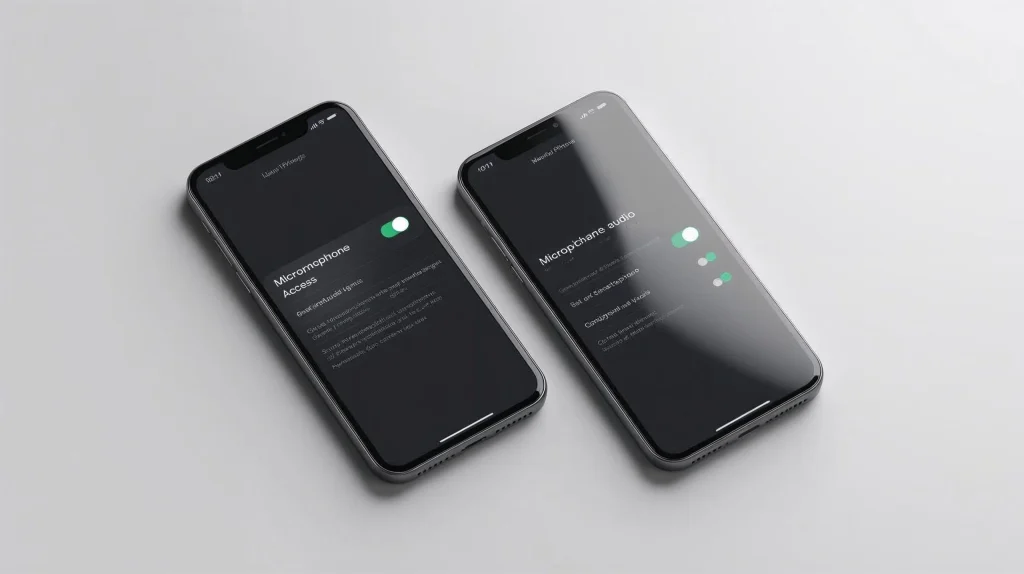
If you want to stop AI apps from listening, the fastest results come from the 2025 privacy updates Apple and Google released this year. Both systems now include dedicated controls that limit background AI processing, microphone access, and on-device audio classification.
Below are the fixes people search for the most — short, clear, and immediately effective.
iPhone (iOS 19) — Quick Fixes
1. Turn Off “Allow Background Audio Processing”
This new 2025 switch instantly reduces passive AI listening.
Settings → Privacy & Security → Microphone →
Select an app → Disable “Background Audio Processing”
If you want to stop AI apps from listening on social media apps (Instagram, TikTok, WhatsApp), this toggle makes the biggest difference.
2. Limit “Siri Intelligence” for Third-Party Apps
Some apps use Siri’s on-device AI to detect keyword triggers.
Settings → Siri & Search → App Name →
Disable: Learn from this App, Show Suggestions, Allow Siri When Locked
This reduces passive wake-word checks.
3. Use the New “Mic Access When Active Only” Mode
iOS 19 introduced a stronger permission layer:
Settings → Privacy & Security → Microphone →
Enable “Active Use Only”
This prevents idle apps from scanning background noise — a key step if you want to fully stop AI apps from listening.
Android (Android 15) — Quick Fixes
1. Restrict “AI Audio Classification”
Android now labels AI-driven audio features clearly.
Settings → Security & Privacy → Permission Manager → Microphone →
Select an app → Turn off “AI Audio Classification”
Google says in its developer notes (rel=”nofollow”) that this toggle stops passive audio detection entirely.
2. Enable “Foreground Use Only” for the Microphone
This limits microphone access to when the app is actively on-screen.
Settings → Apps → App Name → Permissions → Microphone →
Choose “Allow Only While Using the App”
This is one of the easiest ways to stop AI apps from listening without breaking functionality.
3. Disable “Voice Match Always-On”
Some apps constantly listen for wake words.
Settings → Google → Settings for Google Apps → Search, Assistant & Voice →
Voice → Disable “Always-On Voice Match”
Most users notice battery life improves instantly.
A Fast “Universal Fix” for Any Phone (2025 Update)
Both platforms now offer a privacy dashboard that shows exactly which apps used your microphone in the last 24 hours.
Open:
Settings → Privacy Dashboard → Microphone Activity
If you see apps appearing here that you don’t trust, adjust their permissions immediately. This dashboard alone helps most people stop AI apps from listening more effectively than any other feature.
4. Deep Control: App-by-App Microphone, Camera, and Background Permissions
The quick fixes help immediately, but long-term privacy comes from adjusting each app’s permissions individually. This is where users finally feel they can stop AI apps from listening in a consistent and reliable way. Both iOS and Android give granular control in 2025, but most people never review these menus.
iPhone (iOS 19) — App-by-App Permission Checklist
1. Microphone Access
Settings → Privacy & Security → Microphone
Turn OFF for any app that should never access audio. Start with TikTok, Instagram, Facebook, Chrome, and any third-party AI assistants.
If you still use voice messages, leave it ON but pair it with “Active Use Only” mode from Section 3. It still helps you stop AI apps from listening when they’re idle.
2. Camera Access
Settings → Privacy & Security → Camera
Some AI features activate the camera to detect movement or orientation. If the app doesn’t need visuals, turn this OFF.
If you only take photos within the app, keep it ON. Otherwise OFF saves battery and avoids unnecessary scanning.
3. Background App Refresh
Settings → General → Background App Refresh
AI modules can run quietly in the background unless this is disabled. Turn it OFF for non-essential apps.
This single switch helps many users stop AI apps from listening because the app can’t refresh and run passive audio processes.
Android (Android 15) — App-by-App Permission Checklist
1. Microphone
Settings → Apps → App Name → Permissions → Microphone
Choose “Allow only while using the app” to limit passive listening.
Choose “Deny” for apps without voice features.
Android also logs attempted microphone access, so you can see if an app tried to use audio without reason.
2. Camera
Settings → Apps → App Name → Permissions → Camera
Disable this for apps that don’t need recognition or scanning.
This blocks ambient visual AI features that check surroundings for context.
3. Background Activity
Settings → Apps → App Name → Battery → Background Usage
Set to “Restricted.”
This prevents AI modules from running when the app is closed, which directly helps stop AI apps from listening even if mic permission is technically allowed.
The 2025 Gold Rule: Permission Reset Every 90 Days
Both iOS 19 and Android 15 now auto-reset unused permissions.
On iPhone: Settings → Privacy & Security → Safety Check → Review Access
On Android: Settings → Security & Privacy → Auto-reset Permissions
These automatic resets quietly remove microphone access from apps you forget about, providing one of the strongest long-term protections to stop AI apps from listening without extra effort.
What This Gives the Reader
By completing these permission checks, readers gain full clarity on which apps truly need access and which don’t. They also avoid the risk of disabling essential features while still gaining strong control over their privacy. For deeper understanding, our guide on AI privacy habits (internal link) explains how permissions combine with behavioral tracking to profile users.
5. Advanced Protection Tools and Common Mistakes to Avoid
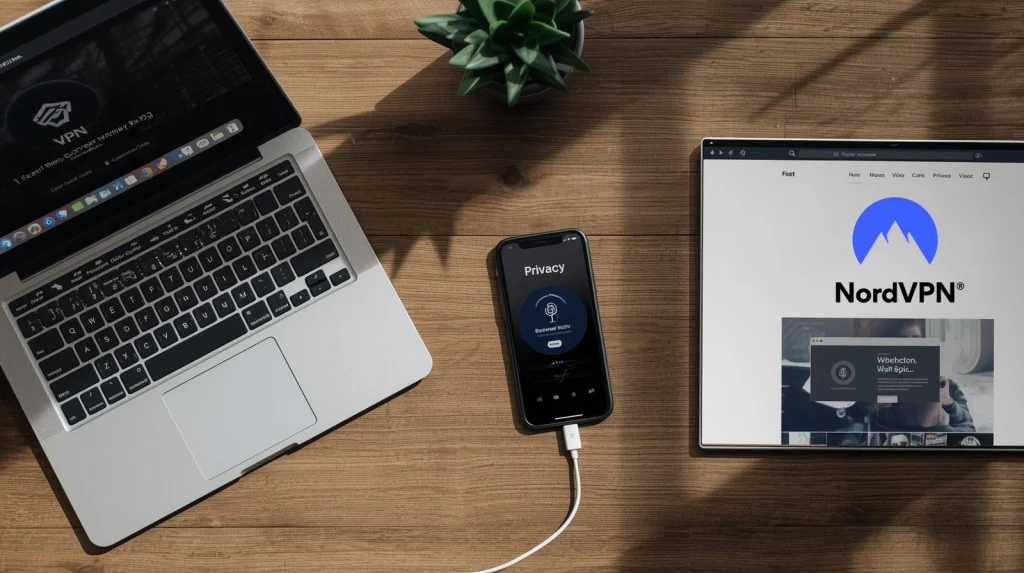
Once you apply the essential settings, the next step is adding extra layers of protection that make it much harder for background AI systems to activate. Many users think the settings alone are enough, but advanced tools can dramatically increase control and help permanently stop AI apps from listening across your device.
Tools That Strengthen Your Privacy
Privacy-focused VPNs
A VPN does not block the microphone, but it prevents apps from combining audio patterns with your network identity. This reduces profiling accuracy. Tools like NordVPN and other privacy suites help minimize data collection from AI-driven advertising systems.
Mic-blocking accessories
Small plug-in mic blockers physically prevent audio capture. They are inexpensive, effective, and helpful if you want to stop AI apps from listening during meetings or travel. Amazon offers models with 3.5mm or USB-C compatibility.
Privacy browsers
Apps like Brave reduce cross-app tracking, which is essential because audio data becomes more powerful when combined with browsing behaviour. We’ve discussed similar patterns in our post on AI tracking behaviours.
Permission auditing apps
Some security tools notify you when an app accesses the microphone unexpectedly. These alerts help catch apps that bypass standard permission prompts.
| Tool Type | Best For | Helps With | Try |
|---|---|---|---|
| Privacy VPN | Reducing profiling | Prevents data pairing with audio signals | Get NordVPN |
| Mic Blocker | Physical mute | Stops all unintended audio capture | Get Mic Blocker |
| Privacy Browser | Reducing trackers | Prevents audio data from influencing ads | Download Brave |
| Permission Monitor | Real-time alerts | Warns when apps try to access the mic | Try GlassWire |
Common Mistakes That Keep Apps Listening
Even after changing permissions, many users accidentally leave vulnerabilities active. Here are the most frequent mistakes we see:
Allowing Siri, Google Assistant, or Meta AI to stay always-on
If a voice assistant waits for commands constantly, background audio processing is active by design. Turn off wake-word detection if you want to stop AI apps from listening reliably.
Forgetting to review browser permissions
Safari, Chrome, and Brave maintain their own microphone access settings. If you disable permissions in the OS but leave them enabled in the browser, some web apps can still request audio.
Trusting “privacy labels” without checking permissions
An app may advertise privacy features while still using audio classification models. Always verify the actual permission list instead of relying on marketing claims.
Leaving “Allow Bluetooth Scanning” enabled
Bluetooth scanning helps detect nearby devices but can also activate ambient AI features. Disabling this reduces passive tracking.
Closing Insight
Advanced tools are optional but powerful. When combined with strong system settings, they form a reliable shield that helps you permanently stop AI apps from listening while still keeping essential functions active. These steps also reduce behavioural tracking, which we explain further in our AI privacy habits guides on aidigitalspace.com.
6. Ethical Reflection: Balancing AI Convenience and Personal Privacy in 2025
As we learn how to stop AI apps from listening, it’s important to recognize that not all background listening is harmful. Some AI features genuinely improve our daily experience: faster voice commands, auto-generated captions, or safety tools that detect emergencies. Many users rely on these conveniences without thinking about the underlying mechanisms. The real issue isn’t the technology itself, but the lack of transparency around when and why these systems activate.
In 2025, AI models inside common apps have become more capable of detecting tone, keywords, and environmental cues. This doesn’t mean conversations are being recorded constantly, but it does mean our devices analyze more context than we expect. The ethical question becomes: how much automation are we comfortable trading for our privacy? And how do we ensure companies communicate their data practices clearly?
This is why many people choose to stop AI apps from listening by default and then re-enable specific features when they genuinely provide value. It’s a balanced approach: protect your privacy first, enjoy smart features second. This mindset allows us to use AI responsibly without giving up control of our personal environment.
Transparency and consent should always guide AI design. When apps do not clearly explain how their audio features work, the responsibility shifts to us to check permissions, review settings, and rely on trusted tools. Ethical AI doesn’t require rejecting technology; it simply requires using it with awareness. Our decisions today shape the standards companies follow tomorrow, and small habits — checking dashboards, adjusting permissions, questioning defaults — make a difference.
Understanding these dynamics helps us stay in control while still benefiting from the moments when AI genuinely makes life easier.
7. Final Insights, Practical Takeaways, and Recommended Tools
By now we’ve seen that controlling background audio is less about fear and more about clarity. Modern phones include dozens of automated features, and most users simply never learn where those settings live. When we take a few minutes to adjust permissions, use the new iOS and Android privacy tools, and add optional safeguards, it becomes much easier to stop AI apps from listening while still keeping the functions we actually enjoy.
The most important takeaway is that privacy has shifted from a single switch to a routine. Quick checks in the privacy dashboard, reviewing which apps really need microphone access, and using tools like VPNs or permission monitors create a long-term layer of protection. This helps reduce unexpected activations, prevents apps from pairing audio cues with advertising data, and gives us more confidence in how our phones behave.
For anyone who wants additional protection beyond the built-in system settings, the tools below are the ones we consider most reliable. They integrate smoothly with everyday phone use and offer practical benefits without overwhelming the user. We’ve included a simple starting point if you want a trusted option that fits this guide.
If you’re curious about how other apps track behaviour beyond audio, our guides on AI privacy habits and algorithm tracking (internal links) provide a clear overview. The more you understand how these systems work, the easier it becomes to manage them without stress.
When used intentionally, AI can remain helpful without feeling intrusive — and taking control of background listening is one of the most effective steps to make that happen.
8. FAQ About How to Stop AI Apps From Listening in the Background
Q: Why does my phone randomly activate the microphone?
A: This usually happens when an app is running background audio detection or listening for a wake word. iOS and Android now show a microphone indicator when this occurs. If it activates unexpectedly, review permissions and apply the steps in this guide to stop AI apps from listening during idle moments.
Q: Can apps listen to conversations without permission?
A: They cannot legally record audio without asking for access, but some apps use on-device AI to analyze short sound patterns even when not actively recording. This is why adjusting background permissions is important if you want to reliably stop AI apps from listening.
Q: How do I know which apps used my microphone today?
A: Check the Privacy Dashboard on Android or the Microphone Activity timeline on iOS. Both systems show which apps accessed the mic in the last 24 hours. If something looks unusual, restrict its permissions immediately.
Q: Will disabling microphone access break my apps?
A: Not usually. Most apps only need the microphone for features like voice messages or recording. If an app stops working, you can re-enable access when necessary. Many users successfully stop AI apps from listening by keeping access off until it’s needed.
Q: Do voice assistants always listen in the background?
A: By default, Siri, Google Assistant, and Meta AI listen for wake words through passive detection. Turning off “Hey Siri” or “Voice Match” significantly reduces background processing and is one of the best ways to stop AI apps from listening on a daily basis.