

Mirko
AI Tech Writer
Lindy AI promises to work like a real employee — handling your inbox, calendar, and follow-ups without constant prompting. In 2026 it also repriced itself entirely, dropping its free plan for a 7-day trial. We researched what changed and whether it's still worth the new price tag.
Some links are affiliate links · no extra cost to you · Details
1. Start Here If You Want Real Results
Most people hear about Lindy AI and think it's "just another AI assistant." The real shift in 2026 is tools like this acting less like software and more like a coordinated teammate.
We're all managing overflowing inboxes, nonstop meetings, and tasks that keep multiplying. Old productivity hacks don't cut it anymore — and that's exactly the gap this assistant is built for.
Based on our research, it stands out because it doesn't just draft emails or clean up text. It coordinates schedules, prepares summaries, and automates repetitive workflows with almost zero friction.
What you'll walk away with:
- How Lindy AI actually works behind the scenes
- What changed in its 2026 pricing and free-trial policy
- Where it fits in a real daily workflow
- Whether it's still worth adding to your tools
According to research by McKinsey, professionals lose up to 28% of their workweek to email — exactly the friction it targets.
Recommended Read: If you want to improve your focus and reduce digital overload while using AI tools, “Deep Work” by Cal Newport is one of the best books to pair with this workflow.
2. The Real Pain Points Lindy AI Solves
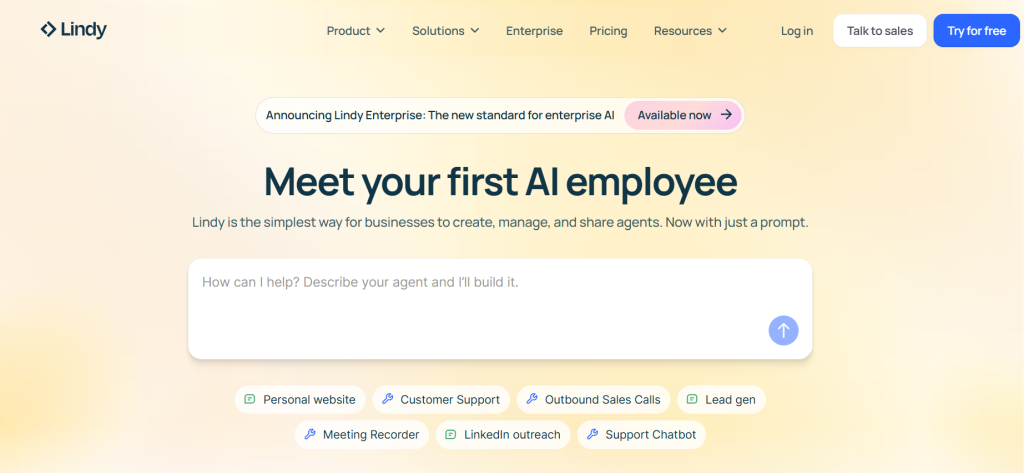
Managing a workday in 2026 often feels like juggling three jobs at once. Even with good habits, things slip between tools, reminders, and follow-ups.
Core problems most people face before Lindy AI:
- Endless email loops — replying and organizing threads can eat hours a day
- Meetings that don't stop — scheduling and prep notes consume more time than expected
- Scattered workflows — Notion, Google Workspace, and task apps rarely "talk" to each other
- Mental overload — remembering deadlines and priorities becomes exhausting
These are universal, everyday bottlenecks. Solving them consistently is the difference between feeling in control of your day — or constantly catching up.
You can test Lindy AI with a 7-day free trial, no credit card required, before the $49.99/month Plus plan kicks in. If your inbox is already unmanageable, our AI inbox overload guide covers lighter-weight fixes too.
Start your Lindy AI trial3. What Lindy AI Actually Does and Why It Feels Like an Employee
What makes Lindy AI stand out isn't just automation — it's handling work like a coordinated teammate rather than a simple chatbot.
Instead of reacting only when prompted, it takes responsibility for full workflows: emails, scheduling, follow-ups, and context-gathering. That's why many users call it closer to an "AI employee."
| Feature | Lindy AI | Typical AI Assistants |
|---|---|---|
| Email Management | Handles threads, tone, and full follow-ups | Drafts single replies only when prompted |
| Scheduling | Proposes and confirms meetings automatically | Suggests times, needs manual finalizing |
| Workflow Integration | Connects Notion, Workspace, task apps into one layer | No cross-tool automation |
| Proactive Actions | Prepares notes and context on its own | Primarily reactive |
In practice, it drafts emails, coordinates your calendar, and preps you for meetings without manual notes. For the exact setup sequence, see our email automation setup guide.
This is the moment most users notice the difference — the assistant supports the ongoing flow of your day instead of just answering prompts.
4. How to Use Lindy AI Effectively for Tasks, Email, and Workflows
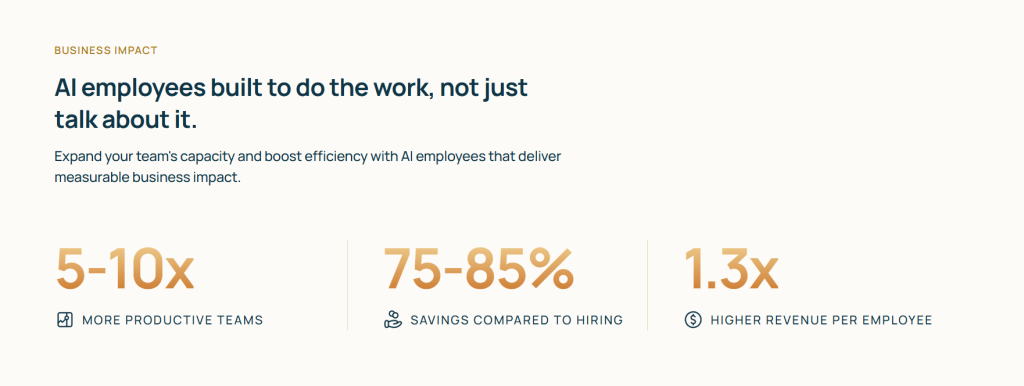
Using Lindy AI well is less about learning complex features and more about setting up a clean workflow from day one.
A simple structure that works for most users:
- Connect your essentials first — calendar, email, and task manager
- Use it for full email cycles — tone, follow-ups, thread summaries, not just quick replies
- Turn routines into repeatable workflows — weekly planning, meeting notes, status updates
- Let it own scheduling end-to-end — client meetings, internal syncs, follow-up calls
Lindy performs best with short, clear instructions — framed like you'd talk to a colleague rather than a search engine.
We've documented the exact connection order and prompt patterns in our step-by-step Lindy AI setup guide, which pairs well with this overview.
5. Key Tips, Best Practices, and Common Mistakes to Avoid
To get consistent value from Lindy AI, a few simple habits make it smoother and more accurate, especially in week one.
| Best Practice | Why It Helps |
|---|---|
| Keep core apps organized | A cleaner inbox and calendar make automations more accurate |
| Use short, direct instructions | Clear prompts produce faster, more consistent results |
| Break tasks into smaller steps | Helps Lindy handle full workflows reliably |
| Choose one "source of truth" app | Keeps cross-app automation clean, avoids duplicates |
❗ Common mistakes:
- Using Lindy only for one-off drafts — misses thread management and follow-ups
- Giving long, unfocused prompts — results get less consistent
- Expecting instant perfect scheduling — it needs a few days to learn preferences
6. Ethical Considerations When Using an AI Assistant for Work
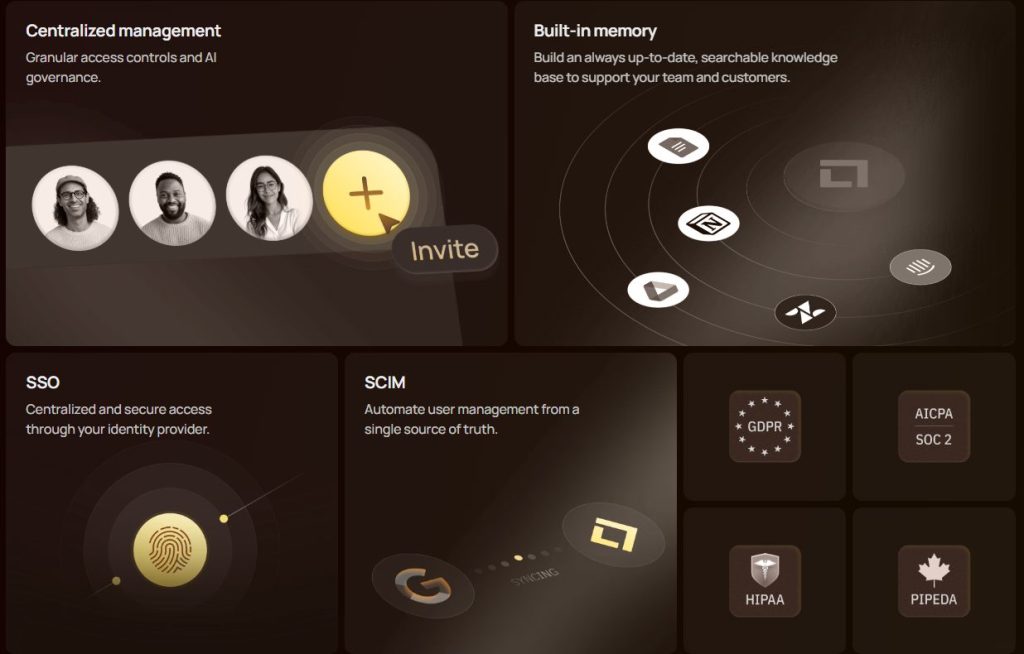
As Lindy AI takes on more of your workflow, it's worth staying aware of privacy and transparency, not just productivity.
What we found worth flagging:
- Lindy rates 4.9/5 across 170+ G2 reviews, but 1.7/5 on Trustpilot — almost entirely from billing surprises like unexpected credit overages
- Connecting email and calendars gives Lindy access to sensitive data — check what's stored and what you control in settings
- Sensitive communication (HR messages, negotiations) still deserves a human hand on the final send
Digital rights groups like EFF generally recommend reviewing exactly what any connected assistant can access before granting it broad permissions.
Keep colleagues informed when AI is scheduling meetings or sending follow-ups on your behalf. Transparency builds trust and avoids misunderstandings.
Automation is excellent at execution but not at judgment. Review outgoing messages and scheduled events regularly, especially in the first few weeks.
7. Final Insights, Who Should Use Lindy AI, and Recommended Tools
Lindy AI is built for people who want more than a chatbot — anyone looking to offload repetitive tasks and keep a cleaner daily workflow.
| AI Assistant | Best For | Try It |
|---|---|---|
| Lindy AI | Full email + scheduling automation, learns your style | Try It |
| ChatGPT Plus | Best general reasoning and writing | Get ChatGPT |
| Motion | Structured time-blocking, predictable schedules | Read Our Review |
| Notion AI | Knowledge management, works well alongside it | Compare |
Curious how it stacks up against another agent-style tool? See our full comparison with Bardeen AI.
Final thought: if you spend a good part of your day on communication and scheduling, this assistant offers one of the most hands-off AI experiences available — just budget for $49.99+/month, not free.
Frequently Asked Questions About Lindy AI
Is Lindy AI still free to use?
+No — the free plan was dropped in early 2026. A 7-day trial is available with no card required.
After that, paid tiers start at $49.99/month up to $199.99/month. Start the trial here.
Is Lindy AI really better than a normal AI assistant?
+For workflow automation, yes. It handles email threads and scheduling more proactively than tools that wait for prompts.
It isn't a substitute for ChatGPT-level general reasoning, but it excels at daily work operations.
Does Lindy AI work with Gmail, Google Calendar, and Notion?
+Yes — among 4,000+ supported integrations, including Gmail, Slack, HubSpot, and Salesforce.
Can Lindy AI send emails automatically on my behalf?
+Replies are drafted and managed automatically, but sending requires your approval unless automated sending is explicitly enabled.
Why does Lindy AI's billing get complaints?
+The credit system scales cost with task complexity and model choice.
Unpredictable overage charges are the leading Trustpilot complaint as of mid-2026 — worth testing during your trial.
Who is Lindy AI best suited for?
+Professionals juggling a high volume of emails, meetings, and coordination — consultants, managers, team leads, and freelancers.
Does Lindy AI replace tools like Motion or Notion AI?
+No, it complements them. See our setup guide for how the three fit together.
How long does Lindy AI take to learn my preferences?
+Typically a few days, after which scheduling accuracy and tone-matching noticeably improve.
🤖 Go Deeper on Lindy AI
You've got the verdict. Now put it to work with these next steps: