
 Published on: December 4, 2025
Disclosure:
Some links in this post are affiliate links. If you click and purchase, we may earn a small commission at no extra cost to you. Thank you for supporting AIDigitalSpace.com and helping us keep this content free and useful.
1. The New AI Permissions on Phones Explained in Simple Words
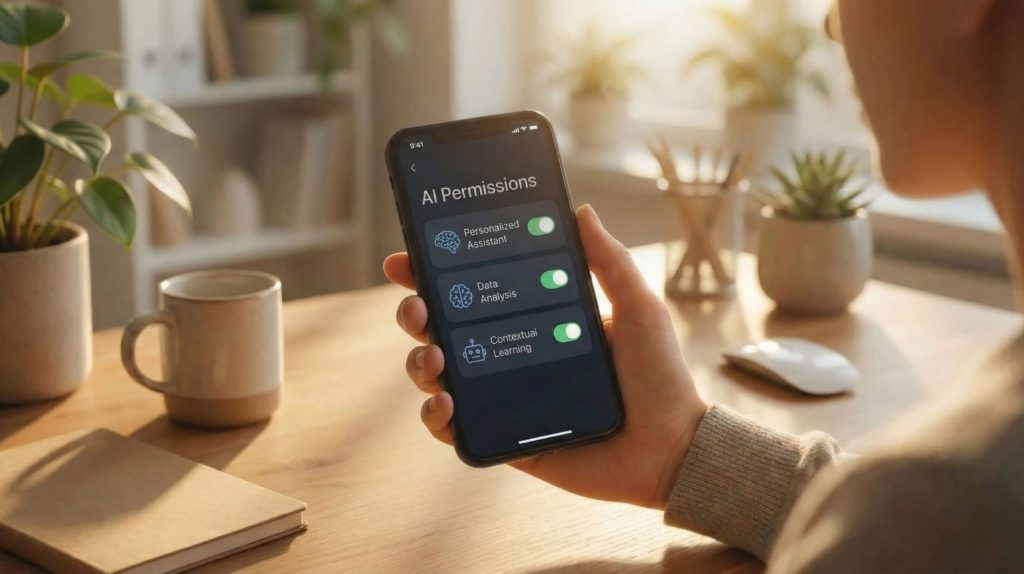
AI app permissions are popping up on iPhone and Android, and many users wonder why apps suddenly want new types of access. Here’s the simplest way to understand what’s happening and why it matters.
What these new permissions actually mean
Modern apps don’t just “use your camera” or “read notifications.” With AI features built in, they can:
- analyse your photos to detect objects or faces
- process your voice for smarter replies
- study app activity to predict your next action
- read notifications to suggest quick responses
These actions require new AI app permissions, which is why your phone is asking more questions than before.
Why apps started asking after recent updates
iOS and Android added deeper AI layers to photos, search, and system suggestions. When an app switches from basic functions to AI-powered ones, it must request new access — even if you’ve used that app for years.
A simple example
A photo editor that once needed only camera access now uses AI enhancement. Result: it asks for AI content analysis so it can recognise objects, fix lighting, or suggest improvements automatically.
Why this matters for all of us
New AI app permissions are not dangerous by default, but they allow apps to understand your content, habits, and activity much better than before. Knowing what’s being requested helps us keep privacy under control while still using the features we like.
As helpful reference you can read our article on Best AI Security Cameras 2025 or How Voice Assistants Actually Understand You.
Recommended Read:
To understand how modern apps and AI systems use personal data,
“The Age of Surveillance Capitalism” by Shoshana Zuboff is one of the most insightful books available.
It explains why AI app permissions matter and how our digital behaviour is analysed behind the scenes.
2. The Quick Permission Checklist Everyone Should Review Today

Before adjusting settings on iPhone or Android, here’s the fastest way to review the AI app permissions that matter most. These are the checks that influence how apps analyse photos, messages, voice, and activity.
1. Photo and Media Analysis
Some apps now request AI-based “photo recognition” or “smart analysis.” This permission lets them scan objects, faces, or text inside your images.
2. Microphone Access for AI Features
If an app wants the microphone for “AI suggestions” or “voice processing,” decide whether you actually use voice features. If not, disable it.
3. Notification Reading
Permissions like “read notifications” or “AI reply suggestions” allow the app to analyse message previews to generate automated responses.
4. Location for AI Recommendations
Precise location helps apps personalise AI suggestions, but most users can safely switch to approximate location unless navigation is required.
5. Activity Tracking and App Usage
This shows the app how often you open it, which screens you use, and your daily patterns. Many AI features rely on this behavioural data.
6. Contacts Access for AI Matching
Messaging and social apps may analyse your contacts to offer smarter suggestions. If the app doesn’t need this directory, keep the permission off.
7. Cloud Sync and AI Training
Some apps ask to upload photos, audio, or files to “improve AI performance.” You can usually disable cloud training without losing basic features.
These quick checks give us more control over how AI app permissions operate every day. Even companies highlight the importance of reviewing these settings—Google’s own Safety Center explains how permissions affect your privacy.
3. iPhone Settings to Check (Step-by-Step)
On iPhone, Apple makes AI features look simple, but the most important AI app permissions are hidden inside several menus. Here’s the clean, step-by-step way to check everything without getting lost.
Where to start: Settings → Privacy & Security
This is the central hub where iOS groups permissions connected to photos, activity, microphone, and app tracking.
1. Photos → Check “Limited,” “Full,” or “None”
Choose “Limited” if you want to stop AI photo analysis for the entire library. This keeps the app from scanning your images for objects or text.
2. Microphone → Review apps using AI transcription
Some apps request microphone access to enable AI-based voice suggestions. Disable any app that doesn’t need voice input.
3. Notifications → Look for “AI reply suggestions”
If an app uses AI to analyze incoming messages, it will appear here. You can turn off “Allow Notifications” or switch to “Deliver Quietly” for more control.
4. Location Services → Reduce precise tracking
Many AI-powered apps personalize suggestions based on your exact location. Switch from “Precise” to “Approximate” unless maps or ride apps require exact positioning.
5. Tracking → Prevent cross-app AI behaviour analysis
If apps use AI to follow your behaviour across websites or other apps, you’ll see the toggle here. Disable tracking unless you trust the app.
6. App Clips → Check hidden AI-based quick actions
Some App Clips request temporary AI app permissions to analyse photos or location for one-time tasks. Clearing App Clips removes these temporary accesses.
7. iCloud & Siri → Review what gets stored or processed
Siri uses on-device AI plus cloud processing for voice and search suggestions. You can disable “Learn from this App” for individual apps to limit AI-based training.
Below is a clean comparison table to help readers quickly see what to enable, limit, or disable.
| Setting | What It Affects | Recommended Action |
|---|---|---|
| Photos | AI photo analysis, object detection | Use “Limited” unless needed |
| Microphone | AI voice suggestions, transcription | Disable for non-voice apps |
| Notifications | AI smart replies | Turn off or set to “Quiet” |
| Location Services | AI local suggestions | Use “Approximate” |
| Tracking | AI behavioural profiling | Disable for most apps |
4. Android Settings to Check (Step-by-Step)
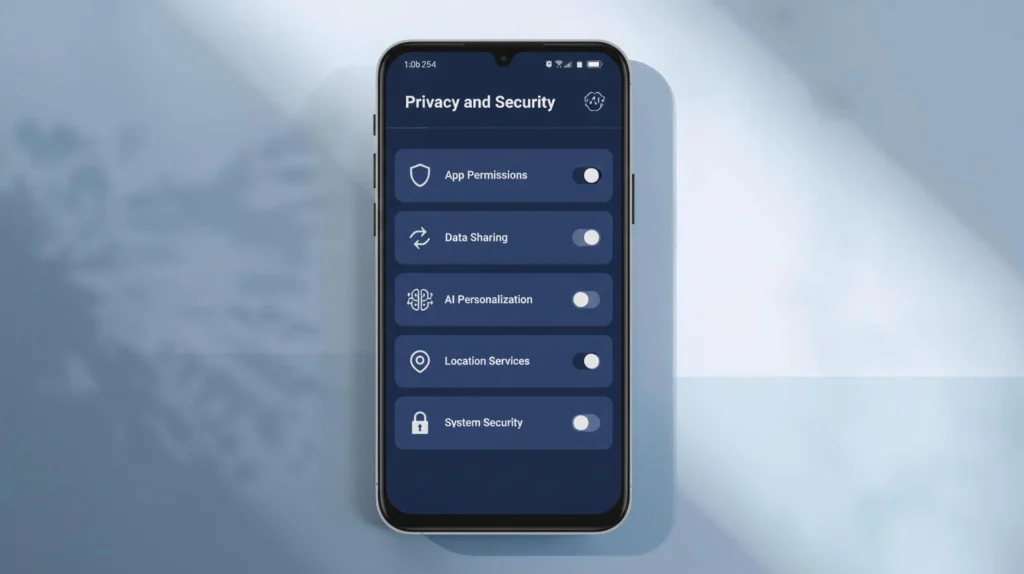
Android gives apps more freedom than iOS, so reviewing AI app permissions is even more important. Many AI features connect to Google Assistant, Gemini, photo analysis, and background activity. Here’s the safest and clearest way to check everything.
Start here: Settings → Privacy → Permission Manager
This is the main dashboard where Android shows which apps can access your camera, microphone, location, and other AI-related features.
1. Photos & Videos → Limit AI image analysis
Some apps request “AI-enhanced media access” to scan images. Set most apps to “Allow only when using” unless they truly need background analysis.
2. Microphone → Check apps using AI voice tools
Apps that use AI transcription or smart replies often keep microphone access active. Switch any non-essential app to “Ask every time.”
3. Notifications → AI smart reply engines
If an app uses AI to read notifications, you’ll see it here. Disable “Notification access” for apps that shouldn’t scan message previews.
4. Location → Reduce precise AI recommendations
Android AI uses exact GPS to personalise suggestions. Choose “Precise” only for maps, delivery, and rides; use “Approximate” for everything else.
5. Body Sensors & Activity Recognition
These permissions feed AI-based health and fitness suggestions. If an app doesn’t need activity data, turn it off.
6. Usage & Diagnostics → Limits AI behaviour profiling
This setting lets Google and apps analyse device usage to improve AI features. Turn off “Share usage and diagnostics” if you prefer minimal tracking.
7. Gemini & Assistant → Review what the AI model can access
Inside Settings → Apps → Gemini (or Assistant), you’ll find controls for:
- personal results
- app integrations
- screen reading
- audio processing
Disable any feature you do not actively use.
Below is a comparison table with recommended actions for the most important AI app permissions on Android.
| Setting | What It Affects | Recommended Action |
|---|---|---|
| Photos & Videos | AI image recognition and scanning | Allow only when using |
| Microphone | AI voice commands and transcription | Ask every time |
| Notification Access | AI smart reply suggestions | Disable for most apps |
| Location | AI local predictions | Use “Approximate” |
| Gemini/Assistant Access | AI model access to apps and screen data | Disable unused features |
5. The Hidden Permissions People Forget (and Why They Matter)
Even after reviewing the main settings on iPhone and Android, some AI app permissions stay hidden deep in the menus most users never open. These overlooked controls affect how apps analyse data and apply AI privacy settings, sometimes in useful ways and sometimes not. Below are the phone app permissions people forget, how they relate to AI data access, and why they’re essential for stronger smartphone privacy 2025.
Clipboard access — the one everyone skips
Many apps request silent permission to “see what you copy.” This supports AI features like smart paste or text detection, but it also means the app can scan anything you copy—addresses, phone numbers, even temporary passwords. A password manager like Dashlane helps avoid pasting sensitive information into the clipboard entirely, which makes this permission far less risky.
Accessibility access — extremely powerful AI analysis
Permissions such as “screen reading” or “accessibility tools” allow an app’s AI to understand what’s on your screen. It’s useful for genuine assistive functions, but unnecessary for most apps. If an app has this enabled and you don’t rely on accessibility features, turn it off immediately.
Background data — where AI does most of its work
Many AI features run when the app is closed: auto-sorting photos, preparing recommendations, or analysing documents. Limiting background data prevents constant scanning and helps reduce battery drain. A good VPN like Surfshark also protects these background connections from being tracked across networks.
Connected devices access — earbuds, watches, TVs
On Android especially, apps can receive data from headphones, wearables, or smart TVs. AI systems use this for context (workouts, location, proximity). Disable anything you don’t use. If you want more control over your home devices, a privacy-friendly ecosystem like Reolink smart gadgets avoids unnecessary cloud AI processing.
Cloud model training — the permission most people never notice
This toggle often hides inside account settings. When enabled, your files or interactions may be uploaded to improve the app’s AI model. It’s usually optional and safe to disable without losing core features.
Calendar and email access — useful but highly sensitive
AI assistants use these to suggest reminders, summaries, or drafts. If you don’t want your schedule analysed, disable the integration from within the app rather than from system settings.
Why this section matters
These hidden controls influence how AI app permissions behave even when apps look inactive. Reviewing them once a month takes only a few minutes and makes a big difference in how much your phone shares.
6. What Actually Happens When You Give an AI App Permission

Granting permissions to apps isn’t just a one-time action — it often allows continuous analysis, cloud syncing, and personalised features based on your behaviour. Understanding how AI app permissions work used to be something only experts cared about, but with today’s AI privacy settings, it matters for every smartphone user. Here’s what typically happens when you allow these expanded phone app permissions linked to modern AI data access.
Data scanning and analysis — sometimes before you open the app
When you allow an app to access photos, microphone, notifications, or location, the AI system behind it can analyse that data in the background. Photos may be scanned for objects or text, voice clips transcribed, notifications interpreted, and location patterns mapped. This deeper AI data access means the app may understand more about your habits than you expect.
Personalised suggestions and predictions
With enough AI app permissions, the system tailors reminders, offers, search results, and smart replies based on your daily patterns — often without any prompt. These features can be helpful, but they also become part of your broader smartphone privacy 2025 profile, feeding algorithms that learn from your behavior.
Cloud uploading and remote training
Many apps use cloud-based AI models. When you allow data upload (photos, voice, activity logs), your content can be stored remotely and used to “train” AI — improving features, but also increasing external data exposure. That’s increasingly common in 2025.
Cross-app profiling and behavioural tracking
AI-driven features often aggregate data across your installed apps. For example: if a reading app and a messaging app both have permission to read notifications, AI may detect patterns — like when you wake up, work, or sleep — and use them to build a user profile.
Potential leaks or exposure if security is weak
Cloud-based storage or remote processing increases risk: data could be exposed if the server is hacked, or misused by apps with poor privacy practices.
How to reduce exposure while keeping benefits
You can still enjoy AI convenience — but with more control. For example:
Use a solid VPN — like Surfshark — to encrypt data when AI apps sync with servers or fetch updates.
Regularly review permissions and disable access you don’t use.
Prefer apps that allow local processing and don’t force cloud uploads.
By understanding the real consequences behind AI app permissions, we can stay aware and make smarter choices — without giving up useful AI-powered features.
7. The Privacy Toolkit We Recommend (VPNs, Settings, Safe Apps)
Now that we understand how AI app permissions work behind the scenes, here’s a simple toolkit that keeps us protected without disabling the AI features we enjoy. Each option focuses on AI privacy settings, control, and practicality to reduce unnecessary AI data access. Below is a clean, organized table to compare the best tools for stronger smartphone privacy 2025.
| Tool / Gadget | Why It Helps | Action |
|---|---|---|
| Surfshark VPN | Encrypts all connections, essential when AI apps sync data with cloud servers. | Try Surfshark |
| Dashlane Password Manager | Keeps passwords out of the clipboard so apps with AI clipboard detection can’t scan them. | Get Dashlane |
| Reolink E1 Outdoor Camera | Stores footage locally, reducing unnecessary cloud AI processing and improving privacy. | View Reolink |
| Privacy Screen Protector | Reduces visual exposure if apps use accessibility or screen-reading AI features. | Shop on Amazon |
These tools don’t replace healthy habits, but they make a noticeable difference. A strong VPN protects everything flowing across your network, a password manager reduces clipboard exposure, local-storage gadgets keep data at home, and privacy screens protect visual information. Together, they help us stay in control of how AI app permissions work in real life — without giving up the convenience of modern AI features.
8. FAQ About AI App Permissions in 2025
Q: Do AI app permissions mean apps read all my data?
A: No. AI app permissions only grant access to the specific data you approve, such as photos, location, microphone, or notifications. Some apps analyse this data in the background, so reviewing individual permissions keeps everything under control.
Q: Is it safe to let apps use AI to scan my photos?
A: It depends. On-device photo analysis is generally safe. Cloud-based AI analysis means your photos may be uploaded and stored remotely. Using limited photo access on iPhone and a VPN like Surfshark helps protect transfers.
Q: Why do messaging apps request notification access for AI?
A: AI-generated smart replies need to read notification previews. If you don’t want message content analysed, disable “Notification Access” for that specific app.
Q: Do AI app permissions drain battery?
A: Yes. Background AI tasks—like syncing, location scanning, and voice processing—consume extra energy. Turning off unused AI options and limiting background data improves battery life immediately.
Q: How often should I check my permissions?
A: Once a month is ideal. Apps update frequently, and new AI app permissions may appear without warning. A quick monthly review helps you stay in control. For deeper context, see our guide How Voice Assistants Actually Understand You on AIDigitalSpace.com.