
 Published on: December 12, 2025
If you have scrolled through Tech Twitter or TikTok recently, you have likely seen the shock: users uploading dense 50-page reports and instantly getting back a lively, banter-filled radio show. This isn’t sci-fi magic; it is Google NotebookLM finally going mainstream.
For years, we have all faced the same productivity bottleneck: information overload. We save dozens of PDFs and whitepapers that we simply never find the time to read. The viral NotebookLM Audio Overview feature solves this by letting you “listen” to your data, transforming static text into a dynamic conversation between two AI hosts. It is arguably the most effective AI study tool we have seen for multitasking professionals.
In this guide, we will walk you through exactly how to turn PDF into podcast episodes to accelerate your learning. Plus, we will share a “Pro” workflow—using advanced tools like Castmagic—to take these audio summaries beyond simple study aids and into professional content creation.
TL;DR Cheat Sheet
You might be thinking, “I have used text-to-speech readers before; they sound robotic and boring.” This is where Google NotebookLM breaks the mold. Unlike standard accessibility tools that simply read words from a page, NotebookLM uses Google’s advanced Gemini 1.5 Pro model to “understand” your documents.
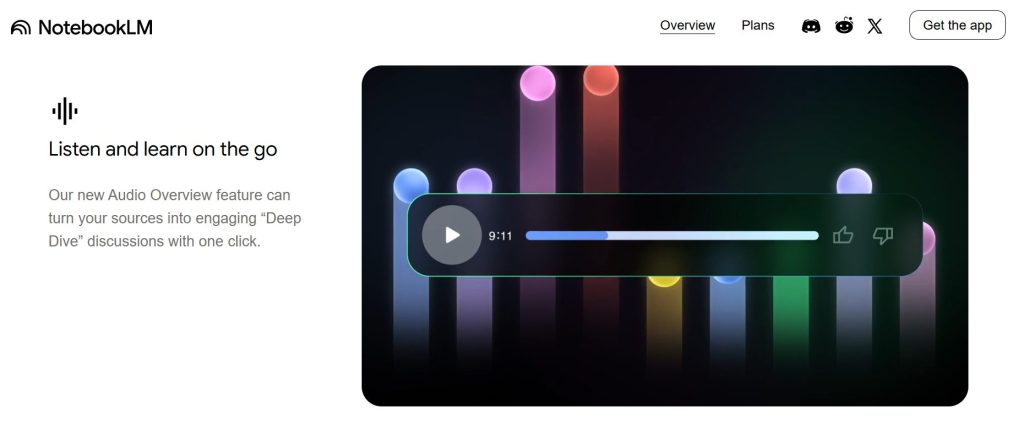
When you click “Generate,” the AI doesn’t just recite your PDF. It creates a “Deep Dive” Audio Overview—a simulated conversation between two AI hosts (a man and a woman). They banter, use metaphors, interrupt each other enthusiastically, and summarize the concepts rather than just the text.
Why is this a game changer?
It synthesizes, not just summarizes: The hosts connect dots between different documents you upload.
It feels human: The pauses, “umms,” and intonation make it sound like a real generic tech podcast.
It’s safer than ChatGPT: NotebookLM is “grounded” in your sources, meaning it (mostly) sticks to the facts you uploaded, reducing the risk of wild hallucinations.
Smart Move: If you are already using tools like Notion AI to organize your notes, think of NotebookLM as the “Audio Layer” on top of that text database.
Ready to turn your boring study guide or financial report into an engaging audio episode? The process is surprisingly simple and currently free. Follow this NotebookLM tutorial to get started in under 5 minutes.
1. Create a New Notebook Head over to NotebookLM.google.com and click “New Notebook.” Give it a title relevant to your project (e.g., “Biology Exam Prep” or “Q3 Competitor Analysis”).
2. Upload Your Sources This is where the magic happens. You can upload up to 50 sources. Supported formats include:
PDFs (Research papers, eBooks)
Google Docs (Your own notes)
Website URLs (News articles, blog posts)
Copied Text (Clipboard data)
3. Generate the Audio Overview Once your sources are loaded, look for the “Audio Overview” box on the right-hand side of the dashboard.
Click “Generate”.
Wait time: It usually takes 2–4 minutes for the AI to process the data and script the conversation.
4. Customize the Conversation (New 2025 Feature!) Google recently added a “Customize” button. Before generating, you can now instruct the AI to focus on specific topics (e.g., “Focus only on the financial risks” or “Explain this like I’m 5”).
Note: While you can download the audio file (MP3), you cannot natively edit the clip or change the AI voices inside Google. That is where professional tools come in (more on that in the next section).
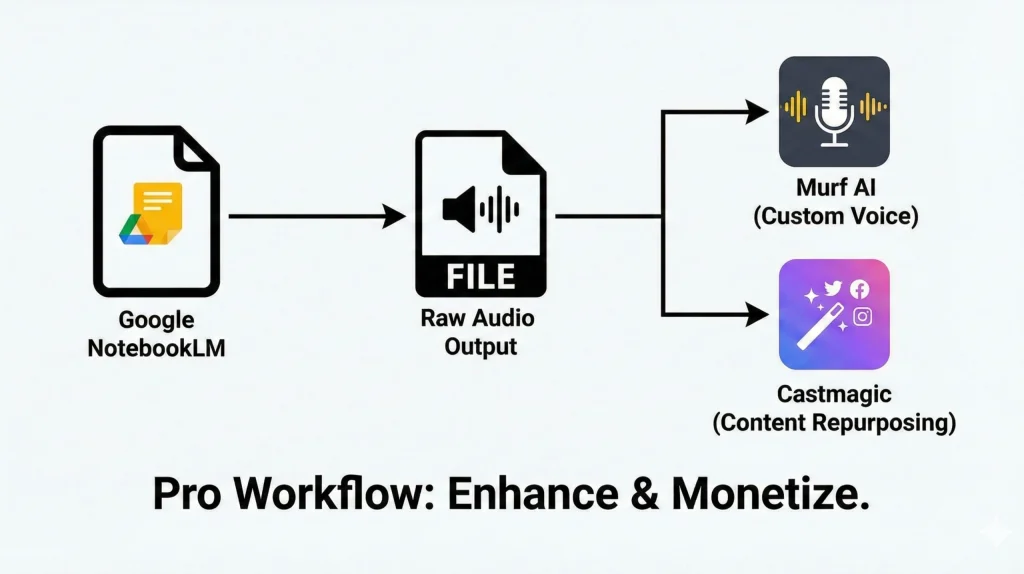
While Google NotebookLM is an incredible piece of engineering, it has a few frustrating limitations for power users. If you are just studying for a history exam, the default mode is fine. But if you want to publish this content or use it for your brand, you will hit a wall quickly: you cannot edit the audio, you cannot change the voices, and you cannot extract social media clips.
To truly turn PDF into podcast episodes that sound professional, you need to pair NotebookLM with dedicated AI tools. Here is the exact workflow we use to upgrade the raw output.
1. The Voice Problem → Solved by Murf AI
The default NotebookLM Audio Overview voices are impressive, but they are becoming recognizable. Everyone knows you are using Google’s default hosts. If you want a custom intro, a specific accent, or a voice that matches your brand identity, you need a dedicated voice generator.
The Fix: We recommend using Murf AI for this layer. You can take the text transcript from NotebookLM, paste it into Murf, and choose from over 120 studio-quality voices. This allows you to insert your own ads, intros, or disclaimers that Google simply won’t let you add.
Why it works: It removes the “generic AI” feel and makes the audio production-ready.
2. The Repurposing Problem → Solved by Castmagic
Great, you have a 10-minute audio file. Now what? Google NotebookLM does not give you timestamps, LinkedIn posts, or newsletter drafts based on that audio. You are stuck doing that manual work yourself.
The Fix: Upload your NotebookLM MP3 file directly into Castmagic. This tool is the “Swiss Army Knife” of audio content. It will instantly listen to your AI-generated conversation and spit out:
Viral Tweet threads.
Formatted LinkedIn posts.
A perfectly structured blog post summary.
Key quote clips with timestamps.
The Result: You turn one PDF into 10 pieces of content in under 60 seconds. It is the ultimate productivity hack for content creators.
Pro Tip: By combining these tools, you are essentially building an automated media company. Use Google NotebookLM for the research logic, but rely on specialized tools like Easy AI Tools for small Business to handle the final polish and distribution.
Now that you know how to set it up, you might be wondering: “When would I actually use this?” It turns out that an AI study tool isn’t just for exams. We have tested Google NotebookLM in various daily scenarios, and here are three creative ways to reclaim your time.
1. The “Commuter Briefing” (For Professionals)
Stop wasting your drive to work listening to the same radio hits.
The Workflow: Create a notebook named “Morning Briefing.” Upload the 5 most important industry newsletters or PDF reports you received that week.
The Result: Generate an Audio Overview and listen to a 10-minute synthesis of your industry’s news while you drive. You arrive at the office already informed, having “read” 50 pages of content before your first coffee.
2. The “Gym Study Buddy” (For Students)
Staring at a textbook while on a treadmill is a recipe for a headache.
The Workflow: Upload your lecture notes and the professor’s slide deck. Use the new “Customize” feature to instruct the AI: “Focus on the key definitions and test me on them.”
The Result: You get a tailored revision podcast. It effectively turns your gym session into a productive study hour without needing to look at a screen.
3. The “Competitor Spy” (For Marketers)
Want to know what your competition is up to without reading their boring whitepapers?
The Workflow: Download your competitor’s annual report, their latest eBook, and a few of their blog posts. Upload them all to one Google NotebookLM notebook.
The Result: The AI hosts will discuss the competitor’s strategy, pointing out their strengths and weaknesses objectively. It is a brilliant way to spot gaps in the market that you can exploit.

At AIDigitalSpace, we believe technology should be helpful, not harmful. While Google NotebookLM is a powerful AI study tool, it is critical to understand its risks before you trust it with your data. We want you to use AI safely, so here are two major “red flags” to keep in mind.
1. The “Hallucination” Trap Even though NotebookLM is “grounded” in your documents (meaning it tries to stick to what you uploaded), it is not perfect. The AI hosts can sometimes make mistakes or confidently state facts that aren’t actually in your source text.
The Rule: Never use the NotebookLM Audio Overview as the only source for critical work (like a medical paper or legal advice). Always verify the specific claims by checking the original PDF. Treat the audio as a summary, not the final truth.
2. Is Your Data Private? This is the big question. According to Google’s current policy for personal accounts, your data is not used to train their models, but it does pass through their cloud servers.
For Personal Use: It is generally safe for school notes, public research, or creative writing.
For Work Use: Be careful. If you are uploading sensitive company financial data or confidential client info, you should check your company’s policy first. Enterprise versions of Google Workspace offer stricter privacy protections than the free personal version.
 Ethical Tip: If privacy is your top priority, consider stripping sensitive names or numbers from your documents before uploading them to any cloud-based AI tool. You can verify exactly how your information is used by reading Google’s official NotebookLM Data Usage Policy to understand the difference between personal and enterprise protections.
After testing dozens of productivity apps this year, our verdict is clear: Google NotebookLM is not just hype—it is a legitimate breakthrough. It solves a problem that standard AI chatbots cannot: it helps you absorb information rather than just retrieving it.
For students and researchers, the free version is an absolute no-brainer. It effectively adds hours to your day by letting you “read” while you commute or exercise.
However, if you are a content creator or business professional, the “raw” audio isn’t enough. To truly unlock the value of this AI study tool, you need the “Pro” stack. Use NotebookLM for the intelligence, but pair it with the tools below to own the final result.
Ready to build your AI workflow?
Start here: Try Google NotebookLM (Free)
Upgrade the voice: Get the Murf AI Free Trial (Best for custom intros)
Automate the content: Get the Castmagic Free Trial (Best for social posts)