
 Published on: February 27, 2026
This post contains affiliate links. If you buy through them, we may earn a small commission at no extra cost to you — thanks for supporting. Learn more.
1. Quick Answer — What This Lindy AI Assistant Will Do
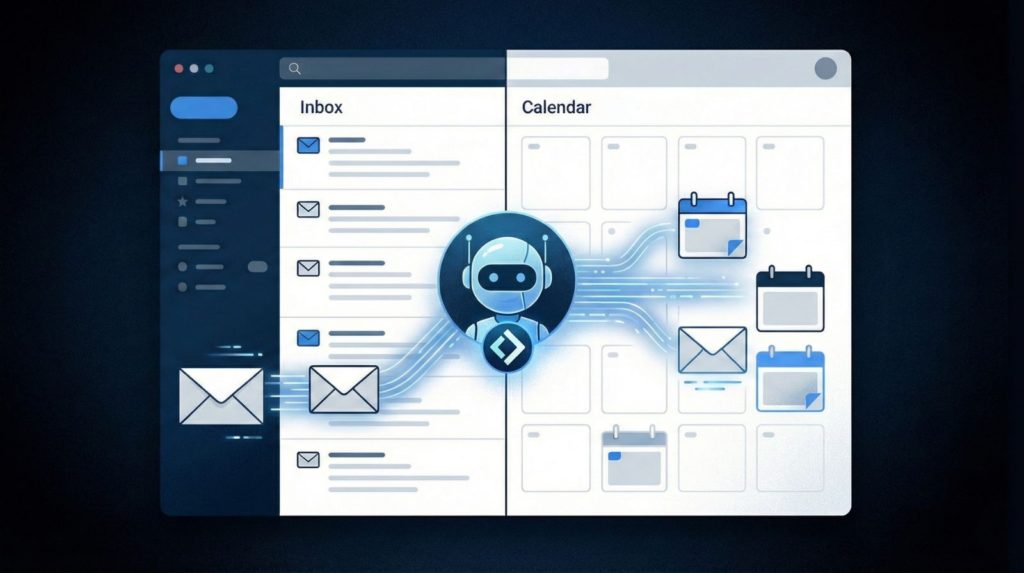
If your inbox feels like an endless to-do list, this guide is for you. In a few minutes, we’ll set up a Lindy AI assistant that can read incoming emails, understand the intent, and draft replies in your tone — plus it can help you book meetings automatically by syncing with your calendar.
In plain terms: a Lindy AI assistant becomes your practical AI email assistant and AI scheduling assistant. It helps us reply faster, follow up consistently, and stop wasting time on repetitive threads — while we stay in control with approval mode.
What we’ll build (the exact result):
Inbox → intent detection → reply draft in your voice → meeting slots → calendar booking.
We’ll connect email + calendar, create 3 simple intents (meeting request, follow-up, info request), and train your Lindy AI assistant to reply like you — then we’ll add guardrails so it avoids risky replies and never sends anything you wouldn’t send yourself.
Why this works (and why it’s trending):
People don’t want “another AI tool.” They want an AI personal assistant that actually removes work. A Lindy AI assistant is designed for that: it can triage your inbox, pre-draft responses in your voice, and connect Gmail with your calendar so an email can become a booked meeting without the usual back-and-forth.
If you also want a broader overview of tools that can replace multiple apps in one workflow, keep this open in another tab: All-in-One AI Tools — The Best Platforms to Do More in One Place.
My recommendation before you automate anything:
Start with approval mode for the first days. Let your Lindy AI assistant draft replies, you review, you tweak tone. Once the drafts are consistently accurate, you can decide what can be automated and what must always stay manual.
2. What We’re Building (Email → Smart Reply → Meeting Booking)
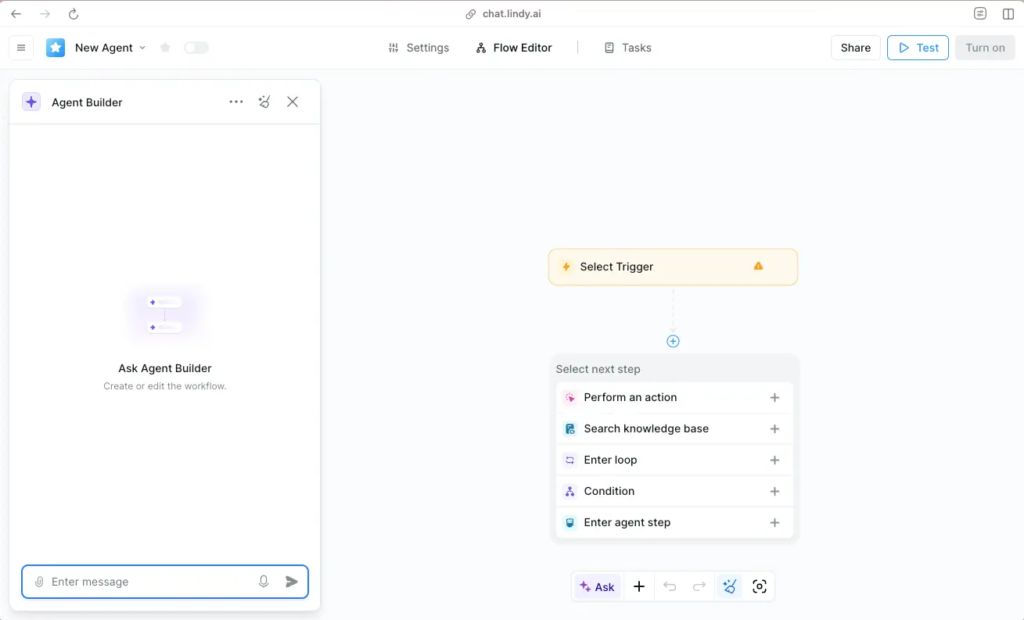
Let’s make this super concrete. In this guide, we’re building a Lindy AI assistant that behaves like a real AI email assistant — not “chat for fun”, but a system that helps us handle inbox work fast and consistently.
Here’s the exact flow we’re setting up:
1) A new email arrives
The Lindy AI assistant reads the message and looks for the intent (for example: “Can we meet?”, “Following up”, “Can you send details?”).
2) It understands the intent (without overthinking it)
We’ll train the assistant with 3 simple intents so it doesn’t get confused:
Meeting request
Follow-up
Info / pricing request
3) It drafts a reply in your tone
This is the key part. Your Lindy AI assistant won’t reply in generic “robot English” — we’ll give it a tone profile so it drafts messages that sound like you: short/long, formal/friendly, with your typical phrases, and even what you never say.
4) It proposes meeting slots and books the meeting
When the email is a scheduling request, the assistant acts like an AI scheduling assistant: it checks your availability, suggests a couple of slots, and helps turn that email thread into a booked meeting.
5) You stay in control (approval mode first)
For maximum safety (and better results), we start with approval mode: Lindy drafts, you review, then you send. Once it’s consistently accurate, you decide what can be automated and what stays manual.
Why this setup is a game-changer
Most people lose time in the same 3 places: repetitive replies, forgotten follow-ups, and meeting back-and-forth. A well-trained Lindy AI assistant tackles all three — and that’s why “lindy ai assistant” and “lindy ai agents” searches are trending right now.
For a reliable framework on how to reduce AI mistakes and manage safety risks in real workflows, see the NIST AI Risk Management Framework (AI RMF 1.0).
Want to Build This Lindy AI Assistant Now?
If you want the fastest path, start in approval mode and use the exact 3-intent setup from this guide. You’ll get a Lindy AI assistant that drafts replies in your tone and helps you book meetings automatically.
Tip: Test with 5 real emails first, then automate only the safest parts.
3. Quick Setup Checklist (2 Minutes Before You Start)
Before we touch any automation, let’s do a 2-minute setup that makes your Lindy AI assistant way more accurate from day one. This is the part most guides skip — and it’s exactly why people end up with an AI email assistant that sounds “off” or makes risky mistakes.
What you need (keep it simple)
Email account: Gmail / Google Workspace (or Outlook if you use it)
Calendar: Google Calendar (recommended)
15 minutes of real emails: we’ll use them only to test drafts and tune tone
One decision: start with approval mode (highly recommended)
Do this first: pick your 3 intents
To keep your Lindy AI assistant consistent, we’ll start with only three behaviors:
1) Meeting request
Anything like “Are you free this week?” / “Let’s schedule a call.”
2) Follow-up
Threads where you need to reply quickly but don’t want to rewrite the same thing again.
3) Info / pricing request
Requests for details, next steps, pricing, or a short explanation.
Why this matters: when your Lindy AI assistant knows the intent, the reply becomes predictable (and safer).
Create your “Reply Like Me” mini profile (copy this)
Write these 5 lines now — we’ll paste them into the assistant later:
Tone: friendly / professional / direct (choose one primary)
Length: short replies (2–5 sentences) or detailed replies (6–10 sentences)
Greeting style: Hi [Name], / Hello, / Hey
Closing style: Thanks, / Best, / Have a good one,
Words I never use: (e.g., “Kindly”, “Hope you are doing well”, “Dear Sir/Madam”)
This single block boosts “sounds like you” more than anything else. It turns a generic AI email assistant into a Lindy AI assistant that actually matches your voice.
Set your safety rules (non-negotiable)
To protect you (and your brand), we’ll add guardrails from the start:
Always use approval mode for the first days
Never auto-send emails about: pricing, contracts, legal, refunds, complaints
Never invent facts (if the email asks for something uncertain, the draft must ask a question)
These rules keep your Lindy AI assistant useful and trustworthy — which is the difference between “cool demo” and “I’ll actually use this daily.”
4. Step-by-Step: Set Up Your Lindy AI Email Assistant
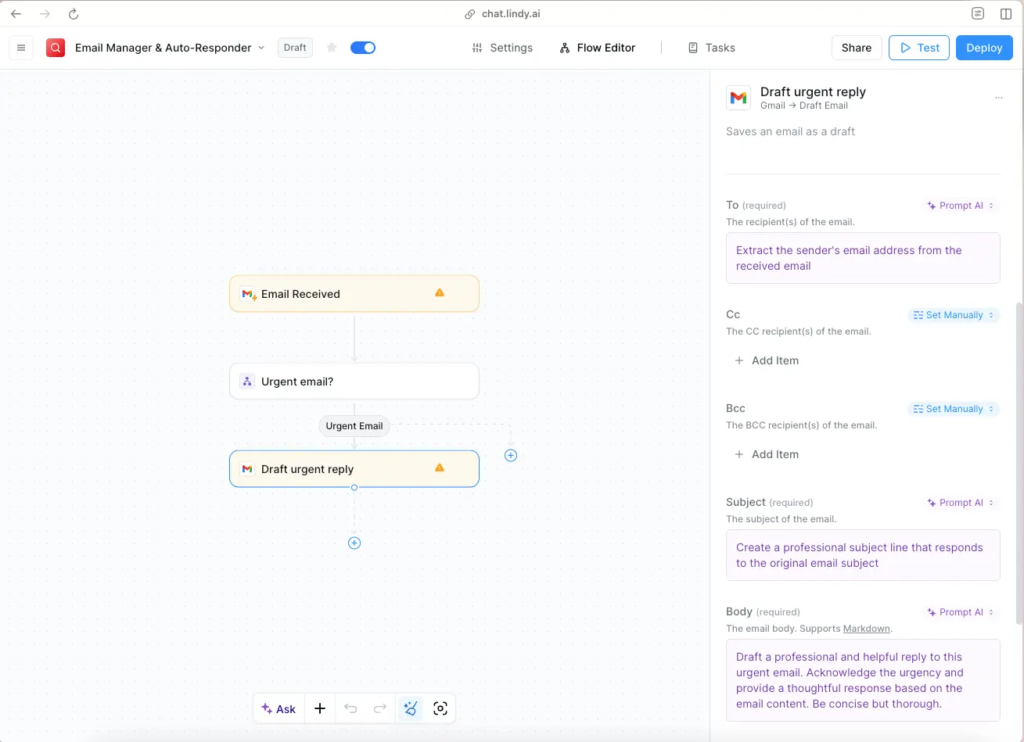
Now we build the real thing. This is the exact setup that turns Lindy from “another AI tool” into a Lindy AI assistant you can actually trust as an AI email assistant and AI scheduling assistant.
Step 1) Connect your email (Gmail or Outlook)
Start by connecting the inbox you actually use every day.
Best practice: use your main inbox, but begin in approval mode so the Lindy AI assistant only drafts — you decide what gets sent.
Quick check before you move on:
Send yourself a test email like: “Hey, can we schedule a call this week?”
Your assistant should at least “see” the message and be able to draft a reply.
Step 2) Connect your calendar (so meeting booking is real)
Connect Google Calendar (or your calendar tool).
Goal: your Lindy AI assistant must be able to:
check availability
propose 2–3 time options
avoid conflicts
Rule: we never let the assistant “guess” availability. Calendar must be connected, otherwise meeting booking becomes unreliable.
Step 3) Create the 3 intents (the secret to accuracy)
This is where most people mess up: they try to build 12 workflows and everything gets messy. Keep it clean.
Create these three intents only:
Intent A: Meeting request
Triggered by: schedule / call / meeting / availability / free this week
Intent B: Follow-up
Triggered by: following up / checking in / any update / reminder
Intent C: Info / pricing request
Triggered by: can you send details / pricing / quote / how does it work
This intent structure makes your Lindy AI assistant predictable, and predictable assistants convert into daily use.
Step 4) Paste your “Reply Like Me” Tone Profile
Remember the mini profile from the last section? Paste it into the assistant instructions.
Now add 3 very practical rules (these boost “human tone” instantly):
Tone rules that work:
Write like a real person: no corporate fluff, no fake empathy
Be direct: answer first, then add context
Use my style: keep greetings and closings consistent
If your content style is “we/our”, you can also add:
“When writing public-facing messages, use a friendly ‘we/our’ tone.”
Step 5) Add guardrails (this is where trust is built)
This part increases RTC because people feel safe trying it.
Add these “never do” rules:
Never send automatically if the email mentions pricing, legal, contract, refund, complaint
Never invent details (if unsure, draft a question)
Never confirm a meeting without checking the calendar
Never attach files unless the user approves
Your Lindy AI assistant becomes safer and the drafts become more realistic.
Step 6) Turn on approval mode (don’t skip this)
For the first phase, you want:
Draft → Review → Send
That’s the sweet spot: you get speed, but you keep control. Once the Lindy AI assistant consistently drafts correct replies in your tone, you can decide which intent (if any) can move to partial automation.
Step 7) Test with 5 real emails (fast feedback loop)
This is the quickest way to make the assistant “click”.
Pick:
2 meeting requests
2 follow-ups
1 info request
For each draft, check only 3 things:
1) Is the intent correct?
2) Does it sound like me?
3) Is it safe to send?
If the answer is “yes” to all three, you’re basically done.
Step 8) Upgrade: meeting booking reply that actually converts
For meeting requests, your reply should always do one thing: remove friction.
Make sure your draft:
proposes 2–3 options
asks for timezone
confirms duration (15/30 minutes)
offers one fallback: “If easier, share your availability.”
This is where your AI scheduling assistant starts saving serious time.
Copy This Setup — Lindy AI Assistant (Quick Recap)
Use this exact configuration to get a reliable Lindy AI assistant fast — without overcomplicating the workflow.
✅ Core workflow
Inbox → Intent → Draft reply (your tone) → Meeting slots → Calendar check → You approve
1) Keep only 3 intents
Meeting request (call, schedule, availability)
Follow-up (checking in, any update, reminder)
Info / pricing request (details, pricing, quote, how it works)
2) “Reply like me” tone rules (paste these)
Default: friendly & direct • Length: 2–5 sentences • Format: short paragraphs
Never use: “kindly”, “I hope this email finds you well”, corporate filler
End with: one clear next step or one simple question
3) Safety guardrails (non-negotiable)
Approval mode for Week 1 (draft → review → send)
Always manual review for: pricing, legal, refunds, complaints
No guessing: if unsure, ask one short question — never invent details
✅ 5-email test (takes 5 minutes)
Test 2 meeting emails + 2 follow-ups + 1 info request.
Check: Intent correct? Sounds like you? Safe to send?
Best practice: automate only the safest parts first. You can scale later once drafts are consistently accurate.
5. Copy/Paste Templates — Replies That Convert (Steal These)
This is the section you’ll use the most. If you only copy one thing from this guide, copy these templates. They’re designed to work with a Lindy AI assistant because they’re short, clear, and safe — and they instantly make your AI email assistant feel “like you” (not generic).
How to use them: paste the template text into your assistant instructions, then tell your Lindy AI assistant: “When the intent is X, draft using this template style. Keep my greeting + closing.”
Template 1) Meeting request (fast + no back-and-forth)
Use when: the email is asking for a call / meeting / availability.
Subject line (optional): Re: Meeting
Email:
Hi [Name],
Thanks for reaching out — happy to jump on a quick call.
I’m available [Day] [Time range] or [Day] [Time range].
What timezone are you in, and is 15 or 30 minutes better?
If easier, send me 2–3 slots that work for you and I’ll confirm one.
Best,
[Your Name]
Why this converts: it proposes options, confirms duration, and removes friction — perfect for an AI scheduling assistant.
Template 2) Follow-up (polite, direct, effective)
Use when: you need an update without sounding needy.
Hi [Name],
Quick follow-up on this — just checking if you had a chance to look.
If it’s easier, I can resend the key details or answer any questions here.
Thanks,
[Your Name]
Pro tip: tell your Lindy AI assistant to send follow-ups only during business hours and never more than once every X days.
Template 3) “Can you send details?” (clean info request)
Use when: someone asks how it works / what’s included.
Hi [Name],
Sure — here’s the quick version:
• What it is: [1 sentence]
• Best for: [1 sentence]
• Next step: [what you want them to do]
If you tell me your goal (and timeline), I’ll point you to the best option.
Best,
[Your Name]
This makes your AI email assistant look smart because it asks one simple question instead of guessing.
Template 4) Pricing / quote request (safe + controlled)
Use when: they ask price/quote and you don’t want the assistant to invent numbers.
Hi [Name],
Yes — I can share pricing, but I just need one detail first so I send the right option.
What are you looking for exactly: [Option A / Option B / Option C] (or a quick summary of your needs)?
Once I have that, I’ll reply with the correct pricing and next steps.
Thanks,
[Your Name]
Safety rule: pricing replies should stay in approval mode until you’re 100% confident.
Template 5) “Not the right person” (redirect without losing the lead)
Use when: the email landed in your inbox but it’s not your area.
Hi [Name],
Thanks — I may not be the right person for this, but I can point you in the right direction.
Can you share one line on what you need, and I’ll connect you with the right contact (or suggest the best next step)?
Best,
[Your Name]
This keeps the conversation alive and prevents the Lindy AI assistant from sounding dismissive.
Template 6) Short “yes, got it” confirmation (low effort)
Use when: you need a quick confirmation without writing.
Hi [Name],
Got it — thanks. I’ll take a look and get back to you by [day/time].
Best,
[Your Name]
It sets expectations (which reduces follow-ups later).
6. Make It Reply Like You — Tone Profile (Rules + Examples)
This is the difference between a generic AI email assistant and a Lindy AI assistant you’ll actually use every day. When people say “AI replies feel robotic”, it’s almost always because they never defined a real tone profile.
We’re going to do it properly — fast and practical.
The “Reply Like Me” rule (one sentence)
Your Lindy AI assistant must write like a real human, using my usual tone, my typical sentence length, and my preferred words — never corporate fluff.
If you only set one instruction, set that.
1) Choose your default tone (pick ONE)
Don’t give the assistant 5 personalities. Pick one.
Option A — Friendly & direct (best for most people)
Option B — Professional & concise (great for corporate)
Option C — Warm & detailed (good for clients who need context)
Tell your Lindy AI assistant: “Default to Option A unless the thread is formal.”
2) Lock the length (this boosts “sounds like you”)
Most robotic emails are too long.
Pick one:
Short mode: 2–5 sentences
Medium mode: 6–10 sentences
Never: walls of text
Rule to paste:
Keep replies short by default. If more detail is needed, use short paragraphs and one question at the end.
3) Set your greeting + closing (consistency = trust)
Small detail, huge impact.
Greeting style: Hi [Name],
Closing style: Best, / Thanks,
Rule:
Always use the same greeting and closing unless the email is extremely formal.
4) Ban these words (instant anti-robot filter)
This is the quickest “human tone” upgrade.
Words I never use:
“Kindly”, “Hope you are doing well”, “Dear Sir/Madam”, “I hope this email finds you well”, “Please be informed”.
Rule:
Never use corporate filler. Write like a real person.
5) Add 3 “signature moves” (this makes it feel like you)
Pick the ones you actually do:
Signature move 1: answer first, explain after
Signature move 2: use one clear question to move forward
Signature move 3: suggest the next step (call / doc / quick reply)
Rule:
Always end with one simple next step or one question.
This is amazing for RTC because it turns emails into action (and action is what readers want).
6) Give 2 examples (this is the secret sauce)
AI learns better from examples than from instructions.
Paste something like this:
Example: good reply (my style)
“Hi Marco, yes — happy to do a quick call. I’m free Tue 10:00–12:00 or Wed 15:00–17:00 (CET). What works best for you? Best, Mirko”
Example: bad reply (don’t write like this)
“Dear Sir/Madam, I hope this email finds you well. Kindly let me know your availability at your earliest convenience…”
When you add both, your Lindy AI assistant stops drifting into “template English”.
7) The one rule that prevents embarrassing replies
This is non-negotiable:
If the assistant is unsure, it must ask a short question — it must never guess.
That one rule keeps your Lindy AI assistant safe, and it’s why approval mode becomes easier to trust.
7. Fixes + Safety Guardrails (Avoid Wrong Replies)
This section is here for one reason: to keep your Lindy AI assistant useful without ever creating “uh-oh” moments. A great AI email assistant isn’t the one that writes the fanciest replies — it’s the one that stays accurate, safe, and consistent.
The golden rule (high RTC, low risk)
Start with approval mode.
Let the Lindy AI assistant draft. You review. You send.
Once you see consistent accuracy, you can automate small parts — but you never have to go fully autopilot.
Fix 1) “It sounds robotic / not like me”
This is almost always a tone profile issue.
Do this:
Add 2 “good” examples and 1 “bad” example (from Section 6)
Ban filler phrases like “kindly” and “I hope this email finds you well”
Force short mode (2–5 sentences) by default
Quick rule to add:
Write like a real person. Short. Direct. No corporate filler.
Fix 2) “It misunderstands the email intent”
This happens when you have too many intents or fuzzy triggers.
Do this:
Keep only the 3 intents (meeting / follow-up / info request)
Add clear keyword signals:
meeting: call, schedule, availability
follow-up: checking in, any update
info: details, pricing, quote, how it works
Quick rule to add:
If intent is unclear, ask one short question instead of guessing.
Fix 3) “It replies too confidently (and invents details)”
This is the fastest way to lose trust.
Do this:
Add a hard rule: never invent facts
If uncertain, it must write: “Quick question so I reply correctly…”
Quick rule to add:
No hallucinations. If unsure, ask.
Fix 4) “Meeting booking creates confusion”
Scheduling is where most assistants fail if the rules are loose.
Do this:
Always ask for timezone
Always confirm duration (15/30 minutes)
Offer 2–3 slots, not 10
If calendar is not connected, do not propose times
Quick rule to add:
Never confirm a meeting without checking the calendar.
Safety Guardrails (copy these as your default)
These guardrails make your Lindy AI assistant safe enough to use daily — and they’re also exactly what readers want before they click “try it”.
Always approval mode for:
pricing / quotes
contracts / legal
refunds / complaints
sensitive personal data
Never do:
never auto-send attachments
never send if the email is angry or escalated
never promise deadlines you can’t confirm
never share private info
Always do:
use short replies
end with one next step
ask one question if anything is unclear
The quick “quality test” (use this every time)
Before you send any draft from your Lindy AI assistant, check 3 things:
1) Intent correct?
2) Sounds like me?
3) Safe to send?
If any answer is “no”, keep it in approval mode and tweak the rules — that’s how you turn a basic AI email assistant into a reliable Lindy AI assistant.
8. Quick Verdict — Is Lindy Worth It for Email + Meetings?

If you’re drowning in repetitive emails and the same scheduling back-and-forth every week, then yes — a Lindy AI assistant is genuinely worth testing. Used the right way (especially with approval mode at the start), it becomes a practical AI email assistant that saves time every single day and a reliable AI scheduling assistant that turns “let’s meet” emails into booked meetings faster.
Best for
Busy professionals who live in their inbox
Freelancers / consultants who need faster follow-ups and more booked calls
Small teams that want consistent replies without rewriting everything
Anyone who wants an AI personal assistant that reduces admin work, not just “writes text”
Not ideal for
If you handle lots of legal / contracts / sensitive support cases and you want full autopilot sending. In those cases, a Lindy AI assistant can still help (drafting), but you should keep stricter guardrails and manual approval.
What I’d do (the smart setup)
Week 1: Use the Lindy AI assistant in approval mode only → tune tone + intents
Week 2: Automate only the safest parts (simple follow-ups / meeting suggestions)
Always: Keep pricing, legal, complaints in manual review
The real “value test”
If your Lindy AI assistant can do these 3 things consistently, it’s a win:
1) Detect intent correctly (meeting / follow-up / info)
2) Draft replies that sound like you (short, direct, human)
3) Reduce back-and-forth (propose slots, confirm timezone + duration)
If it’s doing that, it’s not a gimmick — it’s an actual workflow upgrade.
Quick Verdict: Worth Testing?
If email replies + scheduling steal your time, a Lindy AI assistant is worth trying — starting in approval mode.
Works best when you keep pricing, legal, complaints in manual review.
9. FAQ — Lindy AI Assistant for Email & Scheduling
Q: Is a Lindy AI assistant safe to use for email?
A: Yes — if we set it up the right way. The safest approach is to use your Lindy AI assistant in approval mode first, so it drafts replies and you review before sending. For anything sensitive (pricing, legal, refunds, complaints), keep manual approval permanently.
Q: Can Lindy actually book meetings automatically?
A: A Lindy AI assistant can handle meeting booking reliably when it’s connected to your calendar and follows simple rules: always confirm timezone, confirm meeting length (15/30 minutes), and propose 2–3 slots. Without calendar access, it should not propose times.
Q: What’s the best way to make Lindy reply like me (not robotic)?
A: Give your Lindy AI assistant a clear tone profile: default tone (friendly/professional), sentence length (short mode), banned phrases (“kindly”, corporate filler), and 2 examples of “good replies” + 1 example of a “bad reply.” Examples are what make an AI email assistant sound human fast.
Q: Should I use “lindy ai agents” or a single assistant for this workflow?
A: Start simple: one Lindy AI assistant with 3 intents (meeting, follow-up, info). “Lindy AI agents” become useful later if you want separate behaviors for different inboxes (sales vs support) or different roles (assistant vs scheduler). For most people, one assistant is enough to get high value quickly.
Q: How do I stop the Lindy AI assistant from making things up?
A: Add a hard rule: never invent facts. If the assistant is unsure, it must ask one short question instead of guessing. This single rule upgrades trust more than any other “prompt hack” and makes your AI personal assistant usable daily.
Q: Will a Lindy AI assistant replace me for client emails?
A: Not fully — and it shouldn’t. The best use is to make Lindy your AI email assistant that drafts fast and consistently, while you keep control for anything sensitive or high-stakes. Think: speed + consistency, not “autopilot personality.”
Q: What are the most common mistakes when setting up a Lindy AI assistant?
A: The big three are: too many intents, no tone profile, and skipping guardrails. If you keep the workflow simple (3 intents), define “reply like me,” and use approval mode first, your Lindy AI assistant becomes accurate much faster.
If this Lindy email assistant guide helped you set up a Lindy AI assistant that replies like you and books meetings, these related reads will help you go deeper into email productivity and the best AI tools to build a complete workflow:
→ Lindy AI Setup Guide
→ SaneBox Review — Is It Worth It for Email Overload?
→ All-in-One AI Tools — The Best Platforms to Do More in One Place