
📅 Published September 2025 · 🔄 Updated October 21, 2026 · ⏱ 13 min read · 📧 Free trial used
SaneBox is the long-running AI email filter that moves low-priority mail out of your inbox into a SaneLater folder and learns from every email you drag back. In the past year it also raised its monthly prices, cut its free trial to 7 days and added AI reply drafts. I went through what real users complain about, wrote down the fix for each problem, and priced every plan.
Short answer
Worth it if newsletters, receipts and cold pitches bury the mail that matters, and you'll pay yearly. The catch is the first two weeks: SaneBox will hide a few important emails while it learns, so check SaneLater every day until it settles. One inbox usually means Snack ($65 a year); two inboxes, snooze or reminders mean Lunch ($109 a year).
📧 Quick verdict · 7.5/10
Best plan for most: SaneBox Lunch
Two inboxes, six features each, snooze and follow-up reminders included.
Buried under an old backlog?
Clean Email bulk-cleans thousands of old emails and mass-unsubscribes first.
Not sure which plan?
Tick your features and inboxes; get the right plan and its break-even time.
📋 What's inside
🔍 How I reviewed SaneBox
I used the free trial, so the setup notes are first-hand. I haven't paid for Snack, Lunch or Dinner: those sections come from the official FAQ and help center, which I read on October 21, plus a dated third-party price check from September 28. The seven problems come from Trustpilot reviews, Hacker News threads and long-term user reviews, not from my own inbox.
Some links are affiliate links: if you buy through them I may earn a commission at no extra cost to you. It never decides what I recommend. Details
Is SaneBox worth it? My 7.5/10 verdict
| Category | Score | Why |
|---|---|---|
| Provider support | 9/10 | Gmail, Exchange, Outlook, iCloud, Yahoo, Fastmail and any IMAP server |
| Filtering | 8/10 | Learns from every move; mail from real people stays in the inbox by default |
| Privacy | 8/10 | Sorting reads headers only; Reply Draft reads message bodies when you turn it on |
| Setup | 8/10 | Nothing to install; iCloud needs an app-specific password |
| Value | 6/10 | Monthly prices up by about a third; yearly billing is fair |
| Support | 6/10 | Help requests by form or email; phone support only on Dinner |
✅ Choose SaneBox if
you get dozens of newsletters, notifications and cold pitches a day, use more than one provider, or want filtering that follows you into every email app.
⛔ Skip it if
your inbox is light, you can't risk a client email sitting in a folder for a day, or you need someone to answer and schedule for you.
What SaneBox does (and what it doesn't)
📥 SaneLater
The core filter. Mail from senders you rarely open or answer lands here.
🕳 SaneBlackHole
Drag one email in and that sender's future mail goes straight to trash.
📰 SaneNews and SaneCC
Separate folders for newsletters and for threads where you're only copied.
⏰ NoReplies and Reminders
Tracks sent mail nobody answered and brings threads back when you ask.
💤 Snooze and Do Not Disturb
Hide a message until a set time, or pause all new mail during focus time.
✍️ Reply Draft (AI)
Writes a reply into your Drafts folder in your tone; you review and send.
The newest piece is Reply Draft, also called SaneDrafts. SaneBox's help center says it writes a reply into your Drafts folder, usually within 10 to 15 minutes, for emails that look like they need one. It skips receipts, newsletters and threads you already answered, and nothing sends on its own. The company only says it comes with "plans that include AI features" and doesn't name those plans.
What SaneBox still doesn't do is answer, book or follow up for you. An early Hacker News critic made the point well: the hardest email isn't the junk, it's the important message that's difficult to answer. A filter moves the noise; the hard mail still lands on you.
7 SaneBox problems users hit, and how to fix each one

1. Important emails end up in SaneLater
This is the complaint that matters most. Trustpilot reviewers describe the first weeks as tedious because they kept checking the other folders, and one said it took about a month before it stopped hiding store coupons they wanted. A Hacker News commenter who paid for it said it was losing important emails. A missed coupon is cheap; a missed client email isn't.
2. The price went up, and the page shows the lowest number
Archived snapshots of SaneBox's pricing page show monthly Snack rising from $7 to $9.49 and Lunch from $12 to $15.99 in about 14 months, while yearly plans moved from $59 and $99 to $65 and $109. Older reviews, including the first version of this one, still quote $7. One reviewer also called the price display sneaky, and a recent check found the page defaults to the two-year plan's per-month price, the lowest figure on offer.
3. Snack only lets you pick two features
Plans differ in two ways: how many email accounts you connect and how many features you switch on per account. Snack gives 2, Lunch 6 and Dinner all of them, and SaneLater itself counts as one pick. Every plan includes the Daily Digest and Email Deep Clean. Third-party pricing checks also report that snooze, follow-up reminders and attachment offloading need Lunch or higher.
4. Junk keeps getting through, or sorting suddenly changes
Some long-time users report the filter drifting. One Trustpilot reviewer couldn't work out why it stopped catching junk even after they trained it as trash or BlackHole; a 10-year customer said emails stopped being sorted at random after a large outage. Another found that it leaned heavily on the sender address, which fails when one sender mixes useful and useless mail.
The outage part is less scary than it sounds. SaneBox's FAQ says that if the service goes offline, your mail still arrives; it just lands in the inbox unsorted until the service comes back.
5. Canceling doesn't refund you, and the folders confuse people
SaneBox's cancel guide is clear once you read it: canceling and getting a refund are two separate actions. There's a 30-day money-back guarantee, but only if you ask support for it. One long-time user also complained that his account was closed before he could save his trainings, and another believed the service kept control of her mailbox after canceling. The company replied that nothing is installed on your computer.
- If you might come back, screenshot your trainings list first.
- Log in, open Settings for the account, find Account changes and click View.
- Choose Keep folders, or Remove folders to move the mail back to your inbox. Removed folders can sit in Trash for a while; the emails inside are not deleted.
- Confirm, then wait for the cancellation email.
- Within 30 days of paying, open a support request and ask for the refund.
- Revoke SaneBox's access in your Google or Microsoft account security settings, or change the password you gave it.
6. You have to hand a third party your mailbox
SaneBox needs your password or an OAuth sign-in token to work, and its FAQ says those credentials are encrypted and kept on a server that can't be reached from the public internet. Some people don't want any third party in their mailbox, and that's a fair line to draw. iCloud adds friction: Apple requires an app-specific password, which can take a few hours to start working.
7. No phone support unless you pay for Dinner
A recent Trustpilot reviewer was annoyed to find there's no phone line below the top plan, and the pricing page confirms phone support is a Dinner-only feature. Everyone else uses the help-request form or [email protected]. The company does reply publicly to unhappy reviews, often with an offer to fix the account.
SaneBox pricing: every plan compared
✔ Prices as of September 28 · confirm at checkout
| Plan | Inboxes | Features each | Monthly | Yearly | 2 years |
|---|---|---|---|---|---|
| Snack | 1 | 2 | $9.49 | $65 ($5.42/mo) | $109 ($4.54/mo) |
| Lunch | 2 | 6 | $15.99 | $109 ($9.08/mo) | $179 ($7.46/mo) |
| Dinner | 4 | All + phone support | $42.99 | $319 ($26.58/mo) | $529 ($22.04/mo) |
The official pricing page loads its numbers with a script, so I couldn't read it directly; the table matches the most recent dated check I found, from September 28. Education, non-profit and government accounts get 25% off, and SaneBox for Business is sold through sales with no public price. Prices are in US dollars; in the EU and UK, expect VAT at checkout.
The trial is shorter than older reviews say. The official FAQ now offers one week free, while its App Store listing still advertises two weeks. If you want a fair test, start the trial on a Monday, when your inbox is busiest.
SaneBox Lunch · 2 inboxes, 6 features each, snooze and reminders.
Start the 7-day trial →SaneBox plan and break-even calculator
* Lunch or higher. Daily Digest and Deep Clean come with every plan.
The break-even bar is low. At $30 an hour, yearly Snack pays for itself if it saves you about 3 minutes a week, and yearly Lunch about 5. The real question isn't the price, it's whether you'll trust the filter enough to stop checking every folder. For a wider look at what your AI subscriptions cost together, try my AI subscription cost calculator.
Is SaneBox safe? What it can and can't see
👀 What it reads
Headers, plus signals like which emails you open, answer and how fast.
🔐 What it holds
Your encrypted login or OAuth token, on a server cut off from the public internet.
📴 If it goes down
Mail keeps arriving in your inbox, unsorted, until the service is back.
✍️ Reply Draft
Optional. It processes message content to draft replies; leave it off for header-only.
The company also states that it doesn't sell your data or show ads, and its security page covers how credentials are handled. That's a better setup than most free inbox cleaners. If you want to tighten the rest of your AI apps too, my AI privacy settings guide walks through ChatGPT, Gemini, Claude and more.
SaneBox alternatives: when Clean Email or free filters make more sense
| SaneBox | Clean Email | Gmail / Outlook built-ins | |
|---|---|---|---|
| How it sorts | Learns from your behavior | Groups and rules you set | Tabs, Focused Inbox, manual rules |
| Best at | Keeping new noise out every day | Clearing an old backlog in bulk | Light inboxes |
| Unsubscribe | SaneBlackHole hides future mail | Sends the unsubscribe for you, trashes stragglers | One sender at a time |
| Works with | Almost any IMAP or Exchange account | Gmail, Microsoft, Yahoo, iCloud, Fastmail, IMAP | Their own mail only |
| Price | From $65 a year | Paid plans for 1, 5 or 10 accounts | Free |
🧹 Clean Email
Bulk cleanup by sender, age or size, mass unsubscribe and Auto Clean rules. Check the account count before you upgrade.
📬 More inbox fixes
My roundup of AI tools for inbox overload compares filters, cleaners and AI assistants side by side.
⚙️ Automate the rest
Email automation workflows for follow-ups and sequences that filtering can't handle.
If what you want is an assistant that drafts and replies, not a filter, Reply Draft is a start, but dedicated AI work assistants go further. My comparison of Superhuman vs Copilot vs Gemini covers that side, and my guide to Perplexity Email Assistant alternatives lists what's left now that it's ending.
Which SaneBox plan should you buy?
Trial · 7 days
Start on a busy weekday, check the Digest daily, note which features you touch.
Snack · $65/yr
One inbox, SaneLater plus one more feature. Fine for a single work address.
Lunch · $109/yr
My pick. Two inboxes, six features each, snooze and reminders.
Dinner · $319/yr
Four inboxes, every feature, phone support. For agencies and heavy multi-inbox users.
My verdict: is SaneBox still worth paying for?

SaneBox earns its 7.5/10 as the most provider-agnostic email filter you can buy. It works on iCloud, Fastmail and custom IMAP where newer AI inbox tools don't reach, it keeps your mail on your own server, and the yearly plans cost less than one lunch out a month.
Go in knowing the trade-offs: monthly billing is poor value, the first two weeks need daily checking, and it moves noise rather than answering anything. Switch on Manual Mode if you're cautious, compare yearly totals, and ask for your refund within 30 days if it doesn't fit. For most people with a work and a personal inbox, yearly Lunch is where I'd start.
My pick: SaneBox Lunch, billed yearly
Start the 7-day trial →Check SaneLater daily during the trial; refunds within 30 days are by request.
📚 Recommended read
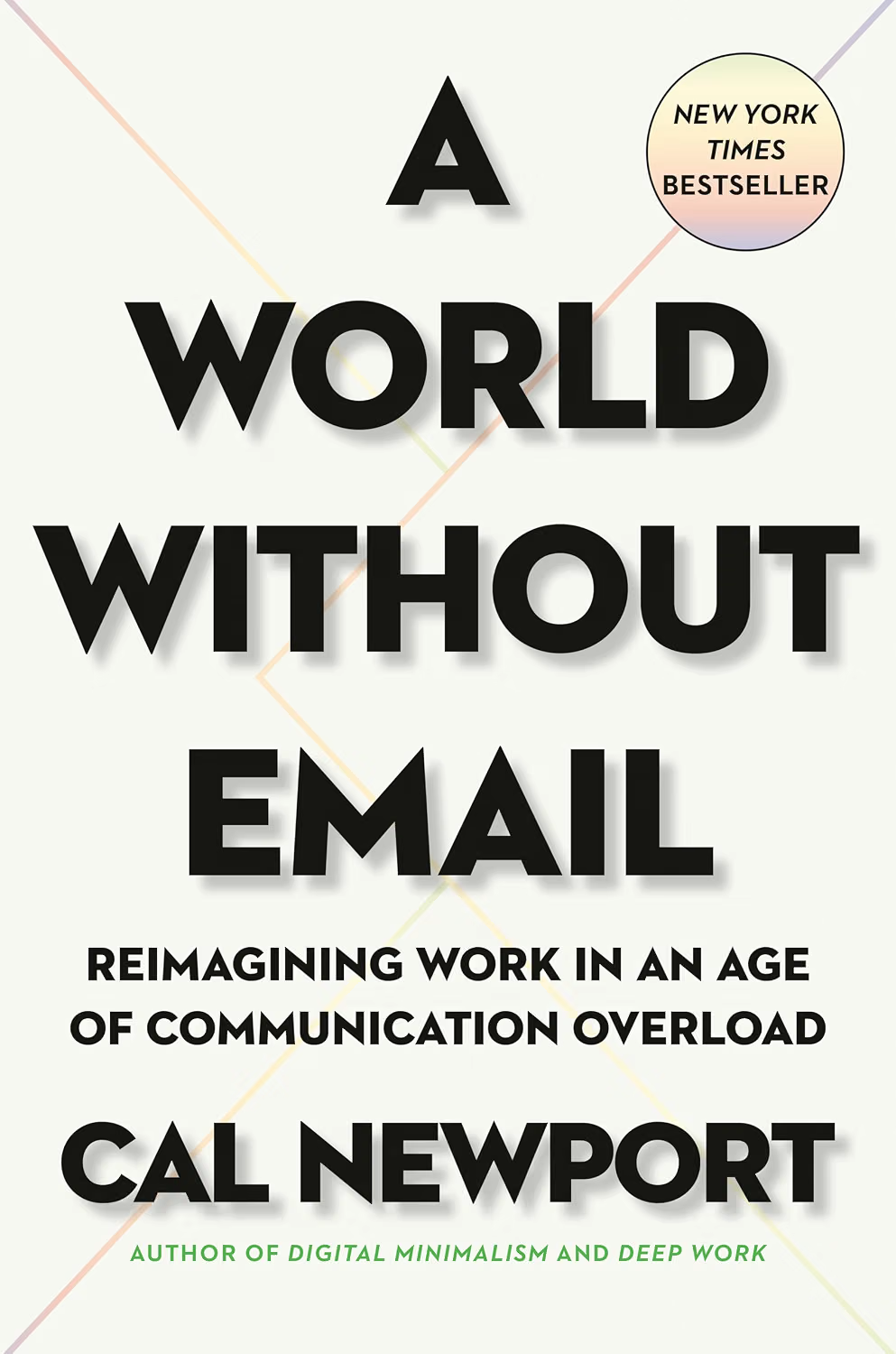
A World Without Email by Cal Newport
A filter hides noise; Newport asks why so much of your work runs through the inbox at all. Read it alongside your trial and you'll know which emails to stop receiving, not just where to file them.
See the book →