

Mirko
AI Tech Writer
ChatGPT handles 2.5 billion prompts a day — and most of them are throwaway questions nobody ever follows up on. That's not an AI problem. It's a ChatGPT daily habit problem. I researched what separates people who use ChatGPT every day from people who tried it once and forgot about it — and it comes down to 7 specific prompts and 3 features almost nobody sets up.
Some links are affiliate links · they support this site at no extra cost to you · Full disclosure
Why Most People Quit Using ChatGPT Daily
⚡ Quick answer: Most people quit ChatGPT because their first prompts are too broad. A vague question gets a generic answer — and a generic answer feels like the tool "doesn't work." Specific, context-rich prompts fix this in one try.
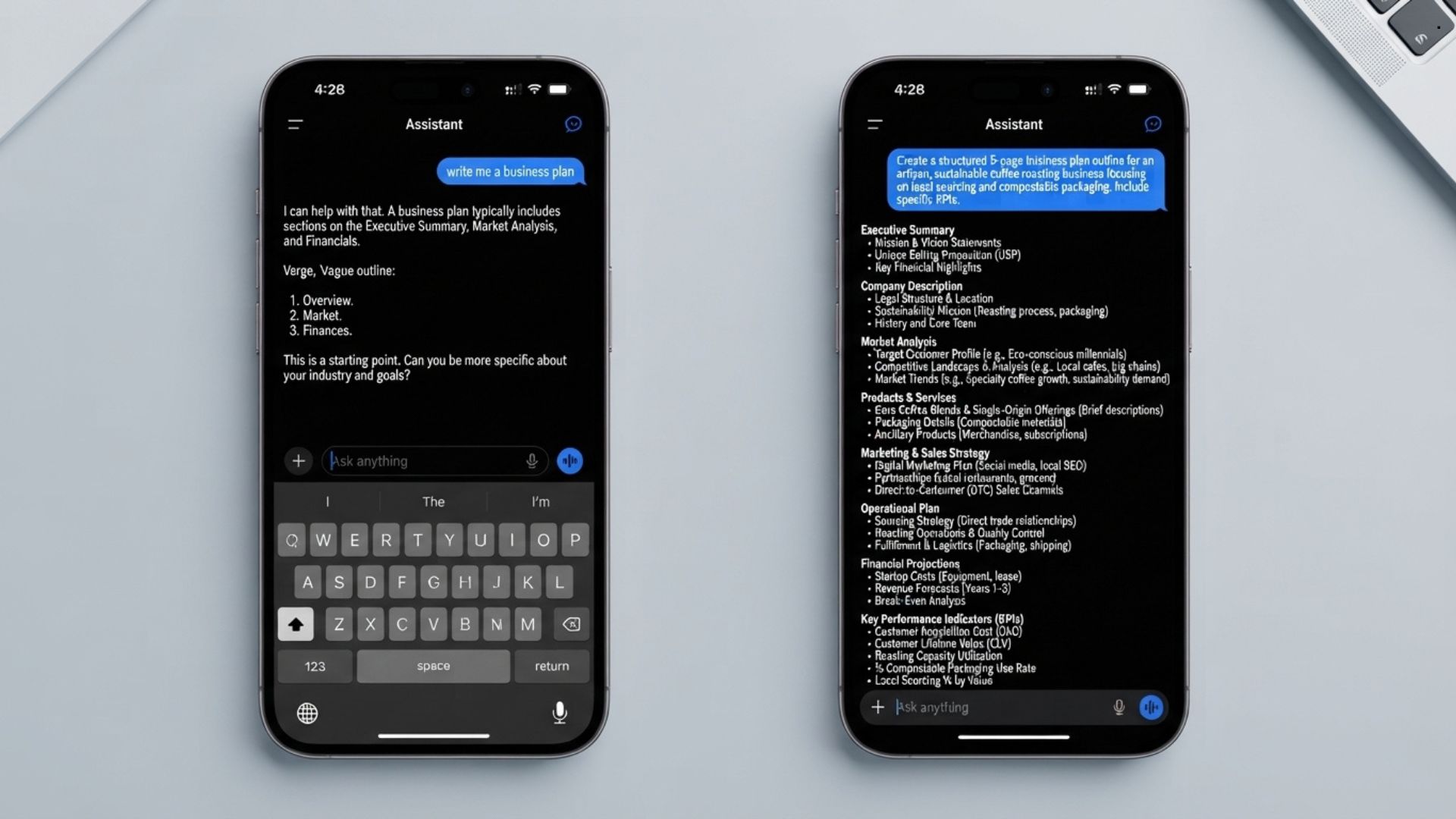
The pattern is always the same. Someone hears about ChatGPT, tries it for a day, asks a couple of broad questions like "write me a business plan" — gets a wall of generic text back — and never opens it again. That's not a failure of the tool. It's a failure of the first prompt.
The difference between someone who tries ChatGPT once and someone who uses ChatGPT every day comes down to specificity. Broad questions produce broad answers. Narrow, context-rich prompts produce responses you'd pay someone to write — and that's the gap most people never cross.
"A prompt without context is a question without an answer. If you want ChatGPT daily use to actually stick, tell it who you are, what you need, and how you'll use the output — every time."
The 7 prompts below aren't clever tricks. They're the ones I found people copy-pasting into ChatGPT every single morning, afternoon, and evening — because each one solves a specific daily friction in under 30 seconds. That's what makes a tool stick: it saves time on something you'd otherwise have to do the slow way.
7 ChatGPT Daily Prompts — Morning, Work, and Evening
These are the exact prompts I'd start with if I were building a ChatGPT daily routine from scratch. Copy the prompt, paste it into ChatGPT, swap the brackets for your own details. Each one takes less than 30 seconds to set up and saves anywhere from 10 to 45 minutes of manual work.
| When | ChatGPT Daily Prompt | Time Saved |
|---|---|---|
| 🌅 Morning | Daily Planner — "Here are my tasks for today: [list]. Prioritize them by impact and give me a time-blocked schedule from 9am to 6pm with breaks." | ~20 min |
| 🌅 Morning | Email Drafter — "Write a [tone: professional/friendly/firm] reply to this email: [paste email]. Keep it under 100 words." | ~15 min |
| 💼 Work | Meeting Prep — "I have a meeting about [topic] with [who] in 30 minutes. Give me 5 smart questions to ask and 3 potential concerns to raise." | ~25 min |
| 💼 Work | Notes → Action Items — "Turn these rough meeting notes into a clear action list with owners and deadlines: [paste notes]." | ~30 min |
| 💼 Work | Quick Research — "Explain [topic] in 200 words as if I'm presenting it to a non-technical team. Include one real-world example." | ~20 min |
| 🌙 Evening | Meal Planner — "I have [ingredients]. Give me 2 dinner recipes under 30 minutes, with a grocery list for anything I'm missing." | ~15 min |
| 🌙 Evening | Learn Something New — "Teach me [topic] in 5 bullet points, as if I've never heard of it. Then ask me one quiz question to check understanding." | ~10 min |
Add those up and it's roughly 2 hours saved per day — or over 10 hours a week if you use even five of them consistently. The trick isn't memorizing prompts. It's building a routine around them, which is where the next section comes in.
One rule that makes every prompt better
Structure your prompt with three elements: who you are, what you need, and how the output will be used. "Write an email" is a blank canvas. "Write a 3-sentence follow-up email to a client who hasn't responded in a week, professional tone, no pressure" gives ChatGPT enough to produce something you'd send without editing. Ethan Mollick calls this the difference between using AI as a search engine and using it as a co-intelligence — a concept worth reading about if you want to go deeper.
3 Features That Make ChatGPT Daily Use Stick
Prompts are the input. But the reason people build a ChatGPT daily habit — instead of opening it once and forgetting — comes down to three features most users never configure. These are what separate a single conversation from a system that learns how you work.
⚡ Quick answer: Memory, Custom Instructions, and Scheduled Tasks are the three ChatGPT settings that turn one-off conversations into a real daily system. All three take under 5 minutes to set up once.
Memory — ChatGPT Remembers Who You Are
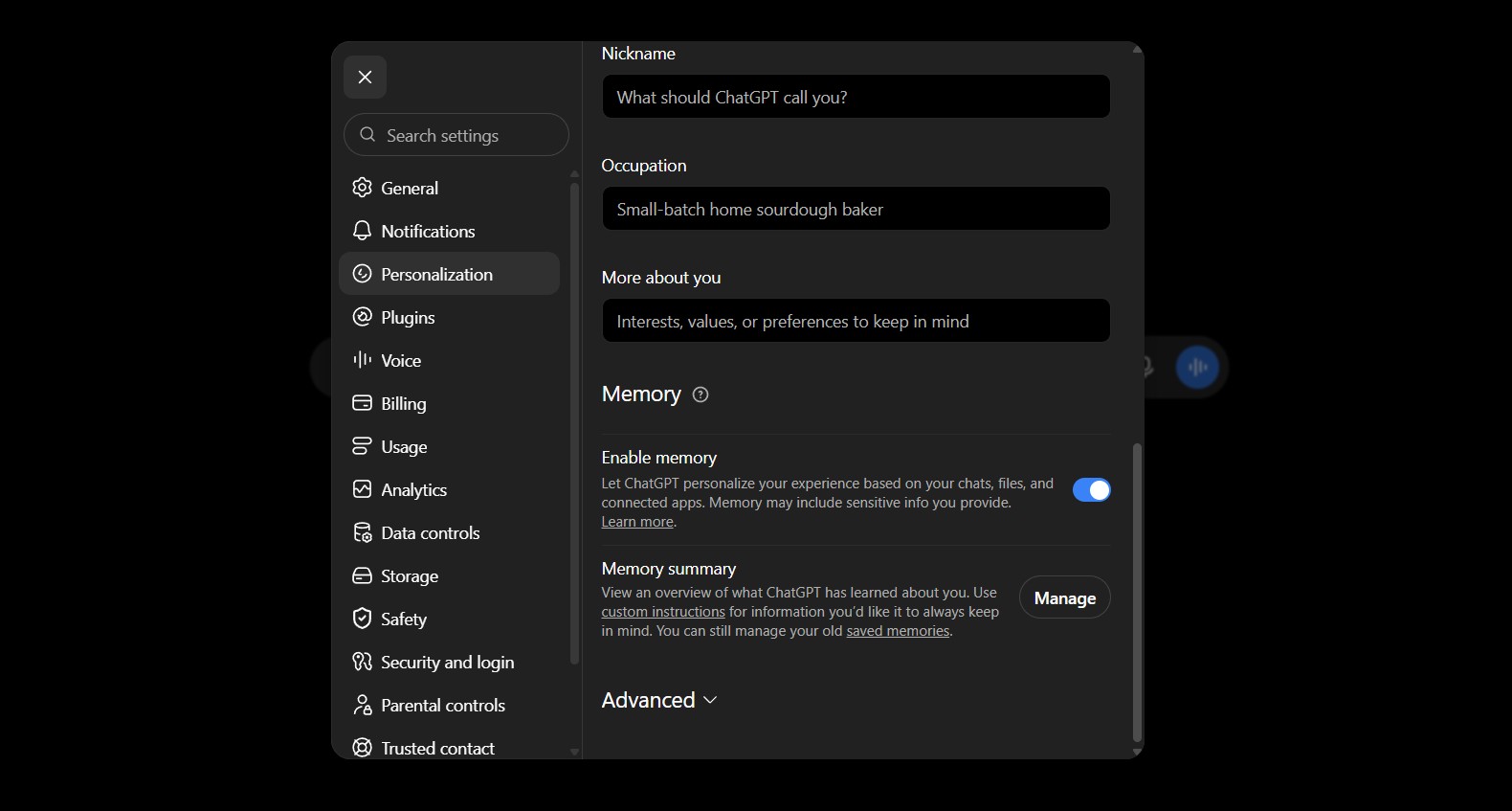
Once you turn on Memory (Settings → Personalization → Memory), ChatGPT stores facts you share across conversations — your name, your role, your preferences, the project you're working on. Next time you open a chat, it already knows the context. This one setting is the single biggest reason a ChatGPT daily habit actually holds instead of fading after the novelty wears off.
How to set it up: open a new chat and type: "Remember that I'm [your role] at [your company]. I prefer concise answers in bullet points. I usually work on [type of work]." That single sentence shapes every future response.
Custom Instructions — Set Your Defaults Once
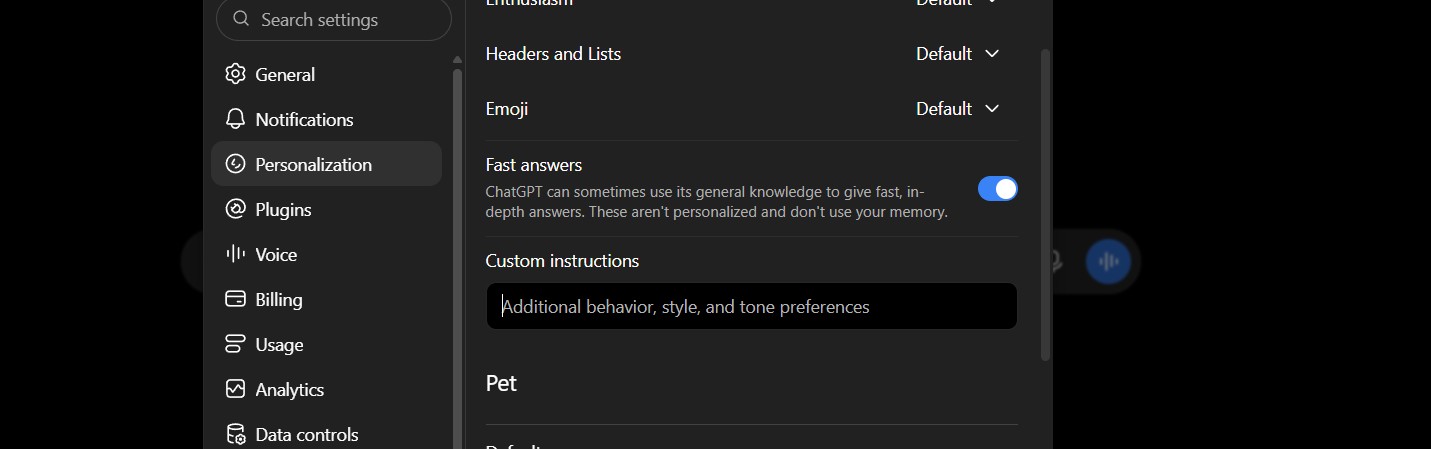
Custom Instructions (Settings → Personalization → Custom Instructions) let you write permanent rules that apply to every conversation. Two fields: "What would you like ChatGPT to know about you?" and "How would you like ChatGPT to respond?"
"Always answer in under 150 words unless I ask for more. Use a professional but casual tone. If I paste an email, assume I want a reply draft."
That alone eliminates the need to write detailed prompts every time — set it once, benefit on every conversation after.
Scheduled Tasks — ChatGPT Works While You Don't
Available on Plus and above, Scheduled Tasks lets you tell ChatGPT to run a prompt at a set time — daily, weekly, or once. A morning briefing. A weekly industry summary. A Friday reminder to review your goals. It runs in the background and sends you the result, no browser tab needed.
Combined, these three features turn ChatGPT from a chatbot you visit into a personal system that knows you, follows your rules, and works on schedule. That's the real gap between "tried it once" and a genuine ChatGPT daily habit.
Free vs Plus — What ChatGPT Daily Use Actually Costs
The most common question from people who want a real ChatGPT daily habit: do I need to pay? Here's the honest breakdown of what's free and what costs $20 a month.
| Feature | Free ($0) | Plus ($20/mo) |
|---|---|---|
| Daily prompts | Limited (caps during peak hours) | Higher limits |
| Memory | ✅ Yes | ✅ Yes |
| Custom Instructions | ✅ Yes | ✅ Yes |
| Scheduled Tasks | ❌ No | ✅ Up to 5 |
| Image generation | Limited | ✅ Full access |
| Web search | ✅ Yes | ✅ Yes |
| Voice mode | Basic | Advanced Voice |
| Projects (organize chats) | ❌ No | ✅ Yes |
The honest recommendation: the free tier is enough to test whether ChatGPT fits your daily routine. Memory and Custom Instructions — the two features that matter most for daily habit-building — work on Free. Upgrade to Plus when you consistently hit the message cap or want Scheduled Tasks and Projects to organize multi-day workflows.
"Start free. If you're building a ChatGPT daily habit, set up Memory and Custom Instructions on day one — upgrade only when you feel the limits, not before."
Tools I Pair With ChatGPT Daily for My Full Stack
ChatGPT handles the thinking. These tools handle the doing — turning ChatGPT's output into something you can publish, share, or act on. Once ChatGPT daily use is dialed in, these three fill the gaps it can't cover on its own.
ChatGPT writes the copy. Canva turns it into a slide deck, social post, or presentation in minutes. The two together replace a design hire for most content tasks.
The place where ChatGPT's outputs land and live. Action items, project notes, meeting summaries — Notion keeps everything searchable and organized long after the chat window closes.
ChatGPT builds the time-blocked plan. Reclaim auto-schedules it on your real calendar, defending focus blocks and rescheduling when meetings pile up.
Worth reading alongside this: Ethan Mollick's Co-Intelligence is the best book I've found on building a real working relationship with AI — not just prompts, but the mindset behind using tools like ChatGPT every day without losing your own thinking in the process.
Frequently Asked Questions — Using ChatGPT Every Day
🚀 Build the Rest of Your AI Productivity Stack
Now that ChatGPT daily use is part of your routine, here's where I'd go next to close the gaps around it: