

Mirko
AI Tech Writer
Most first-time users open Gamma AI, type a vague prompt, get a generic deck full of filler sentences — and close the tab thinking AI presentations don't work. The problem isn't Gamma. It's the prompt. I've built dozens of decks in Gamma and this tutorial shows exactly how to use Gamma AI the right way — from the first prompt to export — so your presentation looks like a designer touched it.
Some links are affiliate links · they support this site at no extra cost to you · Full disclosure
What Is Gamma AI (And Why It Works Differently)
Gamma AI is a browser-based presentation maker that turns a text prompt or pasted outline into a fully designed deck — layout, copy, images, and structure — in about 30 to 60 seconds. Over 100 million users have created content with it since launch, according to Gamma's own site.
The difference from PowerPoint or Google Slides: Gamma AI uses a card-based format instead of fixed-size slides. Each card expands vertically to fit its content, which makes presentations feel more like a scrollable web page than a rigid 16:9 slideshow.
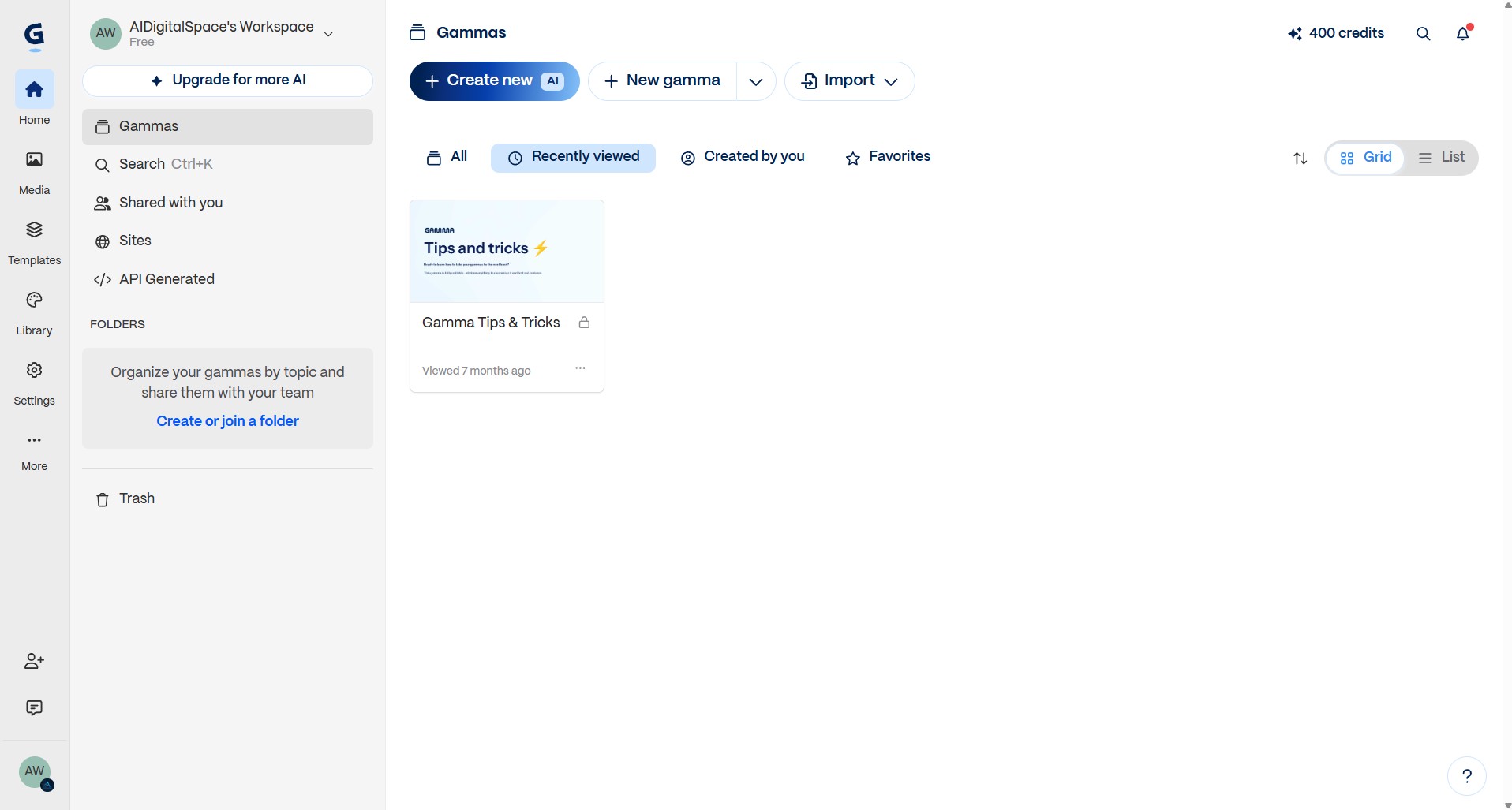
Most people who search "create presentation with Gamma" are really asking about this exact card system — it's what makes Gamma a strong fit for web-shared decks, client proposals, and team updates. But it's also why PowerPoint exports can look different from the original — the vertical cards get converted to horizontal slides, and complex layouts sometimes shift. I'll cover that in the export step.
Gamma AI also supports documents, websites, graphics, and social media posts — but this tutorial focuses on presentations specifically, since that's where most people start.
Whether you landed here from a general Gamma app tutorial search or you already know the tool and just want the fastest path to a finished deck, the rest of this guide covers exactly how to use Gamma AI — step by step, starting with your account.
Step 1 — Create a Free Account
Here's how to use Gamma AI to set up your workspace: head to gamma.app and sign up with Google or email. No credit card required — you'll land on the workspace dashboard in under a minute.
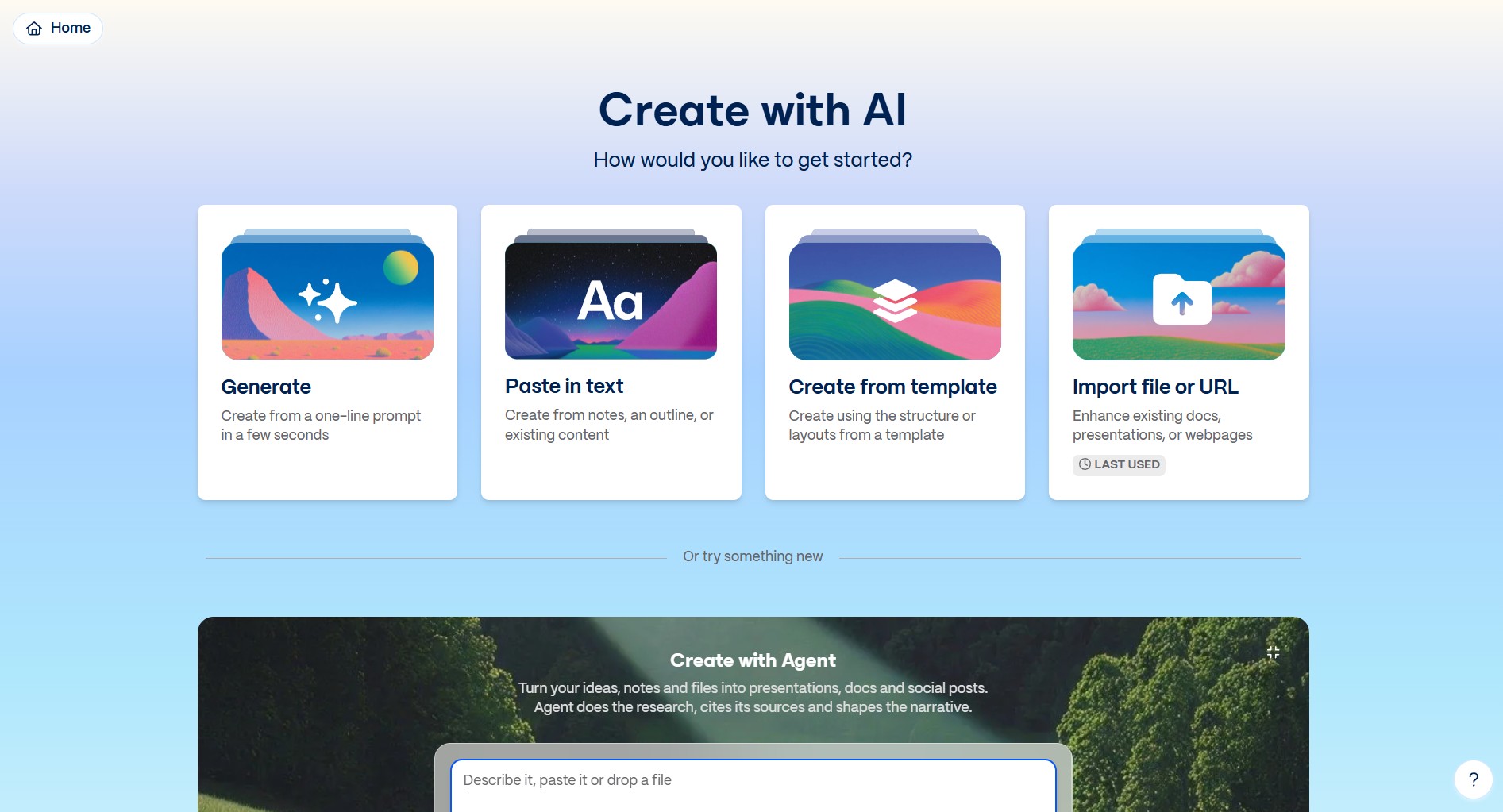
Click "Create New with AI" in the top-right corner. Gamma will ask what type of content you want — choose "Presentation" and select "Generate" to let the AI build from a prompt. You can also paste in existing text or import a PDF, but for this tutorial I'll cover the prompt-first workflow.
Step 2 — Write a Focused Prompt (The Key Step)
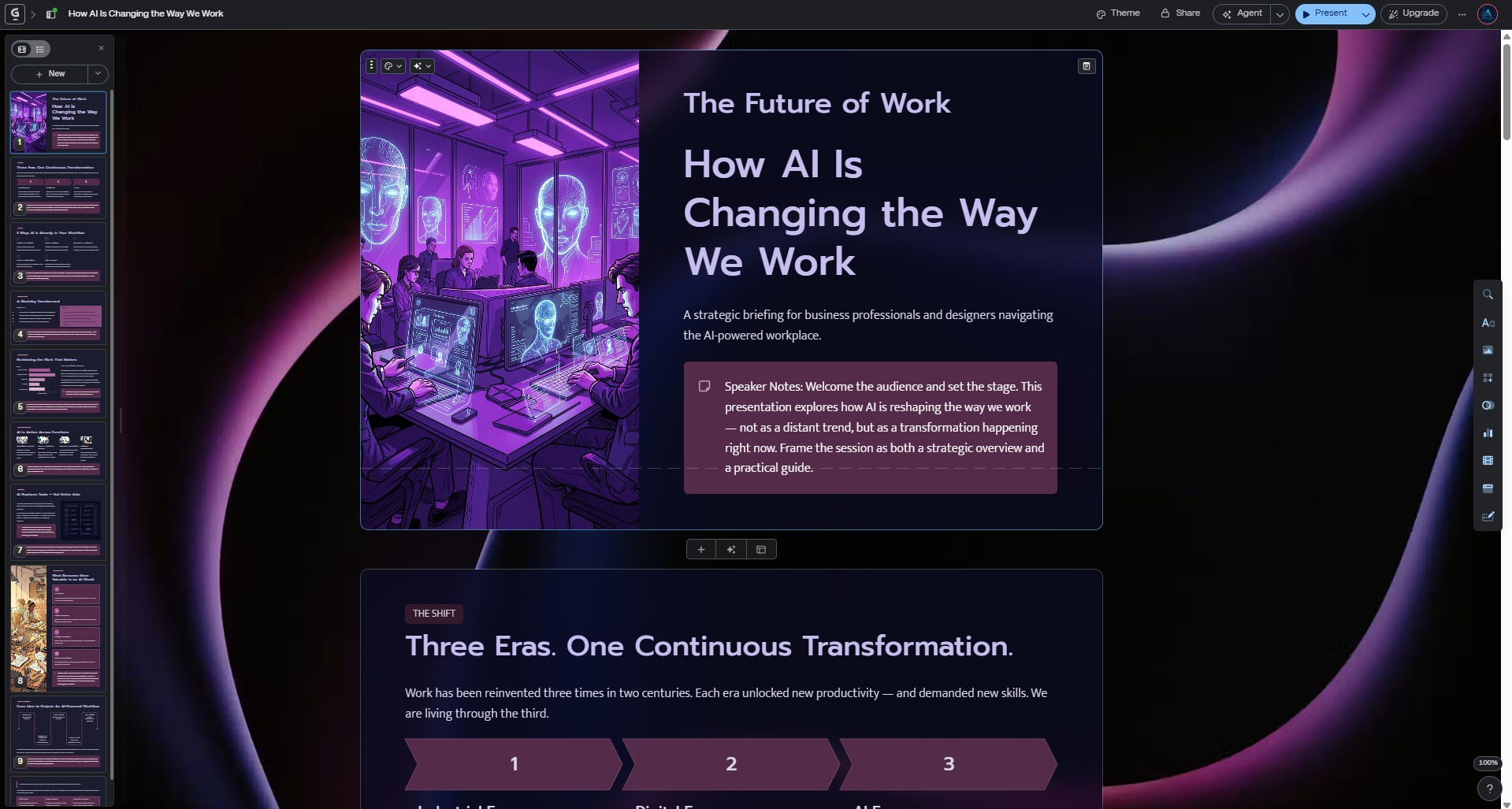
This is the step that determines whether you create a presentation with Gamma that looks intentional or one that reads like AI filler. Typing "make a presentation about marketing" gives the tool nothing to work with — and the AI fills the gap with surface-level filler. A good prompt includes four things: topic, audience, number of slides, and tone.
"Make a presentation about social media marketing"
"Create a 10-slide pitch deck for a freelance social media manager pitching services to small business owners. Include: problem statement, 3 service tiers with pricing, a case study placeholder, and a call-to-action. Tone: confident, professional, data-driven."
The second prompt gives Gamma a structure to follow, an audience to write for, and a tone to match. In my experience, the more specific the prompt, the less editing you need later — and the fewer credits you burn on regenerations.
Prompt Formula That Works
Fill in the blanks before you type anything into Gamma AI. This one formula is the fastest Gamma AI step by step shortcut I know — it consistently produces structured, on-topic decks that need only light editing.
One more thing: Gamma AI also lets you paste in existing notes, an outline, or even an uploaded document instead of writing a prompt from scratch. If you already have meeting notes or a project brief, paste those in — the AI structures them into a deck faster than starting from zero.
Step 3 — Review and Edit the AI Outline
Before Gamma AI generates the full deck, it shows you an outline — a list of card titles with a brief summary of what each card will contain. This is the most underrated step in learning how to use Gamma AI well.
Spend two minutes here. You can reorder cards, rename titles, delete sections that don't fit, or add ones the AI missed. Getting the structure right before generation saves a lot of credit-burning edits later.
Step 4 — Pick a Theme and Generate
Once the outline looks right, Gamma AI lets you choose three settings before generating:
| Setting | Options | My Recommendation |
|---|---|---|
| Text density | Minimal · Concise · Detailed · Extensive | Concise — enough substance without walls of text |
| Image source | AI-generated · Stock photos · GIFs (Giphy) | Stock photos — more professional than AI images for most business decks |
| Theme | 100+ themes (dark, light, colorful, minimal) | Match the theme to context — dark for investor decks, light for team updates |
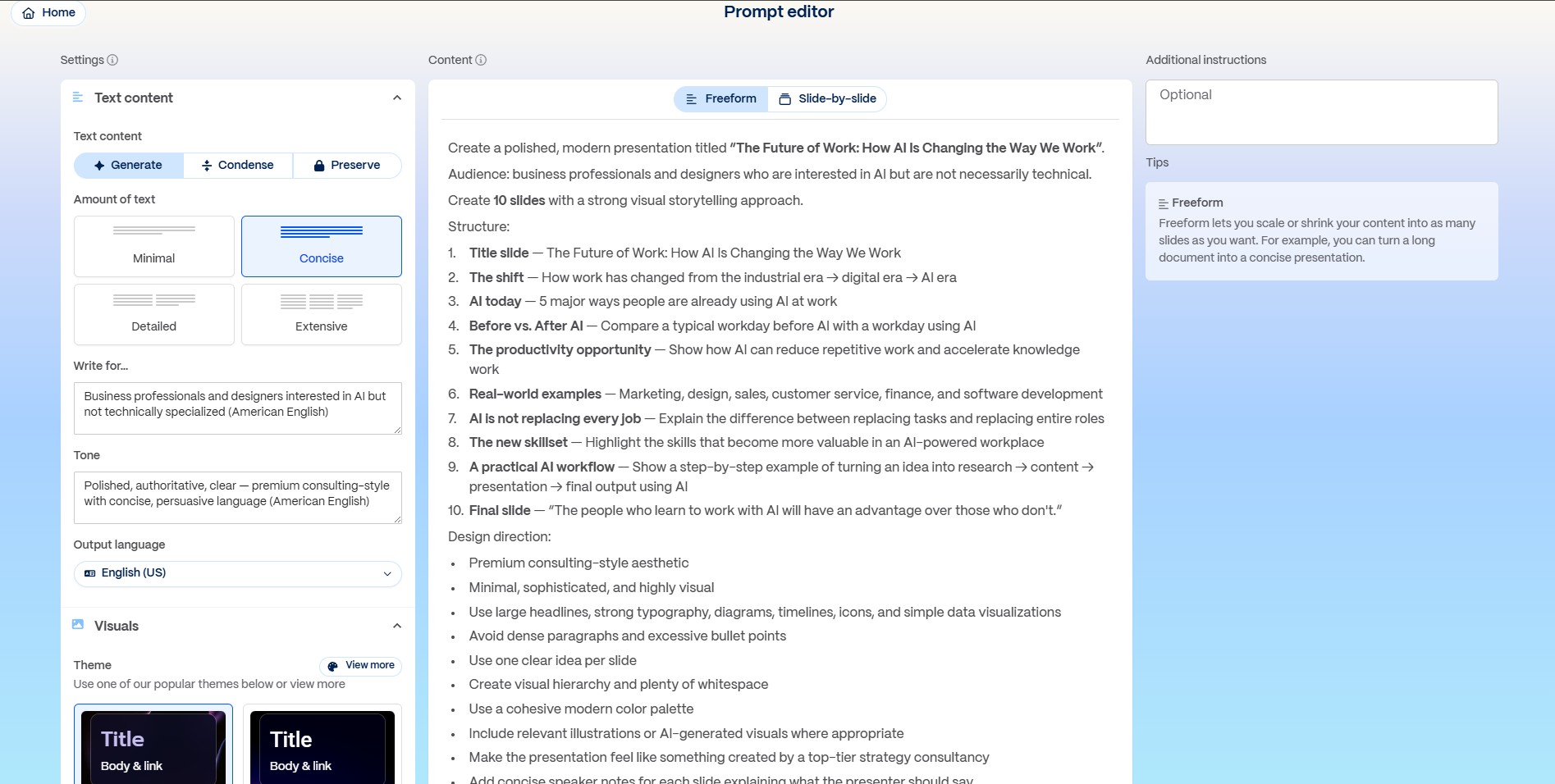
Click Generate and Gamma AI builds the full presentation in about 30–60 seconds. You'll see cards populate in real time with copy, images, and layout choices the AI selected based on your prompt and settings.
Step 5 — Edit Cards, Layouts, and Visuals
The generated deck is a strong first draft — not a final product. Every time I create a presentation with Gamma, I edit at least three things before sharing: the headlines (make them specific instead of generic), the images (swap anything that doesn't match the content), and filler text the AI padded in.
What You Can Edit on Each Card
- Text: Click any text to edit directly — headlines, bullets, descriptions
- Layout: Click the Layout button on a card to switch between grid, split-screen, timeline, or comparison formats
- Images: Click any image to swap it — use the AI image generator, Unsplash search, or upload your own
- Embeds: Add YouTube videos, charts, Google Forms, or Spotify playlists directly into a card
- AI Assist: Highlight any text and use AI to expand, shorten, change tone, or translate it — each action costs a few credits
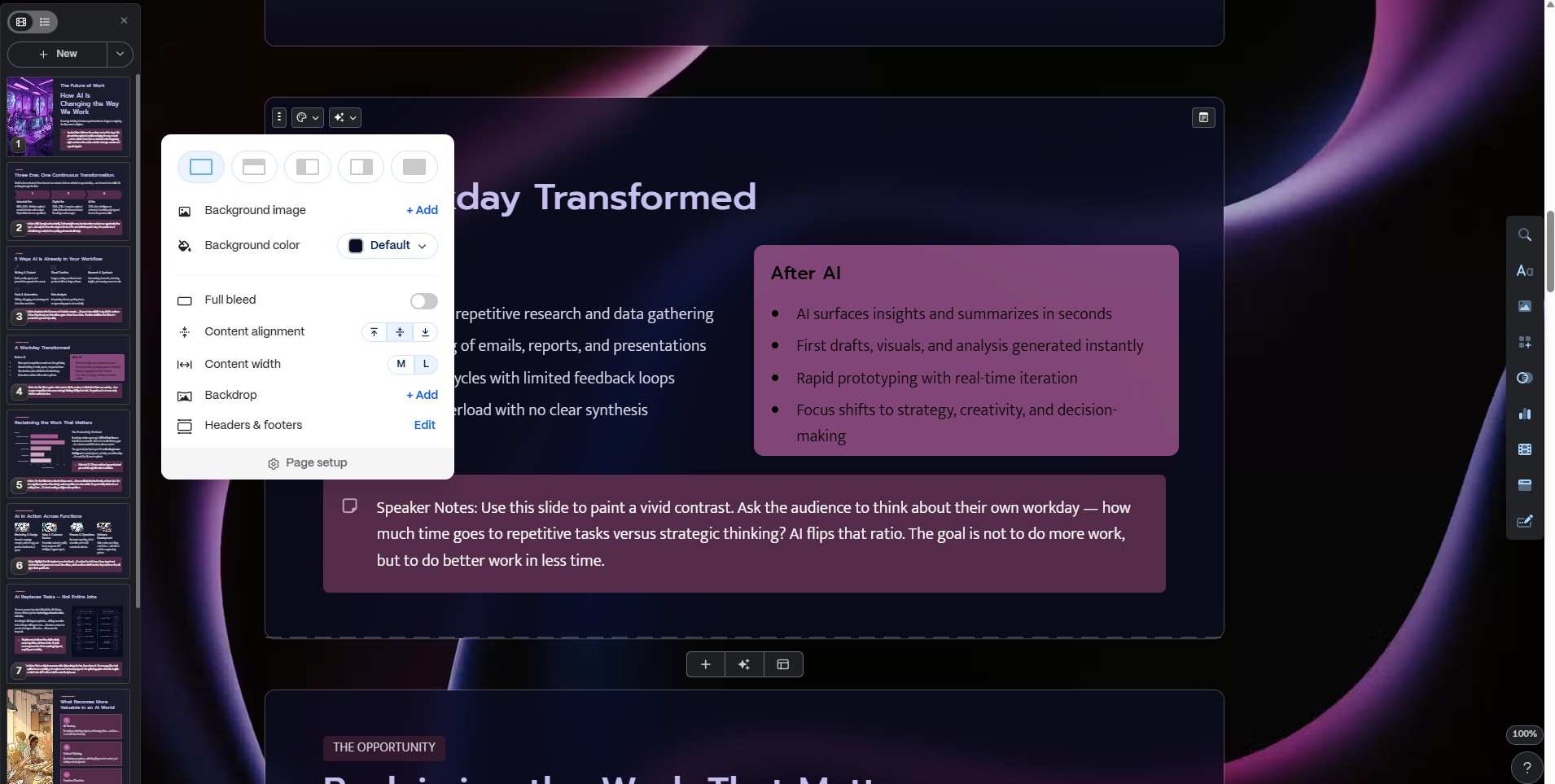
One thing I noticed: manual text edits don't cost credits, but AI-assisted edits (expand, rewrite, add image) do. If you're watching your credit balance, do as much manual editing as possible and save AI assists for the parts that genuinely need rewording.
For a deeper dive into building narrative-driven decks in Gamma, check my Gamma storytelling guide — it covers structure and flow beyond the basics.
Step 6 — Export or Share Your Presentation
Gamma AI gives you several export options — but not all of them work the same way. Here's what to expect from each:
| Export Format | Quality | Best For |
|---|---|---|
| Share link (web) | ⭐⭐⭐⭐⭐ Looks exactly as designed | Client proposals, async reviews, team updates |
| PDF export | ⭐⭐⭐⭐ Clean, static version | Email attachments, print-friendly handouts |
| PowerPoint (.pptx) | ⭐⭐⭐ Layout shifts and font changes common | When the client requires .pptx specifically |
| Google Slides | ⭐⭐⭐ Similar to PPT — needs cleanup | Collaborative editing in Google Workspace |
| PNG (per card) | ⭐⭐⭐⭐ High-res image | Social media carousels, LinkedIn posts |
For the cleanest experience, share via Gamma's web link whenever possible. Gamma also includes engagement analytics on shared links — you can see who viewed your deck, how long they spent on each card, and where they dropped off. That's genuinely useful for sales proposals and investor decks.
Step 7 — Save Credits and Work Faster
Credits are Gamma AI's real currency, and they go faster than you'd expect. Every AI action — generation, image swap, text expansion, tone change — costs credits, and the cost varies by AI model selected. Here's how I stretch mine:
- Edit the outline before generating — structural changes at the outline stage cost nothing
- Manual edits over AI edits — clicking into text and rewriting costs zero credits; using "AI Assist" to rewrite costs 5–10 per edit
- Choose stock photos over AI-generated images — stock pulls from Unsplash for free; AI images cost 2–40 credits each depending on the model
- Use the right AI model — Gamma shows the credit cost per model beside each option. The default is usually enough; premium models burn credits fast
- Duplicate good decks — once you've built a structure you like, duplicate it as a template instead of regenerating from scratch
Gamma AI Pricing Breakdown
Once you know how to use Gamma AI to build a deck, pricing is the next real question. Gamma AI pricing is per seat, billed annually or monthly. Here's the breakdown as of August 2026:
| Plan | Price (annual) | Credits/Month | Key Difference |
|---|---|---|---|
| Free | $0 | 400 one-time | 10 cards max · Gamma watermark · basic AI models |
| Plus | $8/mo | 1,000/mo | No watermark · 20 cards · advanced AI image models |
| Pro | $18/mo | 4,000/mo | 40 cards · custom fonts · detailed analytics |
| Ultra | $90/mo | 20,000/mo | 75 cards · best AI models · Studio Mode · 100 custom domains |
For most solopreneurs and content creators, the Plus plan at $8/month is the sweet spot — 1,000 monthly credits covers roughly 15–20 full presentations, which is more than enough for weekly use. The free plan works well to test whether Gamma fits your workflow, but those 400 credits are a one-time grant, not a monthly refresh.
AI Tools That Pair Well with Gamma
This Gamma app tutorial covers the presentation itself, but a polished deck often needs supporting assets — voiceovers, custom visuals, or a video walkthrough layered on top. Here are three tools I've used alongside Gamma that cover those gaps.
Gamma handles deck structure, but Canva is stronger for custom graphics, brand kits, and social carousels. I often build the deck in Gamma, then export individual cards as PNG and drop them into Canva for final polish.
Need a voiceover for a recorded presentation or sales video? ElevenLabs generates realistic AI narration — including in your own cloned voice. I use it to add narration to Gamma decks shared as async video walkthroughs.
Turn a Gamma presentation into a video with an AI avatar presenter — useful for course content, onboarding, or pitch videos where you want a human face presenting the slides without recording yourself.
For a full breakdown of how to stack these tools together, see my AI creator stack guide — it covers the complete workflow from content creation to publishing.
Frequently Asked Questions — How to Use Gamma AI
🎯 Level Up Your AI Presentation Workflow
You now know how to use Gamma AI from a blank prompt to a finished, shareable deck — that's the full Gamma AI step by step process covered. Here's where I'd go next to sharpen your decks and save even more time: