
1. YouTube AI Tools, One Year Later
When YouTube first rolled out its AI toolkit in late 2025, it meant three features: Veo 3, Edit with AI, and an early sound remix. Twelve months on, the YouTube AI tools lineup looks different — and noticeably more capable.
According to YouTube's 2026 creator letter, over 1 million channels now use YouTube AI tools daily, 20 million people use the Ask feature, and 6 million viewers watch auto-dubbed videos every month. This isn't a beta anymore — it's infrastructure.
What follows is a full update: what's new, what changed names, and how to actually use the current version of YouTube's AI tools without digging through three separate Google blog posts.
2. Meet the Current YouTube AI Tools: Veo 3.1, Reimagine, and the Gemini Remix Suite
YouTube's YouTube AI tools lineup has moved fast since our last look. The 2025 launch — Veo 3, Edit with AI, and an early speech-to-song remix — was just the opening move.
By January 2026, Google upgraded the video model to Veo 3.1, adding "Ingredients to Video." Creators can now feed in their own photos and clips alongside a text prompt, so the output blends real footage with generated scenes.
In March 2026, YouTube shipped Reimagine — a Veo-powered remix tool that turns a single frame from any eligible Short into a new 8-second clip, letting viewers insert themselves using photos from their own gallery.
Around Google I/O 2026, this expanded into a broader Gemini-powered remix suite with "AI Insertion" — background swaps and style transfer through natural-language prompts, plus per-video toggles so creators can opt out of specific remix types.
Our research turned up a scale detail worth flagging: per YouTube's 2026 letter, the YouTube AI tools suite now sees over 1 million channels use it daily and 6 million viewers watch dubbed content monthly.
Auto-dubbing is the other big shift — no longer Partner Program-only. Every creator can now dub into 27 languages, a much bigger reach than the 2025 rollout allowed.
Because AI-inserted content can blur what's original, YouTube requires "Altered Content" labels — a policy that lines up with the FTC's guidance on disclosing AI-generated content.
Together, these YouTube AI tools now cover generation, remixing, editing, dubbing, and discovery — a much wider net than the three-tool set from 2025.
3. Veo 3.1 — YouTube's Upgraded AI Video Generator for Shorts
Of all the YouTube AI tools, Veo 3.1 is still the headline act. It turns a text prompt — or now, text plus your own photos and clips — into a ready-to-publish Short with visuals, transitions, and sound.
"Ingredients to Video," added in January 2026, is the meaningful upgrade. Instead of generating purely from a prompt, you hand Veo 3.1 a real photo or clip, and it builds the new scene around it.
This puts Veo 3.1 in the same conversation as Runway and Pika Labs — but built directly into the platform where the video gets published.
Prompting still works the same way: type "a travel short exploring Rome's streets at sunset," and Veo 3.1 generates a 15–30 second clip with matching visuals and pacing.
One detail worth flagging: the original Shorts rollout used a lower-latency "Veo 3 Fast" variant at 480p. Ingredients to Video runs on the full Veo 3.1 model — a small quality jump over the 2025 version, at the cost of slightly longer generation time.
Our take on this piece of the YouTube AI tools suite hasn't changed: it removes the technical bottleneck between an idea and a publishable draft, not the creative process itself.
4. Edit with AI — Now With Auto-Dubbing for Every Creator
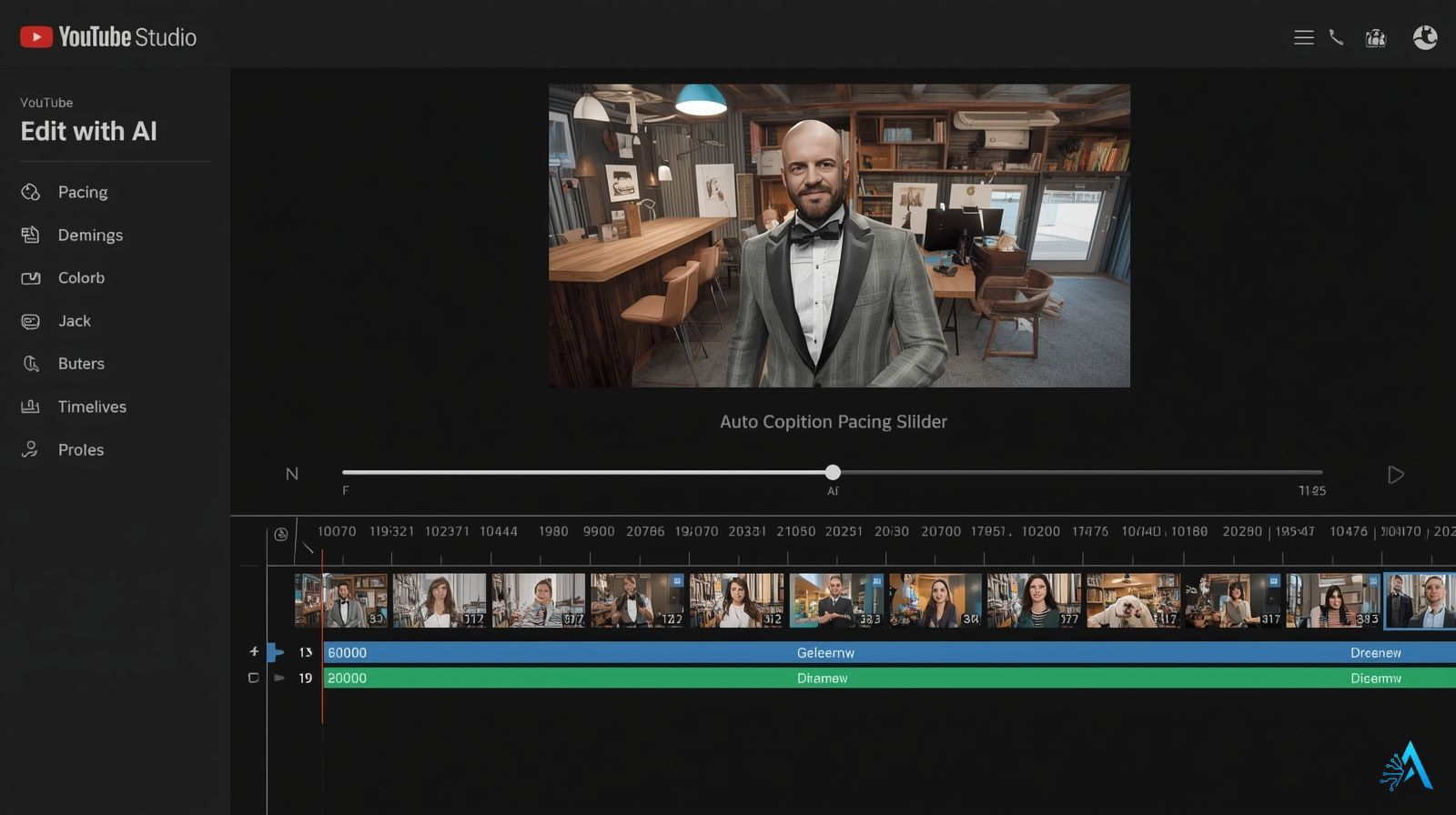
If Veo 3.1 is the creative spark, Edit with AI is still the production engine of YouTube's AI tools. It analyzes uploaded footage, flags weak pacing, and auto-suggests cuts, captions, and transitions.
"Smart sync" still aligns voice and visuals automatically, and beta testers report time savings of roughly 60% per video compared to manual editing.
| Feature | What It Does | Why It Helps |
|---|---|---|
| Auto Scene Detection | Identifies key moments to keep videos concise. | Faster workflow, fewer unnecessary edits. |
| Smart Captions | Adds subtitles synced to dialogue automatically. | Improves accessibility and on-platform SEO. |
| Auto-Dubbing (27 languages) | Generates dubbed audio, open to all creators as of 2026. | Reaches non-English audiences without a translator. |
The dubbing expansion is the real news. It used to be gated behind the YouTube Partner Program — now every creator using these YouTube AI tools can generate dubbed tracks in 27 languages directly from Studio.
For creators who already script and voice their own content, this pairs well with dedicated tools like ElevenLabs when you want more tonal control than native dubbing offers.
5. Speech to Song — What "Sound Remixing" Actually Turned Out to Be
Music can make or break a Short, and that's what YouTube's Speech to Song tool is built to fix. It's part of the broader YouTube AI tools suite, and it's more specific than a generic "remix" feature.
Speech to Song takes the dialogue from an eligible video and runs it through Lyria 2, Google DeepMind's music model, turning a spoken line into a new song built around that clip.
You pick a vibe — chill, danceable, fun — and the tool builds a track around the original dialogue rather than generating generic background music. Every resulting video still attributes the original creator.
| Tip | What to Do | Why It Works |
|---|---|---|
| Pick a clear vibe tag | Choose "energetic" or "ambient" before generating. | Helps Lyria 2 match tone to your video. |
| Preview multiple takes | Regenerate 2–3 times before committing. | First result isn't always the best fit. |
| Balance the mix | Keep AI music at 40–50% of dialogue volume. | Keeps speech clear, avoids overpowering narration. |
If you're already using Murf AI for voiceovers, Speech to Song layers naturally on top of the rest of these YouTube AI tools.
6. Top External Tools to Pair With YouTube AI
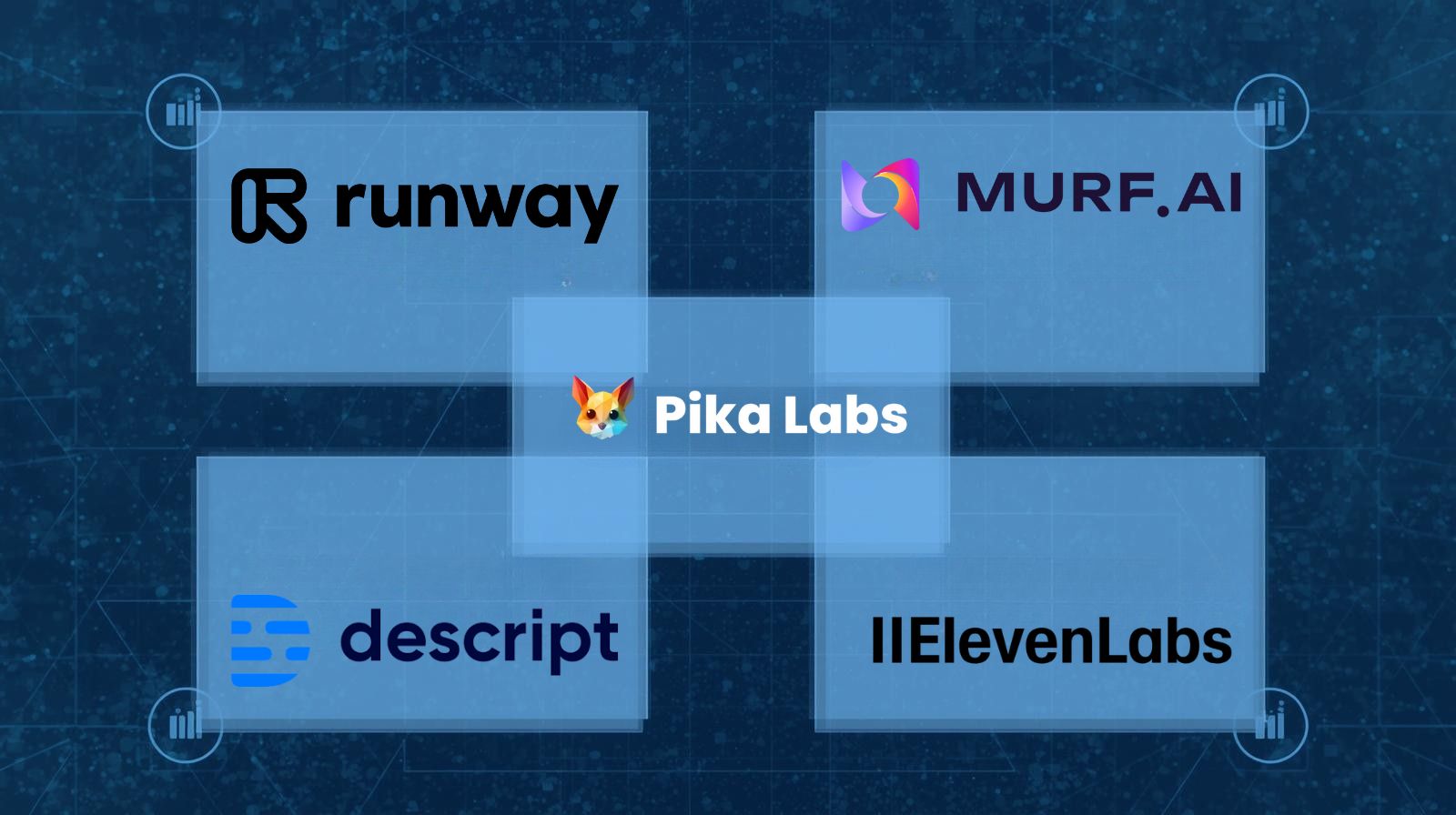
YouTube's native YouTube AI tools cover the basics, but plenty of creators still pair them with third-party platforms for finer control over voice, visuals, and editing.
| Tool | Best For | Key Features | Try It |
|---|---|---|---|
| Runway ML | Advanced AI video editing | Gen-4 video generation, motion tracking, scene cleanup. | Try Free → |
| Pika Labs | Fast text-to-animation | Short cinematic clips from prompts with built-in editing. | Try Pika → |
| ElevenLabs AI | Voiceovers and dubbing | Realistic voices in 29+ languages, tone cloning. | Try Free → |
| Murf AI | AI voiceovers and background audio | Professional narration and sound layers. | Try Free → |
| Descript | Podcast and video editing | Edit video by editing text, remove filler words. | Use Descript → |
Combining these with YouTube's native AI tools still pushes production value higher — ElevenLabs for narration, Runway for cinematic intros, Descript for tightening the final cut.
For a deeper look at stacking a full external workflow, see our Descript YouTube editing tutorial.
7. Quick Setup Guide — How to Access YouTube's AI Tools Today
Getting started with the current YouTube AI tools takes a few minutes. Everything runs inside YouTube Studio — no downloads, no separate account.
This quick walkthrough covers all five YouTube AI tools in the order most creators use them, from generation to final export.
Update your Studio dashboard. Make sure you're signed in and your Studio version is current. Eligible regions see the AI tab automatically under Create.
Generate with Veo 3.1. Go to Create → AI Video and select Veo 3.1. Type a short prompt, or attach a photo for Ingredients to Video. Keep prompts to 10–20 words with a tone descriptor like "fun" or "cinematic."
Try Reimagine on an eligible Short. Open a Short with remixing enabled, tap Remix, then Reimagine. Add up to two photos and let Gemini suggest a prompt, or write your own.
Run Edit with AI on your footage. Upload as usual, then click Edit with AI in the editor panel. Enable smart captions, scene detection, or auto-dubbing before exporting.
Add a Speech to Song track. In the Audio tab, select Remix with AI, choose a mood, preview 2–3 versions, and balance the mix before publishing.
| Step | Action | Result |
|---|---|---|
| 1 | Update Studio and sign in | Access the current AI tools in your dashboard |
| 2 | Prompt Veo 3.1 | Generate a Short from text or your own photos |
| 3 | Try Reimagine | Remix an eligible Short into a new 8-second clip |
| 4 | Run Edit with AI | Auto-edit, caption, and dub your footage |
| 5 | Apply Speech to Song | Add a track built from your own dialogue |
These steps cover the current version of YouTube AI tools — whether you want a quick Short, an auto-edited vlog, or a soundtrack without touching a mixer. Bookmark this YouTube AI tools checklist for the next time a feature gets renamed.
8. What Creators Are Saying — Benefits and Real Drawbacks
Since this suite of YouTube AI tools expanded, creators have shared plenty of feedback — from Shorts makers to established vloggers. The picture is mostly positive, with a few limitations worth knowing about before you lean on YouTube AI tools for a full production.
Main benefit: time. Veo 3.1 and Edit with AI cut post-production time by close to half for many creators, freeing up time for scripting and engagement instead of trimming clips.
Common drawback: creative drift. Some creators note that Reimagine and Veo-generated clips occasionally miss the intended tone, adding scenes or transitions that feel off. Auto-dubbing can also mispronounce niche terms — manual review still matters.
| Creator Type | Positive Take | Challenge |
|---|---|---|
| Daily Short creators | Multiple Shorts per session with Veo 3.1 | Tone sometimes drifts from the intended theme |
| Educators & reviewers | Hours saved with Edit with AI | Auto captions miss niche technical terms |
| Music & lifestyle creators | Speech to Song simplifies soundtrack picks | Volume balance needs manual fine-tuning |
Our take: this generation of YouTube AI tools is practical enough to handle repetitive editing and audio work, but the creative judgment call still belongs to the creator.
9. Ethical AI Reflection — Keeping Creativity Human
As capable as today's YouTube AI tools are, they raise a real question: how much creative control should we hand over? Used well, Veo 3.1, Reimagine, and Speech to Song speed up production. Overused, they can make content feel interchangeable.
At AI Digital Space, we treat every one of these YouTube AI tools as a co-creator, not the sole author. It organizes, generates, and executes faster — but it doesn't understand emotional nuance or storytelling intent the way a person does.
| Practice | How to Apply It | Why It Matters |
|---|---|---|
| Review every AI output | Watch the full edited video before publishing | Keeps your tone and perspective intact |
| Disclose AI use | Add a note when visuals or voices are AI-generated | Builds audience trust, matches YouTube's labeling rules |
| Avoid overdependence | Use AI for efficiency, not idea generation alone | Keeps your creative direction original |
As more creators adopt these YouTube AI tools, that balance — automation for structure, human judgment for meaning — is what will separate lasting channels from generic ones.
10. Final Take — YouTube's AI Tools in 2026
A year in, YouTube AI tools have gone from a three-feature experiment to a platform-wide production suite used by over a million channels daily. Veo 3.1, Reimagine, expanded auto-dubbing, and Speech to Song cover far more ground than the 2025 launch did.
The core advice hasn't changed: let YouTube AI tools handle structure and repetition, and keep your own voice driving the story. That's still what separates content that performs from content that blends in.
Bookmark this page — as YouTube keeps renaming and expanding its YouTube AI tools roadmap, we'll keep this guide current.