

How to Use Notion AI as a Daily Work Dashboard
If your workday feels scattered — tasks in one app, notes in another, decisions stuck in my head until I forget them — a single Notion AI dashboard fixes more of that than any new app would. I don't mean a complex system. I mean one calm page where I can see what needs attention today, what I've already captured, and what I still haven't decided.
How to Use Notion AI · Fact Check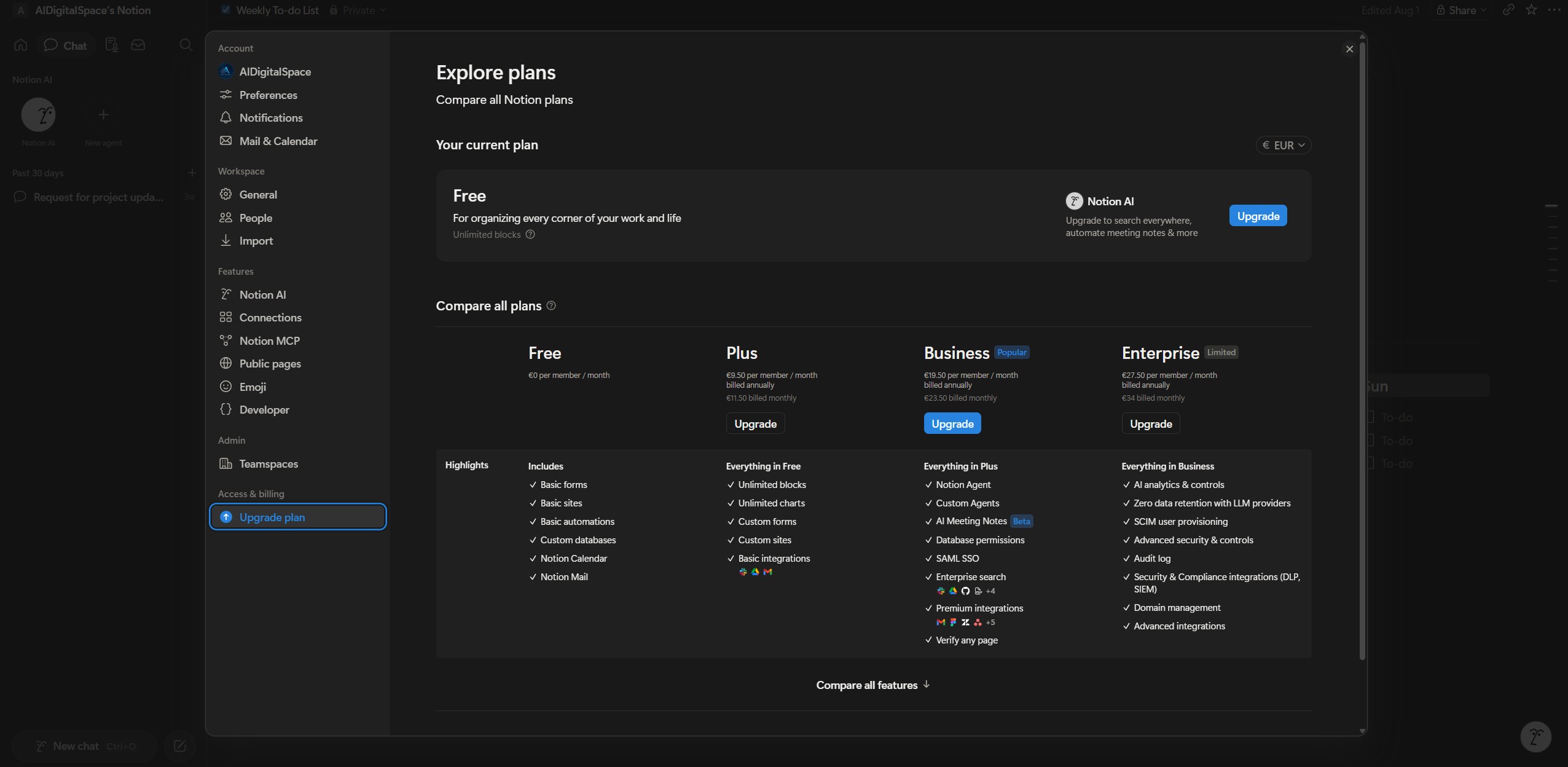
How to Use Notion AI Now vs. What Changed Since Older Guides
Notion 3.0 rebuilt the AI layer around Agents in September 2025. A Personal Agent now works autonomously for up to 20 minutes on a task, and shareable Custom Agents — generally available since May 4, 2026 — run on schedules and cost $10 per 1,000 Notion credits on top of your seat. That's a different product than the highlight-text-click-Ask-AI tool most tutorials still assume.
What a daily work dashboard actually is
That's the real answer to how to use Notion AI as a dashboard: one Notion page combining three things — tasks I need to act on today, notes I'm thinking through, and decisions that need a next step. Notion AI's job is to summarize the messy middle part, turning rough notes into action items and helping me see what actually matters first.
What you'll be able to do after this guide
✅ By the end of this guide, you'll have:
- A single daily dashboard for tasks, notes, and decisions
- A way to turn rough notes into clear next actions
- A habit of asking Notion AI what deserves focus today — built on what's actually live in 2026
What You Need Before Setting Up Notion AI Daily
Before building the dashboard, I make sure the basics are actually in place. Most people who say Notion AI didn't help them skipped this part — not because the tool is weak, but because the setup was messy.
Step 1 for How to Use Notion AI: Confirm Your Plan
Notion AI isn't a separate app — it lives inside pages and databases. But since the standalone add-on disappeared, you need the Business plan ($20/user/month annual) for the Notion Agent, Meeting Notes, and Enterprise Search. Free and Plus only give you a limited trial of the core writing tools — enough to follow along, not to build the full workflow below.
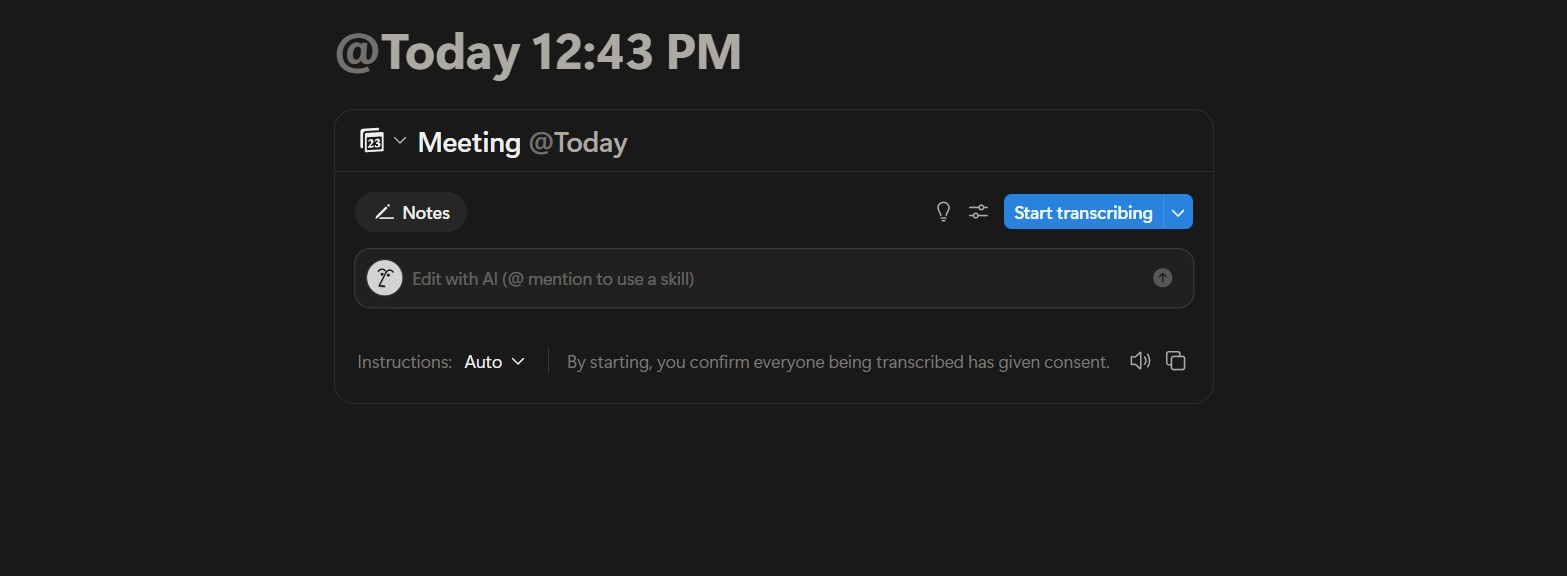
Check your access: open any page, press the spacebar on an empty line, and see if the AI menu appears. If it's capped or missing, Notion's own help documentation walks through plan-by-plan access.
Decide what "daily work" means for you
This is the how to use Notion AI question most guides skip. Before asking AI to help, I get clear on what I actually deal with every day: tasks due today or this week, notes from meetings and ideas, and the small decisions I keep postponing because they feel unclear. This guide assumes you want one place for all three — not three separate systems.
Start with a blank page, not a template
This is the fastest way to learn how to use Notion AI without fighting a template. It's tempting to download a 40-section template — I'd do the opposite. Create one blank page, name it something plain like "Daily Dashboard," and let Notion AI work with clear, simple structure. It performs noticeably better on plain pages than on someone else's over-built system.
Clear your inboxes first
Move loose notes into one place before you organize anything. This is the capture-first, organize-later habit Notion AI is built to support in the next section — trying to tidy while capturing is what makes the setup feel harder than it is.
Setting Up the Dashboard for Tasks, Notes and Decisions
This is where learning how to use Notion AI becomes practical instead of theoretical. I build one page with three sections — no databases yet, nothing fancy — because a simple structure is what actually gets used every day.
1Build the three-section structure
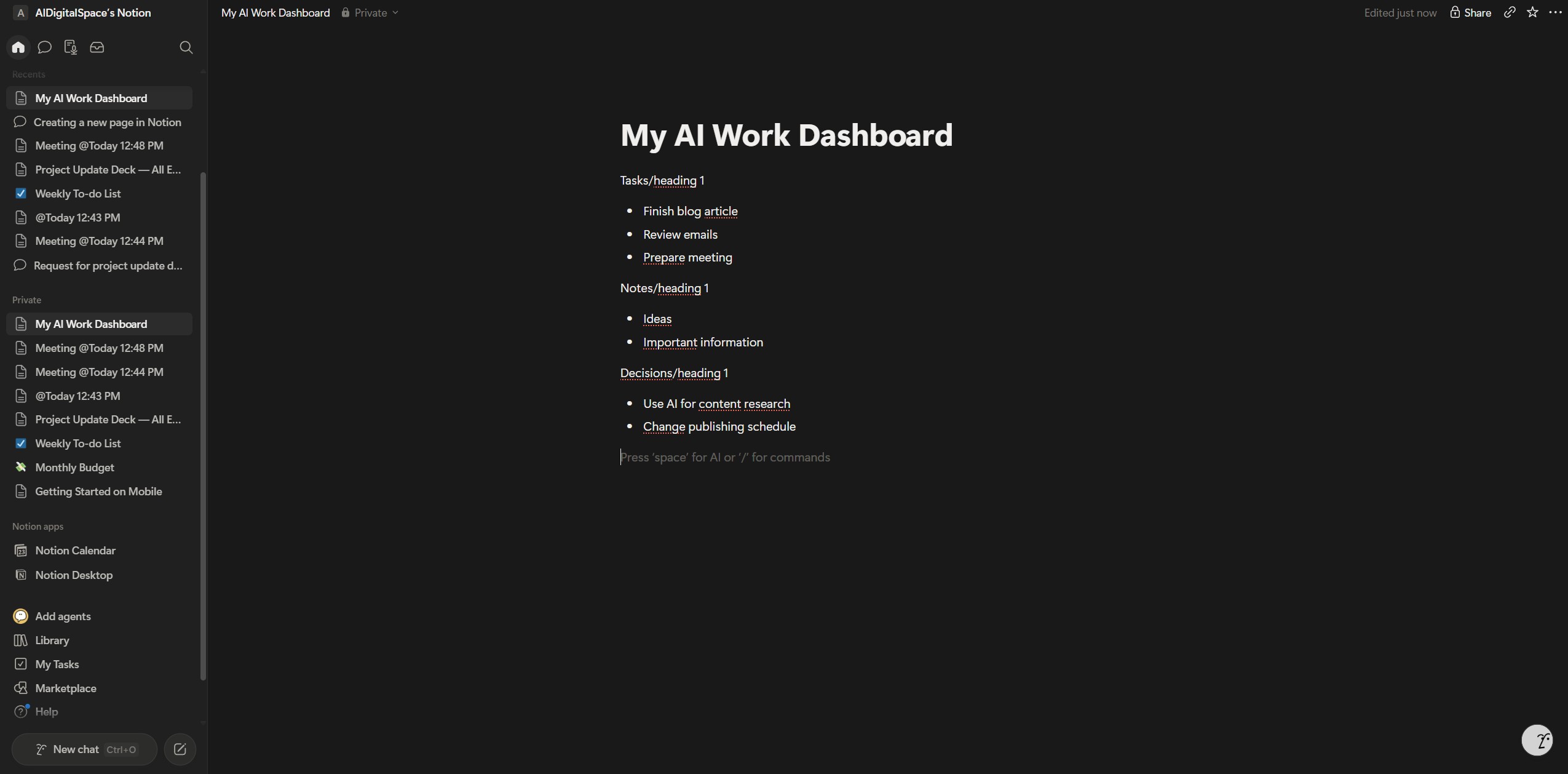
On the blank page from the last step, add three plain headings: Today's Tasks, Notes & Inputs, and Open Decisions. Notion AI reads context better when sections are clearly labeled, so resist the urge to add widgets or heavy formatting at this stage — simple structure produces better AI output.
2Add tasks the way you'd actually write them
Under Today's Tasks, I write naturally first — "finish client proposal," "reply to supplier email" — then highlight the list, open the AI menu, and prompt: "Rewrite these as clear, actionable tasks for today." Writing first and refining second is the single habit that makes Notion AI feel useful instead of gimmicky.
3Capture notes before you organize them
Under Notes & Inputs, I paste meeting notes, ideas, and rough thoughts as they arrive, without cleaning anything up. When the section gets messy, I ask: "Summarize the key points and extract action items." This is where Notion AI actually saves time — after I've thought, not before.
4Turn uncertainty into an actual decision
Here is how to use Notion AI for the part most productivity systems skip entirely: open decisions. I write things like "should I delay this project?" or "which tool should I use here?" then ask: "Help me evaluate this decision and suggest next steps." Used this way, Notion AI supports clarity — it doesn't automate the choice away.
5Connect the three sections with one prompt
Once all three sections have content, I select the whole page and ask: "Based on this dashboard, what should I focus on today?" That single prompt usually surfaces a clearer priority order, a hidden dependency, or a task I can safely push to tomorrow.
How I Use Notion AI During a Real Workday
Here's how to use Notion AI across a normal workday for me — not an idealized one.
🌅Morning — turning noise into a plan
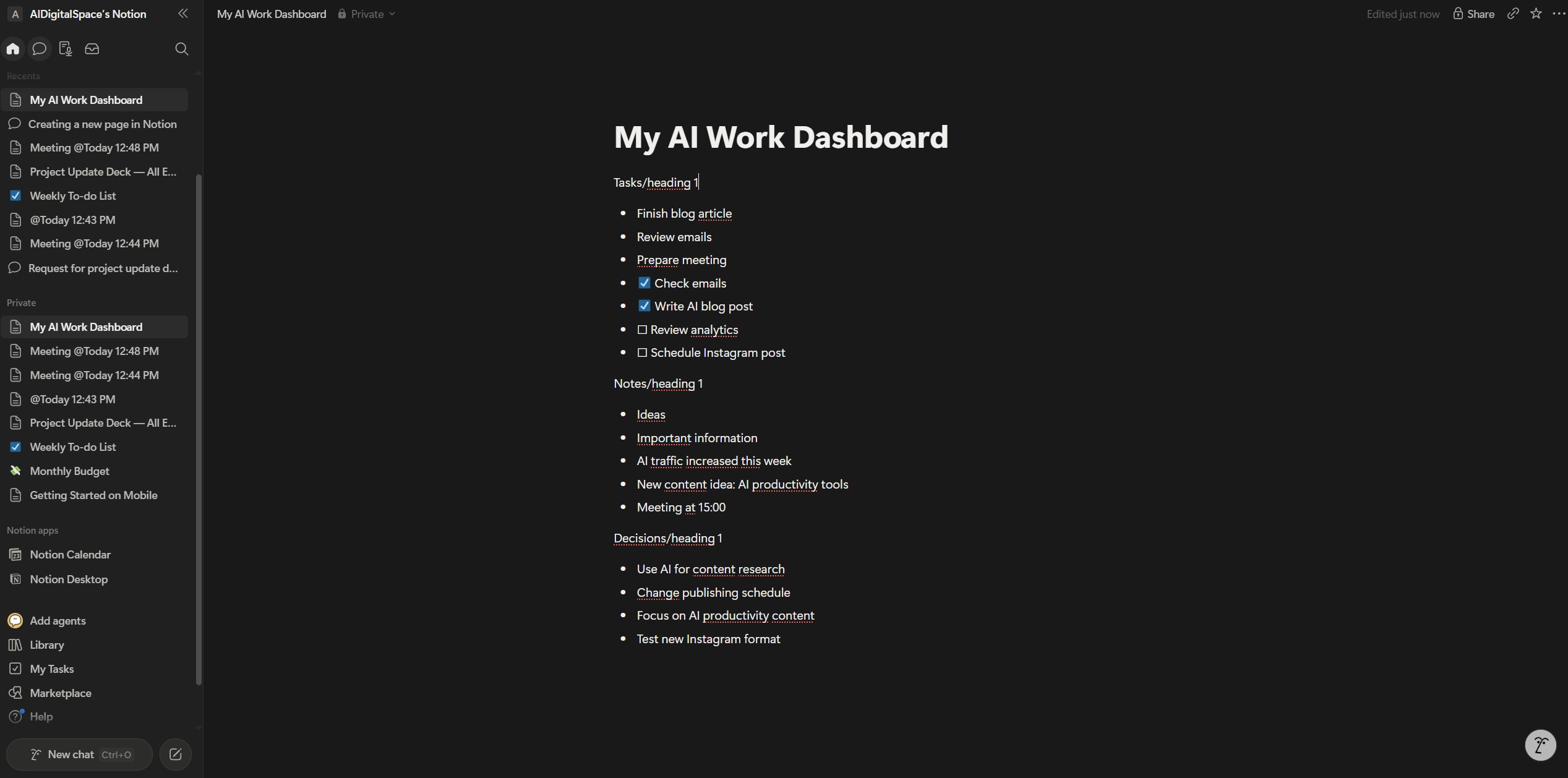
I open the Daily Dashboard first, read what I wrote the day before without changing anything yet, then select the whole page and ask: "Summarize this dashboard and tell me what deserves attention today." That single prompt surfaces urgent-versus-optional tasks and unfinished decisions before I've made a single edit.
☀️Midday — updating as work shifts
New requests arrive, priorities move. Instead of reorganizing by hand, I add new items under Today's Tasks, paste quick notes under Notes & Inputs, then ask: "Reorder today's tasks based on urgency and effort." Because the page already has context, the reordering is noticeably more relevant than the same prompt on a blank page.
🌇Afternoon — resolving one open decision
When energy drops, I pick one item from Open Decisions and ask: "Help me decide this using pros, cons, and a clear next step." I don't always follow the suggestion, but I almost always leave with less hesitation than I started with.
🌙End of day — a two-minute reset
Before closing the laptop, I select the whole page and ask: "Prepare a short summary and suggested focus for tomorrow." Then I move unfinished tasks forward and leave the notes and decisions exactly as they are — the dashboard stays alive, not perfect.
How to Use Notion AI · TroubleshootingMistakes That Make Notion AI Feel Useless
When how to use Notion AI questions come up in forums, the frustration is rarely the model — it's almost always the workflow around it. Here's what fixes that fastest, based on the mistakes I see most often.
The six mistakes that break how to use Notion AI as a daily dashboard, and the fix for each:
| Mistake | What Happens | Fix | Best Prompt |
|---|---|---|---|
| Starting with a complex template | You manage the system more than you work | One page, 3 sections: Tasks, Notes, Decisions | "Turn this page into a simple daily dashboard with Tasks, Notes and Decisions." |
| Asking AI without context | Answers feel generic | Highlight the relevant section first, then ask | "Based on this section, what should I focus on today and why?" |
| Trying to write perfect notes | You capture less; the dashboard stays empty | Dump messy notes first, let AI clean them later | "Summarize this and extract action items with owners and deadlines." |
| Mixing tasks and notes together | The page feels noisy, you stop opening it | Keep them separate, use AI to link them | "Link the tasks that come from these notes, and rewrite them clearly." |
| Letting AI decide everything | You lose confidence in your own choices | Use AI for options, then choose yourself | "Give me 3 options, the trade-offs, and the safest next step." |
| Never reviewing the dashboard | The system goes stale | Run a 2-minute end-of-day reset | "Summarize today, carry forward open tasks, suggest tomorrow's focus." |
- Keep the dashboard to three sections, nothing more
- Give Notion AI context — highlight before you ask
- Capture messy notes, then refine
- Use AI for clarity, not for the final call
Apply those four habits and how to use Notion AI stops being a mystery you forget how to apply — it becomes the thing that actually runs your day.
How to Use Notion AI · ResponsiblyUsing Notion AI Without Losing Control
Knowing how to use Notion AI responsibly matters because daily AI use quietly shapes how I think and decide — so this isn't only about getting more done, it's about staying intentional. Notion AI works best as a thinking partner, not an authority: genuinely useful for summarizing and reframing, but the final call stays mine.
A daily dashboard naturally collects unfinished ideas and decisions in progress, which is fine — what matters is staying deliberate about what I store. I keep sensitive personal or confidential work details minimal, and Notion covers how AI features interact with workspace content in its official privacy documentation.
The other trap is over-optimization: rewriting every sentence, refining every task, running every decision through AI. A good dashboard still feels human — incomplete notes and uncertain moments included. I write in my own words first, then ask AI for support, which keeps the system personal instead of generic.
How to Use Notion AI · VerdictIs Notion AI Worth It as a Daily Dashboard?
So is it worth learning how to use Notion AI as your daily dashboard? For most people, yes — if clarity matters more than automation. Notion AI is strongest when you want one calm place for tasks, notes, and decisions, not a rigid, auto-scheduled workflow. It's the wrong tool if you want AI to run your day for you rather than think alongside you. That's the honest verdict on how to use Notion AI as your only productivity system.
On the how to use Notion AI pricing question specifically: paying $20/user/month for Business only makes sense if you're already living in Notion daily. If you rarely open it, a lighter dedicated tool is the better spend.
How to Use Notion AI vs Other Daily Productivity Tools
A quick comparison for how to use Notion AI against three confirmed alternatives:
| Tool | Best For | AI Strength | Starting Price | Try It |
|---|---|---|---|---|
| Notion AI | Tasks, notes & decisions in one place | Agents, summaries, rewriting | $20/user/mo (Business) | Learn more |
| Taskade | Team workflows & structured tasks | Task generation, outlining | Free tier available | Try Taskade → |
| Todoist | Fast task capture, no notes/decisions layer | Light AI prioritization | Free tier available | Try Todoist → |
| Reclaim AI | Auto-scheduling tasks onto your calendar | Calendar-driven AI planning | Free tier available | Try Reclaim → |