 Published on: June 9, 2025
Disclosure:
This post contains affiliate links. If you click through and make a purchase, we may earn a small commission at no additional cost to you. Thank you for supporting AIDigitalSpace — we only recommend tools and services we genuinely trust and believe bring real value to our readers.
Canva PRO & AI. Artificial Intelligence is no longer a niche tool for coders or analysts. In 2025, AI is the heart of digital creativity — and Canva Pro is leading that evolution.
From stunning ad creatives to AI-written copy, Canva is no longer just a design tool. It’s your creative partner. In this guide, we’ll explore how Canva Pro leverages AI to supercharge your productivity. We’ll uncover hidden features, unique use cases, and tips that even power users might not know — backed by real comparisons, examples, and strategic insight.
1. Canva’s AI Toolkit: What’s New in 2025?
1.1 AI Text-to-Image: Visuals From Your Imagination
The AI Image Generator in Canva now supports multilingual prompts, improved realism, and style-matching. You can describe a brand aesthetic — like “a minimal, pastel-toned coffee shop logo in flat design” — and Canva delivers it in seconds.
Exclusive Tip: You can generate 4-8 variations at once and upscale your favorite. Many don’t know that you can also click “Edit Image” and use Canva’s in-image text editor to correct small AI errors without starting over.
Use Case:
Bloggers creating unique thumbnails
Ecommerce brands building product scenes without a photoshoot
Agencies producing storyboards from scratch
1.2 Magic Write: Your AI Copy Assistant
Magic Write is embedded into Docs, Presentations, and Whiteboards. It goes beyond ChatGPT by aligning with the Canva document’s tone, brand kit, and formatting.
Rare Feature: Magic Write now understands tone shifts — use commands like “make it more persuasive” or “adjust for Gen Z audience.”
Use Case:
-
Generating call-to-action variations and instantly testing them
-
Creating short-form scripts for Instagram Reels
-
Rewriting landing page headers to boost CTR
1.3 Smart Search and Asset Suggestions
When building a slide or social post, Canva now auto-suggests the right icons, images, and even layout changes. The AI learns from your previous designs and can mimic a consistent theme across posts.
Insider Tip: You can save frequently used layouts and let the AI replicate structure across multi-platform designs (e.g., YouTube thumbnail → Pinterest Pin).
Use Case:
Influencers maintaining consistent branding
Brands building design systems without a designer
1.4 Background Remover (Instant)
The 2025 update brings a huge leap: background removal now works on video clips. This feature, previously available only in tools like Unscreen, is now embedded directly in Canva Pro.
What’s Rare: It supports moving subjects and is optimized for facial clarity. Great for Reels, YouTube Shorts, and even product showcases.
Use Case:
-
DTC brands creating scroll-stopping TikToks
-
Solo creators removing cluttered backgrounds from product videos
1.5 Auto-Sync Music with Video Cuts
Canva analyzes music tempo and automatically syncs scene changes and animations to the beat. It also lets you select the mood (e.g. energetic, dramatic) and adjusts transitions accordingly.
Hidden Trick: You can fine-tune beat highlights manually using AI-detected keyframes.
Use Case:
Social media managers producing dynamic shorts
Musicians syncing promo visuals with beats
1.6 Presentation Generator — The Smart Pitch Builder
Not just design — Canva’s AI now helps build structured arguments in decks. From thesis generation to layout suggestions and image filling, it writes the copy, designs the slide, and matches it with visuals.
Use Case:
-
Startups preparing investor decks
-
Teachers building classroom material
-
Coaches making webinar slides in minutes
Pro Tip: Add audience type (e.g., “C-suite” or “Gen Z”) for voice adaptation.
When comparing Canva Pro with more traditional design platforms, the real difference isn’t just what features are available — it’s how easily and consistently AI is integrated into everyday workflows. The table below highlights where Canva Pro’s AI tools simplify common creative tasks, and where alternative tools like Adobe or Figma often rely on add-ons, manual steps, or external integrations.
| Feature | Canva Pro |
Other Tools (Adobe, Figma, etc.) |
|---|---|---|
| AI Text-to-Image | ✔️ Built-in Text to Image | ⚠️ Beta features or plugins |
| Magic Write (AI Copy) | ✔️ Native in Docs & Presentations | ❌ Not native / external AI needed |
| Background Remover | ✔️ One-click built-in | ✔️ Available, more manual steps |
| Auto Video Sync | ✔️ Automatic music sync | ⚠️ Manual timing & keyframes |
| AI Presentation Generator | ✔️ AI-generated slides & layouts | ❌ Requires separate tools |
| One-Click Resize | ✔️ Magic Resize | ❌ Manual resizing |
3. Why This Matters for Marketers, Bloggers & Creators
Even if we never touch the “advanced” features, Canva’s AI becomes valuable when it removes friction from everyday content work. For marketers, bloggers, and creators, the real advantage is simple: faster production, more consistency, and less time wasted on repetitive design steps. Here’s a quick snapshot of the benefits that usually show up first in real workflows.
| Benefit | Example |
|---|---|
| Save time | Auto-generated blog graphics |
| Better engagement | Videos that sync cleanly to music |
| Increased reach | One design resized for Instagram, TikTok, and Facebook |
| Smart copy | Draft and A/B test multiple headline options faster |
4. Deep Use Cases & Workflows for 2025
Canva’s AI becomes most useful when it’s applied to repeatable workflows, not one-off designs. Below are realistic use cases where creators and teams tend to see the biggest time savings.
1. Social Media Marketing
For ongoing content calendars, Canva works well as a design + copy hub rather than just a visual editor.
• Design a single post layout, then generate caption drafts with Magic Write
• Use Magic Resize to export the same design for Instagram, TikTok, LinkedIn, and Stories
• Turn static designs into short videos using auto beat-sync and simple motion presets
This workflow is especially effective for creators managing multiple platforms with limited time.
2. Product Launch Campaigns
During launches, Canva’s strength is keeping visual consistency across many assets without jumping between tools.
• Generate branded hero images and background visuals using AI art tools
• Build email headers, landing visuals, and social banners from the same design system
• Create presentations, blog graphics, and short-form videos in one shared workspace
It’s not a replacement for advanced design suites, but it’s efficient for fast, coordinated launches.
3. Online Education & Info Products
Educators and coaches often use Canva as a content packaging tool, rather than for pure design.
• Create lesson slides, module visuals, and supporting graphics quickly
• Draft scripts, summaries, or worksheet text with Magic Write
• Build branded PDFs, lead magnets, and course materials without layout-heavy software
For info products, the real benefit is reducing production friction while keeping materials visually consistent.
5. What Creators Need to Know (But Don’t See on the Homepage)
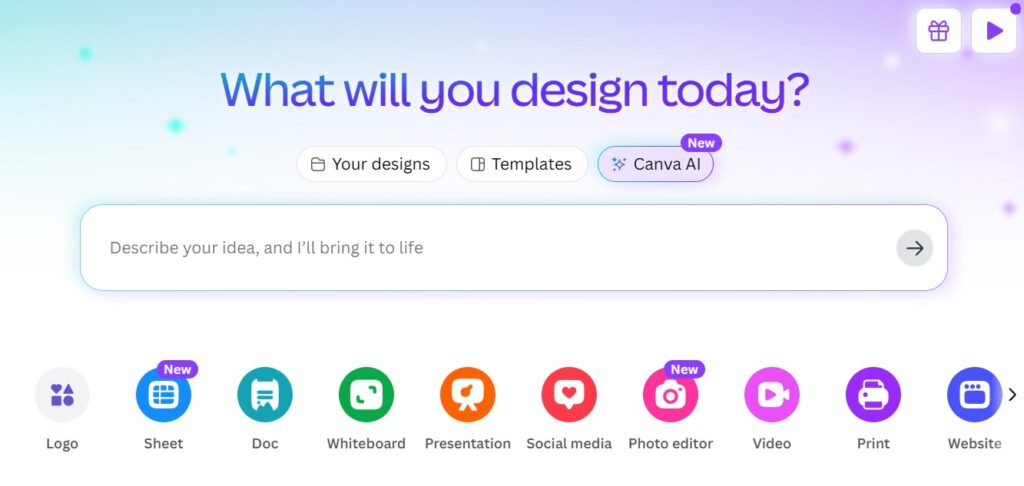
Canva’s homepage focuses on speed and simplicity, but some of its most useful AI features are easy to miss unless you actively explore the platform. These aren’t headline-grabbing tools — yet they can make a real difference in day-to-day creative work.
• Canva Apps (AI Extensions)
Beyond Canva’s native tools, you can now install third-party AI apps directly inside the editor. These include tone adjusters, content analyzers, and workflow helpers that quietly expand what Canva can do — without forcing you to switch platforms.
• Magic Write Works Across Languages
Magic Write now supports 25+ languages, with better localization than before. This makes Canva far more practical for international teams, multilingual creators, and anyone producing content for different regions.
• Brand Kit AI Suggestions
When you upload a logo, Canva’s AI can suggest font pairings, color palettes, and layout styles that stay consistent with your brand. It’s not perfect — but it’s a solid starting point for maintaining visual consistency at scale.
• SEO Assistant (Beta, Inside Docs)
Hidden inside Canva Docs, there’s a lightweight SEO assistant that helps analyze headlines and structure. It won’t replace dedicated SEO tools, but it’s useful for basic optimization before publishing.
Taken together, these features show that Canva’s AI isn’t just about generating content — it’s quietly evolving into a workflow companion for creators who value speed, consistency, and simplicity over complex setups.
6. Tips for Getting the Most Out of Canva’s AI
Canva’s AI works best when it’s used as a support tool, not as a one-click replacement for creative thinking. These tips focus on how creators actually get consistent results in real workflows.
Start with Structure, Then Use AI to Refine
Templates give Canva’s AI the right context. Start with a layout or document structure first, then use AI tools to adjust copy, visuals, or tone. This leads to far better results than starting from a blank canvas.Feed the Brand Kit Before You Generate
Upload your logos, brand colors, and preferred fonts early. Canva’s AI features — from Magic Write to design suggestions — work more reliably when they can reference a defined brand identity.Use AI for Drafts, Not Final Voice
Magic Write is best used for outlines, first drafts, and variations. Always review and adjust the final text so it reflects your real tone, audience, and intent — especially for marketing or editorial content.Be Specific in the “Ask AI” Panel
Generic prompts produce generic output. Instead of “rewrite this,” try clearer instructions like “shorten this for social media,” “make this more professional,” or “adapt this for a non-technical audience.”Design Once, Then Resize Strategically
Use Magic Resize to adapt designs across platforms, but always review spacing and text length after resizing. AI speeds up distribution, but manual checks are still essential for visual balance.
Used this way, Canva’s AI becomes a time-saving layer that reduces repetitive work — while leaving creative control firmly in your hands.
If you’re a solo creator, marketer, small team, or educator, the answer is yes — with realistic expectations. Canva Pro’s AI tools aren’t designed to replace professional designers or complex creative suites, but they do remove a huge amount of friction from everyday content work.
Where Canva Pro’s AI really stands out is in speed and accessibility. Tasks that used to require multiple tools — writing short copy, resizing visuals, creating basic videos, or drafting presentations — can now be handled in one place, often in minutes. For people publishing content regularly, that time saving quickly adds up.
That said, Canva Pro’s AI works best when you see it as a support layer, not a magic button. Used thoughtfully, it helps you move faster, stay consistent, and focus more on ideas and strategy rather than formatting and repetition.
Bottom line: if your goal is to produce more content with less effort — without turning your workflow into a technical maze — Canva Pro’s AI is a practical and worthwhile upgrade in 2025.
If this guide helped you understand how Canva Pro uses AI in real creative workflows — beyond feature lists and marketing pages — and you’d like to explore other practical AI tools for content creation, productivity, and smarter workflows, you may also find these related posts useful:
 Best AI Tools for Creativity in 2025 Runway ML vs Pika Labs – Best AI Video Generator for Creators? Best Free AI Tools with No Login Required (2025)