

Mirko
AI Tech Writer
Most browser AI extensions are just chatbots in a sidebar. Harpa AI is different — it reads the page you're on, summarizes articles instantly, extracts data, automates repetitive tasks, and speeds up research without forcing you to copy-paste or switch tabs. I tested it for 30 days across real workflows (blog research, competitor analysis, email replies). Here's whether it's worth installing — and how to actually use it to save 2+ hours per day.
Ready to Try Harpa AI?
Install free in 30 seconds. Works with Chrome & Edge. No signup required.
Install Harpa Free NowIs Harpa AI Right for You? Quick Decision Guide
What Happens When You Click "Install"
- You'll land on Harpa.ai (safe official website)
- Click "Add to Chrome" (or Edge — takes 15 seconds)
- Open any webpage and click the Harpa icon in your toolbar
- Start using: Summarize articles, write faster, automate browser tasks
🧠 What's Inside
Some links are affiliate links · You support the blog at no extra cost · Details
1. What Is Harpa AI and Who Is It For?
📌 Quick Overview — Harpa AI
| Feature | Details |
|---|---|
| Tool Name | Harpa AI |
| Type | AI browser assistant for Chrome & Edge |
| Core Functions | Page summaries, AI chat, workflow automation, data extraction, SEO support |
| AI Models | Works with models like ChatGPT and Claude via supported connections/API setup |
| Pricing | Free plan available; advanced usage may depend on your model/API setup |
| Best For | Bloggers, researchers, freelancers, marketers, SEO users, productivity-focused professionals |
| Best Advantage | Lets you research, summarize, and automate tasks without constantly leaving your browser |
| Official Access | Try Harpa AI here |
It is a browser-based AI assistant designed to help you work faster without constantly switching tabs or copying content into separate tools. Instead of breaking your flow, it lets you summarize pages, extract information, automate repetitive actions, draft replies, and speed up research directly inside Chrome or Edge.
That is what makes it more useful than many basic browser extensions. It is not just another chatbot in a sidebar — it is built to improve real workflows for people who spend hours reading, comparing, writing, and organizing information online. If you want to see how the platform presents its setup and workflow options, you can also check Harpa AI’s official getting started guide.
In simple terms, Harpa AI is best for people who want more speed and less friction while working in the browser.
What Harpa AI helps with
Summarizing long pages faster so you can get the key points without reading everything manually
Research and comparison tasks when you need to collect, review, or organize information quickly
Writing support for replies, drafts, rewording, and quick content assistance
Data extraction when useful information is buried inside pages and you want a faster way to pull it out
SEO and content workflows such as keyword checks, competitor research, and page analysis
Repetitive browser tasks that normally waste time and break concentration
Why it stands out
What makes Harpa AI interesting is that it focuses on practical browser productivity. Many AI extensions sound useful, but in real use they only add another chat box. Harpa AI feels more action-oriented, which makes it more appealing for bloggers, researchers, freelancers, marketers, and anyone who wants fewer manual steps during the day.
Quick takeaway: if a large part of your work happens inside the browser, Harpa AI is one of the more practical AI tools worth testing.
Personal take
From a productivity perspective, Harpa AI feels less like a novelty and more like a tool that can actually save time. If your daily workflow includes reading articles, comparing sources, extracting ideas, replying quickly, or doing repetitive browser-based tasks, it has a much clearer use case than many generic AI extensions.
Another plus is flexibility. Harpa AI supports different AI connections and documents workflows for summaries, automation, and browser-based commands, which makes it more interesting for users who already rely on AI and want that support closer to where they actually work.
2. How Harpa AI Works?
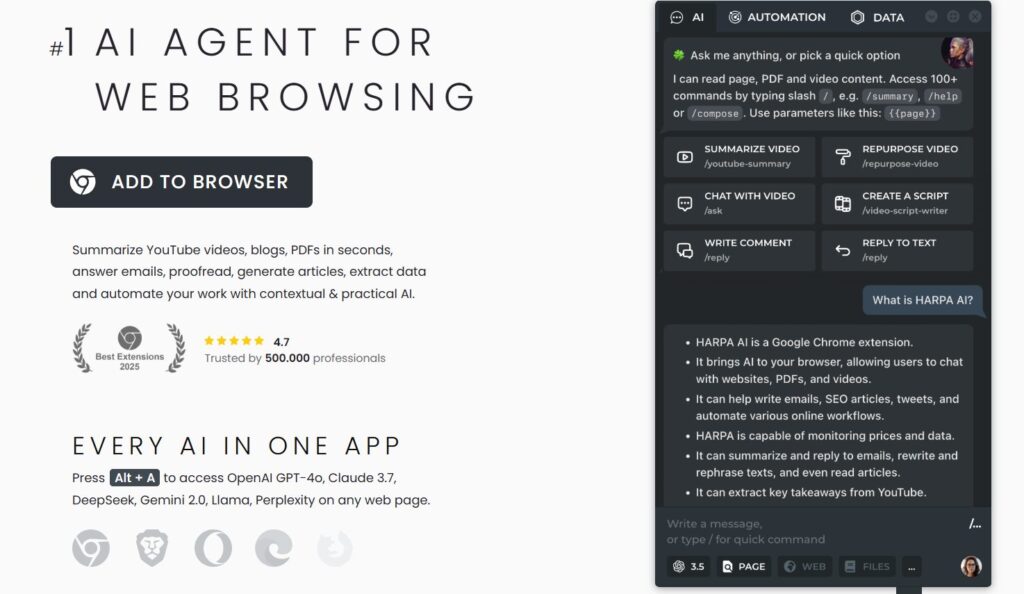
Harpa AI sits in your browser sidebar and reads the page you're on. Instead of copying text elsewhere, you ask it questions, and it instantly summarizes, extracts data, or helps you write — all without leaving the tab.
See how Harpa actually works. Install free in 30 seconds.
Install Harpa Free NowReal Example: How It Works in 30 Seconds
You're reading a long product review. Click the Harpa icon → Choose "Summarize" → Get the key points instantly. No tabs, no copy-paste, no switching tools. Just instant clarity.
3. How to Install Harpa AI
What Happens When You Click "Install"
- You land on Harpa.ai (official safe website)
- Click "Add to Chrome" or "Add to Edge" (takes 15 seconds)
- Open any webpage and click the Harpa icon in your toolbar
- Start using: Summarize pages, write faster, automate tasks
No signup, no credit card, no complicated setup. Just install and go.
Installing Harpa AI takes 30 seconds. No account creation, no payment info, no complicated setup. Here's the complete walkthrough for Chrome and Edge users.
Step 1: Visit the Official Harpa AI Website
Go to Harpa.ai and click the "Add to Chrome" or "Add to Edge" button. You'll be redirected to the official Chrome Web Store or Edge Add-ons page.
💡 Pro tip: Always install from the official source to avoid fake extensions.
Step 2: Add the Extension to Your Browser
Click "Add Extension" when prompted. The installation completes in seconds. You'll see the Harpa AI icon appear in your browser toolbar (top-right corner).
💡 If you don't see the icon, click the puzzle piece icon 🧩 and pin Harpa AI for easy access.
Step 3: Launch & Start Using
Click the Harpa AI icon to open the sidebar. From here, you can choose your preferred AI engine (ChatGPT or Claude), access the built-in prompt catalog, and start using Harpa AI immediately.
💡 Keyboard shortcut: Press Ctrl+Shift+P (or Cmd+Shift+P on Mac) to open Harpa from anywhere.
Bonus Setup Tips
- Enable site access: If a page isn't working, right-click the Harpa icon → "Manage Extension" → Allow access to all sites.
- Create custom prompts: Go to the Prompt Library → Click "New Prompt" to build workflows tailored to your needs.
- Try the built-in commands first: Start with page summaries, email replies, or data extraction to see how Harpa AI works.
⚠️ Installation Not Working?
If you're having trouble, make sure you're using Chrome or Edge (Harpa AI doesn't support Firefox or Safari). Clear your browser cache, restart the browser, and try installing again. If issues persist, check Harpa's official installation guide for troubleshooting steps.
No signup required · Works instantly · 30-second setup
4. Top Features of Harpa AI for Productivity
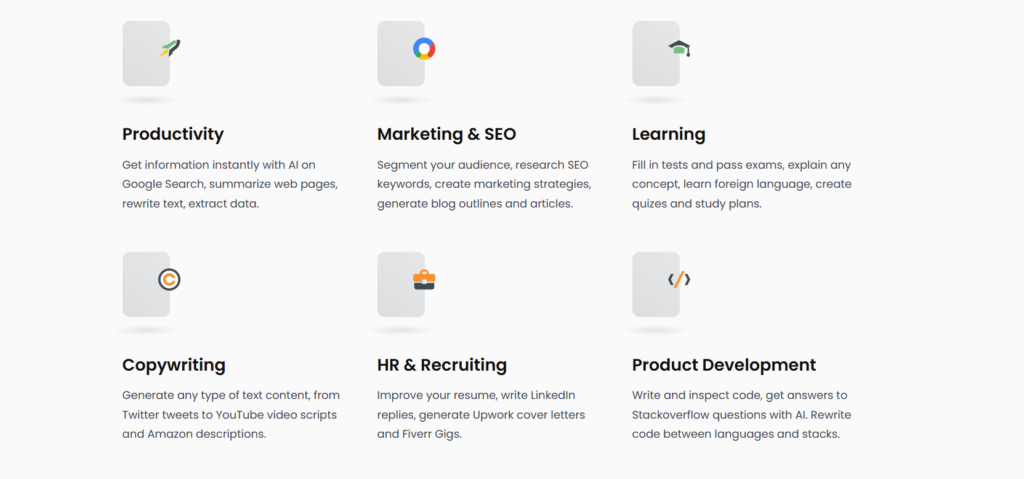
Harpa AI delivers browser-based productivity tools that actually save time. Unlike basic chatbot extensions, Harpa AI reads page content, automates tasks, and speeds up research without forcing you to switch tabs. Here are the standout features that make Harpa AI worth installing.
1. Page-Aware AI Chat
Harpa AI reads the webpage you're viewing and lets you ask questions about it directly. Need to summarize a long article? Want to extract key points from a product page? Harpa AI understands context and responds based on what's actually on screen — no copying text into separate tools.
2. Built-In Command Library
Harpa AI includes 100+ pre-built commands for common tasks: email replies, LinkedIn posts, competitor analysis, YouTube summaries, and more. Instead of writing prompts from scratch, you click once and get instant results. This built-in prompt library makes Harpa AI faster than generic AI assistants.
3. Smart Web Automation
Harpa AI can monitor pages in the background and notify you when something changes — perfect for tracking prices, competitor updates, or content refreshes. Set it once, and Harpa AI handles the repetitive checking automatically.
4. Real-Time Data Extraction
Pull structured information from messy web pages in seconds. Harpa AI can extract product specs, contact details, pricing tables, job listings, or any other data you need for research. This feature alone saves hours per week for anyone doing market analysis or competitive research.
5. SEO & Content Research Tools
For bloggers and marketers, Harpa AI offers built-in SEO features: analyze search results, summarize competitor pages, extract keywords, and structure content research. It's like having an SEO assistant built directly into your browser.
Ready to try these features? Install Harpa AI free in 30 seconds.
Install Harpa AI Free Now✓ No credit card needed ✓ Works with Chrome & Edge ✓ 50,000+ active users
Why Harpa AI Features Stand Out
Most browser AI extensions are just chatbots. Harpa AI is different because it combines AI chat with practical automation, data extraction, and workflow tools. This makes Harpa AI more useful for real work — not just answering questions, but actually completing tasks faster.
5. Real Use Cases & Who Should Use Harpa AI
Harpa AI works best when you spend hours in your browser doing research, writing, or repetitive tasks. Here's who gets the most value — and whether it fits your workflow.
Is Harpa AI Right for You?
• Read and analyze content for work
• Do repetitive tasks (summaries, research, emails)
• Want AI help without switching tools
• Mainly work on mobile (desktop-only tool)
• Don't do browser-heavy work
Found your use case? Install Harpa AI free and see how it fits your workflow.
Install Harpa AI Free Now✓ No signup required ✓ Works instantly ✓ 30-second setup
6. Pros and Cons of Harpa AI
No AI tool is perfect, and a clear review should highlight both strengths and limits. Based on real-world usage, here’s what stands out most when using Harpa AI inside the browser.
 Pros
Pros
 Pros
ProsAI assistance directly inside the browser
Harpa AI works where browsing actually happens. This means faster research, summaries, and quick actions without constantly switching tabs or copying content elsewhere.
Strong productivity boost for power users
The tool is especially effective for people dealing with long articles, documentation, dashboards, or research-heavy workflows, where small time savings add up quickly.
Flexible prompts and commands
Harpa AI gives advanced users more control than basic ChatGPT extensions. You can customize how the AI interacts with web pages, making it suitable for more complex use cases.
Good balance between automation and control
AI actions are triggered intentionally, not automatically. This keeps results predictable and avoids the frustration of over-automation.
Cons
 Cons
ConsLearning curve for non-technical users
Some features may feel overwhelming at first, especially if you’re not familiar with prompt-based tools or browser automation.
Not ideal for casual AI usage
If you only need occasional AI answers, it may feel like more than necessary compared to simpler chatbot-style tools.
Requires browser permissions
Like most browser-based AI assistants, it needs access to page content to function properly — something privacy-conscious users should be aware of before installing.
Overall, Harpa AI is best suited for users who prioritize speed, context-aware assistance, and workflow efficiency over simplicity.
Recommended Reading
To better understand the challenges Harpa AI aims to address — especially around reducing distractions, preventing context switching, and maintaining focus in information-heavy workflows — Deep Work by Cal Newport is essential reading. The book lays out why deep focus matters in a world of constant interruptions and how tools that reduce cognitive friction can help you work smarter, not harder.
7. Tips to Get the Most from Harpa
Using Harpa AI effectively is less about trying every feature and more about building small habits inside your browser. From our review, these tips make the biggest difference day to day.
Start with page summaries before anything else
When opening long articles or documentation, use Harpa AI to summarize the page first. This gives you instant context and helps you decide whether the content is worth a deeper read.
Ask follow-up questions directly on the page
Instead of copying text into another tool, ask Harpa AI contextual questions about what you’re reading. This keeps your thinking focused and avoids unnecessary tab switching.
Use Harpa AI for research comparisons
When reviewing products, tools, or competitors, prompt Harpa AI to extract key differences, pros, and limitations directly from the page. It’s one of the fastest ways to turn browsing into structured insights.
Save your best prompts
If you find prompts that consistently work well, save them. Reusing proven prompts is often more effective than rewriting instructions every time.
Combine Harpa AI with other productivity tools
Harpa AI works best as a **browser-side layer**, not as a standalone system. Pair it with note-taking or task tools to capture insights once your browsing session ends. This approach fits well with how we recommend using AI in real workflows, as explained in our guide to everyday AI tools for work and side hustles.
Because Harpa AI reads page content to function, be mindful of where you use it. Avoid triggering AI actions on sensitive dashboards or private accounts unless you’re comfortable with the permissions granted.
Used this way, Harpa AI becomes a quiet productivity assistant that supports research, learning, and decision-making — without getting in the way of your workflow.
8. FAQ – What People Ask About Harpa AI
Is Harpa AI free to use in 2026?
+Harpa AI offers a free plan with up to 100 total AI command runs per month. Free users can access web-session connections for ChatGPT, Claude, and Gemini, plus predefined commands and web monitors.
Paid plans start at $12/month (S1 plan) and unlock unlimited power messages, cloud GPT connections to GPT-4o, Claude Sonnet 4.6, Gemini 3.1 Pro, DeepSeek, and Perplexity, advanced automation features, and team collaboration spaces. There's also an X lifetime plan at $240 one-time payment for users who want permanent access.
What AI models does Harpa AI support in 2026?
+Harpa AI supports all major AI models in 2026: OpenAI GPT-4o and GPT-5.2, Anthropic Claude Sonnet 4.6, Google Gemini 3.1 Pro, DeepSeek, Perplexity, Meta Llama, and Grok.
You can switch between AI models instantly without leaving your browser, and S-tier plans include CloudGPT API for stable connections to premium models. Users can also bring their own API keys or connect via OpenRouter for custom setups.
Does Harpa AI work on mobile devices?
+Harpa AI is primarily a desktop browser extension optimized for Chrome, Edge, Brave, Opera, and Firefox on Windows, macOS, and Linux. Mobile support is limited.
Android users can use Harpa AI through Kiwi Browser (a Chrome-compatible mobile browser), but functionality is restricted compared to desktop. There is no native iOS or iPad support as of 2026, though a mobile app is planned for future development. Harpa AI works best on desktop computers where browser extensions have full capabilities.
Can Harpa AI summarize YouTube videos and PDFs?
+Yes. Harpa AI excels at summarizing content across multiple formats. It can extract key takeaways from hours-long YouTube videos with timestamps, summarize web pages and blog articles instantly, analyze PDF documents and files, condense email threads, and generate summaries from conversations.
This makes it one of the most practical AI tools for research-heavy workflows, content creators, students, and professionals who process large amounts of information daily.
How much does Harpa AI cost?
+Harpa AI pricing in 2026:
Free plan with 100 AI command runs per month and basic features. S1 plan at $12/month (annual billing) includes unlimited power messages, CloudGPT connections, and advanced features. S2 plan at $19/month offers 3x more megatokens for power users. X lifetime plan at $240 one-time payment provides all features forever with bring-your-own-API-key support.
The X plan pays for itself in under 2 years compared to monthly subscriptions. Team plans are available with per-member pricing for shared command libraries.
What is Harpa AI best used for?
+Harpa AI is best for professionals who spend significant time in the browser and need AI-powered productivity tools. Top use cases include:
Content creation and SEO optimization (blog articles, keyword research, content audits), email management (drafting replies, categorizing inbox, summarizing threads), research and data extraction (pulling structured data from websites, competitor analysis), web monitoring (tracking price drops, website changes, stock alerts), social media marketing (LinkedIn posts, Twitter threads, Instagram captions), and browser automation (form filling, repetitive tasks, workflow integration with Zapier and Make.com).
Can I create custom commands in Harpa AI?
+Yes. Harpa AI supports fully customizable commands and prompts. You can create reusable commands using page variables like {{page_content}}, {{selected_text}}, {{language}}, and video transcripts.
Users can build AI agents with access to page content and automation functions, share custom commands across teams in workspace Spaces, and store command libraries in the cloud. Harpa comes with 100+ pre-built commands, but advanced users can design their own workflows tailored to specific business needs or personal productivity systems.
Is Harpa AI secure and does it protect my privacy?
+Yes. Harpa AI is privacy-focused and GDPR compliant. Your chat data is stored locally on your computer, not on Harpa's servers. The extension only reads web pages when you explicitly trigger page-aware commands or monitoring features.
Harpa does not log your conversations or browsing activity. It supports local AI models like Meta Llama for users who want to avoid cloud processing entirely. You can also use your own API keys for OpenAI, Claude, or other services to maintain full control over data handling. For enterprise users, bring-your-own-API-key options ensure sensitive business information never touches third-party servers unnecessarily.
Does Harpa AI work with Chrome, Firefox, and other browsers?
+Harpa AI works best on Chrome and Chromium-based browsers including Google Chrome, Microsoft Edge, Brave, and Opera. Firefox support is available but some features may be limited compared to Chrome.
The extension is compatible with Windows, macOS, and Linux operating systems. Safari is not currently supported due to Apple's browser extension limitations. Harpa AI has over 500,000 users and maintains a 4.7 rating on the Chrome Web Store, making it one of the most trusted AI browser extensions in 2026.
Can Harpa AI automate web tasks and monitor websites?
+Yes. Harpa AI features powerful web automation capabilities powered by a hybrid AI engine. It can monitor websites for changes and send notifications, track price drops and stock availability on e-commerce sites like Amazon, Walmart, AliExpress, and eBay, extract structured data from any website without coding, automate form filling and button clicking, integrate with Zapier, Make.com, n8n, and webhooks for complex workflows, and run scheduled automations on custom intervals (15 seconds to monthly checks).
Users can build AI-powered automations that navigate websites, scrape data, and trigger IFTTT chains across multiple platforms.
Is Harpa AI worth it compared to ChatGPT Plus or Claude Pro?
+Harpa AI offers better value than subscribing to multiple AI services separately. ChatGPT Plus costs $20/month, Claude Pro costs $20/month, Gemini Advanced costs $20/month, and Perplexity costs $20/month—totaling $80/month if you want access to all premium AI models.
Harpa AI's S1 plan at $12/month gives you access to all these models plus 100+ browser automation commands, web monitoring, SEO tools, and page-aware AI assistance. For users who work primarily in the browser and need more than just chatbots, Harpa AI delivers significantly more functionality at a lower cost. The X lifetime plan at $240 pays for itself in 20 months compared to monthly subscriptions.
What are the best Harpa AI commands for productivity?
+The most popular Harpa AI commands include:
/youtube to instantly summarize videos with timestamps and key takeaways, /seo for AI-driven SEO audits, keyword extraction, and content optimization, /linkedin to generate professional LinkedIn posts, connection requests, and cover letters, /email to draft contextual email replies in your writing style, /summarize to condense web pages, PDFs, and articles into bullet points, /extract to pull structured data from websites (prices, emails, contacts, specs), /monitor to track website changes, price drops, and competitor updates, /rewrite to improve grammar, rephrase text, and adjust tone, /translate for instant language translation of web content, and /imagine to generate detailed Midjourney, DALL-E, and Leonardo AI prompts.
Users report that the /seo and /linkedin commands alone justify the subscription cost.
9. Final Verdict: Is Harpa AI Worth It?
If a big part of your daily work happens inside the browser, it is absolutely worth considering. For bloggers, marketers, researchers, freelancers, and productivity-focused users, it can save real time by helping with page summaries, research, writing support, automation, and repetitive browser tasks.
What makes it stand out is that it feels practical. It is not just another AI chatbot extension that sits in a sidebar and waits for prompts. It actively helps you do useful work faster, right inside Chrome or Edge, without constantly forcing you to switch between tabs and tools.
Why Harpa AI is worth trying
-
It reads the page you are on and helps instantly with summaries, explanations, and quick actions
-
It reduces repetitive work by automating tasks that normally waste time
-
It includes ready-to-use prompts and commands while still giving you room to customize
-
It has a free starting point, so you can test how it fits your workflow before committing
When Harpa AI makes the most sense
Harpa AI is a strong fit if you regularly:
-
research topics online
-
compare information across pages
-
summarize articles, videos, or documents
-
draft replies or content inside the browser
-
want fewer manual steps in your workflow
A realistic downside
It is not perfect for everyone. If you only want a very simple chatbot or you mainly work on mobile, Harpa AI may feel less essential. There is also a learning curve if you want to take full advantage of its deeper commands and automation features.
Final verdict: Harpa AI is one of the more useful AI browser assistants for people who actually work online. If your goal is to save time, reduce friction, and make your browser more productive, it is well worth testing.
If you prefer more control over your workflow, it may also be worth comparing browser-based assistants with some practical offline AI tools.
Ready to Test Harpa AI?
If you want a smarter browser workflow for summaries, research, writing support, and repetitive tasks, Harpa AI is one of the most practical tools to try first.
Try Harpa AI for Your BrowserBest place to start: page summaries, research workflows, and browser productivity tasks.
🔐 Protect Your Privacy While Using AI Tools
You've discovered how Harpa AI can transform your browser productivity. Now learn how to maximize AI benefits while keeping your data secure: