

Your AI privacy settings are probably still on the defaults, and on most chatbots the default is "use my chats to train the model." ChatGPT, Gemini, Copilot, Perplexity, LinkedIn and X all do it unless you switch it off. I rechecked every switch against each company's own help pages, and three things surprised me: rating a single reply can put that chat back into training, Google holds your chats for 72 hours even with history off, and Meta gives most people no switch at all.
⚡ Short answer: The AI privacy settings that matter most are the training switches: ChatGPT's "Improve the model for everyone," Claude's "Help improve Claude," Gemini's "Keep Activity," Copilot's two training toggles and Perplexity's "AI data retention." Turn them off, stop rating replies with thumbs up or down, and use temporary chats for anything sensitive.
🆕 What changed in this update (October 18, 2026)
- This guide now replaces my older "stop AI from collecting your data", "private data" and "opt out of AI training" guides, so everything lives in one place.
- Added a 10-app master table, plus Copilot, Perplexity, LinkedIn, X and Alexa.
- Corrected the ChatGPT step: the training switch doesn't hide your chat history.
- Added the feedback loophole and a 2-minute privacy score.
Some links are affiliate links · they support this site at no extra cost to you · Full disclosure
What do AI privacy settings control?
Short answer: Three separate things: whether your chats train future models, how long the company keeps them, and whether the AI remembers you to personalize answers. Most apps put each one in a different menu. Turning off one rarely touches the others, which is why so many people think they're protected when they aren't.
Think of it as three dials. Training decides if your words end up in the next model. Retention decides how long a copy sits on the company's servers, even when training is off. Personalization (memory, past chats, activity) decides how much the assistant knows about you in the next conversation.
A fourth control hides behind the other three: feedback. On several platforms, rating a reply sends that whole conversation for review or training, whatever your other AI privacy settings say. I cover it in its own section below, because few guides mention it.
Key idea: Opt-outs work forward only. No setting on this page pulls your data back out of a model that has already been trained on it, so the best day to change your AI privacy settings is today.
AI privacy settings for 10 apps: the master table
Short answer: Seven of the 10 platforms I checked train on your data unless you opt out. Claude makes you choose, Apple keeps most processing on your device, and Alexa sends every request to the cloud. The table shows the exact switch for each, what is still kept after you flip it, and where to find the steps.
| Platform | Trains by default? | Where the switch is | Still kept after you opt out | Steps |
|---|---|---|---|---|
| ChatGPT | ⚠️ Yes Free, Plus, Pro | Settings → Data controls → Improve the model for everyone | Chat history until you delete it; Temporary Chats for 30 days | Steps |
| Claude | 🟡 You choose | Settings → Privacy → Help improve Claude | About 30 days (up to 5 years if the switch is on) | Steps |
| Gemini | ⚠️ Yes if 18+ | Settings & help → Activity → Keep Activity | Up to 72 hours; human-reviewed chats up to 3 years | Steps |
| Microsoft Copilot | ⚠️ Yes personal accounts | Profile → Privacy → Training on conversation activity + voice | Use for ads, safety and product improvement | Steps |
| Perplexity | ⚠️ Yes Free, Pro, Max | Settings → AI data retention | Anything you ask while signed out | Steps |
| Meta AI | ⚠️ Yes | No U.S. switch; EU/UK objection form | Your AI chats, used for ads | Options |
| ⚠️ Yes | Settings & Privacy → Data privacy → Data for Generative AI Improvement | Data already used for training | Steps | |
| X (Grok) | ⚠️ Yes | Settings and privacy → Privacy and safety → Grok & Third-party Collaborators | Feedback you give; recommendations still learn | Steps |
| Apple Intelligence | 🟢 No | Optional: Analytics & Improvements; ChatGPT extension | ChatGPT requests follow OpenAI's rules if you're signed in | Steps |
| Amazon Alexa | 🟡 Cloud only | Alexa app → Alexa Privacy → Don't save recordings | Every request is processed in Amazon's cloud | Steps |
Key idea: If you only change three AI privacy settings today, make them ChatGPT, Gemini and the social network you post on most. For most people those three hold the largest share of their data.
How do I change AI privacy settings in ChatGPT?
Short answer: Open Settings → Data controls and turn off "Improve the model for everyone." Your chats stay in your history but stop being used for training. For one-off sensitive questions, start a Temporary Chat instead: it skips history and memory, isn't used for training, and is deleted after 30 days.
- 1Open Data controls. Click your profile icon → Settings → Data controls. On mobile: side menu → profile icon → Data controls.
- 2Turn off Improve the model for everyone. Using ChatGPT signed out? Click the ? icon at the bottom right → Settings, and switch it off there.
- 3Review Memory. Settings → Personalization: delete any saved memory you wouldn't want reused.
- 4Use Temporary Chat for sensitive one-offs. Start a new chat and pick Temporary at the top.
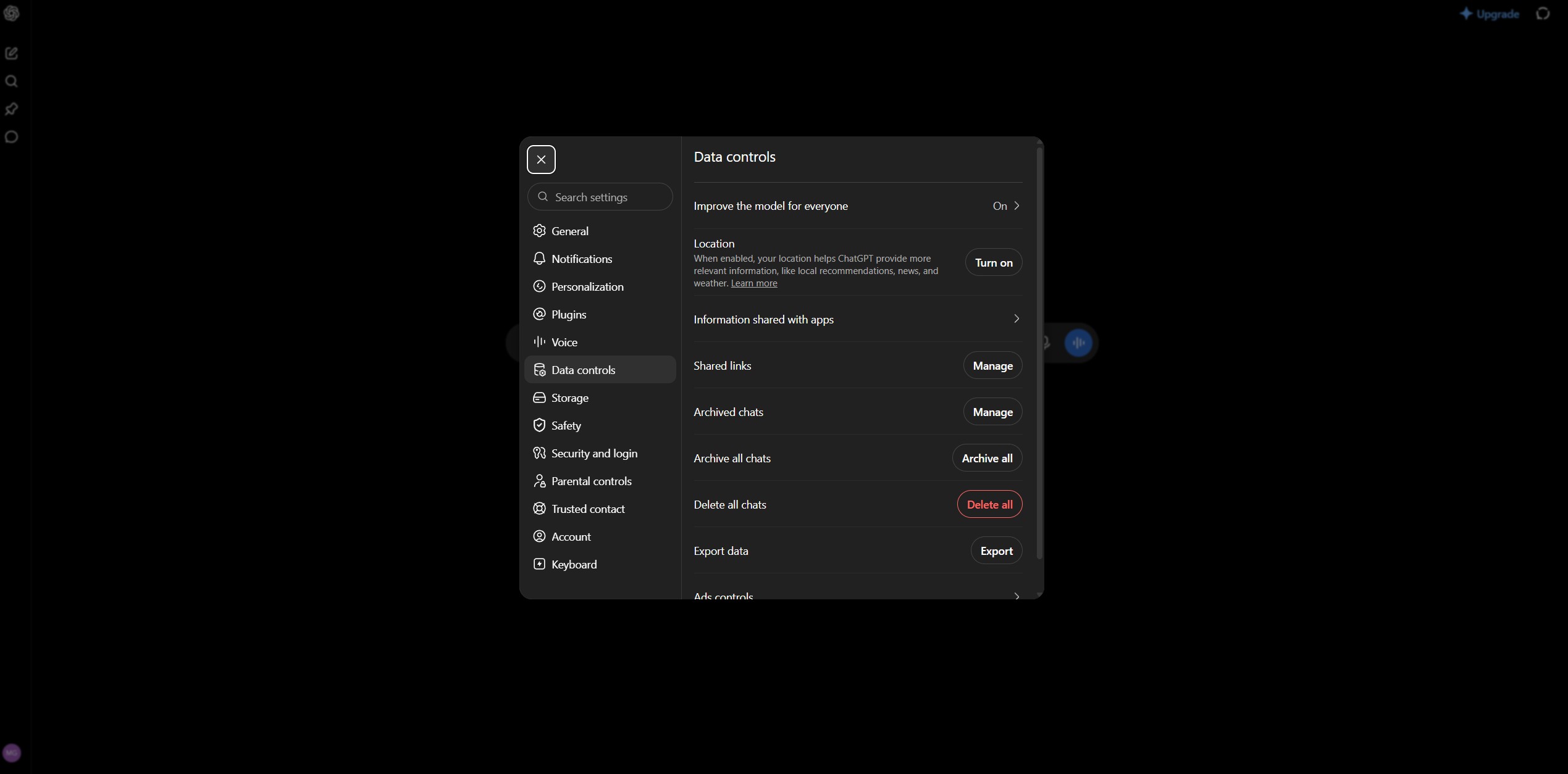
One correction to my older guides, and to plenty of others: this switch doesn't hide or delete your history. OpenAI's Data Controls FAQ says your chats still appear in the sidebar. If you want them gone too, delete them or use Temporary Chat. OpenAI's privacy portal also takes a "Do not train on my content" request if you prefer to opt out at account level.
⚠️ Saving a Temporary Chat turns it into a normal chat, and from then on it follows your account settings again.
Claude AI privacy settings: 30 days or 5 years
Short answer: Go to Settings → Privacy and turn off "Help improve Claude." With it off, Anthropic keeps chats for about 30 days and doesn't train on them. With it on, new and resumed chats can be used for training and kept for up to five years. Incognito chats are never used for training.
Claude is the one assistant here that asks you to choose instead of assuming yes. Anthropic made the change on August 28, 2025, and every Free, Pro and Max user had to pick. If you tapped the big Accept button on that pop-up without touching the smaller toggle, you opted in.
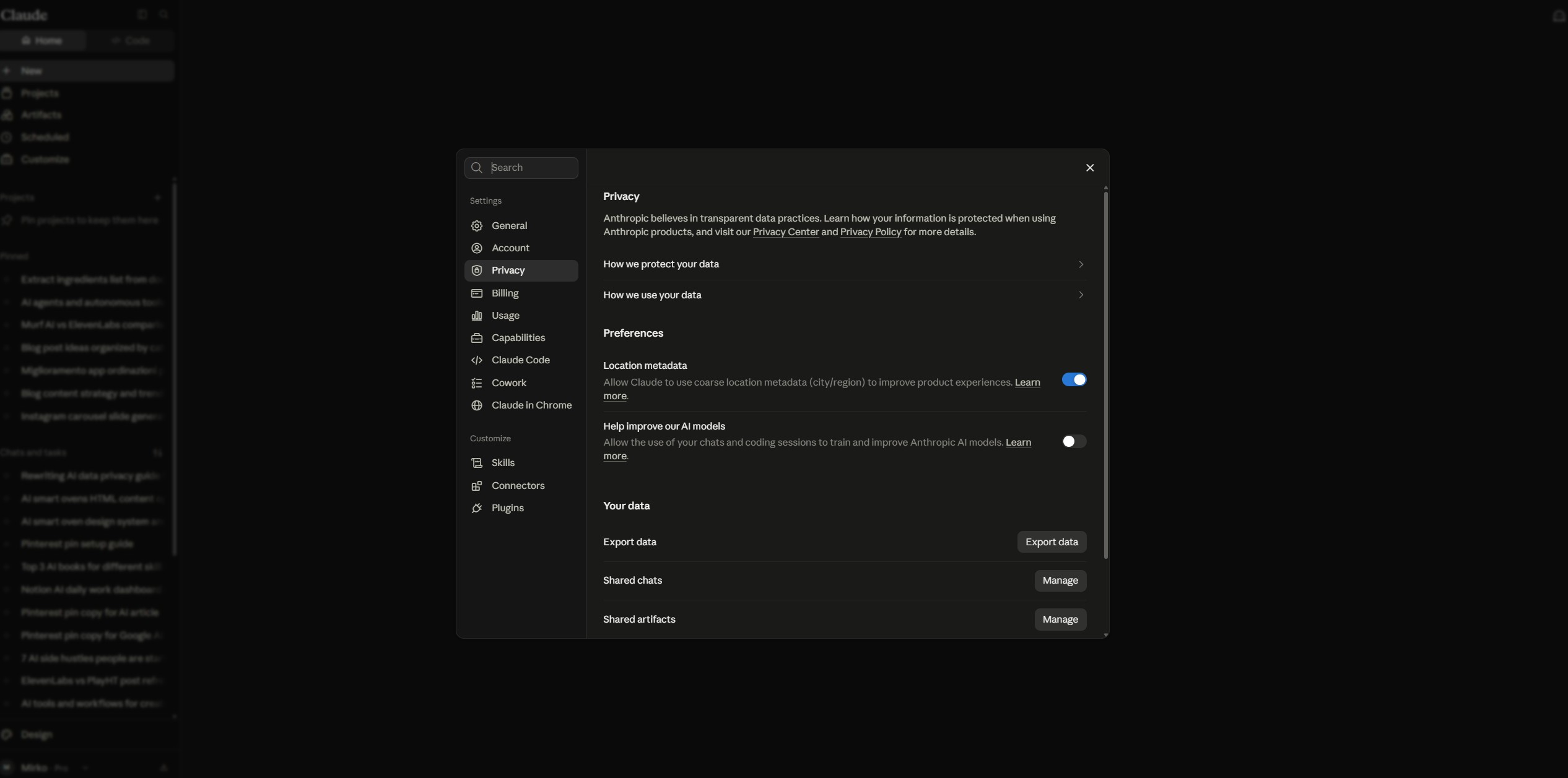
I pay for Claude, so this is the switch I care about most. Two details catch people out. Claude Code sessions on a Free, Pro or Max account follow the same switch. And rating a reply keeps that conversation for up to five years, separated from your account, even with training off. Work, Enterprise and API accounts were never part of this change.
Gemini AI privacy settings: what Keep Activity does
Short answer: On gemini.google.com, open Settings & help → Activity and turn Keep Activity off, or pick "Turn off and delete activity." Google stops saving new chats to your account and stops using them to improve its models, but still holds each conversation for up to 72 hours. Chats a human reviewer has already seen are kept for up to three years.
Keep Activity is the setting older guides call Gemini Apps Activity; Google renamed it. It's on by default for anyone 18 or older, with an 18-month auto-delete. If you'd rather keep your history, the middle ground is setting auto-delete to 3 months on the same screen.
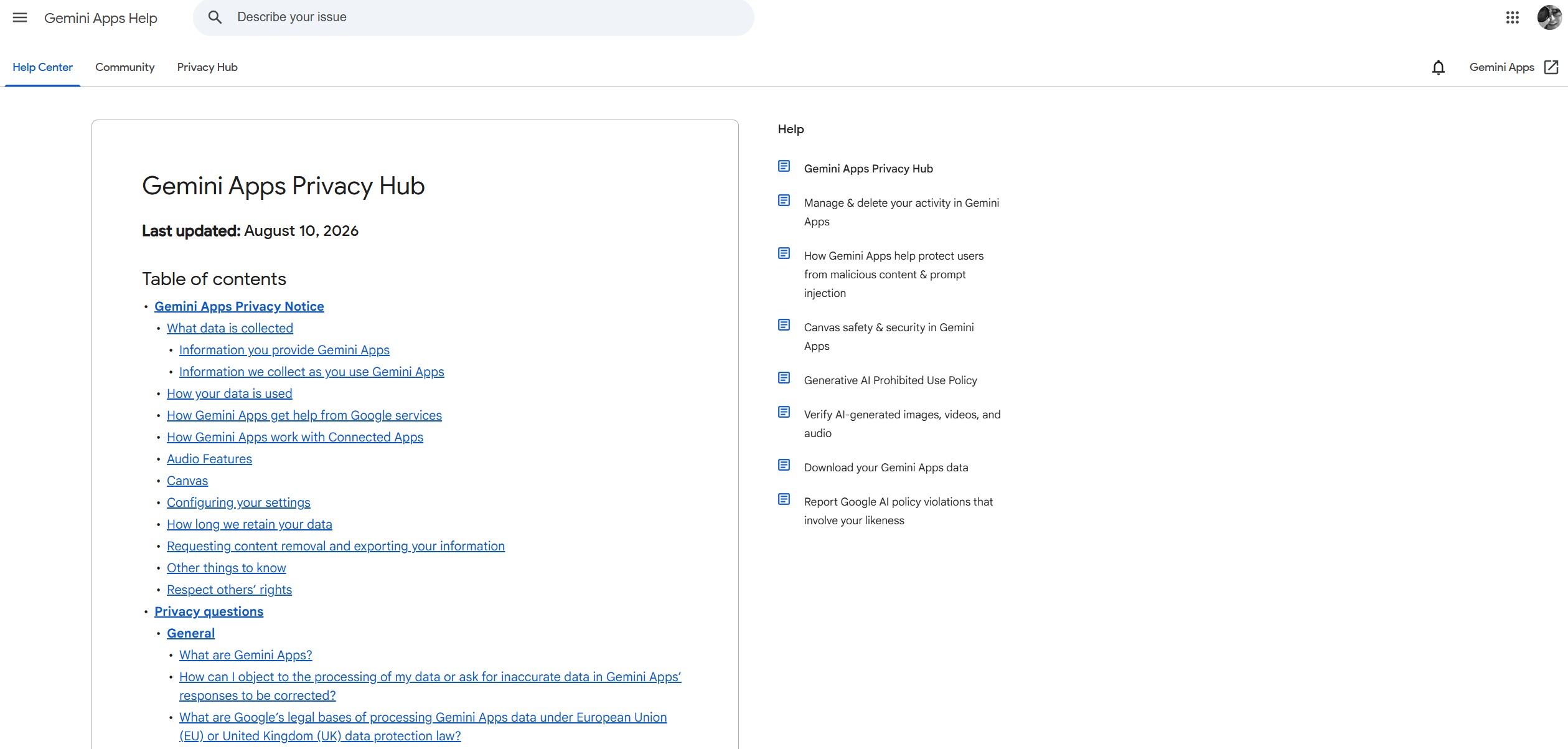
Google's own Gemini Apps Help page spells out the 72-hour hold. The part to read twice: chats that people have reviewed aren't removed when you delete your activity. So switch this off before you paste anything sensitive, not after. My Gemini Personal Intelligence checklist covers the newer memory features.
Microsoft Copilot AI privacy settings
Short answer: In Copilot, open your profile → Privacy and turn off both "Training on conversation activity" and "Training on voice conversations." That keeps future chats out of Microsoft's model training. It doesn't stop Microsoft using them for ads, safety and general product improvement, which its privacy statement lists separately.
There are two switches, and most guides only mention the text one. If you talk to Copilot out loud, the voice toggle matters as much. The same path works on copilot.com and in the Windows and Mac apps; on mobile it's menu → profile → Account → Privacy, per Microsoft's Copilot privacy controls page.
Training and personalization are separate, so you can opt out of one and keep the other. If you sign in with a work or school account, your employer's terms apply instead of these consumer AI privacy settings.
Perplexity AI privacy settings
Short answer: Open Settings and turn off "AI data retention." It's on by default for Free, Pro and Max users and decides whether your searches help train Perplexity's models. The catch: if you use Perplexity without signing in, you can't opt out at all, so log in first.
Perplexity also has separate memory and search-history switches; turn those off if you don't want answers shaped by your past questions. Incognito mode keeps a single thread out of your history. As with every opt-out on this page, the change only covers what you search from now on.
Can you change Meta AI privacy settings?
Short answer: Barely. Since December 16, 2025, Meta uses your conversations with Meta AI to personalize ads and content across Facebook, Instagram, Messenger and WhatsApp, and U.S. users have no opt-out. EU and UK users can file an objection form against AI training on their public posts. For everyone else, the only real control is not using Meta AI.
Meta says topics like health, religion and politics are excluded from ad targeting. Your ordinary WhatsApp chats stay end-to-end encrypted; what feeds the system is what you say to Meta AI itself. On WhatsApp, turn on Advanced Chat Privacy in sensitive chats so messages can't be pulled into AI features. Full steps are in my WhatsApp Meta AI guide.
Key idea: With Meta, AI privacy settings can limit where the AI shows up, not what it learns. Treat every message to Meta AI as something you might see reflected back in your ads.
LinkedIn and X: settings for your public posts
Short answer: Both train on your posts by default. On LinkedIn: Settings & Privacy → Data privacy → Data for Generative AI Improvement → off. On X: Settings and privacy → Privacy and safety → Grok & Third-party Collaborators → uncheck the training box. Both opt-outs only cover what you post from now on.
LinkedIn's switch covers your profile, posts and feed activity, not private messages. X's checkbox covers your public posts and anything you type into Grok. X adds two limits on its Grok help page: its Grok-powered recommendations still learn from how you use the app, and thumbs-up or thumbs-down feedback can still be used for training after you opt out.
AI privacy settings on iPhone and Alexa
Short answer: Apple Intelligence runs on your device or on Apple's Private Cloud Compute, which Apple says doesn't keep your data, so there's no training switch to find. The exception is the ChatGPT extension: if you're signed in, OpenAI's rules apply. Alexa is the opposite: every request has gone through Amazon's cloud since March 2025.
On iPhone, two AI privacy settings are worth a look: Settings → Privacy & Security → Analytics & Improvements → Share iPhone Analytics, and Settings → Apple Intelligence & Siri → ChatGPT. Apple's Apple Intelligence privacy page covers both, plus a report you can switch on to see what left your device.
Amazon removed the "Do Not Send Voice Recordings" option on March 28, 2025, to make room for Alexa+. The best you can do now is pick "Don't save recordings" in Alexa Privacy in the Alexa app, which deletes each recording after it's processed. I compare the assistants in my smart home assistants guide, and this checklist covers cameras, TVs and speakers.
The feedback loophole most AI privacy settings don't cover
Short answer: Rating a reply can undo your opt-out for that conversation. OpenAI, Anthropic and X treat thumbs-up or thumbs-down feedback as permission to use the rated chat, and Google can use feedback even with Keep Activity off. If privacy matters to you, stop rating replies and ask for a rewrite instead.
| Platform | What one rating does |
|---|---|
| ChatGPT | Makes that conversation eligible for training again |
| Claude | Kept for up to 5 years, separated from your account, may be used for training |
| Gemini | The feedback and the related chat can be used to improve Gemini, even with Keep Activity off |
| X (Grok) | Can be used for training even after you uncheck the training box |
This is the habit I'd change first, because it costs nothing. The thumbs buttons look like a harmless way to say "good answer," but on these platforms they work as a data-sharing button.
Score your AI privacy settings in 2 minutes
Answer nine questions about the apps you use and get a score for your AI privacy settings. The score weighs each setting by how much data it exposes, and the fix list links to the exact steps above or to a deeper guide. It runs in your browser: nothing is saved or sent anywhere.
What can't AI privacy settings turn off?
Short answer: Four things: data already used in training, short safety holds (about 30 days at OpenAI and Anthropic, 72 hours at Google), anything a human reviewer has already seen, and Meta's use of AI chats for ads in most regions. Settings shape what happens next; they can't reach into a finished model.
- Training on new chats (ChatGPT, Claude, Gemini, Copilot, Perplexity)
- Chat history, memory and auto-delete
- Training on new LinkedIn and X posts
- Rating replies (just don't)
- Global Privacy Control in your browser
- Data already inside a trained model
- Safety holds of 72 hours to 30 days
- Chats a human reviewer has seen
- Meta AI chats used for ads (outside EU/UK)
- Alexa requests passing through the cloud
That's why the order matters. Fix your AI privacy settings first, then decide what you're willing to type. My rule: if I wouldn't post it publicly, it doesn't go in a chat box, opted out or not. The daily-habit side of this lives in my safe way to use AI tools guide.
Which privacy laws back up your AI privacy settings?
Short answer: Twelve U.S. states require businesses to honor Global Privacy Control, a browser signal that says "don't sell or share my data": California, Colorado, Connecticut, Delaware, Maryland, Minnesota, Montana, Nebraska, New Hampshire, New Jersey, Oregon and Texas. In the EU and UK, GDPR gives you a right to object to your data being used for AI training.
GPC isn't an AI training opt-out; it covers selling and sharing data for ads. It's still worth turning on, because it works on every site at once. Brave and the DuckDuckGo browser send it by default, and Firefox has a switch under Settings → Privacy & Security. The Global Privacy Control site shows whether your browser is sending it.
Platforms also roll out AI training region by region, so the switch you see depends on where your account is registered. If you live outside the U.S., EU and UK, check each setting anyway: a missing switch today can appear after the next policy update.
Beyond AI privacy settings: three layers that help
Short answer: AI privacy settings control what an app does with your chats. Three layers cover what's around them: a VPN for your IP address and network, a browser that blocks trackers and sends GPC, and an identity service that removes what data brokers already sell about you. None of them replaces the settings above.
I go deeper on the network layer in AI-powered VPNs explained, and on extensions that can read your prompts in the AI chat leak guide.
Do stricter AI privacy settings make AI worse?
Short answer: Only a little. With training off, answer quality today doesn't change. With memory and history off, answers get more generic and you re-explain context more often. A practical middle ground: training off everywhere, memory on only in the assistant you use for work, and temporary chats for anything personal.
I'd keep one exception in mind. If you rely on an assistant's memory to keep long projects on track, deleting it costs you real time. In that case, keep memory on and review what it has saved once a month instead of turning it off.
Every AI privacy guide on this site
This page is the overview of AI privacy settings. Each guide below goes deeper on one piece, from your phone's microphone to the scams that use your data.

Where to start
If you have ten minutes, do it in this order: ChatGPT's "Improve the model for everyone," Gemini's Keep Activity, the training box on whichever social network you post on, and Global Privacy Control in your browser. Then stop rating replies and take the score above to see what's left.