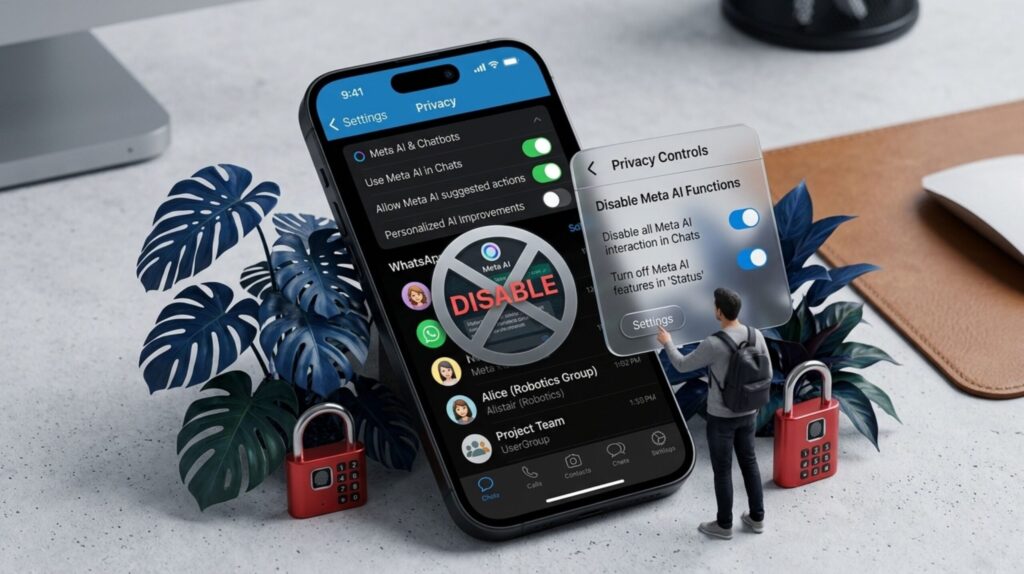
How to disable WhatsApp Meta AI step by step on Android and iOS 2026

How to Disable WhatsApp Meta AI: 7 Proven Privacy Steps

M

Mirko

AI Tech Writer

📅 Published: June 2025 · 🔄 Last updated: April 24, 2026 · ⏱️ 6 min read

Meta AI appeared inside WhatsApp without asking — and there's no official off switch. But you can still take back control of your chat space. I've tested every method on both Android and iOS to find what actually works in 2026. This quick guide gives you 7 proven steps to mute, hide, and restrict Meta AI so it stays out of your conversations.

⚡ The Reality in 2026 What can you actually do about Meta AI in WhatsApp?
You CAN Minimize It Mute, archive, restrict permissions, block data training
🚫
You CAN'T Fully Remove It No toggle exists — Meta AI is built into the core app

Tested on WhatsApp latest version · Android 14+ & iOS 17+ · Steps verified April 2026

What Is Meta AI on WhatsApp & Why You Can't Fully Remove It

If you’ve opened WhatsApp recently and noticed a glowing blue circle in your search bar or a new chat you never started, that’s Meta AI — and you didn’t ask for it.

Meta AI is an artificial intelligence assistant built directly into WhatsApp’s interface. It rolled out gradually across supported regions starting in 2024, and by 2026, it’s present on most devices running the latest app version. It can answer questions, generate images, summarize content, and suggest replies — all from inside your chat screen.

The problem? You can’t fully disable WhatsApp Meta AI. There is no toggle, no uninstall option, and no setting that removes it completely. Meta designed it as a core feature, not an optional add-on.

Here’s what that means in practice:

Interaction is optional — you don’t have to tap on it, type to it, or engage with it in any way. Nobody is forcing you to chat with Meta AI.

Presence is not optional — the AI button, the search bar prompts, and the chat thread are permanently embedded in the app. You cannot hide the icon or prevent it from appearing after updates.

This distinction matters. Even if you never use Meta AI, its integration allows it to process metadata like timestamps, device type, language preferences, and interaction patterns. Your regular WhatsApp conversations remain end-to-end encrypted, but anything you type directly into the AI interface is processed differently and may be used to improve Meta’s AI models.

For a deeper look at how AI tools collect and use your personal information across apps, read our guide on how to stop AI from reading your private data.

In March 2026, a Meta AI agent reportedly caused an internal data exposure at the company, briefly making sensitive user and company data accessible to employees. Meta stated that no user data was mishandled — but the incident highlighted the risks of deeply integrated AI systems operating at scale. (Source: Proton Blog – How to Turn Off Meta AI)

So if you can’t remove it, what can you do?

A lot, actually. The 7 steps in this guide will help you mute Meta AI, restrict its access to your data, clear its memory, and prevent it from reactivating — giving you the cleanest, most private WhatsApp experience possible in 2026.

🔍 Meta AI on WhatsApp — What It Can and Can't Access

🟢 Still Encrypted

  • Private and group chat messages
  • Voice and video calls
  • Shared photos & files in chats
  • Status updates (viewer-restricted)

🔴 Processed by Meta AI

  • Anything you type to the AI assistant
  • Search bar queries & interaction patterns
  • Metadata: timestamps, device, language
  • AI-generated sticker & image requests

Source: Meta Privacy Policy & WhatsApp Help Center · Updated April 2026

Meta Privacy Center settings to disable WhatsApp Meta AI data training and submit GDPR objection

Step 1: Mute & Archive the Meta AI Chat

The fastest way to get Meta AI out of your sight — under 30 seconds, no tech skills needed.

Open WhatsApp and find the Meta AI chat in your conversation list. Long-press on it, then tap the Archive icon (down arrow). This moves it out of your main chat list immediately.

But archiving alone isn’t enough. If Meta AI sends a new message, it will unarchive itself and reappear. To prevent that:

Open the archived Meta AI chat → tap the Meta AI name at the top → select Mute notifications → choose Always.

Now it’s both hidden and silent. Even if the AI thread generates a new message, it stays buried and won’t ping you.

One thing to know: this doesn’t delete your previous AI interactions from Meta’s servers. It only removes the chat from your view. To actually clear that history, you’ll want to use the /reset-ai command we cover in Step 5.

⚡ Quick Steps: Mute & Archive Meta AI

1 Long-press the Meta AI chat in your conversation list
2 Tap the Archive icon (↓ down arrow)
3 Open Archived chats → tap the Meta AI chat
4 Tap Meta AI name at top → Mute notificationsAlways
✅ Android ✅ iOS

The search bar is where Meta AI is most aggressive. Every time you type a question-style query, the AI activates and tries to answer — even when you’re just looking for an old chat.

In some regions, WhatsApp has started rolling out a toggle to disable Meta AI search suggestions. Here’s how to check if you have it:

Go to Settings → Chats and look for an option labeled “Meta AI” or “AI search suggestions.” If the toggle exists, turn it off. The AI prompt will no longer appear when you use the search function.

Don’t see the toggle? You’re not alone — this setting is still being released gradually. If it’s not available yet, try these workarounds:

Update WhatsApp to the latest version from the Play Store or App Store. The toggle often appears only after a recent update.

Clear the app cache (Android only) — go to Settings → Apps → WhatsApp → Storage → Clear Cache, then reopen the app and check again.

If neither works, the toggle simply hasn’t reached your account yet. In that case, Step 7 of this guide covers how to avoid triggering Meta AI in the search bar altogether — a practical alternative until the setting becomes available.

The goal here is simple: disable WhatsApp Meta AI from hijacking your search experience, so your search bar goes back to doing what it was designed to do — finding your conversations.

🔎 Disable Meta AI Search — What to Do

✅ Toggle Available

Settings → Chats → Meta AI → turn it off. Done — AI search suggestions disappear immediately.

⏳ Toggle Not Available Yet

Update WhatsApp to latest version. Clear app cache (Android). If still missing, skip to Step 7 for workarounds.

This toggle is still rolling out region by region · Check again after each WhatsApp update

Step 3: Restrict WhatsApp App Permissions (Android & iOS)

Even if you never chat with Meta AI, WhatsApp still has access to your microphone, location, camera, and contacts by default. Restricting these permissions won’t disable Meta AI — but it starves it of data it can collect in the background.

This is one of the most effective privacy moves you can make, and it takes under a minute.

On Android: go to Settings → Apps → WhatsApp → Permissions. Disable access for location, microphone, and contacts. Then go to Data usage within WhatsApp’s app settings and turn off background data — this prevents Meta AI from processing anything while the app isn’t active.

On iPhone: go to Settings → WhatsApp. Toggle off microphone, location, and photos. Then disable Background App Refresh to stop any processing when you’re not using the app.

Will this break WhatsApp? No. Your chats, calls, and media sharing still work normally. You’ll just be prompted to temporarily grant access when you need a specific feature — like sharing your location in a chat or recording a voice note. That’s actually better, because it puts you in control of when WhatsApp accesses your hardware, instead of giving it a permanent open door.

For a full breakdown of which permissions each app really needs — and which ones are just feeding AI models — check out our guide on how to stop AI from reading your private data.

🛡️ Permissions to Disable — Android & iOS

Permission Android Path iOS Path Why Disable
📍 Location Apps → WhatsApp → Permissions Settings → WhatsApp Stops AI from logging movement patterns
🎙️ Microphone Apps → WhatsApp → Permissions Settings → WhatsApp Prevents background audio processing
👥 Contacts Apps → WhatsApp → Permissions Settings → WhatsApp Limits AI access to your social graph
📷 Camera Apps → WhatsApp → Permissions Settings → WhatsApp Blocks image data collection
🔄 Background Data Apps → WhatsApp → Data usage Background App Refresh → Off Stops Meta AI processing while app is closed

You'll be asked to grant access temporarily when needed (e.g., voice notes, sharing location) · Nothing breaks permanently

Step 4: Change App Language to Disable AI Suggestions

This one is a clever workaround that most guides don’t mention. Meta AI on WhatsApp is primarily optimized for English. If you switch your app language to something else, the AI features — including smart suggestions and AI-powered replies — stop activating in most regions.

It won’t remove the AI button from the interface, but it effectively silences the assistant’s auto-suggestions.

On Android: go to Settings → System → Languages → Add a language. Choose your preferred non-English language and drag it to the top of the list. WhatsApp will follow your system language automatically.

On iPhone: go to Settings → General → Language & Region. Add a new language and set it as primary. Alternatively, you can change only WhatsApp’s language by going to Settings → WhatsApp → Language without changing your whole phone.

Keep in mind: this changes the interface language for the entire app (or your entire phone on Android). If you’re comfortable reading menus in another language — or if English isn’t your primary language anyway — this is a zero-effort win.

As Meta AI expands to support more languages throughout 2026, this method may become less effective. For now, it’s one of the simplest ways to disable WhatsApp Meta AI suggestions without touching a single privacy setting.

💡 Good to Know

This trick works best with languages that Meta AI does not yet fully support. As of April 2026, AI suggestions are most active in English and are expanding to Spanish, Portuguese, and Hindi. Switching to one of these languages may still trigger some AI features.

Languages that currently suppress Meta AI most effectively:

Italian German Dutch Polish Arabic Japanese Korean Turkish

Step 5: Reset Meta AI Memory & Clear Chat History

Every time you interact with Meta AI — even accidentally — it remembers. Your questions, prompts, and preferences are stored to personalize future responses across WhatsApp, Instagram, and Messenger.

The good news: you can wipe that memory in seconds.

Open the Meta AI chat in WhatsApp and type:

/reset-ai

This clears your entire conversation history with the AI assistant on WhatsApp. But Meta AI shares memory across all Meta apps — so if you’ve also used it on Instagram or Messenger, type:

/reset-all-ais

This resets AI memory across every Meta platform linked to your account. No settings menu, no digging through privacy pages — just one command.

Should you do this regularly? Yes. There’s no automatic expiry on what Meta AI stores about you. Making this a monthly habit — or whenever you’ve accidentally triggered the AI — keeps your profile clean. Think of it as clearing cookies, but for Meta’s AI model of you.

For a broader look at how algorithms build profiles from your interactions, check out our deep dive on what happens behind the algorithm.

💬 Meta AI Reset Commands — Quick Reference

/reset-ai

WhatsApp Only

Clears your AI conversation and memory on WhatsApp. Does not affect Instagram or Messenger.

/reset-all-ais

All Meta Platforms

Wipes AI memory across WhatsApp, Instagram, and Messenger simultaneously.

💡 Pro tip: Set a monthly reminder to run /reset-all-ais — Meta AI has no auto-expiry on stored interactions, so regular resets keep your profile minimal.

Step 6: Stop Meta from Using Your Data for AI Training

This is the step most people skip — and it’s arguably the most important one. Muting and archiving keep Meta AI out of sight, but this step targets what happens behind the scenes: your data being used to train Meta’s AI models.

Meta collects information from your posts, photos, comments, and AI interactions to improve its machine learning systems. In the EU, you have a legal right to object under GDPR. In other regions, the option exists but is harder to find.

Here’s how to submit an objection:

Open the Facebook app or website → go to Settings & Privacy → Privacy Center → Privacy Topics → scroll to AI at Meta → select “Submit an objection request” → choose “Information that you’ve shared on Meta products.”

Enter your email, describe how AI data processing impacts you, and submit. Meta is legally required to respond in the EU — and in practice, they process requests from other regions too.

What about WhatsApp specifically? Unfortunately, WhatsApp users have fewer options. Meta previously offered an AI opt-out toggle inside WhatsApp, but it has since been removed. The Privacy Center objection above is currently the only formal route that covers your WhatsApp-linked data.

One more thing: if you use Facebook on mobile, check whether Camera Roll Cloud Processing is active on your account. This newer feature uploads your photos to Meta’s cloud for AI-powered suggestions. Go to Facebook → Settings → Camera roll sharing suggestions and make sure the toggle is off.

🛑 How to Object to Meta AI Data Training

Settings & Privacy Privacy Center Privacy Topics AI at Meta Submit Objection
🇪🇺

EU / UK / Brazil / Japan / South Korea

Full objection right under GDPR and equivalent privacy laws. Meta is legally required to process your request.

🌍

All Other Regions

Objection form is available but not legally enforced. Meta processes most requests — submit anyway.

⚠️ WhatsApp note: The previous in-app AI opt-out toggle has been removed. The Privacy Center objection above is currently the only way to formally limit how your WhatsApp-linked data feeds Meta's AI models.
📕

📚 Recommended Read

Surveillance Valley: The Secret Military History of the Internet

by Yasha Levine

If you want to understand why companies like Meta embed AI surveillance into everyday tools, this book connects the dots. It traces how the internet was built as a monitoring system from day one — and why opting out keeps getting harder.

Check It Out →

Affiliate link · Supports the blog at no extra cost to you

Step 7: Avoid Search Bar Triggers That Reactivate AI

You’ve muted it, archived it, restricted permissions — and then you type a question into the search bar and Meta AI comes right back. This is the frustration most guides don’t address.

The WhatsApp search bar is Meta AI’s primary trigger. It uses natural language processing to detect question-like or instruction-style phrases. The moment you type something like “What time is the meeting?” or “Find the photo from last week”, the AI activates and pushes itself back into your chat list.

The fix is simple: change how you search.

Use short keywords only — a first name, a single word, a date. Instead of typing “What did Marco say about dinner?” just type Marco. Instead of “Find the restaurant link” type restaurant. One or two words won’t trigger the AI.

Better yet, avoid the search bar entirely when you can. Pin your most important chats so they’re always at the top — no searching needed. Use Starred Messages to bookmark anything you’d normally search for later. Scroll manually through recent conversations instead of tapping the magnifying glass.

These aren’t workarounds — they’re habits that stick. Once you adjust, the search bar becomes irrelevant, and Meta AI has no entry point to reactivate.

🔍 Search Bar — What Triggers Meta AI vs. What Doesn't

🚫 Triggers AI

  • What did Marco say about dinner?
  • Find the restaurant link from last week
  • When is the meeting tomorrow?
  • Show me photos from the trip

✅ Safe Searches

  • Marco
  • restaurant
  • meeting
  • trip
📌 Best habit: Pin your top 3 chats, star important messages, and scroll instead of searching. No search bar = no AI trigger.

FAQ: Disable WhatsApp Meta AI

Can I completely disable WhatsApp Meta AI in 2026?

+

No. Meta AI is built into WhatsApp's core interface and cannot be fully removed or disabled. There is no toggle, no uninstall option, and no setting that deletes it.

However, you can significantly reduce its presence by muting the AI chat, archiving it, restricting app permissions, resetting AI memory, and submitting a data objection through Meta's Privacy Center. These steps won't remove the icon, but they give you the cleanest, most private WhatsApp experience possible.

Is Meta AI reading my private WhatsApp messages?

+

No. Your regular WhatsApp conversations — private chats, group messages, voice and video calls — remain end-to-end encrypted. Meta AI only processes content you explicitly send to the AI assistant.

However, metadata such as timestamps, device type, language preferences, and interaction patterns may still be collected. Anything typed directly into the AI chat or triggered through the search bar is processed outside of end-to-end encryption. Learn more in our guide on how to stop AI from reading your private data.

What does the /reset-ai command do in WhatsApp?

+

Typing /reset-ai in the Meta AI chat clears your entire conversation history and stored preferences with the AI assistant on WhatsApp. For a broader reset, use /reset-all-ais to wipe AI memory across WhatsApp, Instagram, and Messenger simultaneously.

Meta AI has no automatic expiry on stored interactions, so running these commands regularly — ideally once a month — helps keep your AI profile minimal.

Can Meta use my WhatsApp data to train AI models?

+

Yes, in many regions Meta can use your data for AI training unless you formally object. In the EU, UK, Brazil, Japan, and South Korea, you have a legal right to object under GDPR and equivalent privacy laws.

Go to Settings & Privacy → Privacy Center → AI at Meta → Submit an objection request. WhatsApp previously had an in-app AI opt-out toggle, but Meta has since removed it. The Privacy Center objection is currently the only formal route.

Why does Meta AI keep coming back after I archive it?

+

Meta AI reactivates when it detects question-like phrases in the WhatsApp search bar. Even if you've archived and muted the AI chat, typing something like "What time is the meeting?" into search triggers the AI and moves it back into your chat list.

The solution: use short, single-word keyword searches instead of full sentences, pin important chats, and use starred messages to avoid the search bar entirely.

Does muting Meta AI on WhatsApp stop data collection?

+

No. Muting only silences notifications from the Meta AI chat thread. It does not stop Meta AI from existing in your app, collecting metadata, or processing interactions you initiate through the search bar.

For meaningful privacy protection, combine muting with restricting app permissions (location, microphone, contacts, background data) and submitting a formal data objection through Meta's Privacy Center.

Does changing WhatsApp language disable Meta AI?

+

Partially. Meta AI is primarily optimized for English, so switching your WhatsApp app language to a non-English language can reduce AI suggestions and auto-replies.

However, this workaround has become less reliable in 2026 as Meta has expanded AI language support. It still helps in most regions but should be used as an extra layer of protection alongside other steps — not as your only strategy.

Will restricting WhatsApp permissions break the app?

+

No. Disabling permissions for location, microphone, camera, and contacts does not break WhatsApp. Your chats, calls, and media sharing continue to work normally.

When you need a specific feature — like recording a voice note or sharing your location — WhatsApp will prompt you to temporarily grant access. This approach gives you control over when the app accesses your hardware instead of providing permanent open access. Read more about how algorithms use your permissions.

You can't fully disable WhatsApp Meta AI — but after following these 7 steps, it's muted, archived, stripped of permissions, wiped of memory, and cut off from training on your data. That's as close to invisible as it gets in 2026.

The bigger picture matters too. Meta AI in WhatsApp is just one piece of a much wider trend: AI is being embedded into the tools we use every day — often without clear consent or easy opt-outs. Staying informed about where AI collects your data and how to limit it is no longer optional. It's a basic part of digital hygiene, just like updating your passwords or checking app permissions.

Bookmark this guide — we update it every time Meta changes their AI settings or rolls out new features. And if a step stops working or a new option appears, we'll add it here first.

🛡️ Take Back Control of Your Digital Privacy

This guide is part of our AI Privacy series. Get the full picture — from WhatsApp to Chrome to your work meetings.