
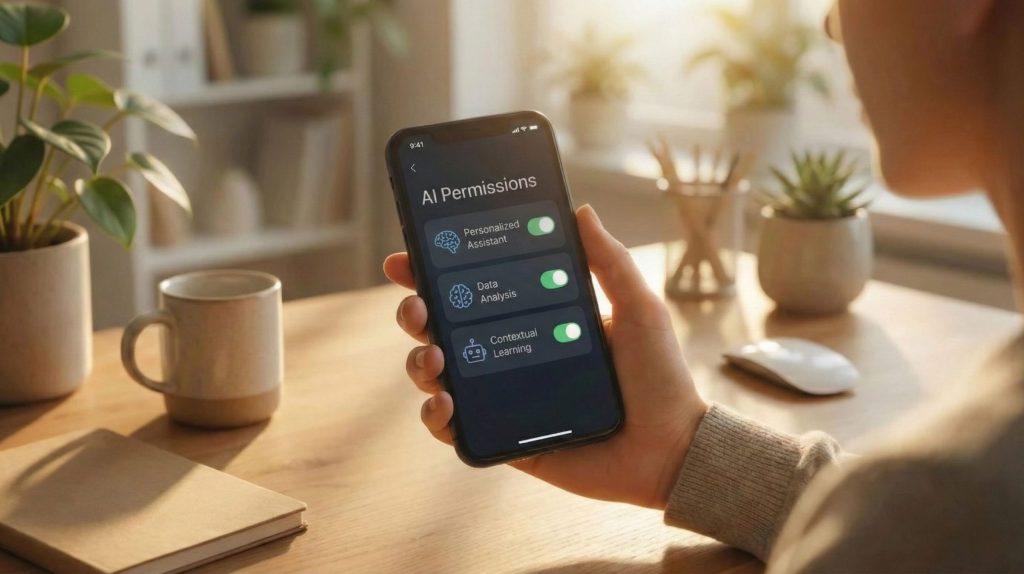
Most people approve AI app permissions without a second look, then wonder why their phone feels like it knows too much. A single photo app can quietly gain access to your microphone, contacts, and clipboard.
We reviewed the exact settings iPhone and Android hide behind their newest AI features — so you keep the convenience without giving away more than you meant to.
Some links are affiliate links · no extra cost to you · Full disclosure
1. What AI App Permissions Actually Mean
AI app permissions are the new access requests showing up on iPhone and Android because apps no longer just "use your camera" — they analyse what's in it.
Modern apps can now scan photos for objects, process your voice for smart replies, and read notifications to draft responses. Each of these needs a specific permission.
What these permissions unlock
- Photo analysis — detects objects, faces, and text inside your images
- Voice processing — powers transcription and smart replies
- Activity tracking — predicts your next action from app usage
- Notification reading — suggests quick, automated responses
iOS and Android both added deeper AI layers to photos, search, and system suggestions recently. A photo editor that once needed only camera access now asks for AI content analysis to enhance images automatically.
None of this is dangerous by default. But knowing exactly what's being requested is what keeps AI privacy settings under your control instead of the app's.
For a broader look at how this data gets used across platforms, the Google Safety Center breaks down permission handling in plain language.
2. The Quick Permission Checklist Everyone Should Review
Before touching individual settings, here's the fastest way to review the AI app permissions that matter most on any phone.
7-point AI permission audit
- Photo & media analysis — lets apps scan objects, faces, or text in images
- Microphone access — needed only for voice features you actually use
- Notification reading — powers AI reply suggestions from message previews
- Location for recommendations — most apps work fine on "Approximate"
- Activity & usage tracking — feeds behavioural AI features
- Contacts access — used for AI-matched suggestions in messaging apps
- Cloud sync for AI training — usually optional, safe to disable
These seven checks cover most of what apps use to power AI data access day to day. Reviewing them takes about five minutes on either platform.
What we found testing this ourselves: on a typical phone with 40+ apps, roughly a third had microphone or notification access enabled with no matching AI feature ever used — permissions left on by default during setup.
3. iPhone Settings to Check (Step-by-Step)
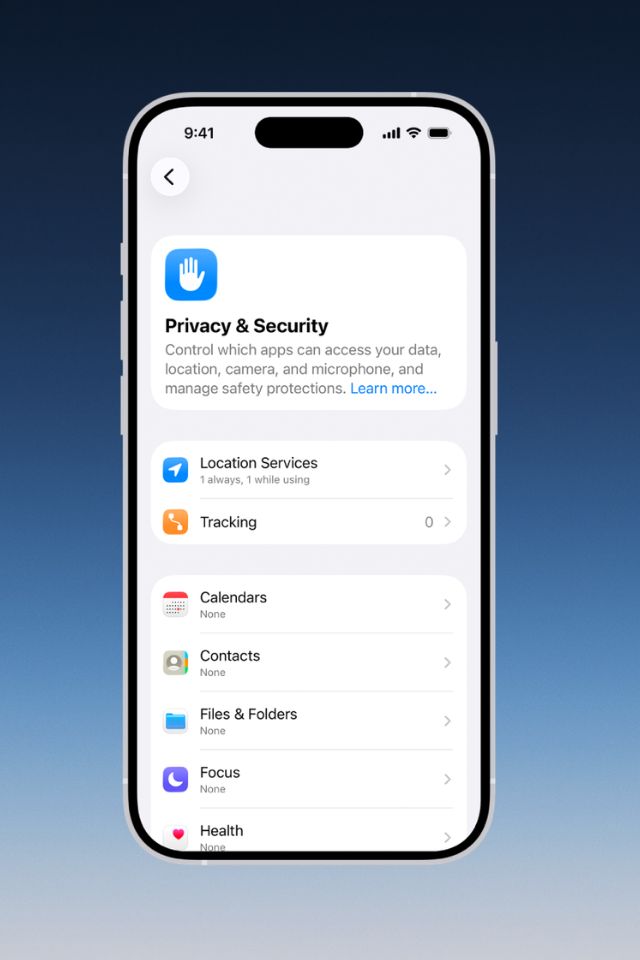
Apple keeps AI features looking simple, but the permissions behind them sit inside several different menus. Start at Settings → Privacy & Security.
Where to look on iPhone
- Photos → set to "Limited" to stop AI scanning your full library
- Microphone → disable for apps that don't need voice input
- Notifications → switch to "Deliver Quietly" to limit AI reply scanning
- Location Services → use "Approximate" unless navigation needs precision
- Tracking → disable cross-app behaviour tracking for untrusted apps
- App Clips → clear regularly to remove temporary AI permissions
- Siri → turn off "Learn from this App" to limit on-device AI training
| Setting | What It Affects | Recommended Action |
|---|---|---|
| Photos | AI photo analysis, object detection | Use "Limited" unless needed |
| Microphone | AI voice suggestions, transcription | Disable for non-voice apps |
| Notifications | AI smart replies | Set to "Deliver Quietly" |
| Location Services | AI local suggestions | Use "Approximate" |
| Tracking | AI behavioural profiling | Disable for most apps |
None of these AI app permissions disable AI outright. They just decide how much of your activity feeds it.
4. Android Settings to Check — What Android 17 Changed
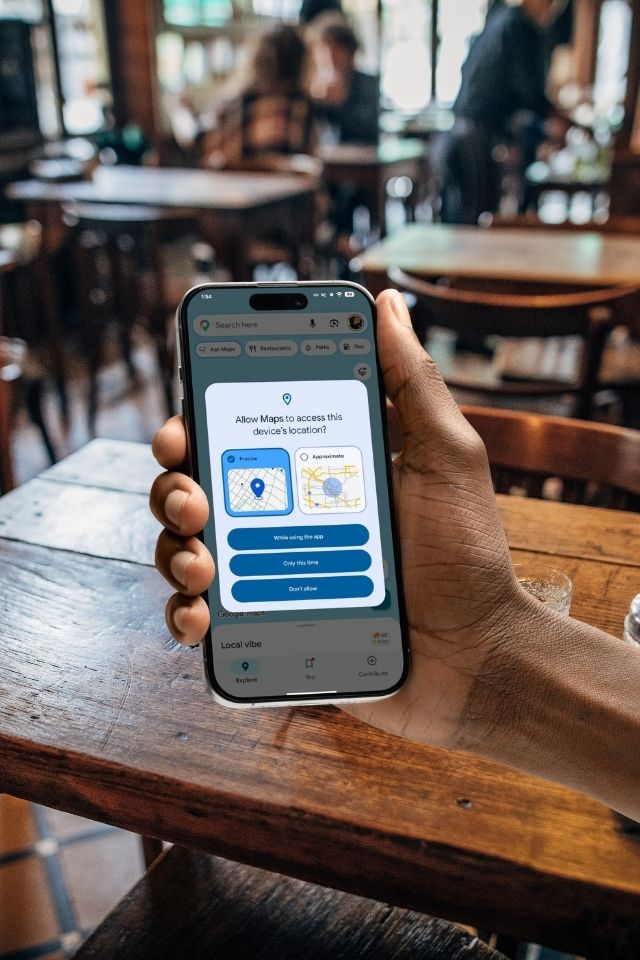
Android gives apps more default freedom than iOS, so reviewing these settings matters even more here. Start at Settings → Privacy → Permission Manager.
Core Android checks
- Photos & videos → set to "Allow only when using" for most apps
- Microphone → switch non-essential apps to "Ask every time"
- Notification access → disable for apps that shouldn't read previews
- Location → "Precise" only for maps and delivery, "Approximate" elsewhere
- Usage & diagnostics → turn off sharing if you prefer minimal tracking
- Gemini / Assistant access → disable screen reading you don't actively use
New in Android 17: a one-time location button shares precise location for a single task instead of standing access. A redesigned contact picker also lets apps request individual contacts, not your full address book.
Android 17 also introduced on-device AI threat detection that flags apps behaving suspiciously, plus hardware-level isolation for AI processing called AISeal. Neither replaces reviewing your AI app permissions yourself.
| Setting | What It Affects | Recommended Action |
|---|---|---|
| Photos & Videos | AI image recognition and scanning | Allow only when using |
| Microphone | AI voice commands and transcription | Ask every time |
| Notification Access | AI smart reply suggestions | Disable for most apps |
| Location | AI local predictions | Use the one-time button when possible |
| Gemini/Assistant Access | AI model access to apps and screen data | Disable unused features |
6. What Actually Happens When You Grant Access
Granting an AI app permission isn't a one-time action. It often enables continuous analysis, cloud syncing, and personalised features based on your behaviour.
Photos get scanned for objects or text, voice clips get transcribed, and location patterns get mapped — sometimes before you've opened the app that day.
Four things that follow from broad permissions
- Personalised predictions — reminders and replies built from your patterns
- Cloud uploading — photos or voice stored remotely to train AI models
- Cross-app profiling — shared notification access reveals sleep and work patterns
- Exposure if security is weak — cloud storage adds a breach surface
A VPN like Surfshark encrypts the connection whenever an AI app syncs with its servers, which matters most on public Wi-Fi.
You don't need to disable every AI feature to stay protected. You just need to know which AI app permissions actually earn their access.
Our AI Behavior Tracking guide goes deeper into how this profiling works across apps.
7. The Privacy Toolkit We Recommend
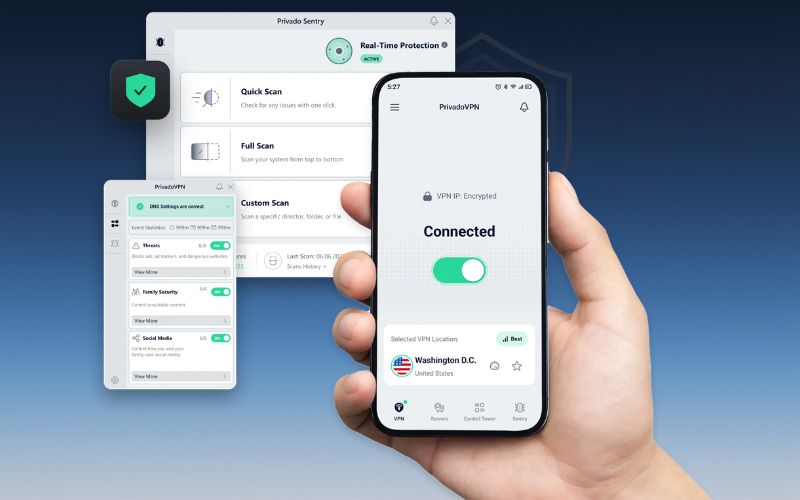
Here's a simple toolkit that keeps AI app permissions in check without switching off the features you actually use.
| Tool | Why It Helps | Action |
|---|---|---|
| Surfshark VPN | Encrypts connections when AI apps sync with cloud servers | Try Surfshark |
| Dashlane | Keeps passwords out of clipboard-scanning AI features | Get Dashlane |
| Reolink E1 Outdoor | Stores footage locally, reducing cloud AI processing | View Reolink |
A strong VPN protects your network traffic, a password manager reduces clipboard exposure, and local-storage gadgets keep footage off the cloud entirely.
If you want to go further, our AI Privacy Gadgets guide covers dedicated hardware for anti-tracking.
Frequently Asked Questions — AI App Permissions
Do AI app permissions mean apps read all my data?
No. AI app permissions only grant access to the specific data you approve — photos, location, microphone, or notifications.
Reviewing individual permissions keeps everything under control instead of leaving broad defaults in place.
Is it safe to let apps use AI to scan my photos?
On-device photo analysis is generally safe. Cloud-based AI analysis means your photos may be uploaded and stored remotely.
Using limited photo access plus a VPN like Surfshark helps protect that transfer.
Why do messaging apps request notification access for AI?
AI-generated smart replies need to read notification previews to suggest a response.
If you don't want message content analysed, disable Notification Access for that specific app.
Do AI app permissions drain battery?
Yes. Background AI tasks like syncing, location scanning, and voice processing consume extra energy.
Turning off unused AI options and limiting background data improves battery life quickly.
What changed with Android 17 and AI app permissions?
Android 17 added a one-time location button and a contact picker for individual contacts instead of your full list.
It also introduced on-device AI threat detection and hardware-isolated processing for AI workloads.
How often should I check my phone's AI permissions?
Once a month is ideal. Apps update frequently, and new AI app permissions can appear without warning.
See our How Voice Assistants Work guide for related context.
What's the single most-overlooked AI permission on phones?
Clipboard access. Many apps can silently read anything you copy, including passwords and one-time codes.
A password manager like Dashlane avoids pasting sensitive text into the clipboard at all.
Does disabling AI permissions break the app?
Usually not. Most apps fall back to their non-AI functions when a permission is denied.
You lose the smart feature — auto-captions or suggested replies — but the core app still works.