
Published on: November 21, 2025
Disclosure:
Some links in this post are affiliate links. If you click and purchase, we may earn a small commission at no extra cost to you. Thank you for supporting AIDigitalSpace.com and helping us keep this content free and useful.
1. The Hidden Time Leak Flowith AI Can Finally Fix
Most of the pressure in a workday doesn’t come from complex projects — it comes from small, repetitive tasks that quietly eat our time: renaming files, formatting text, moving information between apps, rewriting messages. During this Flowith AI Review, we realised how much of this daily “busywork” disappears when you use the Flowith automation tool to automate daily tasks with AI instead of doing everything manually.
Flowith keeps things simple and fits naturally among the best AI productivity tools available today. You describe the task, run the workflow, and the tool handles every step you’d normally repeat by hand. This kind of AI workflow automation works especially well for text-heavy routines — and for readers who enjoyed our automation walkthrough in the Bardeen AI guide, this “tell it once and let it run” system feels like the upgrade many of us were missing.
Here are a few tasks Flowith can automate immediately:
- Clean and format messy text
- Generate quick email drafts
- Turn raw notes into structured summaries
- Produce variations of content without manual edits
Tip: Write down two routine tasks you repeat every day. If Flowith automates even one of them, you’ll feel the time savings by the end of the week.
Recommended Read: Make Time by Jake Knapp — a helpful guide for anyone trying to reduce digital overload and create more focused work sessions.
This Flowith AI Review is here to show how the tool works, where it brings the most value, and how you can use it to simplify your workflow starting today.
2. The Real Problem: Repetitive Tasks That Steal Your Time
Most workflow issues don’t come from lack of skills — they come from too many micro-tasks piling up during the day. You jump between apps, rewrite the same type of message, format text for the hundredth time, clean up notes, or copy information back and forth. None of these actions feel big on their own, but together they drain focus and make it difficult to stay consistent.
This is exactly the type of routine friction that tools like the Flowith automation tool are built to remove. In every Flowith AI Review we analysed, users highlight how AI workflow automation helps them automate daily tasks with AI and reclaim mental energy. When these small chores disappear, your entire day feels lighter — which is why Flowith is quickly becoming one of the best AI productivity tools for everyday work.
According to recent workplace studies highlighted by Harvard Business Review, knowledge workers lose 2–3 hours a day to routine digital actions that could be automated. For many readers already using tools like our AI meeting tools guide or our review of Taskade AI, this pattern probably sounds familiar.
Here are the tasks that hurt productivity the most:
- Manual formatting (text cleanup, structuring, rewriting)
- Repetitive email drafting
- Updating or moving information across apps
- Creating small content variations
- Fixing tiny errors that interrupt flow
These are exactly the moments where automation tools feel valuable. They don’t replace your work — they remove the friction around it.
Tip: Track your screen activity for one day and write down every repeated action you perform three times or more. This immediately reveals which tasks Flowith can automate and where your biggest time leaks really are.
3. Flowith AI Review: What the Tool Actually Does
Flowith positions itself as an AI-powered automation assistant built for people who want to save time without creating complex workflows. Instead of wiring steps like “If this → then that,” you simply describe the task and Flowith handles the logic, structure, and execution. It turns everyday actions into one-click automations you can reuse whenever you need.
Where traditional automators often feel too technical, Flowith focuses on clarity:
- You explain the task in natural language
- Flowith generates the workflow
- You run it instantly, or save it for daily use
- You refine it with small adjustments if needed
This makes it ideal for creators, freelancers, students, and anyone who switches between multiple apps throughout the day. In many Flowith AI Review discussions and public user feedback, people highlight how the Flowith automation tool doesn’t just speed up one task — it removes friction across the entire workflow.
Flowith uses AI workflow automation to simplify the constant context switching that drains productivity, helping you automate daily tasks with AI in a way that feels natural. This broader approach is what places Flowith among the best AI productivity tools for people who want smoother routines rather than just faster single actions.
Below is a quick breakdown of what Flowith can automate today.
| Feature | What It Does | Practical Use |
|---|---|---|
| AI Workflow Builder | Generates multi-step automations from a short prompt. | Explain a process once → reuse it every day. |
| Text Cleanup & Formatting | Fixes structure, grammar, tone, style, spacing. | Turn messy notes into polished documents instantly. |
| Email & Message Drafting | Generates quick replies and formatted emails. | Reduce time spent rewriting similar messages. |
| Data Transformation | Converts raw text into lists, tables, summaries. | Organize research or meeting notes in seconds. |
| Content Variations | Creates alternatives for captions, messages, or copy. | Useful for social posts, product updates, or outreach. |
How Flowith Fits Into a Real Workflow
Here’s a simple example based on common tasks our readers often mention:
You paste a long chunk of raw text
You ask Flowith to:
• clean it
• format it
• summarize it
• structure it into bullet pointsFlowith runs all steps automatically
You save the workflow and reuse it tomorrow with one click
This structure reduces manual editing and helps keep your mind free for the tasks that actually matter — not formatting, not cleaning, not rewriting the same things every morning.
If you’ve already tried tools like our recommended options in the Motion App Review or the Taskade AI guide, Flowith offers a lighter, more flexible companion for the “small but constant” tasks that slow down your day.
Quick Hack: Start with workflows that take you less than 10 minutes today. These usually deliver the fastest time savings and help you understand Flowith’s strengths before building more ambitious automations.
4. How to Use Flowith AI to Automate Your Workflows Step by Step
Flowith is designed for people who want simple, repeatable automations without building complex logic. Everything follows a straightforward pattern: describe the task, check the workflow, run it, and save it for daily use.
4.1 Describe the Task in Plain Language
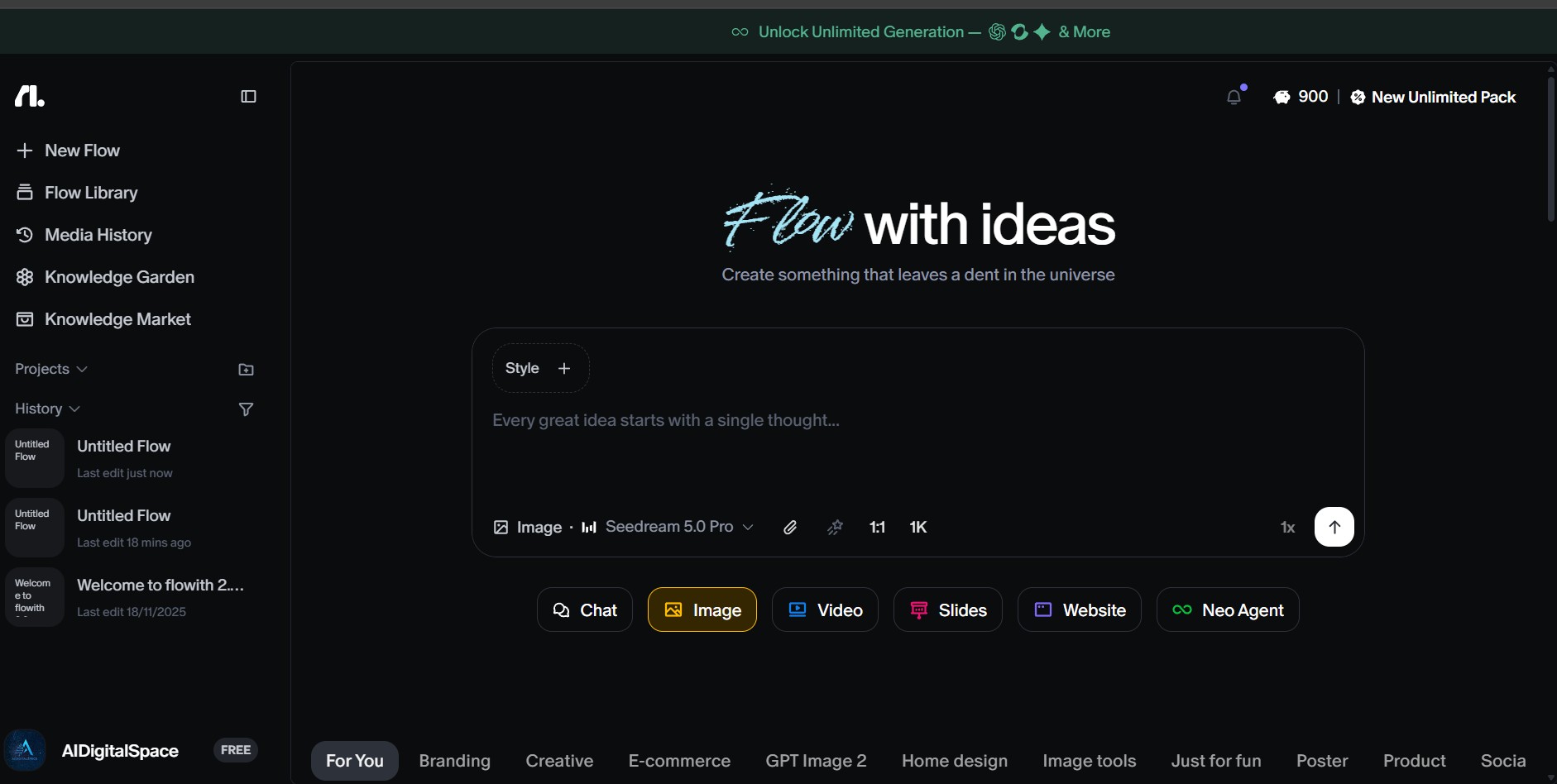
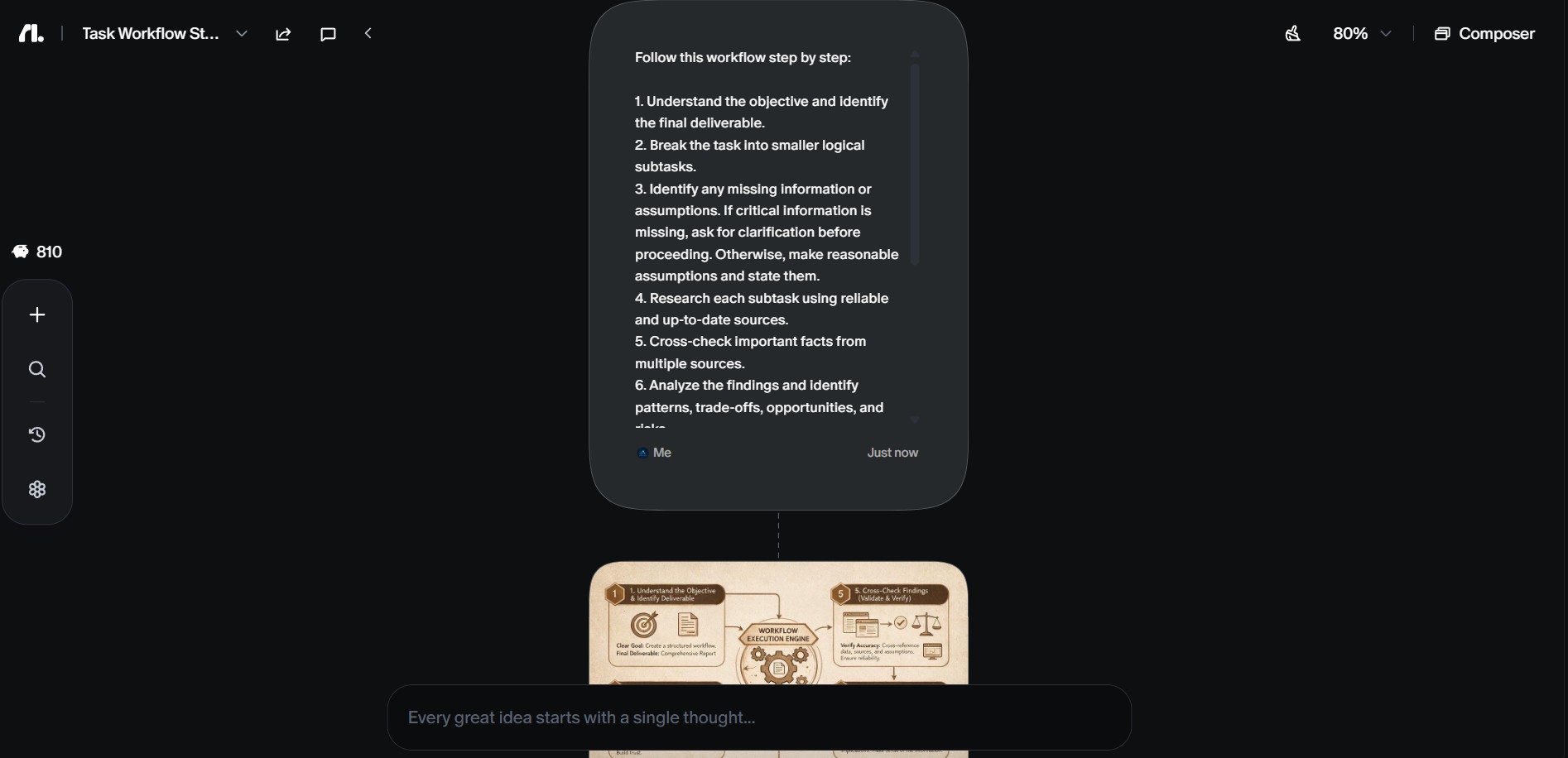
You start by explaining what you want in natural language — no formulas, no triggers, no coding. This is where the Flowith automation tool shines: it transforms simple instructions into full AI workflow automation without extra setup.
Examples:
- “Clean this text, summarize it, and turn it into bullet points.”
- “Rewrite this message in a professional tone and extract action items.”
- “Turn these notes into a structured outline.”
Flowith generates the workflow automatically, which is why so many Flowith AI Review users say it helps them automate daily tasks with AI faster than most of the best AI productivity tools they’ve tried.
Quiet insight: Most people save time at this stage alone because they skip the technical setup traditional automators require.
4.2 Review the Generated Workflow
Flowith shows you the steps it plans to run. These often include:
- text cleanup
- formatting adjustments
- summarization
- rewriting
- bullet-point extraction
You can adjust wording or add small refinements, but many tasks work instantly without edits.
4.3 Run the Workflow on Your Content
Paste your text or upload your input. Flowith processes everything in order and returns a clean result — often ready to use for emails, notes, content drafts, or quick summaries.
4.4 Save the Workflow for Reuse
When you’re satisfied, save the automation. It becomes a one-click routine you can run on any new input. This is where the long-term time savings come from.
4.5 Build a Small Library of Daily Automations
Flowith works best with a handful of reliable routines. Popular ones include:
- daily text cleanup
- recurring email draft workflow
- meeting notes formatter
- content variation generator
- research or outline formatter
Quick Hack: Create one master workflow that turns any messy text into a clean structure (headers, bullet points, short summary). This single routine removes most daily formatting work.
5. Tips, Comparisons, and Common Automation Mistakes
Flowith is easy to use, but a few practical habits make the experience smoother and more productive. Many Flowith AI Review users mention that combining the Flowith automation tool with simple routines helps unlock the full power of AI workflow automation. Below is a structured view of what helps most, along with a clear comparison to other options in the category of best AI productivity tools for anyone looking to automate daily tasks with AI.
1. What Flowith Works Best For
Focus on small, repeated tasks. These create the fastest time savings because they appear multiple times a day.
Examples:
- text cleanup
- rewriting or formatting
- turning notes into summaries
- preparing quick email drafts
Quiet insight: Automations under 10 minutes deliver the most consistent value.
2. Flowith vs Bardeen vs Make (Quick Comparison)
| Tool | Best For | Strength | Limitations |
|---|---|---|---|
| Flowith AI | Text, summaries, rewriting, formatting, multi-step content cleanup | Uses natural language to build workflows instantly | Not built for scraping or app-to-app automations |
| Bardeen AI | Browser automations, scraping, moving data between apps | Excellent for web tasks and app integrations | More technical; workflows require configuration |
| Make.com | Complex multi-app automations | Deep control and advanced scenarios | Steeper learning curve, not ideal for quick text tasks |
3. Common Automation Mistakes to Avoid
- Trying to automate everything at once → leads to messy outputs.
- Using vague prompts → inconsistent structure.
- Not saving workflows → you lose long-term time savings.
A cleaner approach is building one simple step, testing it, then expanding only when it works reliably.
4. Use Clear Instructions for Stable Output
Flowith works best with clear instructions.
Instead of “Fix this text”, try something like “Clean this text, correct grammar, remove extra spacing, and format it as bullet points.”
A precise prompt gives Flowith a structure it can repeat reliably.
5. Create a Short Library of Reliable Automations
Most users end up relying on the same top 2–3 workflows. Keep them clearly named and easy to find.
Useful starting points:
- “Daily Text Cleanup”
- “Quick Email Draft Generator”
- “Meeting Summary Formatter”
- “Content Variation Builder”
Hack: Duplicate your best Flowith workflow and change only the output tone (casual, neutral, professional). It instantly gives you three ready-to-use versions without rebuilding anything.
6. Ethical AI Reflection in Workflow Automation
AI automation can feel like a shortcut to a smoother workday, but it’s important to stay aware of what kind of data we feed into these tools. Even simple workflows can contain notes, drafts, client details, or internal information — and these all deserve thoughtful handling.
Flowith focuses on text-based automation rather than large-scale data collection, which already reduces some risk. Still, a few practical habits keep everything safer:
- avoid pasting confidential documents or sensitive client info
- check how long the tool stores processed data
- separate everyday “low-risk” tasks from internal workflows
- review privacy notes periodically, especially when automating team-related tasks
These small steps help you stay efficient without compromising trust.
Important note: Good automation habits start with the data you choose to share. Treat every workflow as if it could scale in the future — it keeps your systems cleaner and prevents issues long before they appear.
We believe productivity tools should make everyday work easier without taking away control. This is also a common point in many Flowith AI Review discussions: the Flowith automation tool speeds up repetitive tasks while keeping every decision in your hands. It uses AI workflow automation to handle the boring steps, letting you stay focused on the parts that matter.
With a bit of awareness around data flow and privacy, Flowith becomes one of the best AI productivity tools for anyone who wants to automate daily tasks with AI confidently and responsibly.
7. Final Insights and How to Get Started with Flowith AI
What makes Flowith genuinely useful isn’t just the automation — it’s how quickly it removes the tiny tasks that break your focus. Formatting notes, cleaning text, rewriting short messages, structuring rough ideas… these actions look small, but they create most of the friction in a typical workday. As many Flowith AI Review users point out, the Flowith automation tool is designed to eliminate exactly these micro-interruptions.
By using AI workflow automation instead of manual edits, Flowith helps you automate daily tasks with AI and free up mental space. This is why it consistently appears among the best AI productivity tools for people who want smoother, cleaner routines without changing the way they work.
If you already use tools like Taskade AI or rely on structured planning methods from our Motion App Review, Flowith becomes the missing layer in between. It’s the tool that turns “I have a messy idea” into “I now have a clean, usable version.”
Getting started is surprisingly simple:
-
Pick one task you repeat every day.
-
Describe it clearly inside Flowith.
-
Run the workflow once and check the output.
-
Refine it, then save it as a one-click routine.
Within a few days, you’ll naturally build a small library of automations that save time consistently.
Hack: Give every workflow a name based on its purpose, not its function. Titles like “Daily Cleanup”, “Quick Email Draft”, or “Notes to Summary” make them easier to find and easier to use—especially when you’re in a rush.
If you want to explore Flowith and start automating your everyday tasks, you can use the button below.
8. FAQ About Flowith AI Review and Workflow Automation
Q: What is Flowith AI used for?
A: Flowith is mainly used to automate repetitive text-based tasks such as cleaning notes, formatting content, generating quick email drafts, summarizing information, and creating structured outputs from messy input. It works like a fast assistant for everyday digital work.
Q: Is Flowith better than Bardeen or Make.com?
A: It depends on the task. Flowith is better for text automation, rewriting, summaries, and simple multi-step content workflows, while Bardeen and Make.com are stronger for browser actions, scraping, and app-to-app integrations. Many users combine them based on their needs.
Q: Does Flowith store my data?
A: Flowith processes text to run workflows, but long-term retention depends on the specific workflow features you use. As with any AI tool, avoid submitting highly sensitive information and review the tool’s storage policy to stay informed.
Q: Can Flowith automate emails and messages?
A: Yes. Flowith can generate quick drafts, rewrite messages in different tones, and tidy up text before sending. It is not a mailing platform, but it helps you prepare clean, ready-to-send versions of your content.
Q: Is Flowith AI beginner-friendly?
A: Very. You describe the task in natural language, Flowith generates the workflow, and you refine it if needed. There’s no coding, no special configuration, and no technical setup required—making it accessible even for people new to automation.