

Mirko
AI Tech Writer
Fathom's setup changed in 2026, but most guides get the details wrong. Bot-free recording is real — it's just not the default for everyone yet. I'll show you exactly where that matters, plus every other step of the current Fathom AI setup.
- Best free option for solo users — unlimited recording, though AI summaries are capped at 5 calls/month.
- Bot-free capture is real but limited: Mac only, English-only meetings, still in beta. Everyone else still uses the visible bot.
- Works across Zoom, Google Meet and Microsoft Teams from one dashboard.
- Upgrade path: Premium (~$16/mo annual) removes the summary cap; CRM sync sits on Business (~$25/mo annual).
Some links are affiliate links · no extra cost to you · Details
What's New in Fathom AI Setup for 2026
Most walkthroughs still tell you to "connect Zoom" as the mandatory first step, or claim Fathom is bot-free for everyone now. Neither is quite right anymore, and the second one matters more than it sounds.
Since March 2026, Fathom's desktop app can record audio directly from your device instead of sending a bot into the call. But per Fathom's own help center, bot-free capture is Mac-only, English-only, and still labeled beta — this Fathom AI setup covers both paths below.
I still connect an account either way — the bot needs Zoom or Teams authorization to join, and even bot-free capture needs calendar access to know which meetings to show up for.
Why this matters for your Fathom AI setup
A cleaner default sounds simple until you check which platform you're on. This checklist covers both paths — Mac's bot-free mode, and the standard bot flow everyone else still uses.
I've used Fathom for a few weeks now, mostly on client calls. The biggest shift for me is not taking notes during the meeting — the summaries and action items are good enough that I've started relying on them instead of writing things down myself. I still skim each one before I trust it, since AI can miss context or nuance.
For a broader picture of how it stacks up against alternatives, see my Otter vs Fathom vs Fireflies comparison.
Step 1: Create Your Free Fathom Account
The first stage of your Fathom AI setup takes under two minutes. Head to the official Fathom site and choose Get Started Free.
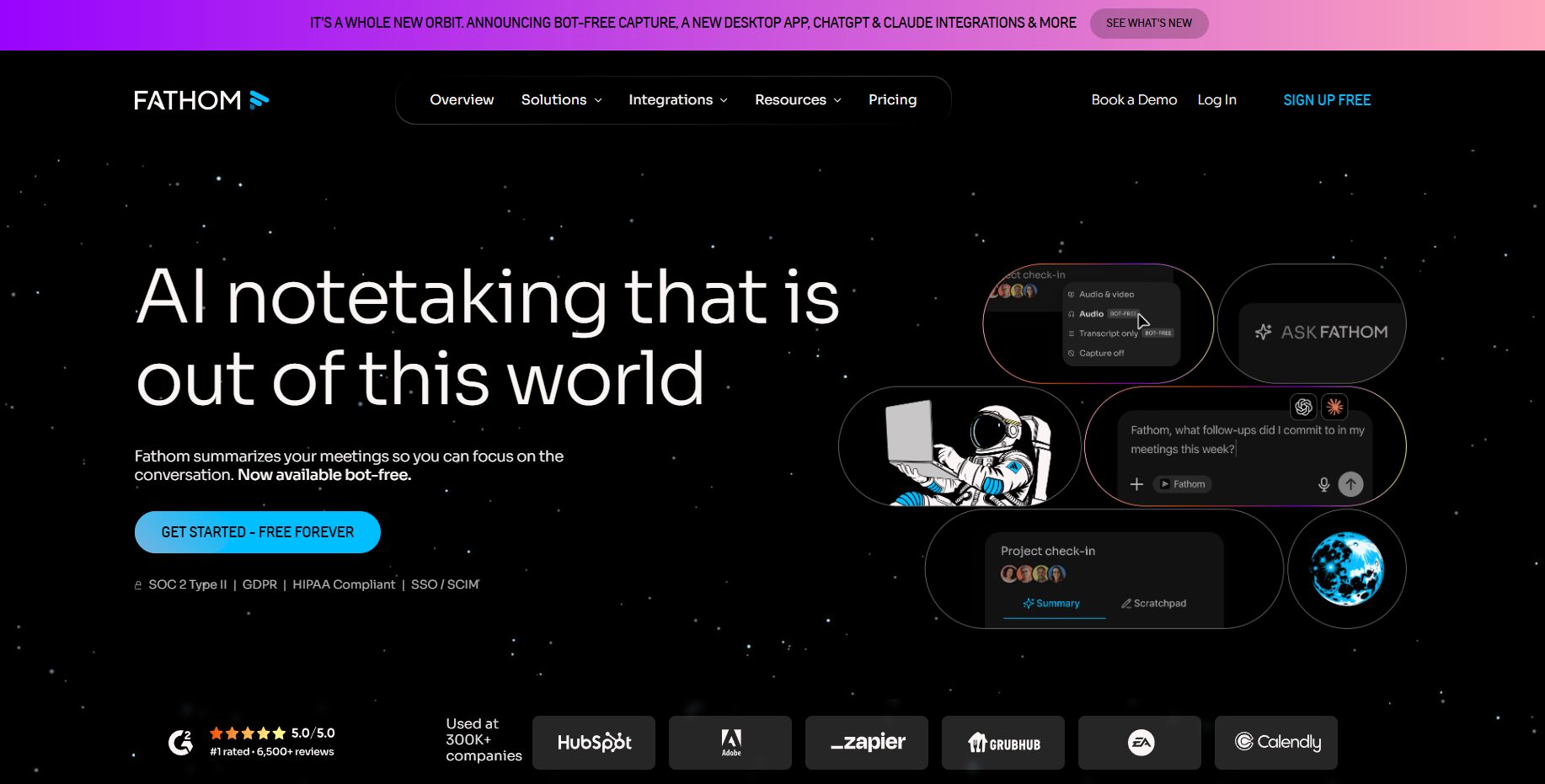
Register using your Google or Microsoft account. This keeps sign-in simple and lines Fathom up with the calendar and meeting tools you already use.
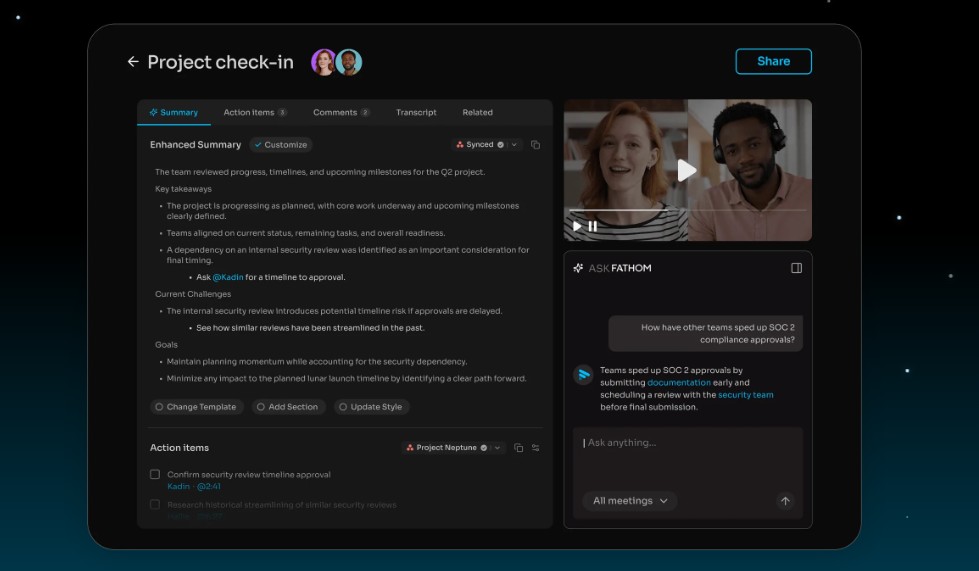
Once you're in, the dashboard shows your recent calls, transcripts and summaries. Every recorded meeting becomes searchable, time-stamped notes you can revisit later.
Add the desktop app for the full experience
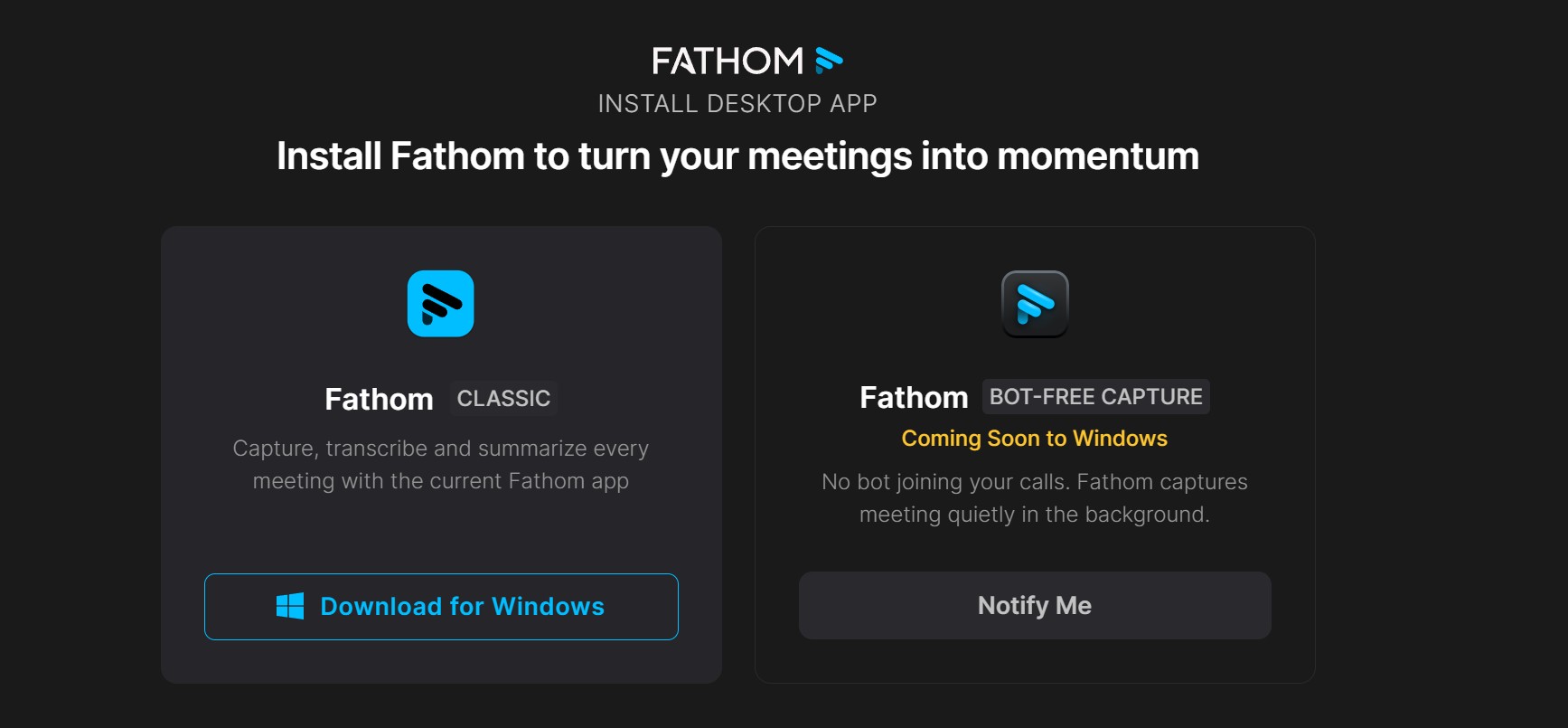
Fathom recommends its desktop app, especially when you're not the meeting host. It unlocks live highlights, action items and bookmarks the browser flow doesn't always expose.
On Mac vs. Windows
On Mac, you may see a prompt to try bot-free capture during signup — worth taking for English meetings. On Windows, that option isn't available yet; you'll set up the bot in Step 2.
Before your first call
One last check: make sure your browser has camera and microphone permissions enabled. Fathom only uses them during live meetings, and recordings stay private inside your account.
Step 2: Connect Zoom, Google Meet & Teams
This stage is now conditional, not universal. On Fathom's Mac bot-free experience, calendar access from Step 1 is often enough — skip ahead to Step 3. Everyone else, including all Windows users, still needs this step for their Fathom AI setup.
Open Settings → Integrations from the dashboard. You'll see Zoom, Google Meet and Microsoft Teams listed side by side.
Zoom
Choose Connect to Zoom and authorize access on Zoom's own screen. If you're using the bot, this authorization is what lets it join.
Fathom's own quick-start notes confirm the bot-free-vs-bot split for Zoom.
Google Meet
Sign in with Google and approve the request. Fathom runs quietly in the background, with a small indicator confirming that transcription is active.
Microsoft Teams
Select Connect to Teams and grant transcription access via Microsoft's OAuth flow. Teams has no bot-free option yet, so this step is required regardless of platform.
Hybrid tip
If you switch platforms during the week, link all three once. Fathom then handles whichever call type you join without any per-meeting fiddling.
Step 3: Customize Notes, Templates & Permissions
With recording sorted, tailor your Fathom AI setup so the output matches how you work. A few minutes here pays off on every future call.
Open Settings → Preferences and work through the options that shape your notes:
Fathom AI setup: settings worth changing first
- Summary template: pick Action-Focused if you manage projects — it surfaces decisions and next steps.
- Auto-share: push summaries to Google Docs, Notion or email so teammates get them right after a call.
- Recording notice: keep the "recording in progress" alert on for transparency and consent.
- Highlight shortcuts: mark key quotes or metrics live, then export them later for reports.
- Bot name: if you use the bot, rename it so it reads sensibly to other attendees.
The Auto-Generate Action Items toggle is the one most people forget. Turn it on and Fathom pulls tasks out of the conversation automatically, adding them to each call page.
From my few weeks with it
The Action-Focused template is the one setting that changed how useful the output is for me — a raw transcript is fine, but a structured recap is what I go back and reread.
Step 4: Automate Summaries, Exports & CRM
This is where the Fathom AI setup stops being a notetaker and becomes part of your workflow. The goal: notes and follow-ups waiting in your tools seconds after you hang up.
Zapier is now available to every user, so routing action points into tools like Make or n8n no longer needs a paid gate on Fathom's side.
One thing to plan for: direct CRM field sync sits on the Business tier. If Salesforce or HubSpot sync is core to your process, budget for that plan rather than expecting it lower down.
This automation angle is covered in more depth in my AI sales funnel automation guide.
Fathom AI Pricing in 2026
Before you finish your Fathom AI setup with a paid plan, here's what each tier costs and where the real limits sit. Prices below are annual-billing rates; monthly is higher.
| Plan | Price (annual) | Best for | Key limit |
|---|---|---|---|
| Free | $0 | Solo users testing it | Advanced AI summaries capped at 5 calls/month |
| Premium | ~$16/user | Individuals needing full AI | Single-user only, no team billing |
| Team | ~$15/user | Small teams (2+ seats) | 2-seat minimum; no CRM field sync |
| Business | ~$25/user | Sales & RevOps teams | 2-seat minimum; higher total cost |
The catch worth knowing
Fathom's free plan changed in 2026. Recording and transcription stay unlimited, but advanced AI summaries stop after 5 calls a month. Heavier users effectively need Premium.
Free-plan workaround, once you hit the cap
Recording and the raw transcript keep working past 5 calls — you just lose the auto-generated summary and action items. When I hit the cap, I search the transcript directly for the moment I need, or paste it into an AI chat tool for a quick recap, until the count resets the next month.
One quirk: the multi-seat Team plan (~$15/user) is cheaper per seat than single-user Premium (~$16), because Team requires two seats. A solo user pays Premium; any pair pays less each.
Pricing verified against Fathom's official pricing page and independent trackers as of September 2026. Always confirm current rates before you buy.
Troubleshooting Common Fathom AI Setup Issues
The Fathom AI setup is usually smooth, but a few first-run snags are common. Here's how to clear them fast.
Fathom AI setup issue: didn't join or record
- Wrong account: confirm the meeting invite uses the same email linked to Fathom.
- Bot mode: if you chose the bot, check the Zoom or Teams authorization is still active in Settings → Integrations.
- No audio: Fathom captures cloud audio, so enable cloud recording in Zoom or grant Chrome mic access for Meet.
Fathom AI setup issue: summary or sync problems
- No summary: calls under a minute may not generate one; refresh the dashboard after a few minutes.
- Notion/Zapier not updating: recheck integration tokens in Settings → Connected Apps and reconnect if an app changed its permissions.
- Extension missing: use Chrome or Edge; Safari and Firefox can block it. Clear the cache and restart if needed.
If your notes read inaccurately rather than failing outright, that's a different fix — my guide on why AI meeting notes go wrong breaks down the causes.
Using Fathom Responsibly — Privacy & Consent
Recording every call is convenient, but it carries real responsibility. A responsible Fathom AI setup treats consent and data handling as part of the process, not an afterthought.

Always tell participants a call is being recorded and transcribed. Fathom shows an automated notice, but saying it out loud builds trust — and in the EU it's often a legal requirement.
The one thing I'd add from using Fathom on client calls: the bot really is visible to everyone in the meeting, and it can feel a little awkward on sensitive conversations. That's part of why the Mac bot-free option matters beyond convenience — it removes that visible presence entirely, for the accounts that have it.
Under GDPR, a recording becomes personal data the moment someone identifiable speaks. The European Data Protection Board's consent guidance sets out what "freely given" requires.
Review your storage and access settings periodically. Delete recordings you no longer need, especially anything with sensitive client detail, and only export what a task genuinely requires.
The workplace angle
In team settings, silent recording can erode trust fast. My piece on AI note-takers at work covers the risks worth raising before you roll one out widely.
FAQ — Fathom AI Setup
🚀 Keep Building Your AI Meeting Stack
You've completed your Fathom AI setup. Now round out your meeting workflow with these next reads: