

The best AI tools for students with learning disabilities are the ones matched to one specific barrier: decoding text, getting thoughts onto the page, starting a task, or holding numbers in working memory. A tool that helps dyslexia can do nothing for dyscalculia, so I organized this guide by challenge, with one strong pick and one free pick for each.
For reading and dyslexia, start with Microsoft Immersive Reader (free) and add Speechify for heavy reading loads. For writing and dysgraphia, Wispr Flow turns speech into clean text. For ADHD and task paralysis, Goblin Tools is free and needs no account. For math, Desmos is free and screen-reader friendly. Most students with learning disabilities need two or three tools, not ten.
I have tested Wispr Flow myself, so that entry includes my own experience. Every other tool is research-based: I checked each vendor's own pricing and help pages, app store listings and school accessibility guides on learning disabilities in October, and cross-checked prices against independent trackers. I'm not a clinician or a special-education teacher, so treat this as a tool guide, not a diagnosis or an accommodation plan.
Some links on this site are affiliate links · they support the blog at no extra cost · Details
How do AI tools help students with learning disabilities?
AI tools help students with learning disabilities by removing the mechanical barrier so the thinking can happen: text read aloud for a student who decodes slowly, speech turned into text for one who can't write fast, a big task broken into steps for one who freezes. They don't teach the subject for the student. They change the format the subject arrives in.
Start from the barrier, not the brand. This map shows which type of tool matches each of the common learning disabilities and whether that type is usually accepted as a classroom accommodation.
| Challenge | Tool type that helps | My pick | Free pick | Usual accommodation status |
|---|---|---|---|---|
| Dyslexia / reading | Text-to-speech, reading focus | Speechify | Immersive Reader | Text-to-speech is a common IEP/504 accommodation |
| Dysgraphia / writing | Speech-to-text, rewording | Wispr Flow | Built-in dictation | Speech-to-text often allowed; AI rewriting usually not on tests |
| ADHD / executive function | Task breakdown, voice capture | Todoist | Goblin Tools | Planners are personal tools; rarely restricted |
| Dyscalculia / math | Visual graphing, step-by-step | Photomath | Desmos | Desmos is built into several state tests; solvers usually banned in exams |
| Processing / note-taking | Audio summaries, transcription | Otter | NotebookLM | Recording needs teacher consent; summaries are study aids |
Support for learning disabilities differs by school, district, state and exam board. Always confirm with the IEP or 504 team before a test.
Best AI tools for dyslexia and reading support
Dyslexia is the most common of the learning disabilities, and for these students the goal is to separate understanding from decoding. A text-to-speech reader with synced highlighting lets a student follow a chapter at grade level while they keep building decoding skills in parallel. Two tools cover most needs; a free accessible library covers the books.
Microsoft Immersive Reader + Reading Coach — best free reading support
FreeImmersive Reader is already inside Word, OneNote, Edge and Teams. It reads text aloud with word highlighting, splits words into syllables, adds line focus and widens spacing. Its sibling, Reading Coach, generates short practice stories and gives feedback on the words a student stumbles on. Both are free for learners with a school or personal Microsoft account, which makes this the easiest first step for learning disabilities that affect reading.
- Zero cost, zero install in Microsoft schools
- Syllables, line focus and picture dictionary
- Reading Coach targets each student's hard words
- Reading Coach supports U.S. English only
- Weaker outside the Microsoft ecosystem
- Voices are clear but less natural than paid readers
Source check: Microsoft's Reading Coach FAQ confirms it is free for school and personal Microsoft accounts and is most useful for ages 6–11.
Turn on Immersive Reader →Speechify — best for heavy reading loads
Best TTSSpeechify reads PDFs, web pages, Google Docs and photos of printed pages aloud in natural voices, on phone, browser and desktop. It earns its price once a student faces whole textbooks and long reading lists, which is where free readers start to feel robotic and slow.
- Most natural voices in this list
- Scans printed worksheets with the camera
- Syncs one reading list across devices
- The $11.58 figure needs annual billing
- Monthly billing costs about 2.5× more
- Trial auto-renews into a yearly charge

Best AI tools for dysgraphia and writing support
With dysgraphia, one of the learning disabilities that affects writing, the ideas are usually there; handwriting, spelling and typing speed are what block them. Speech-to-text moves the bottleneck from the hand to the voice, and a rewording tool helps a student turn a messy first draft into clear sentences they still own.
Wispr Flow — best speech-to-text for essays
I tested
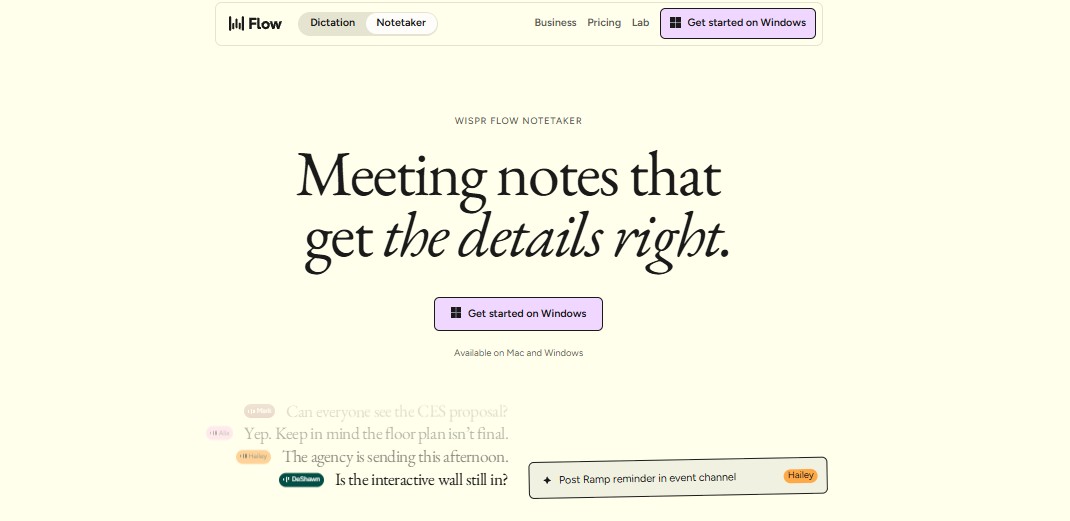
Wispr Flow works in any app: hold a key, talk, and cleaned-up text lands in the document, with filler words and false starts removed. In my own testing, that cleanup is the difference from basic dictation: a student can think out loud, ramble a little, and still get readable sentences to revise instead of a wall of "um". For learning disabilities that make typing slow, that matters more than raw accuracy.
- Works inside Docs, Word, email and chat
- Removes fillers and fixes punctuation
- Strong student pricing
- The free weekly cap runs out fast on essays
- Needs a quiet room or a headset mic
- Check exam rules: cleanup counts as AI editing
Free alternative: Google Docs voice typing, Microsoft Dictate and the dictation key on iPhone and Mac are free and accepted in more classrooms. Start there, and move to Wispr Flow once the student writes long answers every day. My full Wispr Flow review covers setup and accuracy.
Try Wispr Flow free →QuillBot — best for rewording a rough draft
Best valueQuillBot rewrites a clumsy sentence several ways, checks grammar and simplifies wording. For a student who knows what they mean but can't find the structure, seeing three versions of the same sentence is a scaffold, not a shortcut, as long as the ideas stay theirs. Students with learning disabilities often get stuck on the sentence, not the idea.
- Shows options instead of one "right" answer
- Simple mode turns jargon into plain words
- Cheaper than most writing assistants
- Paraphrasing graded work can breach school policy
- Free plan caps paraphrase length
- Not a fit for tests or timed essays
Best AI tools for ADHD and executive function
ADHD is not a learning disability on its own, but it often occurs alongside learning disabilities. Students with ADHD rarely struggle to understand the material; they struggle to start, to estimate time and to hold a plan in their head. The tools that help here externalize the plan: they break the task into steps and capture the thought before it disappears.
Goblin Tools — best free fix for task paralysis
Free · no loginGoblin Tools is a set of small single-job AI tools built for neurodivergent users. Magic To-Do splits "write my history essay" into steps, and you can tap any step to split it again. The Estimator guesses how long a task really takes, and the Judge reads the tone of a message before you send it. It is the free tool I would hand first to any family dealing with learning disabilities and ADHD together.
- Built for neurodivergent brains from day one
- No ads, no sign-up, nothing to configure
- "Spiciness" slider sets how small the steps get
- No reminders or calendar
- No long-term planning or deadlines
- One developer maintains it
Todoist — best planner that captures tasks by voice
Best plannerTodoist's Ramble lets a student speak a jumble like "math sheet Friday, read chapter six, email Ms. Lee" and get three separate tasks with dates. Task Assist breaks a vague task into subtasks, and reminders bring it back at the right time. It is the step up once Goblin Tools' lists need deadlines, and it keeps the system light enough for teens with learning disabilities to maintain.
- Voice capture before the thought is gone
- Natural-language dates ("every Tuesday")
- Cheapest planner here with real AI features
- Unlimited Ramble and Task Assist need Pro
- A planner only helps if someone opens it
- Calendar layout is Pro-only
Set it up right: my guide to using Todoist with AI walks through a setup that stays small enough to keep up with.
Try Todoist free →Best AI tools for dyscalculia and math
Dyscalculia is the gap most guides on learning disabilities skip. Students with this math learning disability often lose track of number size, steps and symbols, so the useful tools make math visible and show each step, rather than only handing over the answer.
Desmos — best free visual math tool
FreeDesmos turns equations into graphs you can drag with sliders, so "what happens when the number gets bigger" becomes something you see. Its accessibility features go further than any other free calculator: a screen reader reads math in plain words, and audio trace lets a student hear the shape of a graph. No other free tool here covers math learning disabilities this well.
- Same calculator several state tests embed
- Screen reader and Braille display support
- No ads, no account needed
- Shows results, not worked steps
- Best from middle school upward
- Audio trace takes a short practice session
Source check: Desmos documents its screen-reader mode and audio trace on its accessibility help page.
Open Desmos free →Photomath — best for step-by-step homework help
Best stepsPoint the camera at a printed or handwritten problem and Photomath, now owned by Google, shows every step with a short explanation. For a student who copies numbers wrongly or loses the sequence halfway, the steps become a checklist to compare against their own work, which suits learning disabilities that scramble sequences.
- Free steps for most K-12 math
- Reads handwriting, so no retyping
- Multiple solving methods for one problem
- Easy to copy answers instead of learning
- Animated tutorials are Plus-only
- Never allowed in exams
Heads-up: Microsoft retired its Math Solver app, which older guides still recommend. If it's on a student's device, replace it with Desmos or Photomath.
Get Photomath free →Best AI tools for processing challenges and note-taking
Some students with learning disabilities miss half a lecture while writing down the first half, or understand a topic far better when they hear it explained. These two tools turn class material into audio and searchable notes.
NotebookLM — best free way to hear your notes
FreeUpload a chapter, slides or class notes and Google's NotebookLM answers questions using only those sources, with clickable citations. Its Audio Overviews turn the material into a short podcast-style conversation, which suits auditory learners, learning disabilities that slow reading, and long bus rides.
- Answers stay grounded in the student's own sources
- Audio, flashcards and quizzes from one upload
- Free tier is enough for most students
- Availability for younger students varies
- Audio summaries can skip details
- Only as good as the notes you upload
Step by step: my NotebookLM guide shows how to turn a PDF into a podcast.
Open NotebookLM →Otter — best for recording and transcribing lectures
Best transcriptsOtter records a class and writes a live transcript, then adds a summary and searchable keywords. A student can listen fully during the lecture and review the words later at their own pace, which takes the pressure off writing while listening for students with learning disabilities.
- Live transcript you can follow during class
- Search a semester of lectures by keyword
- Automatic summary after each recording
- The 30-minute free cap cuts most lectures short
- Always ask before recording a class
- Accuracy drops in noisy rooms

Which AI tools fit your student? Take the 60-second Learning Support Matcher
Answer four questions and the matcher builds a three-tool stack for students with learning disabilities: one tool for the main challenge, one for the second, and a free safety net, with a monthly cost estimate. Nothing you click is saved or sent anywhere.
What does a full support stack cost per year?
A complete free stack costs nothing, and a paid stack for learning disabilities that covers reading, writing and planning costs about $371 a year on annual billing. I added up the U.S. list prices I checked in October for three typical setups, so you can see where the money goes before a free trial turns into a charge.
| Stack | Tools | Per year (annual billing) |
|---|---|---|
| Free stack | Immersive Reader, built-in dictation, Goblin Tools, Desmos, NotebookLM | $0 |
| Reading + ADHD | Speechify $139 + Todoist Pro $60 | $199 |
| Reading + writing + ADHD | Speechify $139 + Wispr Flow student ≈$72 + QuillBot $99.95 + Todoist Pro $60 | ≈$371 (≈$353 in year one with 3 free Wispr months) |
The trap is monthly billing. The same four-tool stack paid month to month runs about $743 a year, roughly double, because Speechify ($29), QuillBot ($19.95) and Todoist ($7) all charge far more without a yearly commitment. Prices outside the U.S. are set per region, so check the checkout screen.
Can students with learning disabilities use AI tools on tests?
Sometimes. Students with learning disabilities can use a tool on tests when it is written into the IEP or 504 plan as an accommodation. Text-to-speech and speech-to-text are the most common approvals; AI that rewrites, paraphrases or solves is usually banned in assessments because it changes the answer, not the access. Under U.S. law the IEP team must consider assistive technology for every student with an IEP (see the IDEA site).
- Name the barrier in the plan ("slow decoding", "illegible handwriting"), not the brand.
- Name the tool type and where it applies: classwork, homework, tests, standardized exams.
- Practice before test day, so the tool helps instead of becoming one more thing to manage.
- Check exam-board rules separately: state tests and college entrance exams set their own accommodation lists.
Teachers drafting goals can use my roundup of AI IEP goal generators, which pairs well with this list.
A plain-English handbook for parents on how IEPs work, what to ask for and how to push back. It is the best preparation I know for getting assistive technology written into the plan instead of left to goodwill.
Is student data safe in these AI tools?
School-licensed tools usually come with a data agreement; consumer apps a parent signs up for usually don't. Recordings, writing samples and reading errors can reveal learning disabilities, so run four checks before an account is created.
- Age: under-13 accounts in the U.S. fall under COPPA; many apps require a parent or school account.
- Training: does the privacy policy let the company train AI on the student's content, and is there an opt-out?
- Deletion: can you delete recordings and documents, not only the account?
- No-login first: tools like Goblin Tools and Desmos work without an account, so nothing personal is stored.
My AI privacy settings guide shows where the training opt-outs live in the major apps, and the no-login tools list has more options that store nothing.
My verdict: where students with learning disabilities should start
Start free and start with one barrier. Learning disabilities rarely need an expensive stack on day one. Turn on Immersive Reader or built-in dictation this week, add Goblin Tools if starting tasks is the struggle, and give it two weeks before paying for anything. Upgrade only where the free tool keeps hitting a wall: Speechify for long reading lists, Wispr Flow for daily essays, Todoist once deadlines pile up.
The best stack is the one the student opens without being reminded. Ask them what helps, watch what they keep using, and drop the rest. Students with learning disabilities know which tool saves them effort. Adults looking for workplace tools will find a different lineup in my guide to AI tools for neurodivergent users.