
Mirko
AI Tech Writer
AI isn't just for tech experts anymore — it's for anyone who wants to work smarter in 2026. You don't need coding skills or a tech degree to use the best AI tools. I've spent months testing dozens of AI platforms to find the ones that are genuinely beginner-friendly and deliver real results from day one. These 5 tools will transform how you work, create, and organize — and you can start using them in the next 10 minutes, even if you've never touched AI before.
📋 What's Inside
Some links are affiliate links · You support the blog at no extra cost · Details
1. Introduction – Why AI for Beginners Matters
AI tools for beginners aren’t “tech-only” anymore. Today you can use AI to write clearer emails, plan your week, create social content, or even improve a photo — even if you’ve never coded once.
If you’re new to this world, here’s the good news: the best AI tools for beginners are built to feel like normal apps. You type what you want, you click a button, and you get a useful result in seconds.
In this guide, you’ll find five beginner-friendly AI tools you can start using right now — plus a few quick tips to avoid common mistakes and get better results from day one.
These AI tools for beginners are:
- Free or freemium (so you can start without paying)
- Easy to use (click-and-type, no setup headaches)
- Widely trusted (used by millions every day)
Quick note for complete beginners: if you prefer learning the basics step-by-step before trying tools, check our Best AI Books for Beginners guide. It pairs perfectly with this list.
One safety tip before you start: avoid pasting private information into any AI tool (passwords, bank details, sensitive work docs). If you want a reliable reference on online safety basics, the FTC has a helpful guide here.
Now let’s jump into the tools and pick the best one for your first 30 minutes with AI.
2. ChatGPT — The Best Starting Point for Everyday AI
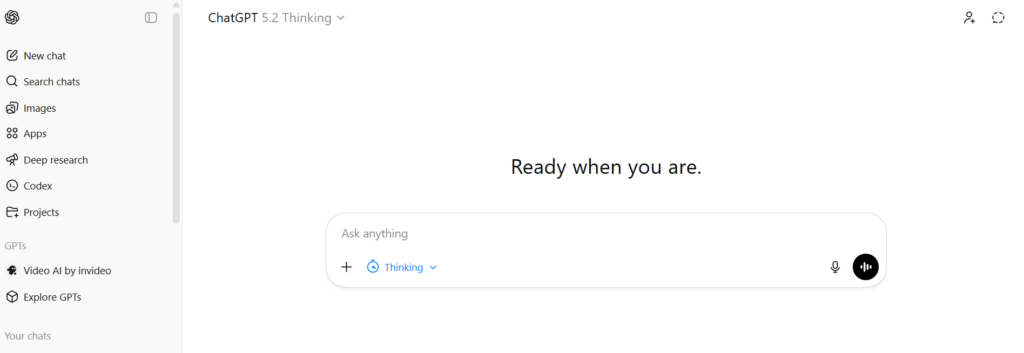
ChatGPT is one of the most beginner-friendly AI tools for beginners because it works like a normal conversation. You type what you need (a question, a draft, an idea) and it replies in plain language — no complicated setup, no tech knowledge required.
Quick verdict: If you only try one tool this week, start with ChatGPT for beginners. It’s the fastest way to get help with writing, ideas, and everyday tasks in the first 10 minutes.
Small safety note: before using any AI tool, avoid sharing sensitive personal data — the UK National Cyber Security Centre explains simple online safety basics here.
Whether you’re:
Writing an email (work, customer support, follow-ups)
- Planning your week (simple to-do lists and schedules)
- Creating content ideas (captions, titles, short scripts)
- Studying (summaries, explanations, flashcards)
- Or you’re just curious about something
ChatGPT gives you quick, human-like answers tailored to what you ask.
Why beginners love it
- Easy to start (web + mobile; an account may be required for full features)
- Natural language (you can write like you’re texting a friend)
- Flexible (writing, planning, learning, brainstorming — in one place)
- Gets better with context (the more you explain your goal, the better the output)
What you can try today (copy-paste prompts)
- Ask: “Write a friendly follow-up email after a meeting. Keep it short and professional.”
- Ask: “Turn this messy note into a clear to-do list with priorities.”
- Ask: “Give me 10 Instagram captions for a travel photo, in a witty tone.”
- Ask: “Explain the stock market to me like I’m 12, with a simple example.”
- Ask: “Summarize this article in 5 bullets and give me 3 action steps.”
- Ask: “Turn these notes into a professional email with a strong subject line.”
Tip: Start with the free version and test 2–3 prompts above first — you’ll immediately see what it can do. (Add your ChatGPT link here)
Want more beginner-friendly options beyond ChatGPT? See our guide on ChatGPT vs Gemini vs Seedream here.
| What ChatGPT Can Do for Beginners | How to Use It |
|---|---|
| Write or improve content (emails, captions, posts) | Just describe what you need in a sentence |
| Get quick answers or explanations | Type your question like you’d ask a friend |
| Brainstorm ideas (recipes, titles, names) | Use “Give me 5 ideas for…” prompts |
| Translate or simplify complex texts | Paste your text and ask for a simpler version |
| Try ChatGPT Now | |
3. Canva AI — Create Designs Without Graphic Skills
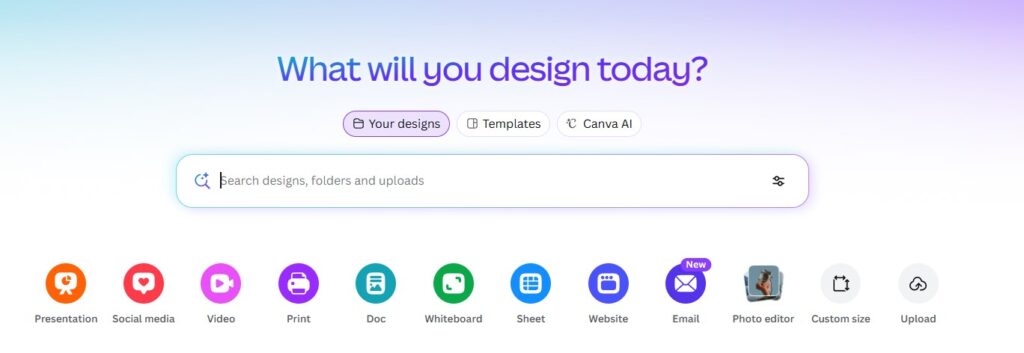
If design tools ever felt overwhelming, Canva AI is the easiest shortcut. It lets complete beginners create clean, professional visuals for Instagram, YouTube thumbnails, presentations, resumes, and more — without Photoshop or design school.
Quick verdict: If you want the fastest “wow” result as a beginner, Canva AI is usually the easiest win — you can go from idea → finished graphic in minutes.
What makes Canva AI great for beginners
- Magic Design: Upload a photo or describe what you want, and Canva generates multiple ready-to-edit layouts.
- AI Copy Generator: Creates titles, captions, and short blurbs when you don’t know what to write.
- Style Suggestions: Recommends fonts, spacing, and colors so your design looks polished fast.
- Background Remover + Photo Enhancer: One click to clean up images, product photos, or selfies.
- Text-to-Video tools: Turn a simple script or idea into a short video format (great for Reels/TikTok-style visuals).
Best beginner uses (pick one and try it today)
- Instagram post: “Create a clean quote post with my text and a modern style.”
- YouTube thumbnail: “Make a bold thumbnail with a big title and 2–3 key words.”
- Resume: “Turn this text into a one-page resume layout that looks professional.”
If you’re building a personal brand (or you just want content that looks good quickly), Canva’s drag-and-drop interface makes it easy to get started and improve as you go.
If you want to deep dive into it, you can check our full review here.
Want a faster start? Use one simple rule: pick one template, change the text, change the colors, and export — don’t overthink the first version.
| What Canva AI Can Do for Beginners | How to Use It |
|---|---|
| Design full posts, resumes, and presentations | Use Magic Design to generate layouts instantly |
| Write short captions, titles, and text blurbs | Use the AI text generator built into any text box |
| Edit and enhance photos in 1 click | Use background remover and photo enhancer tools |
| Create short videos from text or ideas | Try text-to-video or use smart video templates |
| Try Canva AI for Free | |
4. Grammarly — Fix Writing in Seconds
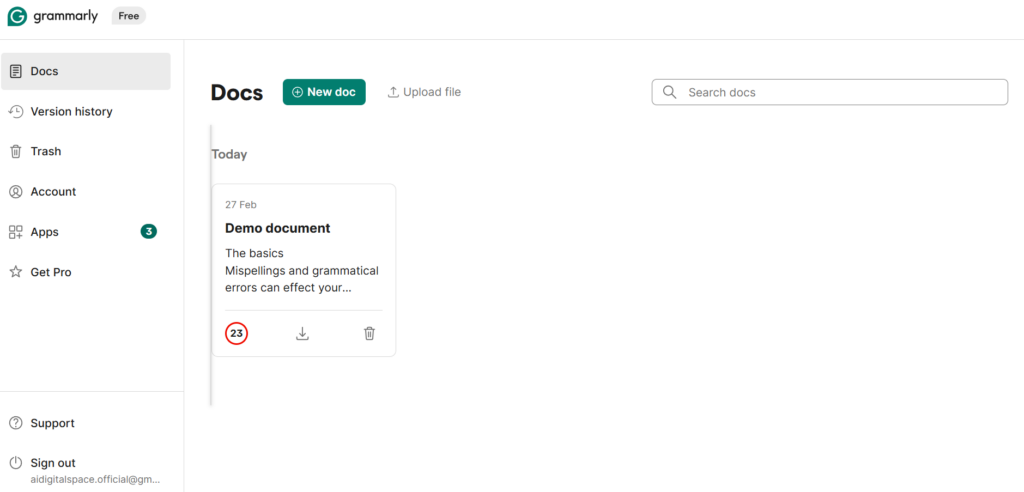
Grammarly is one of the easiest AI tools for beginners because it works while you write. If you’re not 100% confident with grammar, spelling, or tone, Grammarly fixes issues in real time — whether you’re typing a job application, sending an email, or writing a caption.
Quick verdict: If you write in English often (work, school, content), Grammarly is the fastest “quality upgrade” you can get as a beginner.
What Grammarly does:
- Fixes grammar and spelling automatically
- Suggests clearer phrasing so your message sounds natural
- Checks tone (friendly, formal, confident) so you don’t sound “too harsh” or “too casual”
- Improves clarity + conciseness (removes fluff and repetition)
- Rewrites for different audiences (professional, casual, persuasive)
Best beginner use cases (try one today)
- Email: “Make this email more professional and friendly, but keep it short.”
- LinkedIn: “Rewrite this post to sound confident and clear.”
- Job application: “Improve this cover letter without changing my meaning.”
The best part? Grammarly works almost everywhere — in your browser, on your phone, and inside common apps like Gmail and Google Docs. That means you don’t need to “learn” a new tool: you just write like normal and accept the best suggestions.
| What Grammarly AI Can Do | How to Use It |
|---|---|
| Fix grammar, spelling, and punctuation errors | Install the browser extension or app, and write as usual |
| Improve tone and clarity of writing | Use Grammarly’s AI suggestions in real time |
| Rewrite sentences for better flow | Click “Improve it” when the AI suggests rewrites |
| Adjust tone for emails or posts | Use the tone detector and switch to a formal or friendly tone |
| Try Grammarly AI for Free | |
5. Lensa AI — Turn Selfies into Pro-Looking Avatars
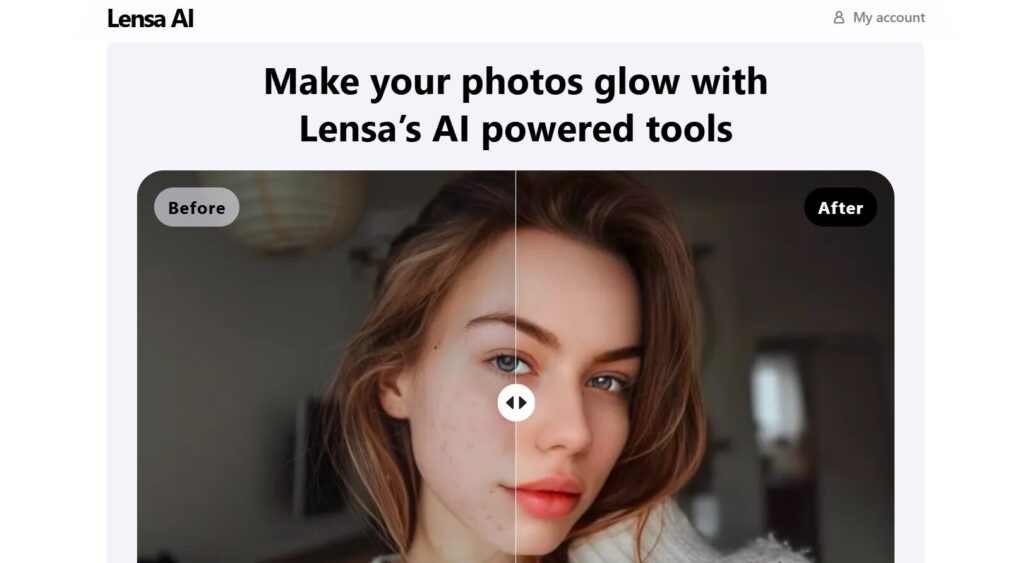
If you’ve ever wanted to turn a normal photo into something you’d confidently use on LinkedIn, Instagram, or as a profile picture, Lensa AI makes it possible in a few taps. It’s one of the most visual and beginner-friendly AI tools for beginners because you don’t need editing skills — you just upload photos and choose a style.
Quick verdict: If you want a fast “before → after” result (without learning Photoshop), Lensa AI is one of the easiest beginner wins.
How it works (simple steps)
Upload a few selfies (good lighting helps)
Pick a style or avatar pack
Download your best results and use them as a profile photo, headshot, or content asset
Why beginners love Lensa AI
- Fast results (no design skills needed)
- Looks professional (portraits, avatars, headshots that feel “studio-like”)
- One-tap improvements (lighting, focus, background cleanup, polish)
- Easy on mobile (simple iOS + Android workflow)
- Great for creators + professionals (clean styles for LinkedIn, fun styles for social)
Beginner tips (to get better results)
- Use photos with good natural light and a clear face (no heavy shadows)
- Upload 5–10 photos with different angles (front + slight side)
- If you want LinkedIn-ready images, pick clean / studio / neutral styles first
It’s not just fun — it’s practical. Many people use Lensa AI to upgrade their online presence without paying for a professional photoshoot.
| What Lensa AI Can Do | How to Use It |
|---|---|
| Turn regular selfies into stylized portraits | Upload 5–10 selfies and let the AI generate your avatars |
| Apply studio-quality enhancements (blur, color, light) | Choose your favorite style and preview before exporting |
| Generate profile photos for LinkedIn, dating, or branding | Use the “Magic Avatars” feature on the main screen |
| Retouch photos automatically | Enable auto-enhancement for instant glow-up |
| Try Lensa AI for Free | |
Internal Link Tip: If you’re looking for even more powerful tools, check out our Top AI Tools You Can Use on Mobile – no complex setup required
6. Notion AI — Notes, Planning, and Organization Made Easy
If you like lists, notes, or planning — but you often feel overwhelmed by clutter — Notion AI is one of the most useful AI tools for beginners. It helps you write, summarize, brainstorm, and organize everything in one clean workspace, so your ideas don’t stay stuck in your head.
Quick verdict: If you want one tool that keeps your life and work organized, Notion AI is the best “all-in-one” pick for beginners.
What Notion AI can do (simple examples)
- Turn messy notes into a clear summary
- Convert ideas into a to-do list with priorities
- Draft a blog outline, study notes, or a meeting recap
- Rewrite text to sound more professional or more friendly
What beginners love about Notion AI
- Start with a blank page — the AI helps generate outlines, plans, and summaries
- Works for school, work, and content — one workspace for everything
- Improves your writing instantly — explain, translate, rewrite, simplify
- Great across devices — especially useful if you take notes on mobile
- Easy to find things later — pages stay searchable and organized
Beginner tip (makes it “click” fast)
Create one page called “My Week” and add 3 sections: To-Do, Notes, Ideas. Then ask Notion AI: “Turn my notes into a simple plan for the week.”
| What Notion AI Can Do | How to Use It |
|---|---|
| Write outlines, summaries, or lists | Type a command like “/AI summarize” on any page |
| Brainstorm ideas or generate blog content | Use “Ask AI” to create content on the fly |
| Rewrite or fix grammar in your notes | Highlight text and choose “Improve writing” |
| Translate or explain complex text | Use the AI to simplify or translate content instantly |
| Try Notion AI Free | |
Internal Link Tip: For more beginner-friendly productivity tools, check out our full guide on Taskade AI – Your Second Brain for Team Productivity
7. Beginner Tips — How to Start Using AI Confidently
Trying AI for the first time can feel intimidating — but it doesn't have to be. These tools are designed to help you, not confuse you. Most come with clear prompts, beginner tutorials, and pre-filled templates so you don't have to guess what to do next.
Start with one tool
Pick ChatGPT or Canva AI and explore for 10-15 minutes daily. Don't try to master everything at once.
Use real tasks
Write an email, edit a photo, or plan your week. Using AI for actual needs is the fastest way to understand its value.
Follow AI's suggestions
Most tools don't need perfect input. Always adjust the output — think of it as a first draft, not a final product.
Bookmark your favorites
Create a browser folder with direct links to ChatGPT, Grammarly, and Lensa AI. Build the habit without searching every time.
Don't be afraid to ask the AI for help. In tools like ChatGPT and Notion, you can literally ask: "What can you do?" — and the AI will give you examples.
8. Safety & Ethics — What AI Shouldn’t Replace
AI tools for beginners are getting incredibly good at making life easier — they can write, design, edit, and even “think” alongside you. But as a beginner, the most important question is still this: what should AI help with, and what should remain human?
Just because a tool can do something doesn’t mean it should replace your judgment, taste, or responsibility.
Here’s what to keep in mind when using AI tools for beginners responsibly:
Don’t let AI replace your voice
Tools like Grammarly and ChatGPT are great at polishing your words — but they’re still your words. If you let AI speak for you too much, your personality disappears.
Best practice: always do a quick final edit so it sounds like you.Use AI to learn faster, not to avoid learning
It’s okay to ask AI to explain, summarize, or draft — but use that help to understand more, not less.
Think of AI as a tutor, not a shortcut you become dependent on.Keep creativity human-led
Even with tools like Canva AI or Lensa AI, your choices still matter: message, tone, style, and what you publish. AI can speed up execution — but you provide the taste and context.Be careful with sensitive or private data
Avoid entering passwords, financial details, private conversations, or confidential work information.
Rule of thumb: if you wouldn’t share it publicly, don’t paste it into an AI chat.Remember: bias and “algorithmic influence” can exist
AI learns from data — and data can be biased. Some outputs can reflect stereotypes or push a certain viewpoint without you noticing.
If you want to understand this better, read our guide on how AI controls what you see.
| What AI Shouldn’t Replace | Why It Matters |
|---|---|
| Your voice or personality | Maintains authenticity and human connection |
| Learning and critical thinking | Helps you grow and understand, not just finish faster |
| Creative decision-making | You define the direction — the AI just builds on it |
| Privacy and sensitive thinking | Data shared with AI is not always 100% secure or anonymous |
9. FAQ — AI Tools for Beginners
Do I need to know how to code to use AI tools?
+No. Most AI tools for beginners work with plain language — you type what you want and the tool helps. ChatGPT, Canva AI, Grammarly, Lensa AI, and Notion AI all use simple interfaces that require zero coding knowledge.
Start with ChatGPT if you want quick answers, or Canva AI if you want visual results fast.
Are AI tools free to use?
+Many beginner-friendly AI tools offer a free plan or free trial. ChatGPT has a free version for basic use. Canva AI offers a free tier with limited AI features. Grammarly provides free grammar checking.
The free versions are usually enough to test the basics, then you can upgrade only if you need extra features. My tip: start free, try 3 tasks, then decide if you need premium.
Which AI tool should I try first as a beginner?
+What are the best AI tools for beginners in 2026?
+Is it safe to use AI tools?
+Yes, AI tools are safe when you use common sense. Avoid pasting private data like passwords, bank details, or sensitive work documents. Stick to reputable tools like ChatGPT, Canva, Grammarly, and Notion.
Check privacy settings if you're unsure, and never share personally identifiable information unless the tool explicitly requires it for account setup.
Can I use AI tools on my phone?
+Yes. Most AI tools for beginners have mobile apps designed for quick daily use. ChatGPT, Canva, Lensa AI, Grammarly, and Notion all work well on iOS and Android devices.
The mobile experience is often optimized for on-the-go tasks like quick edits, photo enhancements, and note-taking.
Will AI replace my job?
+In most cases, AI helps you work faster rather than replacing you. Think of AI tools as a "smart assistant" for writing, planning, and ideas — your judgment, creativity, and human expertise still matter.
AI tools for beginners like ChatGPT and Grammarly are designed to augment your skills, not replace them. Studies show AI users become more productive, not obsolete.
Are AI-generated results always accurate?
+No. AI can make mistakes or miss context, especially with complex topics. Use AI tools for drafts and ideas, but always double-check facts — especially for medical advice, financial decisions, or legal topics.
ChatGPT and similar tools work best as creative assistants and research starting points, not as final authorities.
What's the best AI tool for studying or note-taking?
+Can AI help if English isn't my first language?
+Absolutely. Grammarly improves grammar and tone in real-time, making your writing sound more natural. ChatGPT can simplify complex text, rewrite messages for clarity, and help you practice conversational English.
Both tools support non-native speakers and provide instant feedback to improve language skills.
🚀 Master AI — Next Steps for Beginners
You now know the best AI tools for beginners in 2026. Ready to take control of your AI journey? These guides will help you use AI smarter and safer: