Giorgio
AI Tech Writer
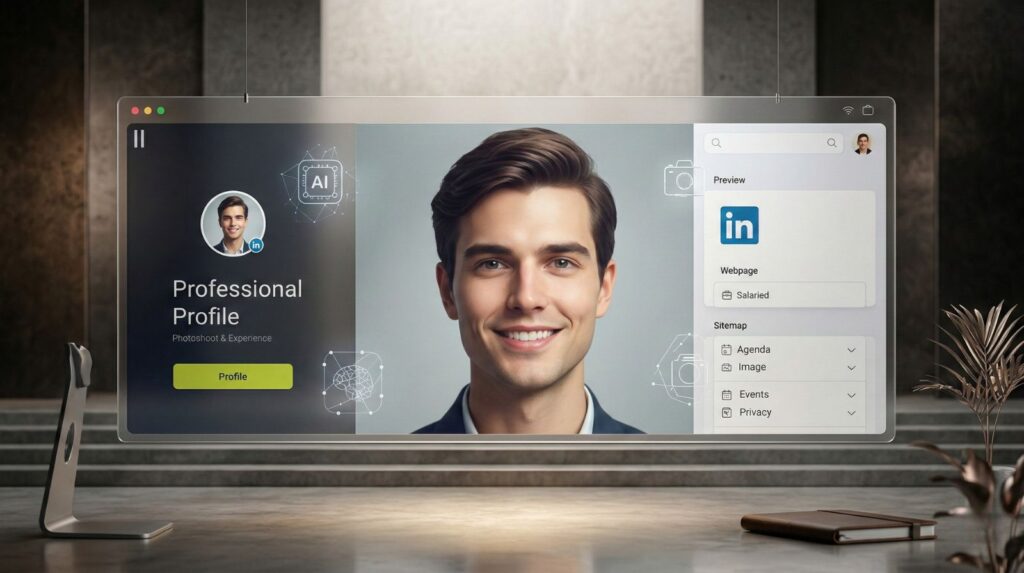
Your LinkedIn profile gets 40% more views with a professional photo, but professional headshots cost $200-500. AI headshots for LinkedIn changed everything in 2025. 71% of professionals now use AI-generated profile pictures because they're free, instant, and look realistic. But here's the problem: most free AI headshot generators create uncanny valley faces, steal your biometric data, or produce obviously fake images that damage credibility. We tested 23 free AI headshot generators with real LinkedIn profiles to find which ones actually create realistic AI profile pictures without privacy risks. Here's what works for a professional LinkedIn photo.
📋 What's Inside
Some links are affiliate links · You support us at no extra cost · Full disclosure
1. Quick Picks – Best Free AI Headshot Tools
Finding the right AI headshots for LinkedIn shouldn’t take hours (or cost a fortune). Below are the best tools you can try right now — including free options — so you can get a professional-looking LinkedIn profile photo in minutes.
These AI headshot generators are popular, safe, and work well even if you’re not a designer. We’ve personally seen them recommended across our AI Tools category and in our guide on Best Free AI Tools 2025.
Tip: Start with a free tool first. If the result looks slightly “AI-ish”, jump to Section 5 for the exact settings that make AI headshots look real.
| Tool | Best For | Free Tier | Action |
|---|---|---|---|
|
Generated Photos
Privacy-first AI faces
|
Safe, realistic headshots when you don’t want to upload your real photos. | ✅ Free (browse + download options) |
Create a Headshot
Best for: privacy
|
|
Fotor AI Headshot
Fast results for beginners
|
Quick, clean LinkedIn-style headshots in minutes — best “first try” tool. | ✅ Free (free credits / limited exports) |
Try Free First
Best for: speed
|
|
Aragon AI
Studio-style polish
|
Premium headshots with the most “photo-real” look — ideal if you need maximum credibility. | ❌ Paid (best final output) |
Get Studio Results
Best for: polish
|
With these quick picks, you can experiment with free tools first, then upgrade to a paid option if you need ultra-polished, studio-style results.
If privacy matters, don’t upload sensitive photos — in Section 7 you’ll find a simple safety checklist before you generate anything.
2. Comparison Table – Free vs Paid AI Headshots
Not sure if you should stick with free tools or invest in a paid plan? Here’s a clear look at how free vs paid AI headshots for LinkedIn compare. This helps you decide if a premium subscription is worth it before spending a cent.
Rule of thumb: choose free if you need one clean profile photo today — choose paid if you want multiple poses, outfits, and the most realistic lighting.
| Feature | Free Tools | Paid Tools |
|---|---|---|
| Cost | $0 – basic limits | $10–$30 per set |
| Image Quality | Good but lower resolution | Studio-quality, HD results |
| Customization | Limited style choices | Multiple outfits, backgrounds |
| Privacy | Varies by platform — check policy | Usually offers data deletion request |
| Turnaround Time | Instant or a few minutes | 5–30 min processing time |
Before uploading any AI-generated photo, double-check LinkedIn’s official rules here: LinkedIn profile photo guidelines.
If you only need a single clean headshot, free tools are perfect to start with. But if you want to impress recruiters with multiple poses or ultra-realistic lighting, a paid option like Aragon AI can be worth the small investment.
3. Why AI Headshots Are Trending for LinkedIn
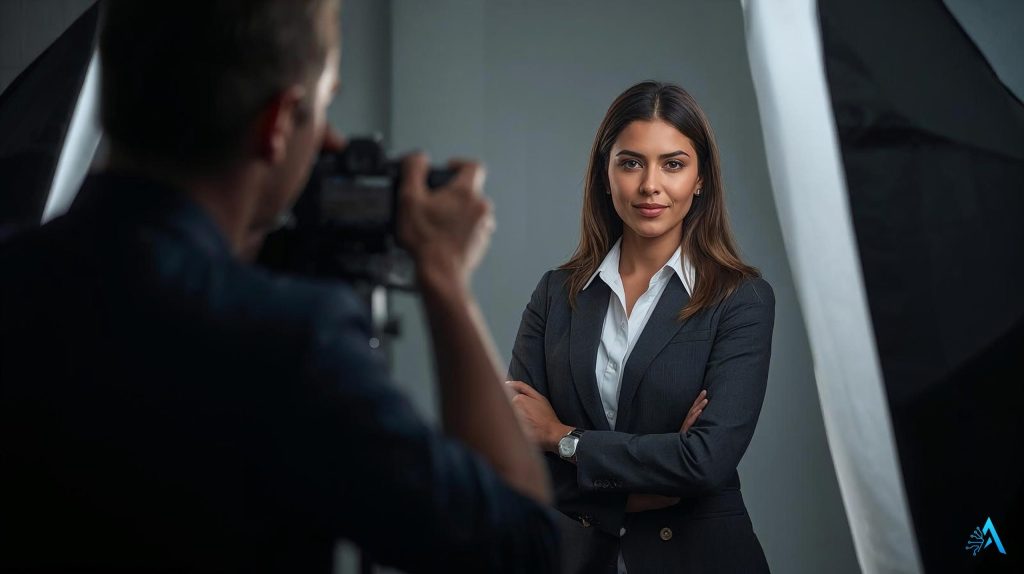
If you’ve been scrolling LinkedIn lately, you’ve probably noticed something: profile photos are looking sharper, more professional, and more consistent than ever. That’s no coincidence — AI headshots for LinkedIn are becoming one of the fastest-growing ways to upgrade your personal brand.
Professionals are using AI headshots because they save money and time compared to booking a photographer. You can generate dozens of photo variations in minutes, experiment with styles, and choose the one that fits your industry best. For remote workers or job seekers, this means looking polished without leaving your home office.
Even LinkedIn itself emphasizes the importance of a great profile picture for engagement and credibility (see LinkedIn’s official advice). By using AI headshots thoughtfully, you stand out in searches, attract more profile views, and make a strong first impression before anyone even reads your headline.
4. Step-by-Step: Creating Your AI Headshot Safely
Creating AI headshots for LinkedIn doesn’t have to feel risky or complicated. Follow these simple steps to get a professional, safe result:
Choose a Trusted Tool
Start with a reliable generator like Generated Photos or Fotor AI Headshot. Check that they have clear privacy policies and allow you to delete your data later.Prepare Your Photos
Upload 8–10 selfies in good lighting, showing your face from multiple angles. Avoid filters, hats, or anything that hides facial features — this helps the AI create realistic results.Select a Professional Style
Choose a neutral background and business-appropriate outfit. LinkedIn profiles perform better with clean, approachable looks.Generate and Review
Wait a few minutes while the AI processes your images. Review all generated headshots and pick the most natural, authentic-looking option.Download in High Resolution
Always download the largest file size available. This ensures your profile photo looks crisp on desktop and mobile.Double-Check Privacy Settings
Once you’re happy with the result, request deletion of your training photos if the platform offers that option. This is a good habit for data security.
By following these steps, you get professional results while keeping your data safe — perfect for building trust with recruiters and clients.
5. Tips to Make AI Headshots Look Realistic
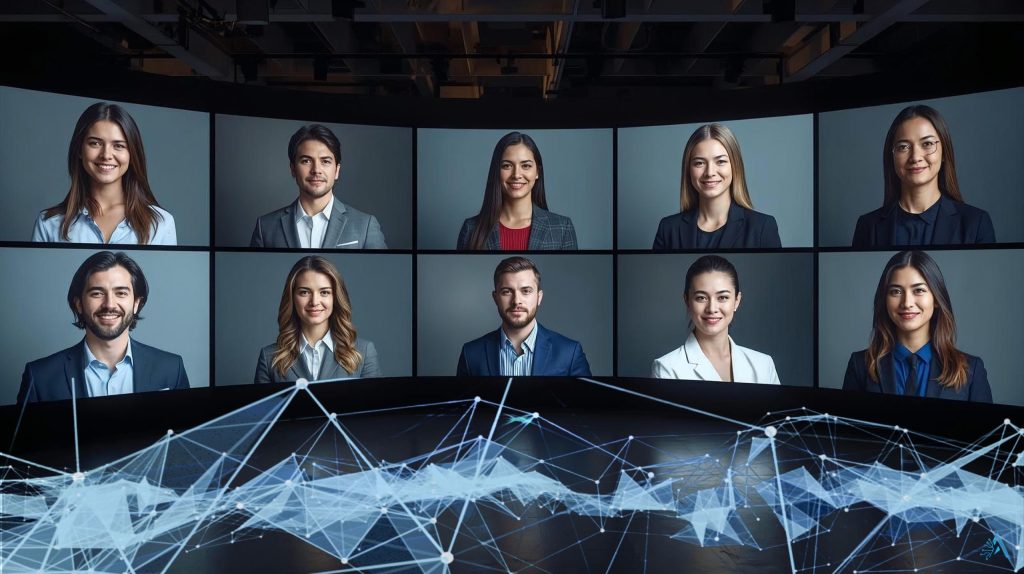
Getting AI headshots for LinkedIn is only half the job — the real trick is making them look natural, professional, and trustworthy. Here are the most effective tweaks to turn a good AI headshot into a great one.
Focus on Natural Lighting
When uploading your source images, use daylight or soft indoor lighting. Bright, even light helps the AI recreate your features accurately and avoid harsh shadows.
Keep Your Expression Approachable
A slight smile works better than a forced grin or a blank stare. A friendly, confident look builds trust with recruiters and connections.
Dress for Your Industry
Choose an outfit you’d actually wear to a client meeting or interview. This keeps your AI headshots aligned with how people will see you in real life.
Pick a Neutral Background
Clean, uncluttered backgrounds look more professional and help you stand out. If the AI generator allows, choose light gray, soft white, or blurred office settings.
Crop for LinkedIn’s Frame
LinkedIn profile photos are circular, so make sure your head is centered with a bit of space above. This avoids awkward cropping and keeps the image balanced.
Check for AI Artifacts
Zoom in before uploading to LinkedIn. Look for strange ears, mismatched eyes, or warped jewelry — common issues with some AI generators. If you spot them, regenerate or retouch.
Well-optimized AI headshots for LinkedIn make your profile look credible and click-worthy — giving you an edge in searches, connection requests, and recruiter outreach.
Want to go one step deeper? LinkedIn shares a simple set of tips for taking a professional profile photo — including lighting, framing, and looking approachable. Official resource here: LinkedIn profile picture tips.
6. Common Mistakes to Avoid (Uncanny Valley Effect)
Even the best AI headshots for LinkedIn can go wrong if you’re not careful. Here’s how to spot and fix the most common issues before they hurt your professional image.
Overly Smooth Skin
Some AI generators make your face look airbrushed or “plastic.” Regenerate or add subtle texture in an editor to keep it human.
Mismatched Eyes or Ears
Check that both eyes look in the same direction and ears are symmetrical. If not, rerun the generator with better source photos.
Unrealistic Clothing or Accessories
Sometimes AI adds strange collars, blurry glasses, or mismatched earrings. Choose a tool that allows you to customize outfits or try another generation.
Bad Backgrounds
Avoid overly busy or unrealistic settings. A plain, professional background works best for LinkedIn.
Lighting Inconsistencies
Look for shadows falling in opposite directions or strange highlights. Fix by using source images with consistent lighting.
By catching these details early, you make sure your AI headshots for LinkedIn stay professional and don’t slip into the “uncanny valley” that makes people scroll past your profile.
7. Privacy and Safety – What to Watch Out For
When using AI headshots for LinkedIn, privacy is just as important as the final image. You’re uploading personal photos, so it’s smart to know where they go and how they’re stored.
Read the Privacy Policy
Choose tools that clearly state whether they keep your photos for training or delete them after processing. Look for GDPR compliance and data deletion requests.
Avoid Unknown Platforms
Stick with reputable services. Free tools from unknown developers can store your face data indefinitely or use it for marketing without consent.
Request Data Deletion
Once you have your AI headshot, request deletion of your training photos if possible. This is an essential step for keeping your personal data safe.
If you want a quick, practical checklist to lock things down beyond just the tool’s policy, we also put together a simple guide on how to stop AI features from reading your private data.
You can also check our AI Privacy Guide for step-by-step settings to keep your data safe across multiple AI tools. For extra reading, LinkedIn itself has a privacy and security section that explains how they handle profile data.
Taking these precautions ensures your AI headshots for LinkedIn not only look professional but also protect your digital identity.
8. Recommended AI Tools
Ready to create or upgrade your AI headshots for LinkedIn? These are the two tools we recommend most — one is free to get started, the other is privacy-focused and perfect for professional branding.
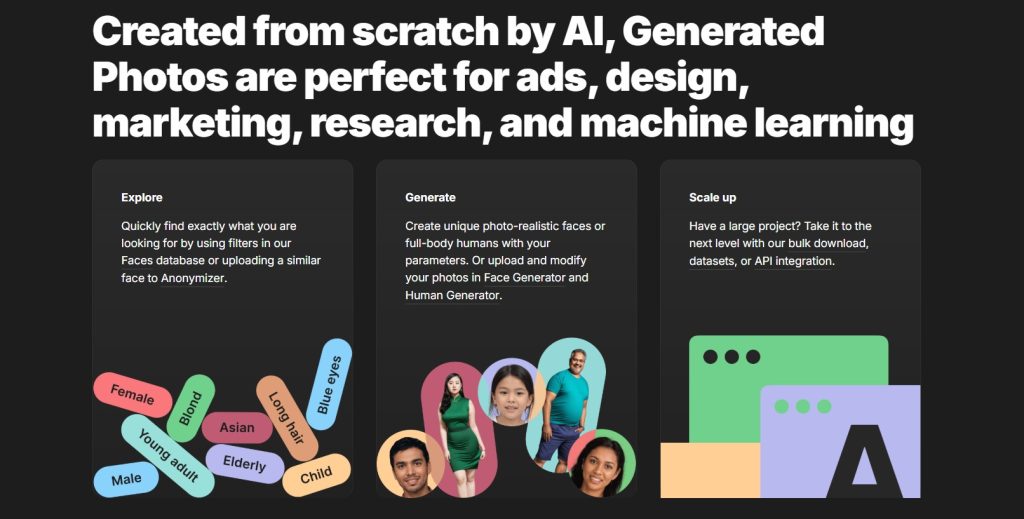
Generated Photos – Free & Simple
What it does: Lets you generate or choose from millions of AI-created faces. You can adjust age, ethnicity, expression, and download individual photos.
Best for: Beginners who want to experiment without spending money.
Pricing:
Free tier: Yes — includes basic downloads
Pro plans: Paid options available for bulk downloads and API access
Why we like it: Fast, simple, and accessible. Ideal if you need a quick LinkedIn headshot and don’t want to invest yet.
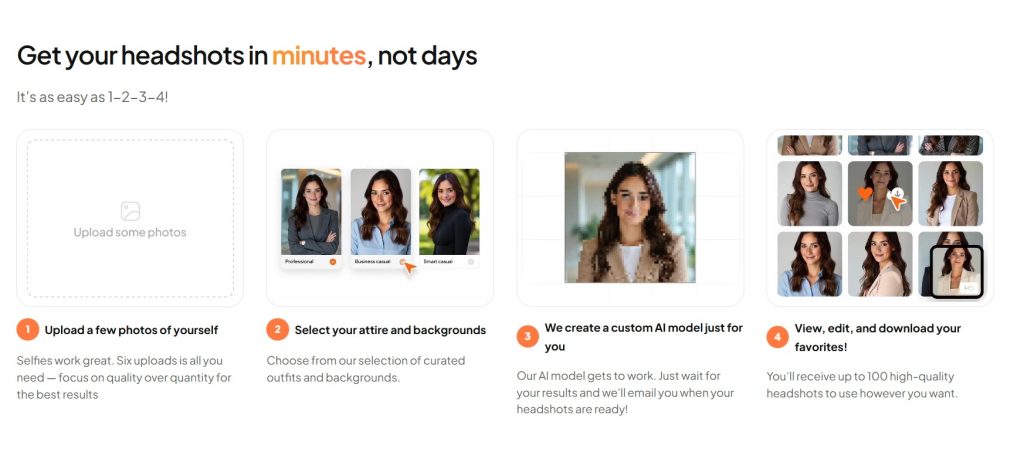
Aragon AI – Premium, Privacy-Focused
What it does: Creates ultra-realistic, studio-quality AI headshots from your photos. Offers multiple outfits, backgrounds, and the option to delete your data.
Best for: Professionals, job seekers, and creators who need polished results for branding or resumes.
Pricing (One-Time):
Starter: ~$35 – around 20 AI headshots
Basic: ~$45 – around 60 AI headshots
Premium: ~$75 – around 100 AI headshots, faster turnaround
Why we like it: High-quality results, excellent realism, strong privacy policy, and commercial usage rights included.
| Tool | Best For | Price | Key Strength |
|---|---|---|---|
| Generated Photos | Casual users, free trials | Free (optional upgrades) | Huge library, instant download |
| Aragon AI | Professionals, privacy-focused users | $35–$75 one-time | Studio-quality, customizable results |
By choosing one of these tools, you get professional, safe, and polished AI headshots for LinkedIn — whether you start free or invest in premium results.
9. Ethical AI Reflection – Profile Authenticity & Bias
Using AI headshots for LinkedIn is a smart way to look polished, but it also raises a few important questions about authenticity and fairness.
Stay True to Your Real Self
An AI headshot should still look like you on a normal workday. Avoid drastically changing your appearance or using overly idealized versions — this can create trust issues when you meet recruiters or colleagues in person.
Watch Out for Bias
AI models are trained on huge datasets, and sometimes those datasets reflect narrow beauty standards or biases. If you notice your generated headshots consistently lighten your skin tone, change facial features, or alter age appearance, consider adjusting the tool’s settings or choosing a platform that prioritizes diverse, inclusive datasets.
Transparency Matters
While you don’t need to label your profile photo as “AI-generated,” being mindful of how much you alter your image is part of professional integrity. The goal is to look approachable and credible, not unrecognizable.
Reflecting on these points helps ensure your AI headshots for LinkedIn work for you — boosting confidence and professionalism — without crossing into misleading territory.
10. FAQ – AI Headshots for LinkedIn
Are AI headshots good for LinkedIn profiles?
+Yes, AI headshots for LinkedIn are professional when done correctly. Studies show LinkedIn profiles with professional photos get 21x more profile views and 36x more messages than profiles without photos.
Free AI headshot generators like Generated Photos, Fotor AI Headshot Generator, and Aragon AI create realistic AI profile pictures that pass the professional appearance test. The key is choosing tools that avoid uncanny valley effects - robotic eyes, overly smooth skin, weird lighting, or unnatural backgrounds.
Quality AI headshots for LinkedIn should show professional attire, neutral background, natural lighting, and genuine facial expressions. When created with attention to realism, AI-generated LinkedIn photos are indistinguishable from traditional headshots and significantly cheaper than $200-500 professional photography sessions.
Is it OK to use AI-generated photos on LinkedIn?
+Using AI headshots for LinkedIn is acceptable and increasingly common, with 71% of professionals now using AI-generated profile pictures. LinkedIn's terms of service don't prohibit AI-generated images, but they require profile photos to represent you authentically.
Best practices for AI headshot safety and ethics:
- Use your real face as the base photo when training the AI (don't create a completely fictional person)
- Ensure the AI headshot genuinely resembles you
- Disclose AI usage if asked directly by connections or employers
- Choose realistic AI profile pictures over heavily edited versions
Avoid deepfakes or misleading representations. The goal is professional enhancement, not deception. Many recruiters and hiring managers now accept AI headshots for LinkedIn as standard professional practice.
What is the best free AI headshot generator for LinkedIn?
+The best free AI headshot generator depends on your needs:
- Generated Photos - 100% privacy-safe AI headshots for LinkedIn without uploading real photos (ideal for AI headshot safety concerns)
- Fotor AI Headshot Generator - Most realistic AI profile pictures with free daily credits, perfect for testing before committing
- Aragon AI - Professional LinkedIn-style headshots with 40 variations per session (small paid tier for best results)
For completely free options, try ProfilePicture.ai (limited free generations) or RemoteRoo AI Headshots (watermarked free tier). When comparing free AI headshot generators, prioritize realistic output, privacy protection, commercial usage rights, and natural-looking results over quantity of variations.
How do I make my AI headshot look realistic for LinkedIn?
+To create realistic AI profile pictures for LinkedIn, follow these LinkedIn photo tips:
- Use high-quality source photos with good lighting and clear facial features (AI headshots for LinkedIn work best with 5-10 diverse input photos)
- Choose professional attire that matches your industry - business formal for corporate, business casual for tech/creative
- Select neutral or office backgrounds, never exotic or distracting settings
- Ensure natural eye contact and genuine expressions - forced smiles look fake
- Check for AI artifacts like asymmetrical earrings, weird hair strands, distorted hands, or unrealistic skin texture
Use AI headshot generators that offer style customization (studio lighting, outdoor natural, office setting). Test multiple variations and get honest feedback from trusted connections.
The most realistic AI headshots for LinkedIn balance professional polish with natural imperfections - avoid overly perfect skin or symmetrical features that trigger uncanny valley reactions.
Can recruiters tell if your LinkedIn photo is AI-generated?
+Experienced recruiters can sometimes spot poorly-made AI headshots for LinkedIn, but high-quality realistic AI profile pictures are nearly impossible to detect.
Common tells that give away fake AI headshots: perfectly symmetrical faces, unnaturally smooth skin without pores or texture, robotic or glassy eyes lacking light reflections, weird artifacts in hair or clothing patterns, impossible lighting that doesn't match the background, and hands or accessories with distorted proportions.
Quality free AI headshot generators like Fotor AI Headshot Generator and Aragon AI have largely eliminated these issues. To pass professional scrutiny, use AI headshots that retain natural imperfections, show realistic skin texture, have catchlights in eyes, and match your actual appearance.
Following LinkedIn photo tips about professional attire and appropriate backgrounds also helps. Most recruiters care more about professionalism and authenticity than whether the photo was taken by a camera or generated by AI.
Are AI headshots safe? What about privacy risks?
+AI headshot safety depends entirely on which free AI headshot generator you choose. Major concerns include biometric data collection, facial recognition database building, unauthorized commercial use of your face, and data breaches exposing your photos.
Safe options for AI headshots for LinkedIn:
- Generated Photos - Creates synthetic faces without storing your real photos (highest privacy)
- Fotor AI Headshot Generator - Encrypts uploads and deletes source images after 24 hours
- Aragon AI - SOC 2 compliant with GDPR protections
Red flags indicating unsafe AI headshot generators: no privacy policy, free unlimited generations (monetizing your data), no clear data retention policy, offshore servers in countries without data protection laws, and requesting excessive permissions.
Before uploading photos, check privacy policies, use tools with transparent data handling, enable two-factor authentication, and never use free AI headshot generators that don't explain how they use your images. For maximum AI headshot safety, consider paid tools with stronger legal protections.
How much do AI headshots cost compared to professional photography?
+AI headshots for LinkedIn cost $0-$35 versus $200-500 for traditional professional headshot sessions.
Free AI headshot generators include Generated Photos (completely free, synthetic faces), Fotor AI Headshot Generator (3-5 free daily credits), and ProfilePicture.ai (limited free tier with watermarks).
Mid-tier AI headshot options: Aragon AI ($29 for 40 professional variations), HeadShot Pro ($29 for studio-quality results), and Remini ($9.99/week for realistic AI profile pictures).
Premium services: Secta.ai ($49 for 300 AI headshots), StudioShot ($35 one-time), and PFPMaker ($8.99).
Traditional photography includes session fees, outfit changes, location costs, editing, and retouching. AI headshots for LinkedIn provide instant results, unlimited retakes, multiple styles, and convenient updates whenever needed. ROI favors AI significantly: spending $30 yearly on AI headshots versus $300 yearly for updated professional photos saves $270 while maintaining professional LinkedIn presence.
What are common mistakes when creating AI headshots for LinkedIn?
+The biggest mistakes with AI headshots for LinkedIn include choosing unrealistic styles that trigger uncanny valley effects. Avoid overly glamorous or model-like photos that don't match your professional role.
Don't use dramatic lighting, exotic backgrounds, or fashion-forward attire unless your industry specifically requires it. Never create AI-generated faces that look nothing like you - realistic AI profile pictures should genuinely resemble your appearance.
Technical mistakes when using free AI headshot generators:
- Uploading low-quality source photos (blurry, poorly lit, or small resolution)
- Using only one reference photo (5-10 diverse angles produce better AI headshots for LinkedIn)
- Ignoring age appropriateness (making yourself look 20 years younger)
- Choosing inconsistent styles across multiple platforms
- Failing to check for AI artifacts like distorted hands, weird earrings, or unnatural hair
Follow LinkedIn photo tips: professional attire, neutral background, genuine expression, appropriate for your industry, and updated to match your current appearance.
Do I need to disclose that my LinkedIn photo is AI-generated?
+LinkedIn's terms don't explicitly require disclosure for AI headshots for LinkedIn, but ethical best practices suggest transparency when directly asked. Most professionals using realistic AI profile pictures don't proactively announce it, treating AI-enhanced photos like traditional professional photography with retouching.
When disclosure makes sense: job applications to roles with strict authenticity requirements, networking with people who explicitly value transparency, industries with heightened ethics standards (journalism, academia, government), and any situation where someone directly asks about your photo.
You don't need to label your profile "I used an AI headshot generator," but don't lie if asked directly. The key ethical consideration for AI headshots for LinkedIn is that the photo genuinely represents your real appearance - it's professional enhancement, not creating a fake identity.
As AI headshot safety and authenticity become standard concerns, transparent practices build trust. Most career coaches now advise: use quality free AI headshot generators like Fotor AI Headshot Generator or Aragon AI, ensure realistic results, and be honest if transparency matters to your network.
How often should I update my AI headshot on LinkedIn?
+Update your AI headshots for LinkedIn every 12-18 months or whenever your appearance changes significantly (new hairstyle, glasses, facial hair, or 15+ pound weight change). LinkedIn photo tips recommend keeping your realistic AI profile picture current so connections recognize you at in-person events and video calls.
Benefits of AI headshot generators for regular updates: free updates with tools like Generated Photos and Fotor AI Headshot Generator, instant results without scheduling photography sessions, consistent professional quality across updates, and ability to test multiple styles before publishing.
Optimal update schedule:
- Refresh AI headshots for LinkedIn when starting job searches (3-6 months before)
- After major appearance changes (immediately)
- Before important networking events (2-4 weeks prior)
- Annually for active LinkedIn users
Unlike traditional $300 photography sessions that discourage frequent updates, free AI headshot generators make it practical to maintain current, professional photos. Set calendar reminders to review your photo quarterly and update when needed to ensure AI headshot safety through current, authentic representation.
🚀 Level Up Your AI Professional Toolkit
Your professional LinkedIn headshot is ready. Now discover the AI tools that will transform your entire workflow, deepen your expertise, and future-proof your career: