
 Published on: October 20, 2025
- 1. Introduction – Why Coda AI Matters for Modern Teams
- 2. Mistake #1 – Treating Coda AI Like a Simple Document App
- 3. Mistake #2 – Poor Data Structure and No Workflow Logic
- 4. Mistake #3 – Not Using Integrations and AI Blocks
- 5. How to Fix and Optimize Your Team Workflow in Coda AI
- 6. Coda AI vs Competitors – Why It’s Worth Learning Right
- 7. Ethical AI Reflection – Balancing Automation and Human Control
- 8. Frequently Asked Questions About Coda AI
Disclosure:
Some links in this post are affiliate links. If you click and purchase, we may earn a small commission at no extra cost to you. Thank you for supporting AIDigitalSpace.com and helping us keep this content free and useful.
1. Why Coda AI Matters for Modern Teams
Coda AI is quickly becoming one of the most talked-about productivity tools in 2025 — and for good reason. Many teams start using it expecting “just another document app,” but soon realize it’s a full AI-powered workspace that can automate tasks, generate insights, and connect every part of your workflow. What often goes wrong isn’t the tool itself — it’s how we use it. Understanding Coda AI the right way can transform scattered team habits into a streamlined, intelligent system that actually saves time instead of adding complexity.
At AI Digital Space, we’ve seen how teams struggle to adapt new AI tools into their daily flow. They install it, play with templates, then get stuck between docs, dashboards, and half-working automations. That’s exactly why we’re breaking down the three most common Coda AI mistakes and showing how to fix them — based on real issues users are talking about on platforms like VentureBeat. If you’ve read our guides on Taskade AI or Notion AI you already know that adopting an AI productivity tool isn’t about learning shortcuts — it’s about building smarter routines that actually last.
If your team wants to stop losing time and start working smarter, it’s worth giving a proper setup from the start. Done right, it can become the central hub for your projects, automations, and creative decisions — all without coding a single line.
2. Mistake #1 – Treating Coda AI Like a Simple Document App
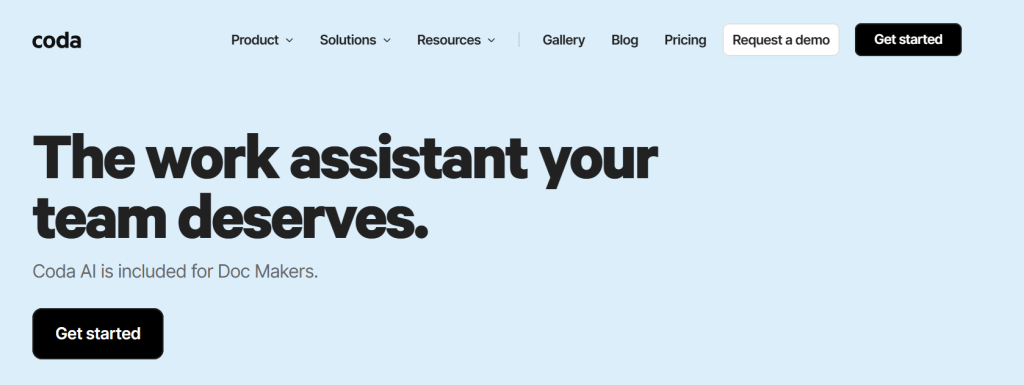
One of the biggest mistakes teams make with Coda AI is using it like a traditional document tool — a prettier version of Google Docs or Notion. But that mindset kills its real power. It isn’t just for writing notes; it’s an all-in-one operating system that merges data, documents, and automation under one roof. When teams ignore this and treat it as another “shared doc,” they end up with cluttered pages, duplicated info, and zero automation value.
Coda AI was designed to think like a database and act like a workspace. That means every page, table, or automation can talk to each other. Instead of typing meeting notes, you can link them to your project tracker, automate task assignments, or even let Coda’s AI summarize key points. The difference becomes clear when you compare it with tools like Notion or ClickUp — both strong, but less connected in automation depth.
| Tool | Main Use | Automation Level | AI Integration |
|---|---|---|---|
| Coda AI | All-in-one workspace combining docs, databases, and automation | Advanced | Built-in AI assistant, task and workflow automation |
| Notion AI | Notes, wikis, and lightweight project management | Moderate | Text generation and organization support |
| ClickUp | Task management and productivity tracking | High (manual setup) | AI add-on for summaries and reports |
When you embrace Coda’s database-style logic, every project becomes more structured. Tasks update automatically, reports pull from real data, and meetings become action-oriented. Our take? Once teams realize Coda AI isn’t a document — it’s a system — productivity often doubles within weeks.
If you’re ready to unlock its real potential, try and explore the workflow templates built for automation-minded teams.
3. Mistake #2 – Poor Data Structure and No Workflow Logic
Another common mistake teams make with Coda AI is skipping the structure phase — jumping straight into pages and notes without setting a clear data logic. This often leads to cluttered tables, duplicated rows, and confusion about what’s updated or linked. Unlike static apps, Coda AI works best when every document is treated as part of a connected system.
Think of it like this: your Coda AI workspace is a living database. Every task, project, and meeting note can (and should) be connected. When that structure is missing, teams waste time searching for information instead of acting on it. The solution is to define relationships early — for example, link tasks to goals, goals to owners, and owners to departments. Coda’s AI can then analyze data, generate summaries, and suggest improvements automatically.
At AI Digital Space, we noticed that once teams use structured templates — for instance, project trackers or KPI dashboards — the difference is immediate. Instead of a collection of scattered pages, they have a single, intelligent source of truth. You can even generate a clean workflow logic with one prompt, saving hours of manual setup.
If your workspace already feels messy, try starting fresh with a well-built template inside Coda AI. It will organize your data, automate repetitive updates, and give your team clarity from day one. For more guidance, our post on Taskade AI shows how structured planning multiplies productivity when paired with the right AI logic.
4. Mistake #3 – Not Using Integrations and AI Blocks

Many teams underestimate how powerful Coda AI becomes when it’s fully connected. They use it in isolation — writing notes, creating lists, maybe adding a few formulas — but stop there. That’s like buying a smartphone and never installing any apps. The real strength lies in its integrations, called Packs, and its smart automation modules known as AI Blocks.
Packs let Coda AI talk directly with tools your team already uses: Slack, Gmail, Zoom, or even project trackers like ClickUp and Trello. Once connected, your pages stop being static documents and start becoming live dashboards. For example, you can create a task in Coda that automatically updates in ClickUp, sends a message to your Slack channel, and logs the update in your meeting notes — all without manual work. This is where truly outperforms traditional note-based apps like Notion or Evernote.
The same goes for AI Blocks — they handle repetitive actions like summarizing updates, reformatting reports, or generating weekly progress recaps. These automations help reduce context switching and ensure that your team spends more time deciding and less time typing. For deeper automation strategies, our detailed post on Bardeen AI shows how browser-level automation complements Coda AI perfectly.
If you haven’t explored integrations yet, it’s time. Start small — connect one Pack, automate one workflow, and build from there. You’ll quickly see how can act as your central hub for everything your team already does, making your workspace finally feel alive.
5. How to Fix and Optimize Your Team Workflow in Coda AI
Now that we’ve covered the main mistakes, let’s focus on how to fix them. The good news is that Coda AI was built to simplify collaboration — not complicate it. When set up with clear goals, structure, and automation, it becomes one of the most efficient productivity systems available.
Here’s a step-by-step way to optimize your workflow with Coda:
1. Start with a goal, not a page.
Before you open a new doc, define what your team actually needs: task tracking, client reports, or internal collaboration. This helps you choose or build the right structure.
2. Use templates as a foundation.
Coda’s built-in templates save time and reduce setup errors. You can then personalize them with AI Blocks for summaries, task automation, and auto-generated reports.
3. Connect your favorite tools.
Integrate Slack, Gmail, or ClickUp through Packs so that Coda AI updates everything in real time. Our post on Taskade AI shows how connected tools keep teams focused and prevent duplicated effort.
4. Let AI handle routine work.
Automate repetitive tasks — like meeting recaps or KPI reports — with Coda’s built-in AI assistant. This not only saves time but improves consistency across the entire team.
5. Keep improving through insights.
Use Coda’s analytics and AI suggestions to spot workflow bottlenecks or data gaps. Over time, the system gets smarter, helping you refine how your team works.
Our experience at AI Digital Space shows that once teams make these small changes, their productivity rises quickly. The combination of structure, automation, and AI-powered insights makes it not just another tool — but the foundation of an intelligent, self-updating workspace.
6. Coda AI vs Competitors: Why It’s Worth Learning Right
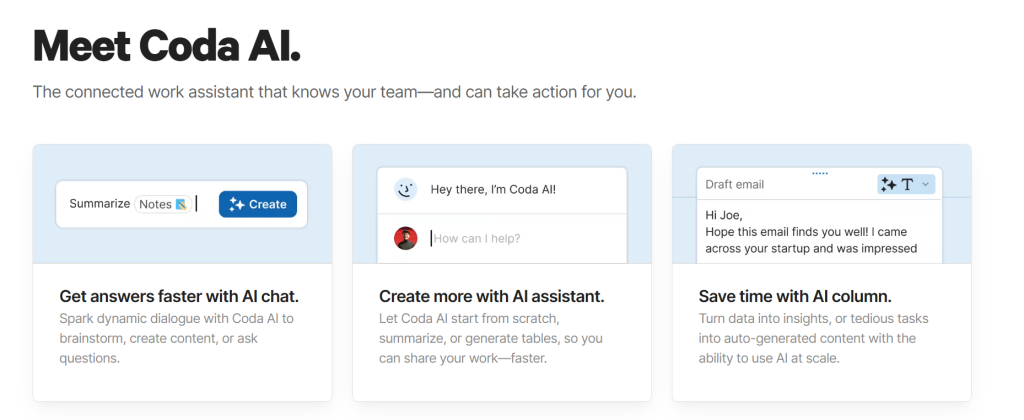
When teams compare Coda AI with other productivity tools like Notion or ClickUp, they often assume the differences are minor. But the gap becomes huge once you start using automations and data logic. Coda AI doesn’t just organize information — it connects and acts on it. That’s what makes it so valuable for businesses that want to move faster without adding complexity.
Notion excels in aesthetics and note-taking, and ClickUp is great for pure task management. Yet, it sits in the middle — it can act as both your documentation system and your automated command center. Once configured correctly, it eliminates redundant apps, merges team data, and lets AI generate daily summaries, reports, or even client updates.
| Tool | Best For | Automation Power | AI Features | Pricing Insight |
|---|---|---|---|---|
| Coda AI | Automated team workflows and connected documents | ★★★★★ | Built-in AI assistant + smart automation logic | Free plan, paid from ~$10/month per user |
| Notion AI | Creative planning, content writing, personal knowledge | ★★★☆☆ | AI writing, summaries, and idea generation | Free plan, paid from ~$8/month |
| ClickUp | Project management and task tracking at scale | ★★★★☆ | AI add-on for docs, summaries, and team insights | Free plan, paid from ~$7/month |
Users who take time to structure Coda AI correctly end up replacing multiple tools — docs, spreadsheets, and even parts of project management suites. It’s the kind of platform that rewards patience: learn it once, and it will keep saving your team time every single day.
If you’re comparing your options, start with the free plan of Coda AI and build one automation that replaces a manual process. Once you see the impact, you’ll understand why so many teams are switching — not because it’s trendy, but because it actually works.
7. Ethical AI Reflection: Balancing Automation and Human Control
The rise of Coda AI and other productivity tools reminds us of something essential — automation should serve people, not replace them. It’s easy to get excited about saving time and streamlining workflows, but every automation still needs human judgment behind it. Data doesn’t tell the full story — context, empathy, and decision-making still belong to us.
At AI Digital Space, we believe responsible automation is about balance. When teams rely on AI to summarize, analyze, or plan, they should also review and interpret results with human awareness. This keeps work ethical and transparent — especially when multiple people depend on those automated outputs. It can support teamwork beautifully, but it’s up to us to ensure it reflects real human goals, not just algorithmic logic.
If you’re building or managing workflows with AI tools, start thinking long-term: how can your automations empower creativity instead of replacing it? In our broader collection of AI Productivity Tools, we highlight ways to stay efficient while keeping ethical principles in mind — because smarter work should also mean more human work.
The future of AI productivity isn’t just faster or cheaper — it’s fairer, clearer, and more human-centered. That’s the approach we’ll keep promoting here at AI Digital Space.
8. Frequently Asked Questions About Coda AI
Q: What exactly is Coda AI used for?
A: Coda AI combines documents, databases, and automation in one tool. It’s used for project tracking, team collaboration, and automating daily tasks — all inside a single workspace. Unlike traditional document apps, it allows teams to build interactive systems that update automatically.
Q: Is Coda AI better than Notion or ClickUp?
A: Each tool has strengths. Notion is ideal for content and note organization, ClickUp shines in task management, while Coda AI excels at automation and data-driven workflows. Teams that need dynamic dashboards and connected logic often find it more powerful in the long term.
Q: Does Coda AI require coding skills?
A: No. That’s the beauty of it — Coda AI is completely no-code. You can build complex automations, reports, and dashboards simply by using templates or drag-and-drop blocks. It’s built for non-developers who want database-like control without writing a line of code.
Q: How secure is my data in Coda AI?
A: According to Coda’s official documentation, all data is encrypted in transit and at rest. You control workspace access and permission levels, so sensitive information stays private within your organization.
Q: Can I integrate Coda AI with other tools my team already uses?
A: Absolutely. Through Coda Packs, you can connect to Slack, Gmail, Zoom, Google Sheets, and even project tools like ClickUp. These integrations make Coda AI a true hub that automates updates across platforms.
Q: What’s the best way to start using Coda AI effectively?
A: Begin with a simple project tracker or meeting notes template. Then explore AI Blocks to automate repetitive actions such as weekly summaries or task updates. You can learn structured setup techniques in our full guide to AI Productivity Tools.
Q: Does Coda AI have a free plan?
A: Yes. Coda AI offers a generous free plan suitable for small teams. Paid tiers unlock advanced AI features, higher automation limits, and premium integrations — ideal as your workspace grows.
These FAQs cover what most users search for online — from security to integrations — making your Coda AI setup faster, smarter, and easier to scale.