

Mirko
AI Tech Writer
Your phone doesn't need a wake word to process audio in the background — some apps do it by default. If you want to stop AI apps from listening, the fix isn't one master switch. It's a short list of real settings on iOS 26 and Android 16 that most people never open. We reviewed the current privacy controls on both platforms to show you exactly where they live.
Some links are affiliate links · you support us at no extra cost · Full disclosure
1. Why Your Phone Listens More Than You Think
Most people don't realize how often their phones process audio in the background. On-device AI models now analyze sound to "improve recommendations" or "detect commands" — often without a clear prompt.
This is why so many people search for ways to stop AI apps from listening. The processing isn't always full recording. Instead, apps capture short micro-patterns — background noise, tone, keyword triggers — to feed personalization systems.
Here's why that matters if you want to stop AI apps from listening for good:
According to Google's developer documentation, background processes can run even when an app isn't open, unless permissions are manually restricted.
Meta AI, Google Gemini, and several third-party apps use similar mechanisms to detect voice prompts faster. That's part of why background audio requests have become more common on WhatsApp, Instagram, TikTok, and Chrome.
For extra context on how this connects to broader tracking, our guide on AI behavior tracking breaks down what apps learn beyond audio alone.
That's the foundation you need before you can effectively stop AI apps from listening app by app.
2. Signs an App Is Listening Without Permission
Before you try to stop AI apps from listening, it helps to spot the actual signals. Four patterns show up most often.
4 signs you need to stop AI apps from listening:
- Ads that feel too accurate. Mention a product out loud and see it advertised minutes later.
- Unexpected mic indicators. The orange/green dot on iPhone or the mic icon on Android showing up while idle.
- Faster battery drain. Audio processing runs on CPU even without active recording.
- Random assistant activation. Screens lighting up or captions appearing with no command given.
Both platforms log this activity. On iPhone, check Settings → Privacy & Security → App Privacy Report for a breakdown of which apps accessed the microphone and when. On Android, the equivalent is Settings → Privacy & Security → Privacy Dashboard.
Checking these dashboards is the fastest way to stop AI apps from listening before adjusting permissions app by app — which is exactly what Section 3 covers.
If several of these signs show up together, it's worth reviewing your permissions today. We cover more of these patterns in our guide on AI app permissions to check on your phone.
3. Quick Fixes: iOS 26 and Android 16 Settings
The fastest way to stop AI apps from listening is a short checklist on each platform. Here's the verified order to follow.
iPhone (iOS 26) — 3 Steps to Stop AI Apps From Listening
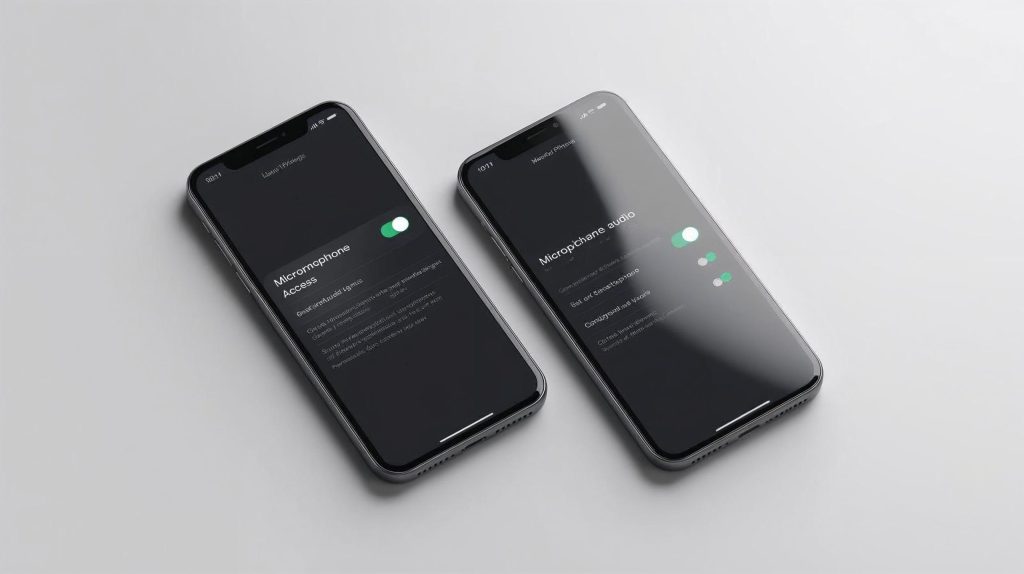
- Open Settings → Privacy & Security → Microphone and turn off access for any app that doesn't need it.
- Go to Settings → Siri & Search and disable "Listen for Hey Siri" if you don't use voice activation.
- Check Settings → Privacy & Security → App Privacy Report weekly to catch new mic requests.
Android (Android 16) — 3 Steps to Stop AI Apps From Listening
- Open Settings → Privacy & Security → Permission Manager → Microphone and set apps to "Allow only while using the app" or "Don't allow."
- Go to Settings → Google → Settings for Google apps → Search, Assistant & Voice → Voice Match and turn off "Hey Google" if unused.
- Review Settings → Privacy & Security → Privacy Dashboard for recent microphone activity.
Per Apple's official privacy documentation, per-app microphone access is the primary control layer on iOS — there's no separate "background AI" switch to hunt for. The same is true on Android.
If you want a browser-level check too, our guide to turning off AI features covers Chrome and Safari microphone site settings.
4. App-by-App Permission Checklist
The quick fixes handle the biggest risks fast. Long-term, the way to fully stop AI apps from listening is reviewing permissions app by app, not just system-wide.
Start with these categories
- Social apps — TikTok, Instagram, Facebook rarely need standing mic access outside of video recording.
- Browsers — Site-level microphone permissions are separate from OS settings and get missed often.
- Voice assistants — Siri, Google Assistant, and Meta AI listen for wake words by design unless disabled.
- Background refresh — On iPhone, Settings → General → Background App Refresh limits what runs when an app is closed.
If you keep using voice messages in one app, leave microphone access on just for that app and deny it everywhere else. That single change does more to stop AI apps from listening passively than any blanket toggle.
Both platforms also auto-reset unused permissions after months of inactivity — a useful backstop, not a substitute for a manual review. For a fuller walkthrough, see our AI app permissions guide.
5. Advanced Tools, Common Mistakes & Takeaways
System settings handle most of it. A few extra layers make it much easier to fully stop AI apps from listening, even when permissions alone aren't enough.
| Tool | Helps With | Try |
|---|---|---|
| Privacy VPN | Stops audio patterns pairing with your network identity | NordVPN |
| Tracker Blocker | Cuts ad networks that combine mic and browsing signals | AdGuard |
| Mic Blocker | Physically mutes the microphone port | Mic-Lock USB-C |
Mistakes That Undo Your Progress to Stop AI Apps From Listening
- Leaving voice assistants on "always listen for wake word" when you never use them.
- Fixing OS permissions but forgetting the browser's own site-level microphone settings.
- Trusting a privacy label without checking the actual permission list underneath it.
Per the Electronic Frontier Foundation, unnecessary app permissions are one of the most common ways background data collection persists even after users think they've locked things down.
The real fix isn't one setting — it's the combination of per-app permissions, a weekly dashboard check, and knowing which mistakes quietly undo your work. Do that once, and you'll stop AI apps from listening without losing the features you actually use.
FAQ: Stop AI Apps From Listening
Why does my phone randomly activate the microphone?
+Usually a voice assistant listening for a wake word, or an app with standing mic access. Check Settings → Privacy & Security → App Privacy Report on iPhone, or the Privacy Dashboard on Android, to see which app triggered it.
Can apps legally listen to conversations without permission?
+No. Apps must request microphone access through the OS before recording anything. This is why reviewing per-app permissions — not just trusting a privacy label — is what actually matters.
How do I see which apps used my microphone recently?
+iPhone: Settings → Privacy & Security → App Privacy Report. Android: Settings → Privacy & Security → Privacy Dashboard. Both show a timeline of microphone access.
Will turning off microphone access break my apps?
+Usually not. Most apps only need the mic for specific features like voice messages. If something stops working, you can re-enable access for that one app anytime.
Do Siri and Google Assistant always listen in the background?
+By default, both listen passively for their wake word. Turning this off significantly reduces background audio processing while keeping manual activation available.
Is a VPN enough to stop AI apps from listening?
+No. NordVPN protects network traffic and reduces profiling, but it doesn't control mic permissions — you still need to adjust device settings directly.
Does disabling Background App Refresh help with audio privacy?
+Yes. On iPhone, Settings → General → Background App Refresh stops closed apps from running processes, including audio ones. It's a useful supporting step, not a replacement for permission review.
What's the single most effective setting to change first?
+Reviewing per-app microphone permissions has the biggest immediate impact, since it directly controls which apps can access audio at all.
🔒 Keep Locking Down Your Privacy
You've got the core settings to stop AI apps from listening covered. These go further into permissions, tracking, and the tools worth adding next: