
Mirko
Founder & AI Tech Writer
AI headshots can give you a LinkedIn photo that looks studio-made, for free, in about 10 seconds. I know because I ran the test on my own selfie in ChatGPT and Gemini, and both results looked like me on the first try. Below are the exact prompts, my unedited results, and the one LinkedIn rule most AI headshots guides skip.
⚡ Short answer: Start free. Upload one clear selfie to ChatGPT or Gemini, paste a prompt that locks your face, and pick the most natural result. Pay for a service like Aragon only if you need dozens of poses, outfits or a matching team look. Never use a generated face that isn't yours: LinkedIn's rules require your own likeness.
🆕 What changed in this update (October 10, 2026)
- Rebuilt around my own hands-on test, with unedited results.
- Removed synthetic-face tools: LinkedIn requires your own likeness.
- Added the free ChatGPT and Gemini methods and a prompt builder.
- Corrected Aragon pricing and removed unverified stats and tools.
Some links are affiliate links · they support this site at no extra cost to you · Full disclosure
Are AI headshots allowed on LinkedIn?
Short answer: Yes, as long as the photo is you. LinkedIn's Professional Community Policies ban fake profiles and say not to use an image that isn't your likeness. AI headshots made from your own selfie fit that rule. A face invented by a generator, or one that no longer resembles you, doesn't.
This is the line most AI headshots lists blur. Some "privacy-safe" tools create a brand-new synthetic person, so you never upload your face. That sounds safe, but on LinkedIn it's the problem: LinkedIn's Professional Community Policies forbid fake profiles, and its profile guidance asks for a photo of you.
LinkedIn has a reason to enforce this. Stanford Internet Observatory researchers found more than 1,000 LinkedIn profiles using computer-generated faces, mostly for sales outreach, and LinkedIn removed most of them. A photo that trips the same checks can cost you trust, or your account.
Key idea: treat AI headshots like retouching, not costume. The test is simple: a recruiter who meets you on a video call should recognize you instantly.
My test: one selfie, two free AI headshots tools
Short answer: Both free tools worked on the first try, in about 10 seconds each. ChatGPT's result looked the most like me; Gemini's two results came close behind. I found no artifacts in any image and no visible watermark on my downloads. Neither tool needed more than one input photo.
I kept the setup deliberately ordinary: one phone selfie facing a window, plain wall, no filters or portrait mode. Then I ran the same corporate prompt in ChatGPT and Gemini, plus a business-casual prompt in Gemini. Here are the unedited results next to the original.
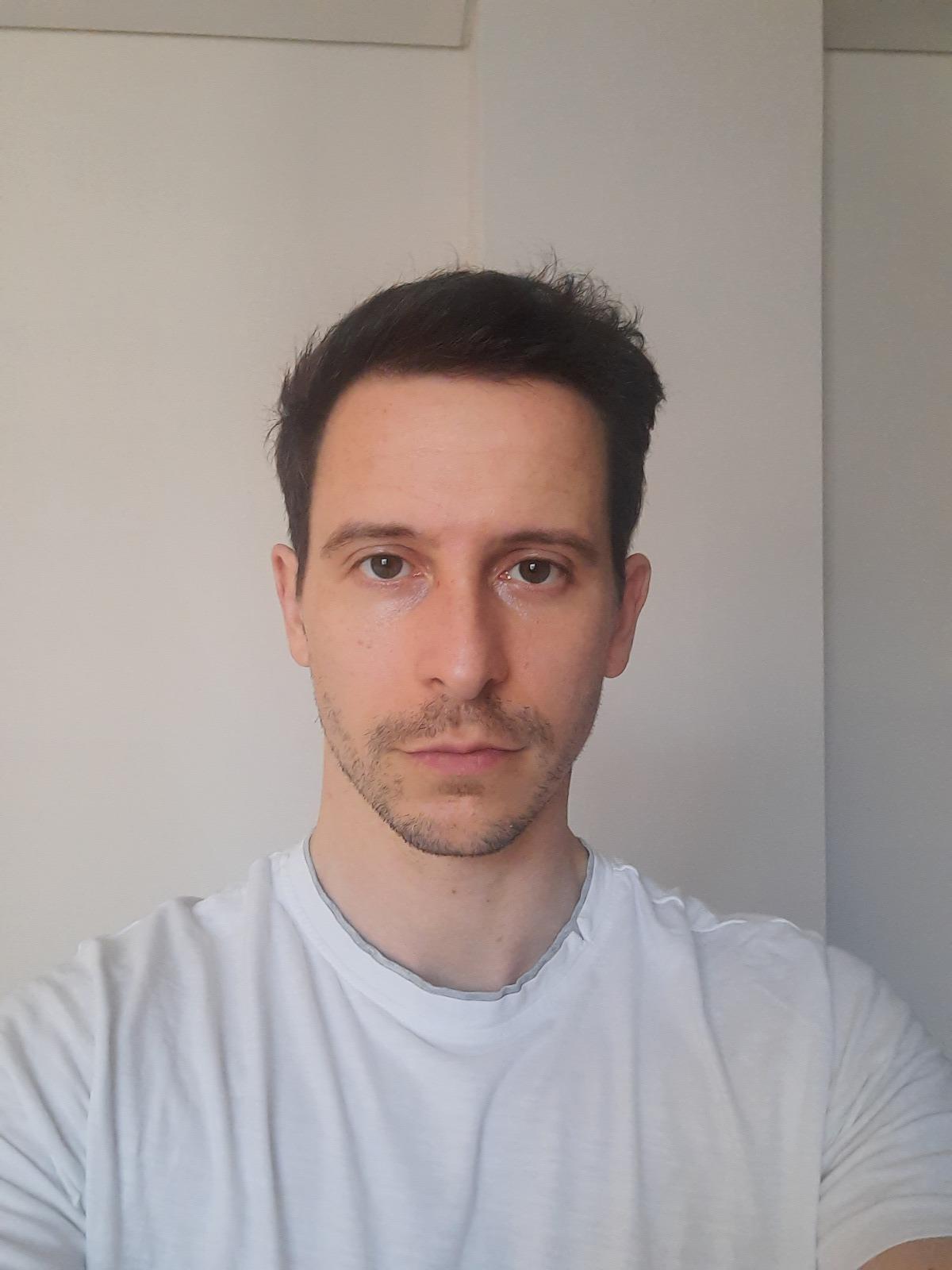
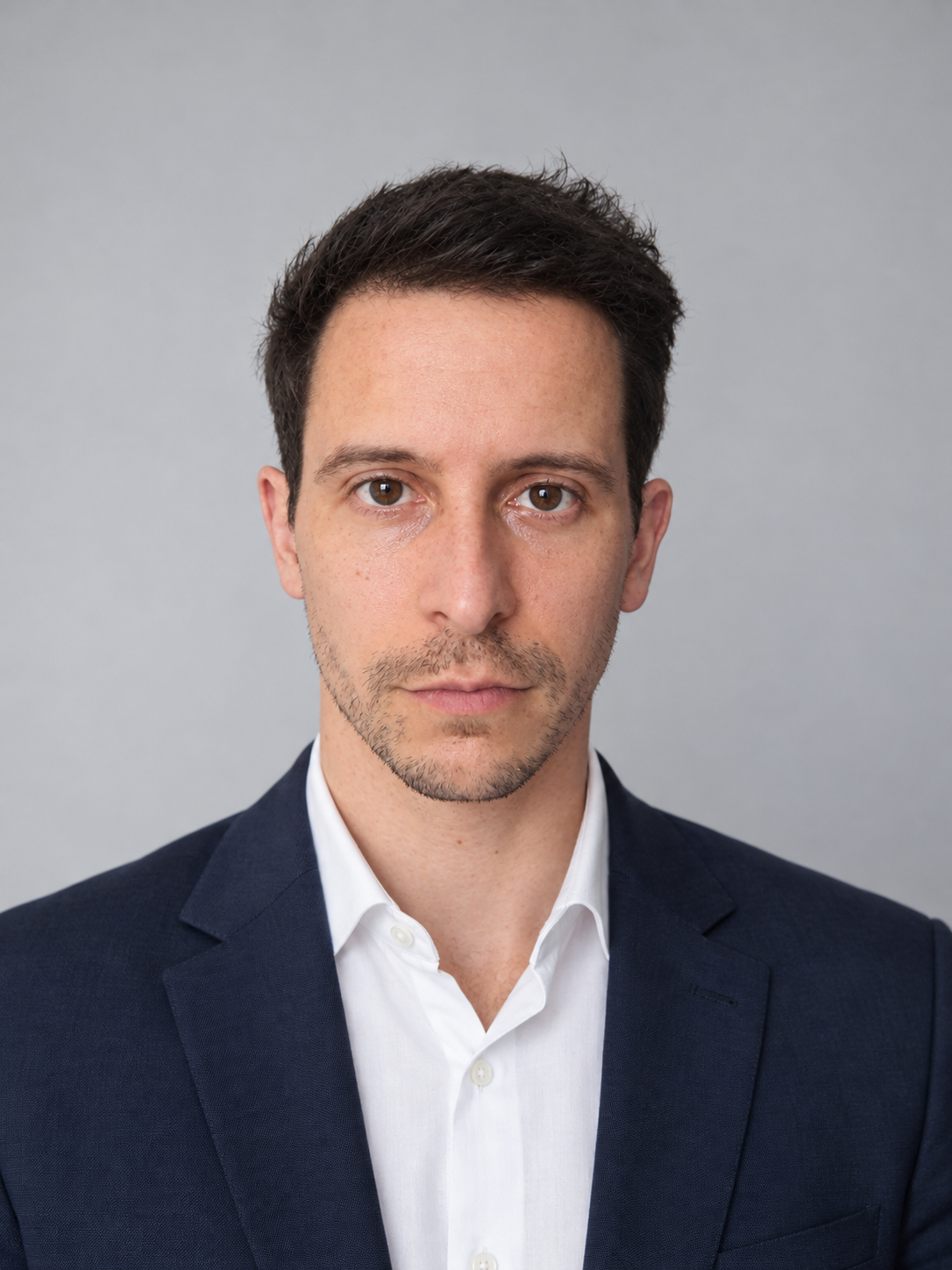
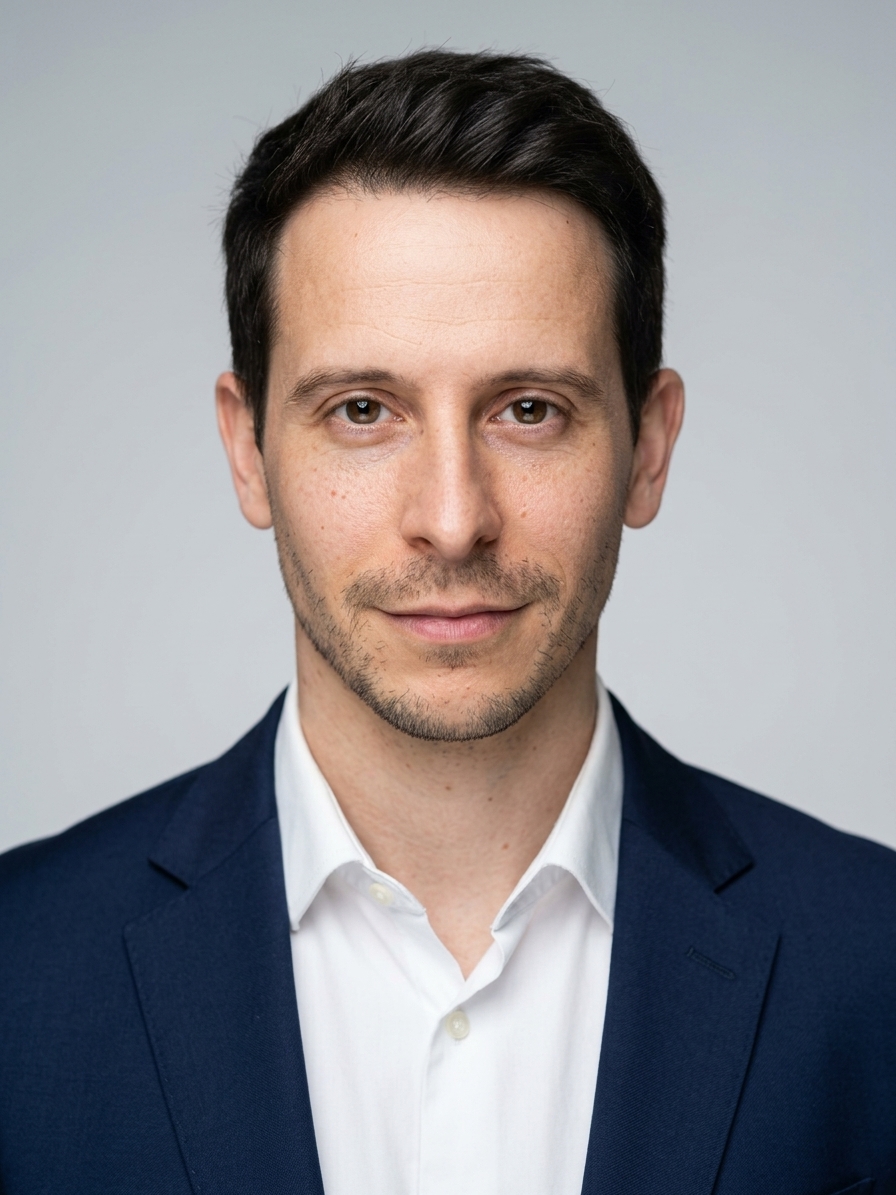
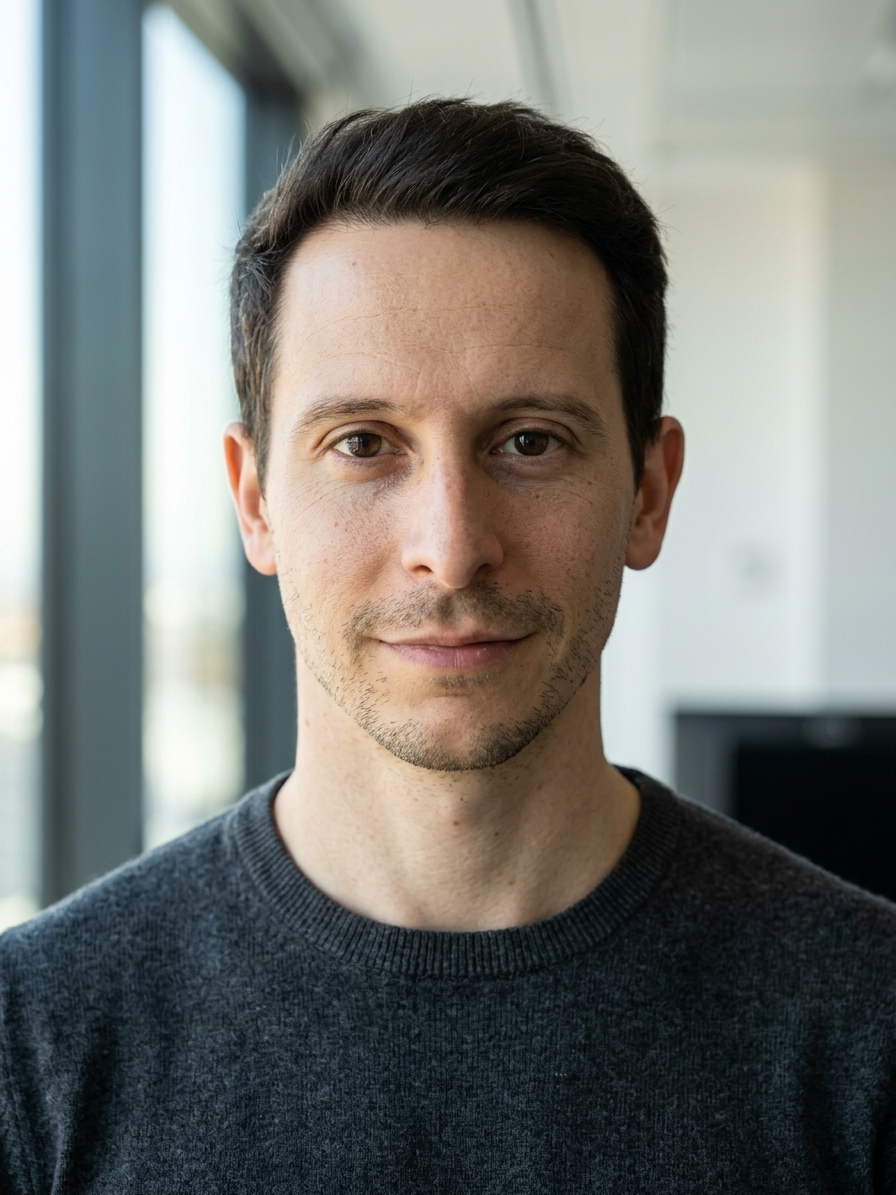
| Tool | Prompt | Tries | Time | Looked like me | Artifacts | Visible watermark |
|---|---|---|---|---|---|---|
| ChatGPT | Corporate | 1 | ~10 s | Almost identical | None | None seen |
| Gemini | Corporate | 1 | ~10 s | Close match | None | None seen |
| Gemini | Business casual | 1 | ~10 s | Close match | None | None seen |
Time is from upload to finished image, measured by me, and it will vary with server load. "Looked like me" is my own judgment, so treat it as one person's result, not a lab score. The bigger lesson for AI headshots: a good selfie mattered more than the tool. Both models kept my face because the input was sharp and evenly lit.
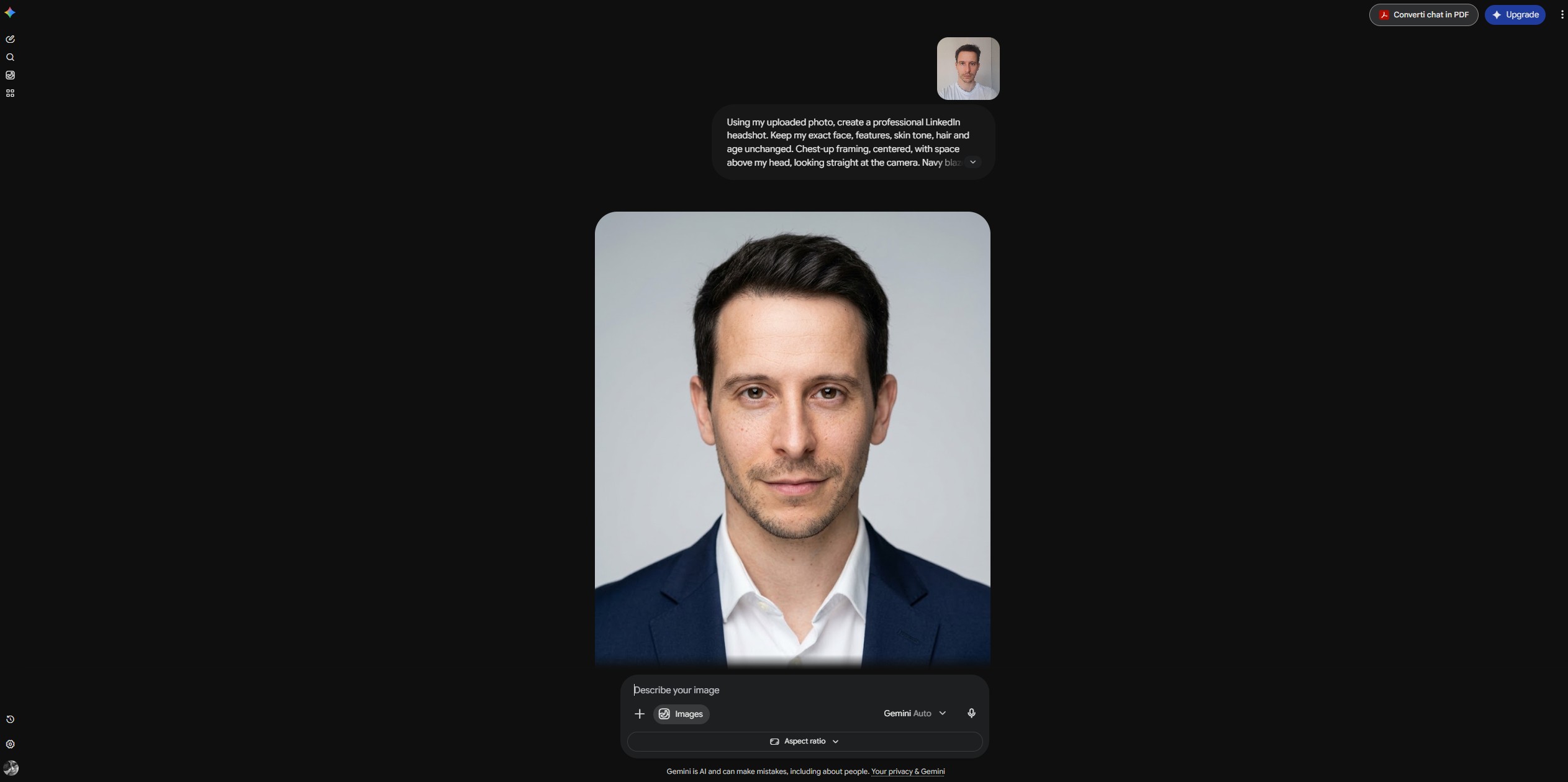
How to make AI headshots free with Gemini
Short answer: Open Gemini, choose the image tool, upload one daylight selfie and paste a prompt that tells it to keep your exact face. Gemini's image model, nicknamed Nano Banana, returned my result in about 10 seconds. Free accounts get a small daily allowance for AI headshots and other images, so make each prompt count.
- 1Take one good selfie. Face a window in daylight, phone at eye level, plain wall behind you, slight smile. Turn off filters and portrait mode.
- 2Open Gemini. Go to gemini.google.com or the Gemini app and sign in with a personal Google account. Choose the image tool (Create image).
- 3Upload and paste the prompt. Attach your selfie and paste the corporate prompt below, or build your own with the prompt builder.
- 4Review and fix. If ears, hair edges or skin look off, reply with the fix prompt instead of starting over.
- 5Download and crop. Download the full-size image, then crop it square with your face centered before uploading to LinkedIn.
The corporate prompt I used
Using my uploaded photo, create a professional LinkedIn headshot. Keep my exact face, features, skin tone, hair and age unchanged. Chest-up framing, centered, with space above my head, looking straight at the camera. Navy blazer over a white shirt. Plain light-gray studio background. Soft, even studio lighting with natural catchlights in the eyes. Realistic skin texture, no smoothing or retouching. 85mm portrait lens look, sharp focus on the eyes.
Free limits change often. At one point of high demand, Google cut free Nano Banana Pro use to two images a day, so don't burn tries on vague prompts. Google also embeds an invisible SynthID marker in Gemini images, even when no visible mark appears. For more on the model, see my Nano Banana guide.
How to make AI headshots with ChatGPT
Short answer: Start a new ChatGPT chat, attach your selfie and paste the same face-lock prompt. In my test ChatGPT produced the result that looked most like me, on the first try, from a free account. Free accounts have daily image limits, and edits work best one change at a time.
- 1Open a new chat. Sign in to ChatGPT (a free account worked for me) and start a fresh chat so old instructions don't leak in.
- 2Attach your selfie. Click the + or paperclip icon and upload the same daylight selfie.
- 3Paste the prompt. Use the same corporate prompt. ChatGPT follows the face-lock line closely.
- 4Download the image. Open the result and download it. Ask for one change at a time if you want edits.
If you want your AI headshots in a few variations, ask in the same chat: "Same photo, now with a dark crew-neck sweater." Changing one thing per message keeps the face stable. I compare the two image models in depth in ChatGPT vs Gemini vs Seedream.
One privacy step before you upload: in ChatGPT, open Settings, then Data Controls, and decide whether "Improve the model for everyone" stays on. I cover this, and the matching Gemini setting, in the privacy section below.
LinkedIn headshot prompt builder + 5 ready prompts
Short answer: Pick your industry, outfit, background and light, and the builder writes a full prompt with the face-lock line already in it. Copy it into ChatGPT or Gemini with your selfie. Every prompt it makes follows the same structure as the two I tested.
5 ready-made prompts for AI headshots
No time to build one? These five cover most LinkedIn profiles. The first two are the exact prompts from my test; the other three use the same structure with a different outfit, background and light.
1. Corporate (tested)
Using my uploaded photo, create a professional LinkedIn headshot. Keep my exact face, features, skin tone, hair and age unchanged. Chest-up framing, centered, with space above my head, looking straight at the camera. Navy blazer over a white shirt. Plain light-gray studio background. Soft, even studio lighting with natural catchlights in the eyes. Realistic skin texture, no smoothing or retouching. 85mm portrait lens look, sharp focus on the eyes.
2. Business casual (tested)
Using my uploaded photo, create a LinkedIn headshot. Keep my exact face, features, skin tone, hair and age unchanged. Chest-up, centered, looking at the camera. Dark crew-neck sweater. Softly blurred modern office background. Natural window light from one side. Realistic skin texture, no smoothing.
3. Creative
Using my uploaded photo, create a LinkedIn headshot. Keep my exact face, features, skin tone, hair and age unchanged. Chest-up, centered, looking at the camera. Open-collar shirt. Solid dark charcoal background. Warm, soft side light. Relaxed, confident expression. Realistic skin texture, no smoothing.
4. Coach or healthcare
Using my uploaded photo, create a LinkedIn headshot. Keep my exact face, features, skin tone, hair and age unchanged. Chest-up, centered, looking at the camera. Soft knit cardigan over a plain top. Softly blurred outdoor greenery. Warm, diffused daylight. Friendly, approachable smile. Realistic skin texture, no smoothing.
5. Executive
Using my uploaded photo, create a LinkedIn headshot. Keep my exact face, features, skin tone, hair and age unchanged. Chest-up, centered, looking at the camera. Charcoal suit jacket over a crisp shirt. Plain light-gray studio background. Polished studio lighting with gentle contrast. Calm, assured expression. Realistic skin texture, no smoothing.
How do you make AI headshots look real?
Short answer: Start from a sharp, evenly lit selfie, tell the model to keep your face and skin texture, and ask for one change at a time. Then zoom in and check eyes, ears, hairline, teeth and jewelry before you upload. If one detail is off, fix it with a follow-up prompt rather than regenerating everything.
The 6-point check I ran on every result
Can people tell? Often not. A PNAS study found people spot fully AI-generated faces at about chance level, and rated them slightly more trustworthy. That cuts both ways: realism is easy now, so the honest test is likeness, not polish.
Key idea: the most realistic AI headshots keep small imperfections. If a result looks better than you do on your best day, pick a plainer one.
How to size and crop it for LinkedIn
Short answer: Export a square image of at least 400 × 400 pixels, ideally 640 × 640 or larger, as a JPG or PNG under 8 MB. LinkedIn shows the photo as a circle, so center your face and leave a little space above your head. Check the circular preview before you save.
Most AI headshots from ChatGPT and Gemini come out portrait or square, at a size LinkedIn handles easily. The usual mistake is framing: a chest-up shot shrinks your face to a dot in search results. Crop so your face fills roughly 60% of the frame, with your eyes a little above center.
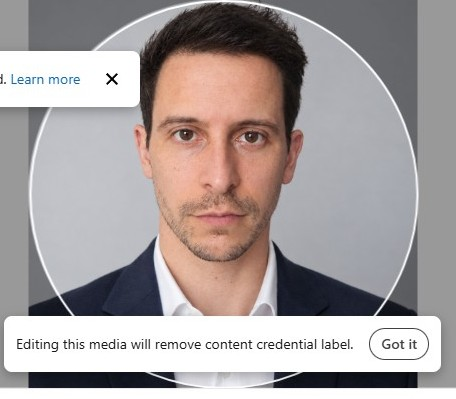
LinkedIn's own profile photo guidelines cover the technical limits. While you're updating the profile, a sharper headline and About section help as much as the photo; my guide to AI writing tools for non-writers covers bios.
When are paid AI headshots worth it?
Short answer: Pay when you need volume or consistency, not quality. Paid AI headshots services train on several of your photos and return 40 to 240 images with many outfits and backgrounds, without any prompt writing. That suits job seekers who want options, speakers who need several looks, and teams that need matching photos. For one LinkedIn photo, the free route did the job for me.
| Free (ChatGPT, Gemini) | Paid (Aragon, HeadshotPro) | |
|---|---|---|
| Cost | $0 within daily limits | $29–$75 one-time |
| Photos you upload | 1 selfie | Several selfies |
| Results | 1 per prompt | 40–240 per order |
| Wait | About 10 seconds in my test | Minutes to a couple of hours |
| Control | Full, through the prompt | Preset styles, no prompting |
| Best for | One great profile photo | Many looks or a matching team |
1. Aragon AI 📸 Best paid pick
Studio-style AI headshots from six selfies, sold as one-time packs
Aragon is the paid option I'd look at first if one free result isn't enough. You upload six selfies from different angles, choose outfits and backgrounds, and get back a full set of AI headshots without writing a prompt.
Pricing is three one-time packs: Basic at $35 for 40 photos, Standard at $45 for 60, Executive at $75 for 100, with faster turnaround on the bigger packs. There's no subscription to cancel.
- No prompt writing
- Lots of variety per order
- One-time payment
- Costs money for something free tools can do once
- Needs six photos, not one
- Less control over each detail
2. HeadshotPro 👥 Best for volume
Budget AI headshots service with large batches and team plans
HeadshotPro competes on volume. Its packs run from $29 for 40 photos to about $59 for 240, which makes it the cheapest per image of the paid AI headshots services I looked at.
It's built around teams: organizations can upload a branded backdrop so every employee gets a matching look. Processing takes longer than Aragon's fastest tier.
- Lowest price per photo
- Strong team features
- Branded backgrounds
- Longer wait
- More photos to sort through
- No affiliate link here
Is it safe to upload your face for AI headshots?
Short answer: Making AI headshots means handing over your face, so check two settings first. In Gemini, review Gemini Apps Activity, which controls whether your chats and uploads are kept and may be reviewed to improve Google's models. In ChatGPT, check the model-training toggle under Data Controls. Paid services should let you delete your training photos after the order.
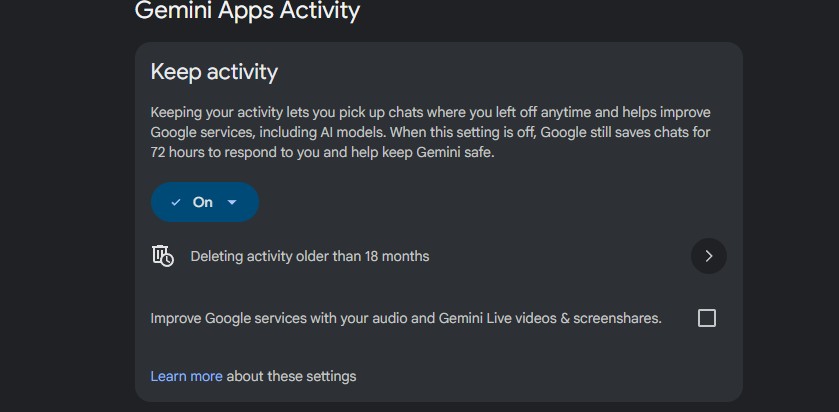
- Gemini: Settings, then Activity. Turn Gemini Apps Activity off or set auto-delete, and delete the chat when you're done.
- ChatGPT: Settings, then Data Controls. Decide on "Improve the model for everyone", and delete the chat afterward.
- Paid services: read the data-retention section before checkout and request deletion of your uploads once you have your photos.
- Any tool: upload a plain selfie, not a photo with your kids, house number or badge in the frame.
Google explains what Activity stores in its Gemini Apps Privacy Hub. For the wider picture, read my guide on whether free AI tools cost you your data, and since realistic faces cut both ways, my deepfake awareness guide and free family safe word generator.
Which route to AI headshots should you pick?
Short answer: Need one great LinkedIn photo: use ChatGPT or Gemini with the corporate prompt, free. Want several looks without writing prompts: Aragon. Ordering for a team or want the most photos per dollar: HeadshotPro. Whatever you pick, your AI headshots have to look like you.
Updating your profile for a job search? My guide to AI hiring tools shows what screens your profile on the other side, and the AI Tool Finder quiz matches you to tools for the rest of the job.
Frequently Asked Questions — AI Headshots for LinkedIn
I write every guide on this site myself. For this one I put my own face through the tools: the selfie, prompts and results above are mine and unedited. Where I haven't paid for a service, I say so and work from the vendor's own pages.