

Mirko
AI Tech Writer
I didn't want a plain spreadsheet — I wanted a real Excel expense tracker: a full household dashboard with budgets, recurring bills, and savings goals, the kind of thing people pay for as a premium template. So I wrote Copilot one long, detailed prompt — twelve sections, every sheet spelled out — and had the whole expense tracker built in Excel in about five minutes. This is the exact prompt I used, every sheet it built, and a free copy of the finished workbook.
What You Need Before You Build Your Own Expense Tracker
Before you open Copilot, three things need to be true — and missing any one of them is the most common reason people can't find the Copilot button in Excel at all.
What Your Excel Expense Tracker Needs to Work
The detail that trips up most first-timers isn't the license tier — it's the cloud-storage requirement. If your Copilot icon looks greyed out, check where the file is saved before anything else.
Once those three boxes are checked, you're ready for the prompt that builds the expense tracker.
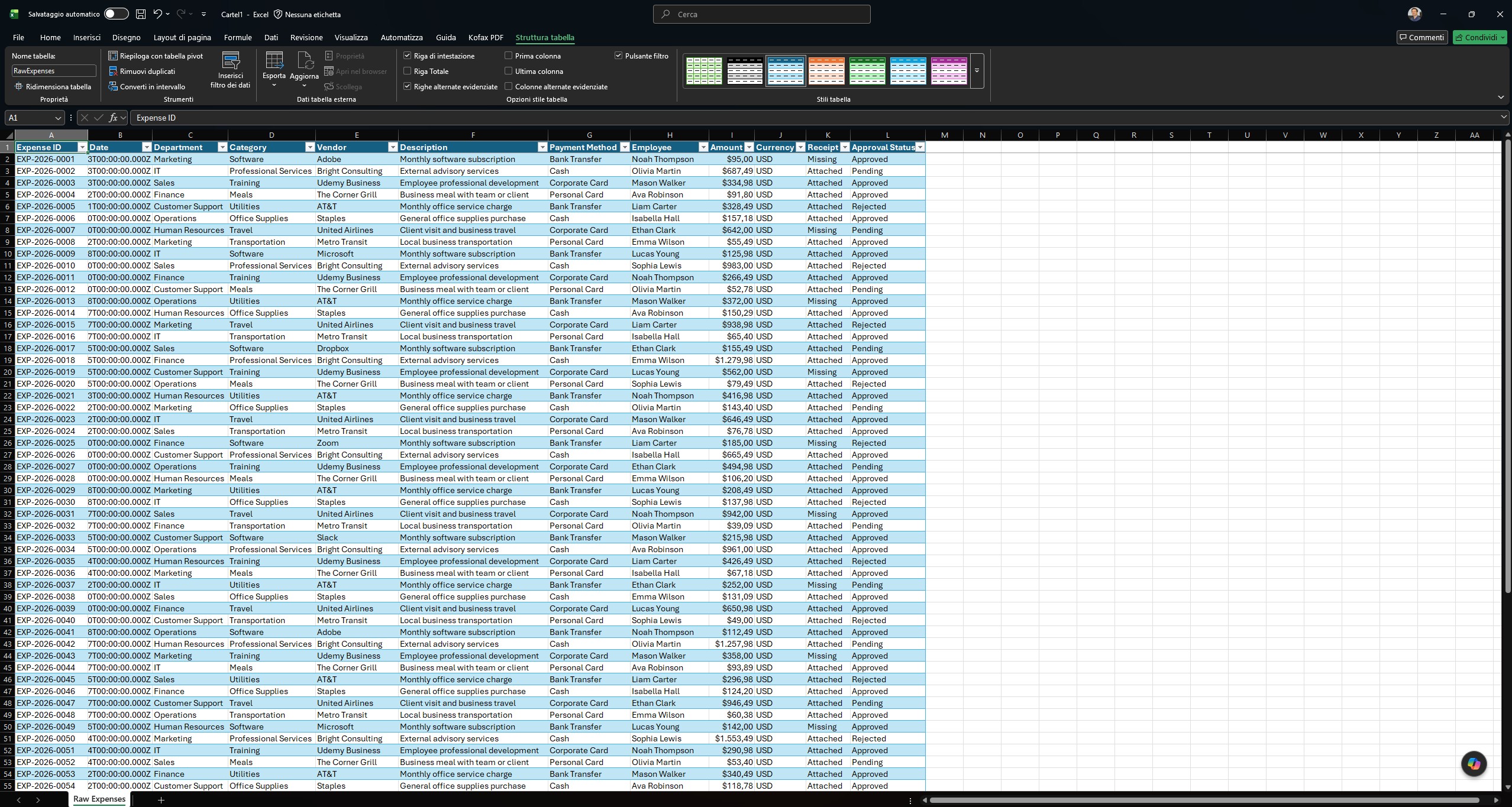
The Exact Prompt I Used to Build My Excel Expense Tracker
I didn't feed Copilot a table of transactions and ask it to analyze them. I started from a completely blank workbook, saved it to OneDrive, opened the Copilot pane, and gave it one long prompt spelling out exactly what I wanted from this expense tracker — seven sheets, real automation, a proper dashboard. Here it is, in full, so you can copy it straight into your own Copilot pane.
Seven sheets: Dashboard, Transactions, Monthly Budget, Categories, Recurring Expenses, Savings & Goals, Yearly Overview.
2. Dashboard- Large KPI cards: income, expenses, money remaining, savings, savings rate %, biggest spending category, vs. last month
- A month selector that updates the whole dashboard automatically
- Charts: income vs. expenses, expenses by category, budget vs. actual, 12-month trend, savings trend, fixed vs. variable
- A "Financial Insights" box that auto-flags things like overspending, a near-due bill, or goal progress — kept clean, not crowded
A structured Excel Table: Date, Description, Type, Category, Subcategory, Amount, Payment method, Account, Person, Recurring, Notes — with dropdowns, auto month calculation from the date, and conditional formatting.
4. Categories sheetEditable household categories (Housing, Utilities, Groceries, Transportation, Health, Subscriptions, and so on) with subcategories, feeding the Transactions dropdowns.
5. Monthly Budget sheetPer-category budget, actual spend, remaining, % used, and status, with conditional formatting for under/close-to/over budget, household totals, and the month selector driving it all.
6. Recurring Expenses sheetName, category, amount, frequency, due date, payment method, active/inactive, notes — auto-calculating monthly equivalent, annual cost, and next payment, plus a total-commitments summary.
7. Savings & Goals sheetGoal name, target amount, current amount, target date, monthly contribution, remaining amount, and progress % — shown with visual progress bars, for things like an emergency fund or a vacation.
8. Yearly OverviewAll twelve months side by side — income, expenses, savings, savings rate, budget, and variance — with trend charts that surface unusually high-spend or high-savings months.
9–12. Automation, design, usability, quality check- Tables, formulas, dropdowns, conditional formatting, and charts that update automatically as transactions are added — reliable, not needlessly complex
- One accent color, clear hierarchy, large KPI numbers, clean tables, no 3D charts or clutter — should look like a template worth selling
- A "Getting Started" section on the Dashboard, frozen header rows, filters, and protected formula cells that don't block editing
- No broken formulas, bad references, duplicate categories, or #VALUE!/#REF!/#DIV/0! errors anywhere
Copilot answered in Plan mode first — it laid out the entire expense tracker, sheet by sheet, before touching anything. I reviewed the plan, confirmed it, and watched it build all seven sheets in the pane in real time.
Copilot in Excel runs Python in the background for this kind of work, according to Microsoft's own documentation, which is part of why one long, well-structured prompt can produce formulas, conditional formatting, and charts across seven linked sheets in an expense tracker this size, instead of a single flat table.
One prompt built the entire seven-sheet structure. The rest of the five minutes went into checking Copilot's category defaults and KPI cards against what I wanted to track — worth doing every time, on a build this size.
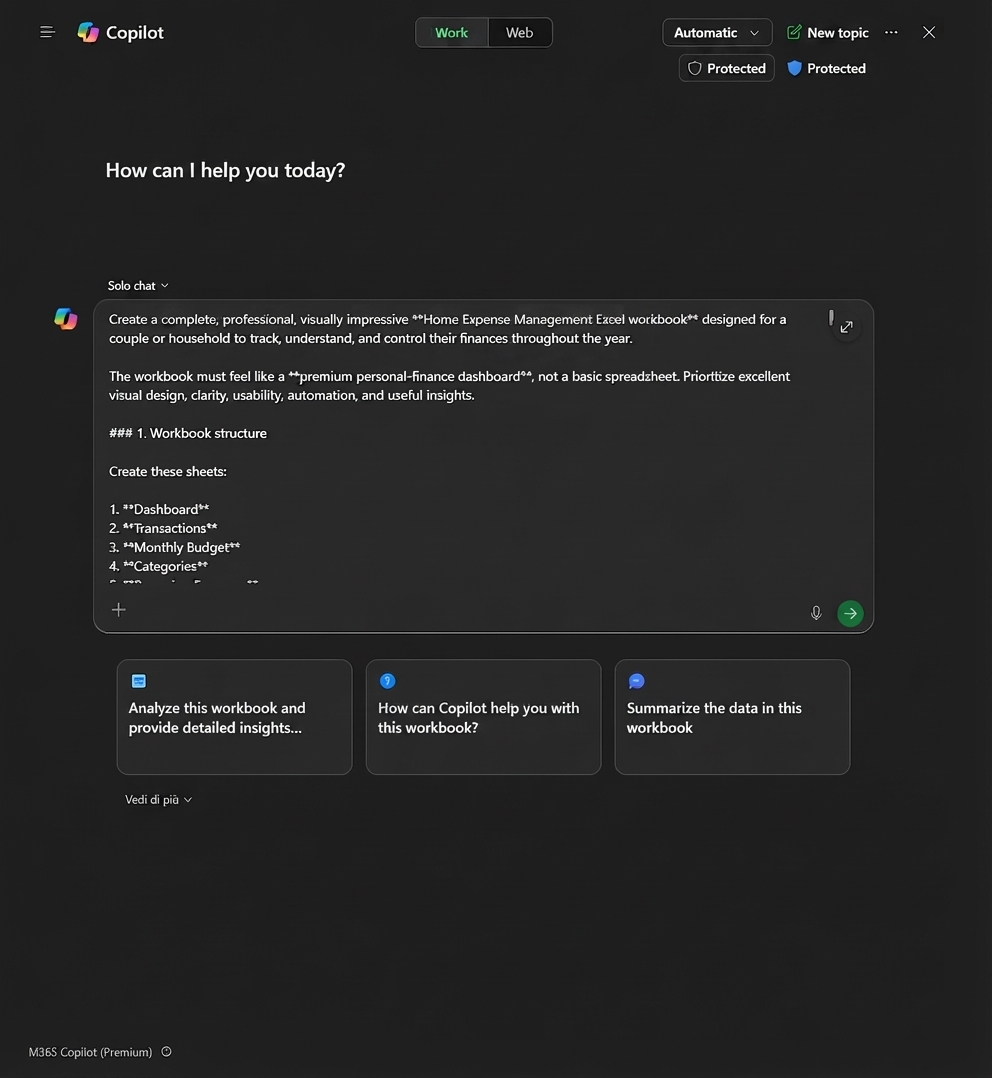
The Seven Sheets in My Expense Tracker
From that one prompt, Copilot built a full Excel expense tracker workbook — seven linked sheets, not a flat table. Here's what's inside it.
Every Sheet, One Line Each
- ✓Dashboard — KPI cards, a month selector, six charts, and a "Financial Insights" box that flags things like overspending or a bill coming due
- ✓Transactions — a structured table with dropdowns for category, person, and payment method, plus conditional formatting
- ✓Monthly Budget — per-category budget vs. actual, with color-coded under/close/over status
- ✓Categories — the editable list that feeds every dropdown in the workbook
- ✓Recurring Expenses — auto-calculated monthly and annual cost per bill, plus the next due date
- ✓Savings & Goals — target amounts and visual progress bars for things like an emergency fund
- ✓Yearly Overview — all twelve months side by side, with trend charts
Nothing about it looked like a downloaded template. Copilot picked one accent color, kept the KPI numbers large and the tables clean, skipped 3D charts entirely, and left every formula in the expense tracker editable — click any cell in the Monthly Budget sheet and you'll see the actual formula behind it, not a locked value.
This is the part that saves the real time — not any one sheet, but not having to design a KPI dashboard and a budget-status system from a blank grid.
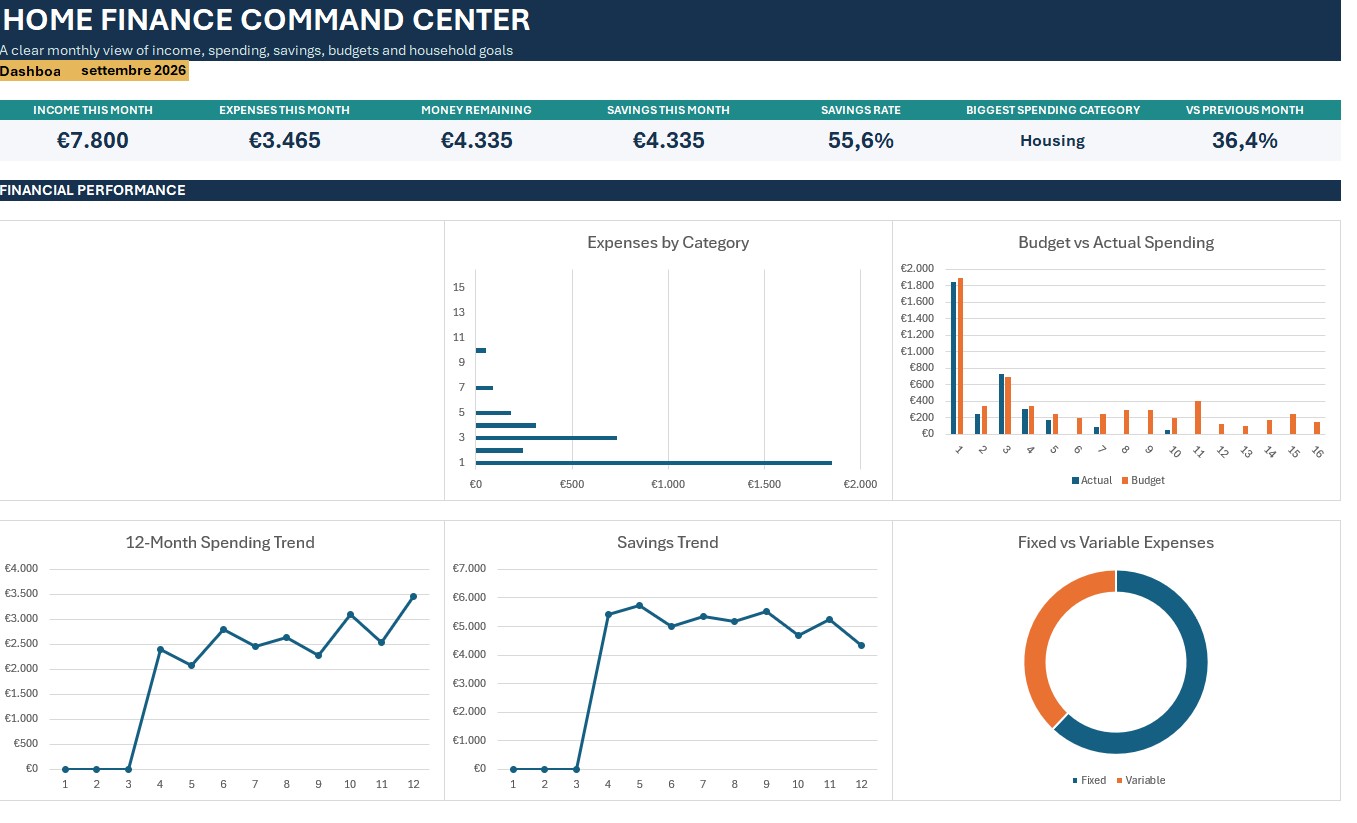
The one thing worth checking on your own build: the default Categories list is a generic household set, so a few of mine didn't quite match how we spend — an easy fix with a follow-up prompt, covered in the next section.
For anyone who's put off tracking spending because building a system this complete felt like a weekend project, that's the real shift — the structure of an expense tracker now takes minutes instead of the hour or two most people quietly avoid.
Three Prompts to Customize Your Expense Tracker
The base expense tracker already covers budgets, recurring bills, and savings goals, but three follow-up prompts cover almost every tweak I've seen people want next. Type any of these into the same Copilot pane, on the same workbook — no need to start over.
Each of these builds on the same workbook Copilot already understands — you don't need to re-explain your sheets or re-upload anything. That's the real advantage of doing this inside Excel instead of a separate budgeting app: one file, one conversation, no data re-entry.
A budgeting app has to guess at your categories and your household. Copilot just reads the workbook you already told it to build.
Download My Free Excel Expense Tracker Template
If you'd rather skip the prompt entirely and just see the finished result, I'm sharing the actual file I built for this post — the same expense tracker, same seven sheets, same dashboard, already set up in Excel. Copy it, plug in your own transactions, and adjust the categories in your expense tracker to match your own spending.
The file opens in Excel or Google Sheets. If you want Copilot's help customizing it further, save your copy to OneDrive first — that's what unlocks the Copilot button, per the requirement above.