
Mirko
AI Tech Writer
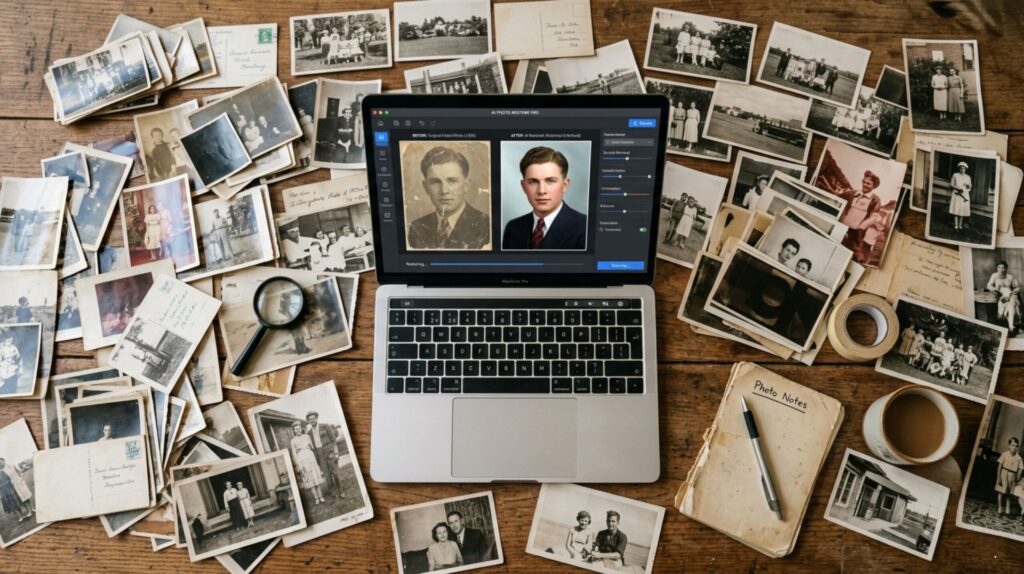
Restore old photos with AI in under 5 minutes — even the scratched, faded prints sitting in that old shoebox. Free browser tools now do in seconds what used to cost $200 at a print shop.
Some links are affiliate links · You support us at no extra cost · Full disclosure
Restore Old Photos with AI: How the Technology Works
Most people assume you need expensive software or a professional studio. You don't. The ability to restore old photos with AI is now free, browser-based, and takes minutes.
These tools use deep learning models trained on millions of damaged and restored images. They don't filter or sharpen — they reconstruct.
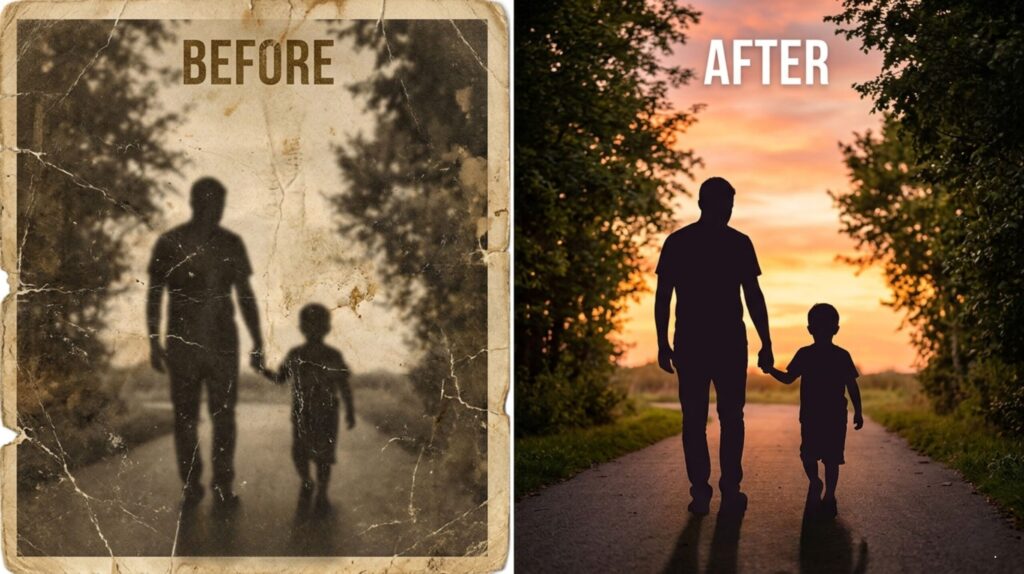
When you restore old photos with AI, the model analyzes every pixel in the damaged area. It uses surrounding context to predict what the missing or degraded detail should look like.
🔧 Damage Types You Can Fix When You Restore Old Photos with AI
- Scratches and tears — inpainting fills gaps using surrounding image data
- Faded or yellowed colors — tonal reconstruction rebuilds contrast and vibrancy
- Blur and softness — super-resolution sharpens fine detail from low-res scans
- Stains and water damage — AI removes marks without affecting surrounding areas
- Low resolution — upscaling multiplies pixel count while preserving clarity
- Damaged faces — face-specific models enhance eyes, skin, and hair separately
The difference from manual Photoshop editing is dramatic. A skilled editor spends 4–8 hours on a single damaged print. AI image editors handle the same job in under 90 seconds.
According to the Library of Congress, millions of analog photographs deteriorate every decade from humidity, light, and aging chemicals.
The good news: you no longer need archival expertise to restore old photos with AI. Upload, click, download — that's the full workflow.
Average time to restore old photos with AI — versus 4–8 hours of manual editing
Best Free Tools to Restore Old Photos with AI — Compared
We reviewed five tools to restore old photos with AI across four categories of damage. Each wins a different use case — picking the wrong one wastes time.
All five were tested against the same benchmark: can they restore old photos with AI quickly, reliably, and without requiring a software download?
| Tool | Best For | Free Tier | Platform | Winner At |
|---|---|---|---|---|
| Remini | Face & portrait restoration | ✅ Limited | Mobile app | 🏆 Faces |
| Cleanup.pictures | Scratches, stains, tears | ✅ Free (720p) | Web | 🏆 Damage removal |
| Fotor | All-round fading & blur | ✅ Yes | Web | 🏆 Ease of use |
| Topaz Photo AI | Premium print quality | ⚠️ Trial only | Desktop | 🏆 Output quality |
| MyHeritage | Colorize black & white | ✅ Yes | Web | 🏆 Free colorize |
For most beginners who want to restore old photos with AI without spending anything, Remini + Cleanup.pictures together cover 90% of common damage types.
For removing scratches, stains, and tears specifically, you can start with Cleanup.pictures — free, no account required, no software to install.
See how Remini performs against other mobile editors in our Remini vs Lensa comparison.
⚠️ Before You Restore Old Photos with AI — One Critical Step
The National Archives recommends scanning original prints at 600 DPI before any digital processing.
This protects the physical original and gives the AI the clearest possible input — directly improving your final result.
How to Restore Old Photos with AI — Step by Step
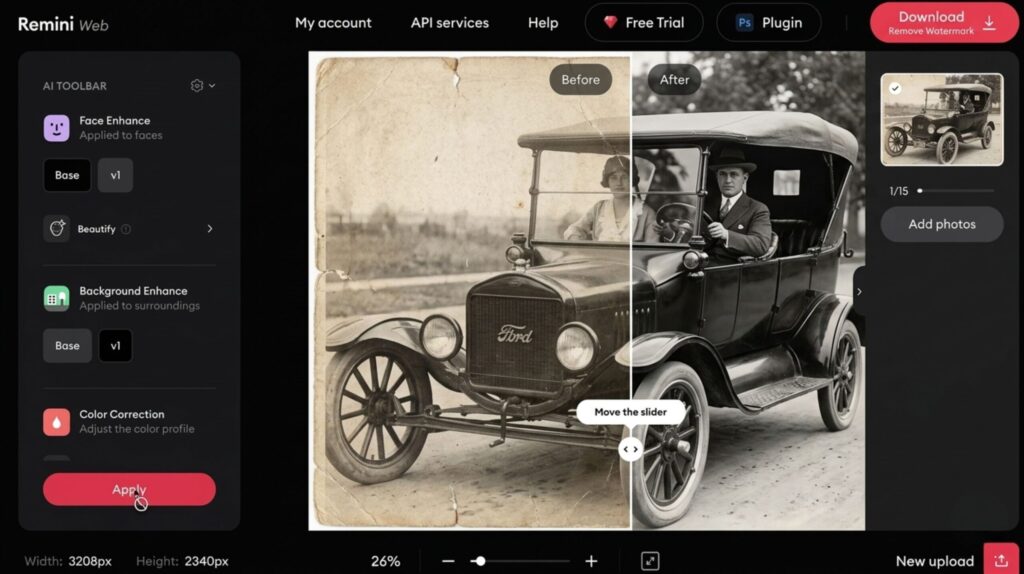
The cleanest way to restore old photos with AI is to work one damage type at a time. One pass per issue gives you control at each stage — and better final results.
This is the exact workflow we use. It works on any tool and takes 10–30 minutes per photo depending on damage severity.
-
Scan or photograph the original at maximum resolution
Use a flatbed scanner at 600 DPI minimum. For smartphone scanning, use bright, even lighting and shoot straight down. Higher resolution means more data for the AI to work with.
-
Remove physical damage — scratches, stains, and tears
Upload to Cleanup.pictures and brush over any damage. The AI fills the area automatically using surrounding image data. Free tier handles standard resolution images instantly.
-
Enhance sharpness, contrast, and facial detail
Upload the cleaned photo to Remini (mobile) or Fotor (web). Run the AI Enhance function. Faces are processed by a separate model — run face enhancement after general sharpening for best results.
-
Colorize black-and-white areas (optional)
Upload to MyHeritage's free colorization tool or Palette.fm. These tools assign historically accurate colors based on scene type, lighting, and era. You can guide specific colors with a prompt.
-
Upscale and export for print or sharing
Use Fotor or Let's Enhance to upscale the final image to 2–4× resolution. For large prints, aim for 300 DPI at the target print size. Download as PNG for maximum quality.
💡 Pro Tips — Restore Old Photos with AI Faster
- Always process scratches and tears first — colorizing a damaged photo multiplies the errors
- Run the same photo 2–3 times through the AI and pick the best output
- Keep your original scan untouched — always work on a copy
- Crop out frames and edges before uploading — give the AI pure photo content
The Digital Preservation Coalition recommends keeping at least two independent digital copies after restoration — one for archiving, one for sharing.
Avoid over-processing. Read our guide on how to stop AI images from looking fake — the same principles apply to restored photos.
How to Colorize Old Photos with AI — and Enhance Fine Details
Colorization is one of the most powerful ways to restore old photos with AI. A faded black-and-white family portrait becomes immediately recognizable — and emotionally real — when colors are added.
Modern AI colorization tools don't just add random colors. They analyze the scene type, lighting direction, and historical context to assign plausible tones.
🎨 Best Free AI Colorization Tools
- MyHeritage In Color — free, specialized for family portraits, historically accurate results
- Palette.fm — free web tool, multiple color style presets, fast processing
- Remini Colorize — built into the mobile app, best on clearly lit portraits
- Fotor AI Colorizer — web-based, good for group and outdoor photos
To restore old photos with AI and achieve accurate colorization, upload after all scratch and damage repair is complete. Color models perform worse on degraded images.
For fine detail enhancement — eyelashes, clothing texture, handwriting on the back of photos — run a second pass through Remini or Topaz after colorizing. This locks in the sharpest version of the final image.
The Smithsonian Institution Archives notes that colorization is an interpretive process — always label restored versions clearly to distinguish them from originals.
⚠️ Colorize After Restoration — Never Before
Running colorization on a scratched or faded photo means the AI assigns colors to damage artifacts too.
Complete scratch removal and contrast restoration first. Colorize last. The result is significantly cleaner.
If you're getting unnatural results, our guide on fixing AI image generation errors covers the same artifact and over-saturation issues.
What AI Can and Cannot Fix When You Restore Old Photos
Before you restore old photos with AI, set realistic expectations. The tools are powerful — but they're not magic. Understanding the limits saves frustration.
✅ What AI Handles Well
- Scratches, surface stains, and small tears
- Faded colors and yellowing from age
- Soft blur from poor lens quality or camera shake
- Low resolution and missing pixel detail
- Uneven lighting and contrast problems
- Black-and-white to color conversion
❌ What AI Cannot Reliably Fix
- Large missing sections — over 40% of frame — where context is lost
- Faces obscured by severe damage — the AI may reconstruct the wrong person
- Burned or water-logged originals where no image data survives
- Text and handwriting in damaged areas — AI fills context, not exact letters
When damage is extreme, try processing the same photo through two or three different tools. Their AI models make different predictions — one may produce a usable result where others fail.
To restore old photos with AI at the highest quality, resolution matters more than any other factor. A 600 DPI scan of a 4×6 print always outperforms a 150 DPI scan through even the best AI tool.
Frequently Asked Questions — Restore Old Photos with AI
What is the best free AI tool to restore old photos?
+The best free tools to restore old photos with AI are Remini (faces), Cleanup.pictures (scratches and stains), Fotor (general enhancement), and MyHeritage (colorization).
All four require no software download. For most beginners, Remini + Cleanup.pictures together cover the majority of common photo damage types at zero cost.
Can you restore old photos with AI completely for free?
+Yes — restoring old photos with AI is possible at no cost using Cleanup.pictures (free at 720p), Remini (free with daily limits), and Fotor (free web app).
The only practical limitation is output resolution. Free tiers cap at 720p–1080p. For large-format printing, a paid plan or Topaz Photo AI produces significantly sharper results.
How long does it take to restore old photos with AI?
+A mildly damaged photo takes 2–5 minutes to restore with AI. Severe damage with multiple issues — scratches, fading, blur, missing color — takes 15–30 minutes when processed step by step.
The AI processing itself runs in under 60 seconds per tool. The time investment comes from scanning the original at high resolution and running separate passes for each damage type.
Does AI photo restoration work on very badly damaged photos?
+AI restoration works well on scratches, fading, blur, and minor tears. It struggles when over 40% of the image is missing or when no recoverable data survives from burning or severe water damage.
For extreme cases, run the same photo through two or three different AI tools. Each model makes different predictions — one may produce a usable result where others fail.
Can you restore old photos with AI and add color at the same time?
+Yes — but the order matters. Always complete damage repair before colorizing. Running colorization on a damaged photo permanently colors the artifacts too.
After repair, use MyHeritage In Color or Palette.fm for free colorization. Both assign historically appropriate tones based on scene type and lighting. You can guide specific colors with a text prompt.
What resolution should I scan old photos before restoring them with AI?
+Scan at a minimum of 600 DPI before running any AI restoration. For small prints (wallet-size or smaller), 1200 DPI gives the AI more detail to work with.
A 600 DPI scan of a standard 4×6 print produces a 2,400 × 3,600 pixel image. After upscaling in the AI workflow, that's enough resolution for a large framed wall print at 300 DPI.
Can I restore old photos with AI using only my phone?
+Yes. Remini is the best mobile app to restore old photos with AI — free on iOS and Android, excellent on faces and general sharpening.
For scratch removal on mobile, Cleanup.pictures has a mobile-optimized web interface accessible through any smartphone browser. The main limitation remains digitization quality — use a flatbed scanner for the initial scan whenever possible.
Is Topaz Photo AI worth it for restoring old photos?
+Topaz Photo AI produces the best output quality of any tool we reviewed — particularly on faces, fine texture, and large-format print preparation. It outperforms every free browser tool when output resolution matters.
It makes most sense for professional restorations or large family archive projects. For occasional single-photo work, the free stack (Remini + Cleanup.pictures + Fotor) delivers excellent results. You can trial Topaz Photo AI before committing.
🖼️ Keep Exploring AI Image Tools
You've learned how to restore old photos with AI. Now go deeper — find the best tools, fix common errors, and generate stunning new images: