
📅 Published February 21, 2026 · 🔄 Updated October 24, 2026 · ⏱ 15 min read
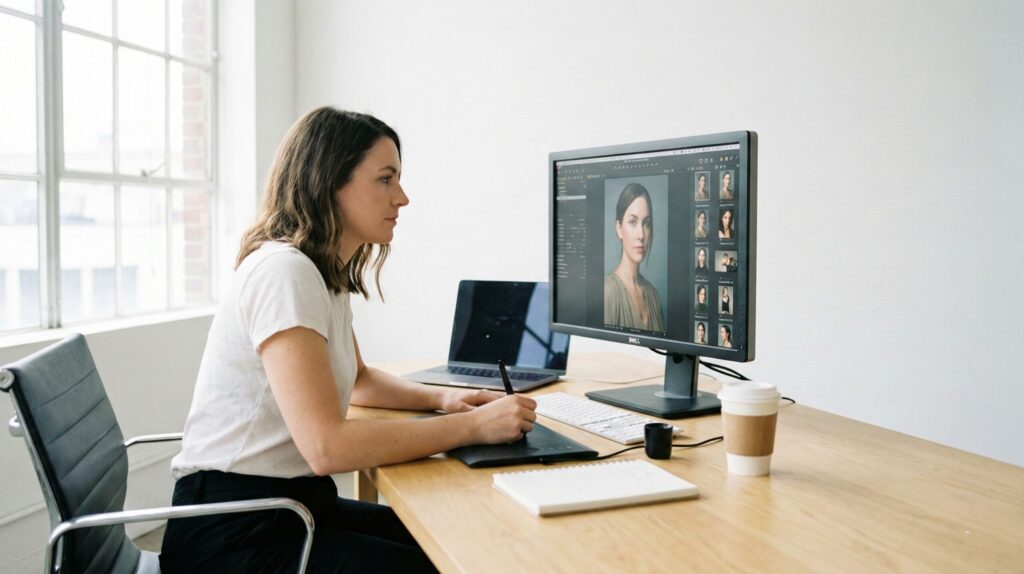
AI image editors fix the photo you already have: remove a stranger, swap a messy background, relight a dull room, rescue a blurry shot. That is a different job from generating a new picture, and most "best" lists mix the two. This guide ranks 8 AI image editors by the edit you need, with what each one costs per edit, the catches on the free plans, a same-photo test of three of them, and copy-paste edit prompts.
Short answer
For most people the best free option is Google Gemini: upload a photo, describe the change, done. Pick Photoshop for precise, layered control, Photoroom for product shots, Topaz Photo AI to rescue blurry or noisy photos, and Seedream for cheap multi-photo edits. The quick picker below matches your edit to one tool.
8
editors ranked by job
3
tested on the same photo
6
copy-paste edit prompts
1
free picker that names your tool
📋 What's inside
- Best AI image editors at a glance
- Which AI image editor fits your edit? (picker)
- The 8 best AI image editors by job
- Same-photo test: Gemini vs Firefly vs Seedream
- What each editor costs and where the free plan stops
- 5 catches to check before you edit
- Video: choosing a model inside Photoshop
- Edit prompts that work in any editor
- Step-by-step guides for each edit
- FAQ
🔍 How I put this guide together
I've edited my own photos in Gemini (the headshot below is my selfie), ran the same desk-photo test in Gemini, Firefly and Seedream (results below), and worked inside the free plans of Seedream and Higgsfield. Photoshop, ChatGPT, Canva, Photoroom and Topaz are researched, not tested: plans, credits and model names come from each vendor's own pages, checked October 18, and I say where a detail comes from a third party instead. Prices are in USD and can differ in the EU, UK and other regions.
Some links are affiliate links (Seedream and Higgsfield): if you buy through them I may earn a commission at no extra cost to you. It never decides the ranking. Details
Best AI image editors at a glance
| Pick | Best for | Free option | Biggest catch |
|---|---|---|---|
| Google Gemini | Everyday fixes from a typed instruction | Yes, daily limits | Free downloads are lower resolution |
| Photoshop + Firefly | Precise, masked, layered edits | Firefly free daily credits | Partner models eat credits fast |
| ChatGPT Images | Multi-step edits and text in images | Limited on Free | Image limits depend on plan |
| Canva AI | Edits inside social posts and slides | Yes, small AI allowance | Less precise than a photo editor |
| Photoroom | Product photos and backgrounds | 250 exports a month | Free plan bans commercial use |
| Topaz Photo AI | Blur, noise, low resolution | No | Subscription only; needs 16GB RAM |
| Seedream (Dreamina) | Cheap multi-photo edits | Daily free credits | Free outputs are watermarked |
| Higgsfield | Many top models in one app | 10 credits (my account) | Free plan is a short trial |
Unlike most lists of AI image editors, this one leaves out pure generators such as Midjourney. If you want a new image from a text prompt rather than a fix to a real photo, my best free AI image generators guide is the better starting point.
Which AI image editor fits your edit?
1. What do you want to change?
2. Budget
3. Will you sell or advertise with it?
Want a fully custom prompt instead? My free AI image prompt generator builds one from a few choices, and its output pastes into any of these editors.
The 8 best AI image editors, ranked by job
1. Google Gemini (Nano Banana)
Web, iOS, Android · free with a Google account
Nano Banana is not a separate app: it's the image model inside Gemini, so you upload a photo, type the change and get the edit back in the same chat. Google's model card lists general editing, object and character edits, doodle-based edits and multi-image edits for the newest version, Nano Banana 2.1, released October 6.
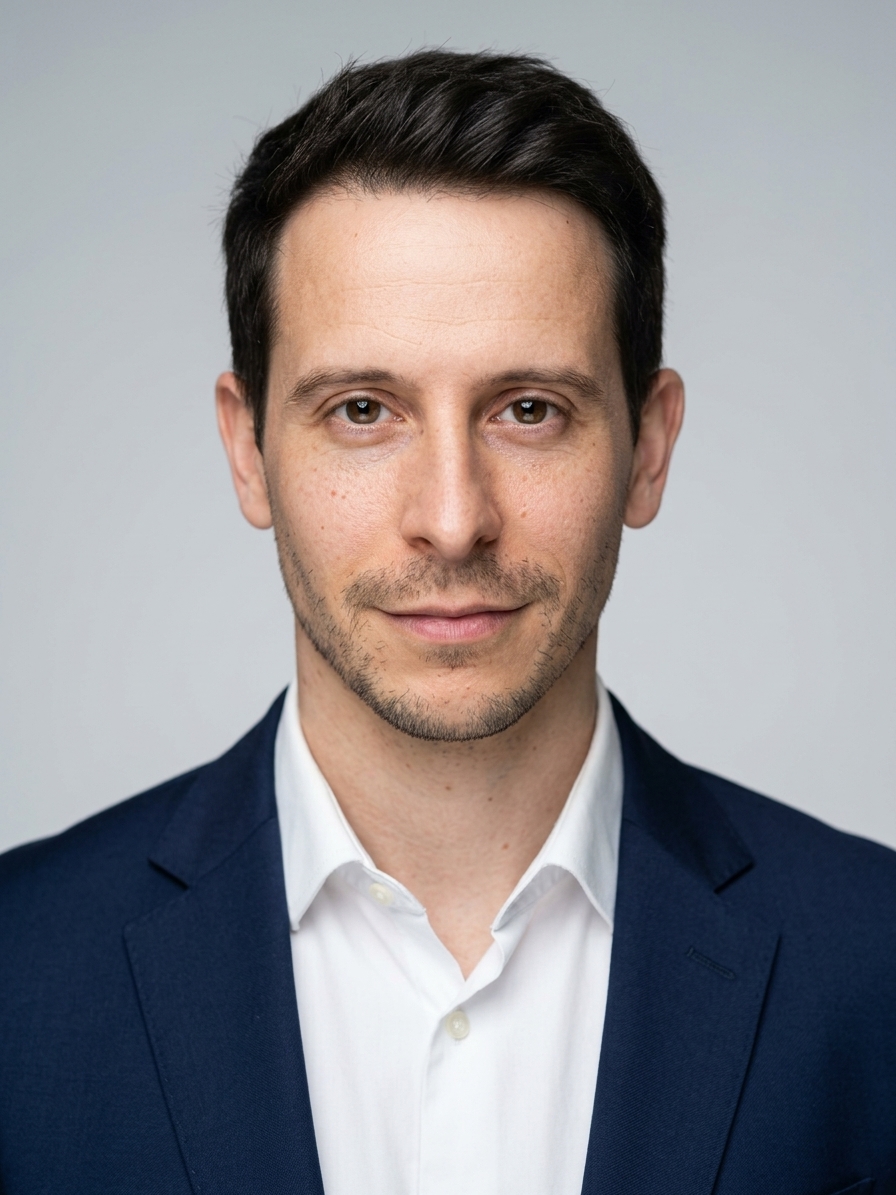
I turned my own selfie into a corporate headshot in one Gemini edit, and it kept my face, which is where most AI image editors used to slip. The full prompt set is in my AI headshots for LinkedIn guide, and my Nano Banana explainer covers the model family.
- Best for: quick fixes you can describe in a sentence, and photos of people that must still look like them.
- Free plan: daily limits; one third-party test reports free downloads at 1K and editing limited to adults 18+ (not yet confirmed on Google's own pages).
- Catch: edited images carry Google's SynthID watermark, and a visible mark on some outputs.

2. Adobe Photoshop + Firefly
Desktop, web, mobile · from Firefly Standard at $9.99/month
Of all the AI image editors here, Photoshop is the one for when the AI must touch only the pixels you select. Generative Fill now has a model picker: Adobe's help page lists Firefly Fill & Expand and Firefly Image 5 alongside partner models FLUX.2 pro, FLUX Kontext pro, Nano Banana 2 and Nano Banana Pro.
That means you can run Google's model inside a layered, masked file. The trade-off is credits: a Firefly generation costs 1 generative credit, while partner models cost roughly 10 to 40 each, according to a guide from Photoshop Training Channel.
- Best for: designers, photographers and anyone who needs layers, masks and an undo history.
- Free option: Firefly on the web; in my test the free plan allowed 2 generations a day. Photoshop itself is paid.
- Catch: Photoshop alone is listed at $22.99/month on an annual plan in a third-party price check; confirm on Adobe's page before you buy.
3. ChatGPT Images
Web, iOS, Android · included on ChatGPT plans
OpenAI's announcement says ChatGPT Images 2.5 (September 8) preserves the subjects in reference photos better and follows editing instructions more reliably across several turns. It also added ways to sketch where an object goes and place exact text.
In an April head-to-head of these two AI image editors on the previous model, PhotoWorkout found Gemini kept more resolution and detail when editing real photos, while ChatGPT led on layouts and text. Treat ChatGPT as the editor for posters, labels and step-by-step changes, and Gemini as the one for faithful photo fixes.
- Best for: edits that need several rounds, and images with words in them.
- Free plan: limited image use; limits depend on your plan.
- Catch: I'm not on a paid ChatGPT plan right now, so this pick is researched, not tested.
4. Canva AI
Web, desktop, mobile · free plan with AI allowance
If the photo is going into an Instagram post, a flyer or a slide, editing it inside Canva saves an export step. Canva's pricing page lists a background remover and AI image tools, with paid plans giving 10 to 20 times the free plan's AI allowance.
It is the least precise of these AI image editors, but the fastest path from photo to finished design. My guide to making Canva AI designs look professional covers the layout side.
- Best for: creators and small businesses who design in Canva already.
- Free plan: a small AI allowance; heavier use needs Pro.
- Catch: fine detail work (hair, small objects) is weaker than in Photoshop or Gemini.
5. Photoroom
Web, iOS, Android · Pro from $7.99/month
Most AI image editors are generalists; Photoroom is built for one job: clean product photos for shops and marketplaces. It removes the background, places the item on a generated scene and batch-processes a whole catalog.
Pro starts at $7.99 a month (about $7.50 billed yearly), per a June review by eCommerce Fastlane, and Photoroom's API is billed separately from the app plans.
- Best for: sellers listing products every week.
- Free plan: 250 exports a month, all watermarked.
- Catch: the free plan bans commercial use, so test it free and pay before you list anything.
6. Topaz Photo AI
Windows, macOS · $199/year
When the problem is quality rather than content (blur, noise, a tiny file you need to print), Topaz Photo AI is the specialist among AI image editors. It denoises, sharpens, recovers faces and upscales, all on your own computer.
Topaz has ended one-time licenses, so every plan is now a subscription. A Krea guide that cites Topaz's own pricing page lists Photo AI at $199 a year, with no free tier and no desktop trial.
- Best for: photographers and anyone restoring old or low-light shots.
- Free plan: none.
- Catch: it needs at least 16GB of RAM, so older laptops are out.
7. Seedream in Dreamina
Web, mobile · daily free credits
Dreamina's FAQ says the free plan gives daily credits, that Seedream 5.0 Pro can select and change part of an image, and that Dreamina also offers GPT Image 2 and Nano Banana in the same workspace, so one account covers three AI image editors' models.
I use Seedream on the free plan, and the small mark on my exports is the free-plan watermark. My ChatGPT vs Gemini vs Seedream test shows how it compares on five image jobs.
- Best for: edits that combine several reference photos, on a tight budget.
- Free plan: daily credits; in my test it allowed one edit. Cost per edit depends on the model you pick.
- Catch: free downloads are watermarked.
8. Higgsfield
Web · Starter from $19/month
Instead of a single-model app, Higgsfield bundles several leading image and video models in one account, Nano Banana Pro included. That suits creators who edit a photo and then animate it, without paying for each model separately.
My free account showed 10 credits. On Higgsfield's own plan estimates a Nano Banana Pro image costs about 2 credits, so the free plan covers roughly five edits. My Higgsfield AI review has the full credit math.
- Best for: creators who move from photo edits to short videos.
- Free plan: a short trial, not a working plan.
- Catch: watermark-free downloads need a paid plan.
Same-photo test: 4 edits in 3 AI image editors
Claims are cheap, so I ran the same four edits on one desk photo in three AI image editors: remove the bottle, swap the background, change the light and add a plant. I used the free plans of Gemini, Firefly's web app and Seedream, and I kept every result unedited so the flaws stay visible.
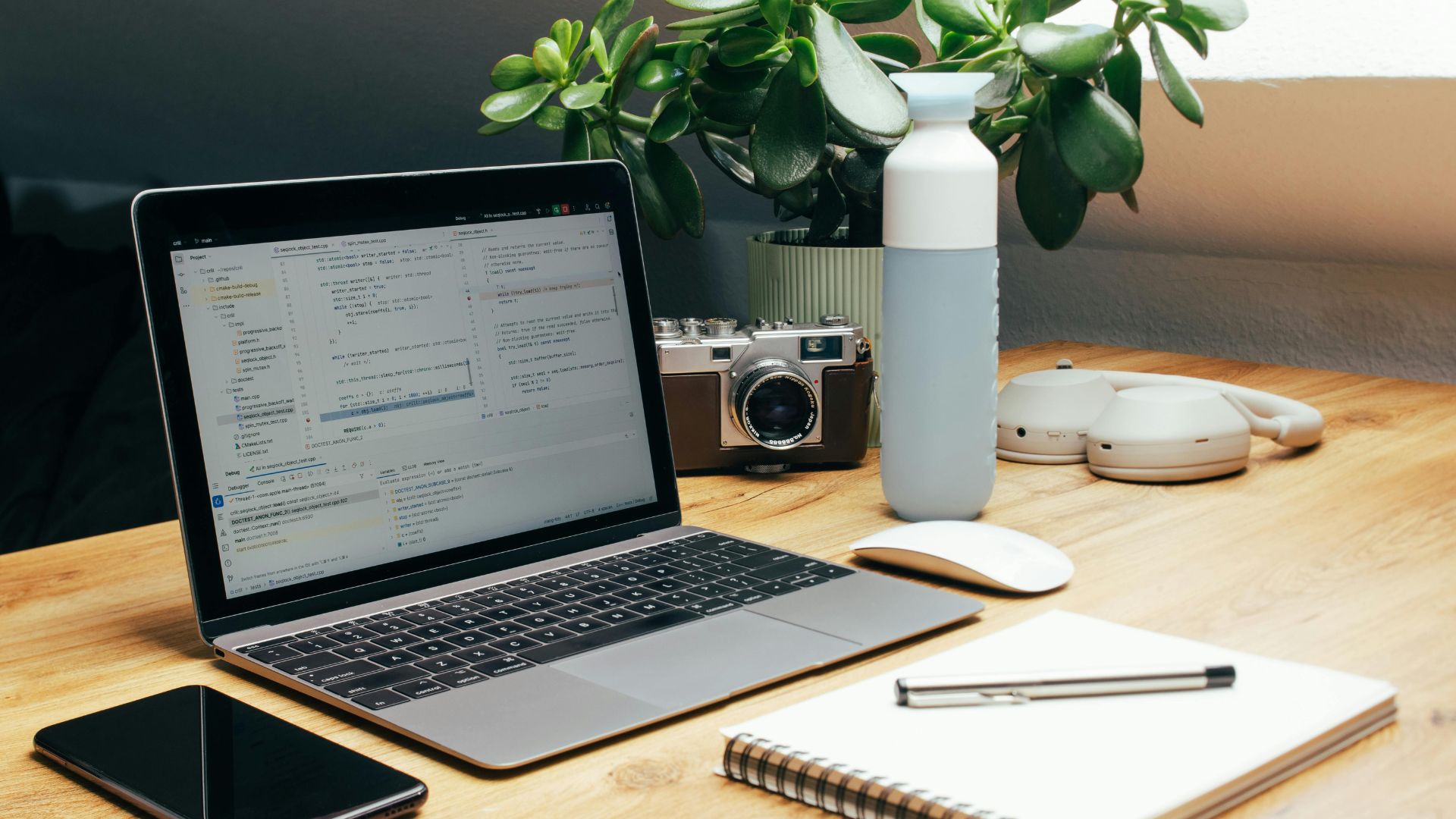
Drag the handle: the original photo vs the Gemini bottle removal
Edit 1: remove the bottle
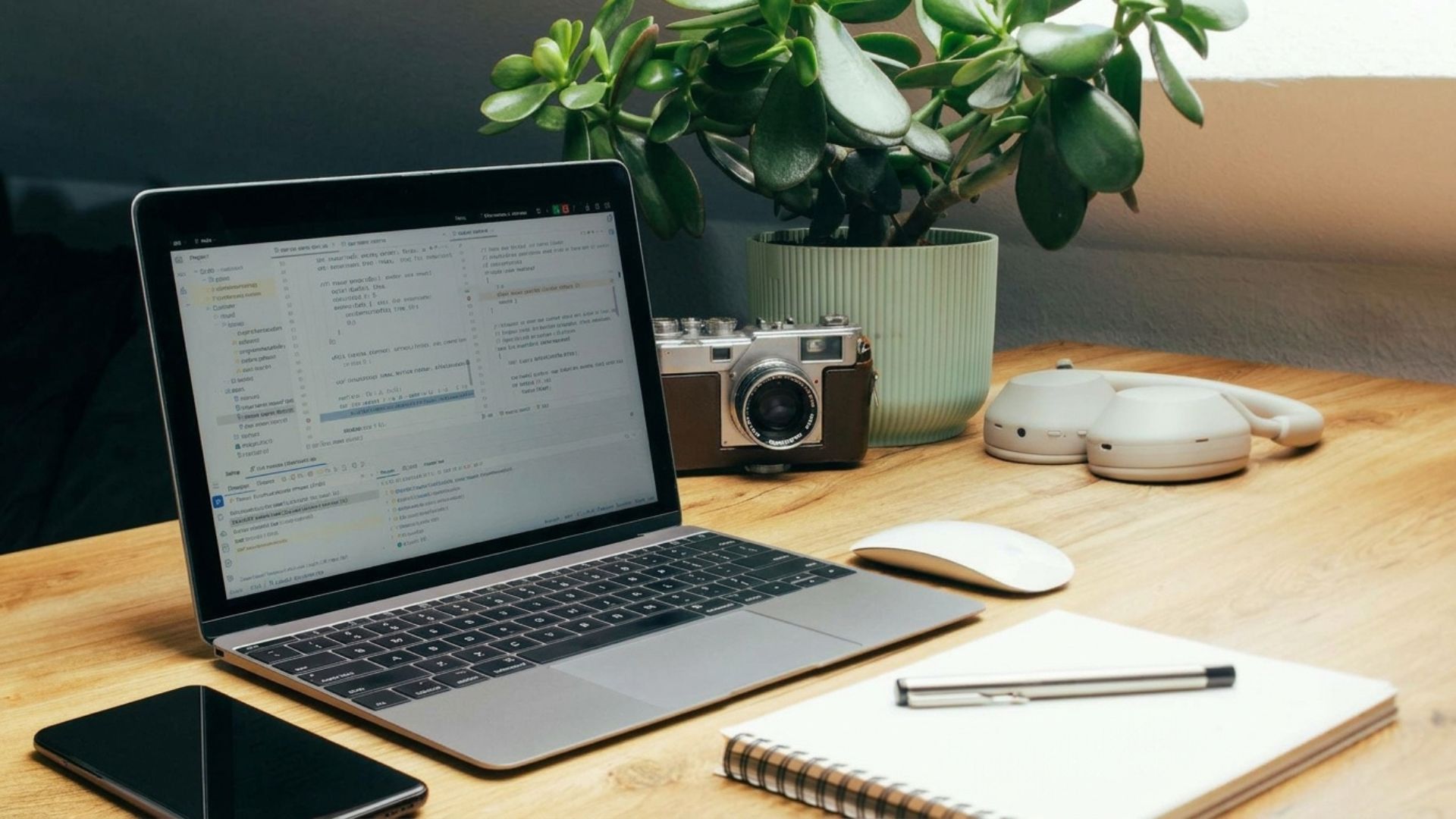
Bottle gone and the pot behind it rebuilt, with no visible seam.
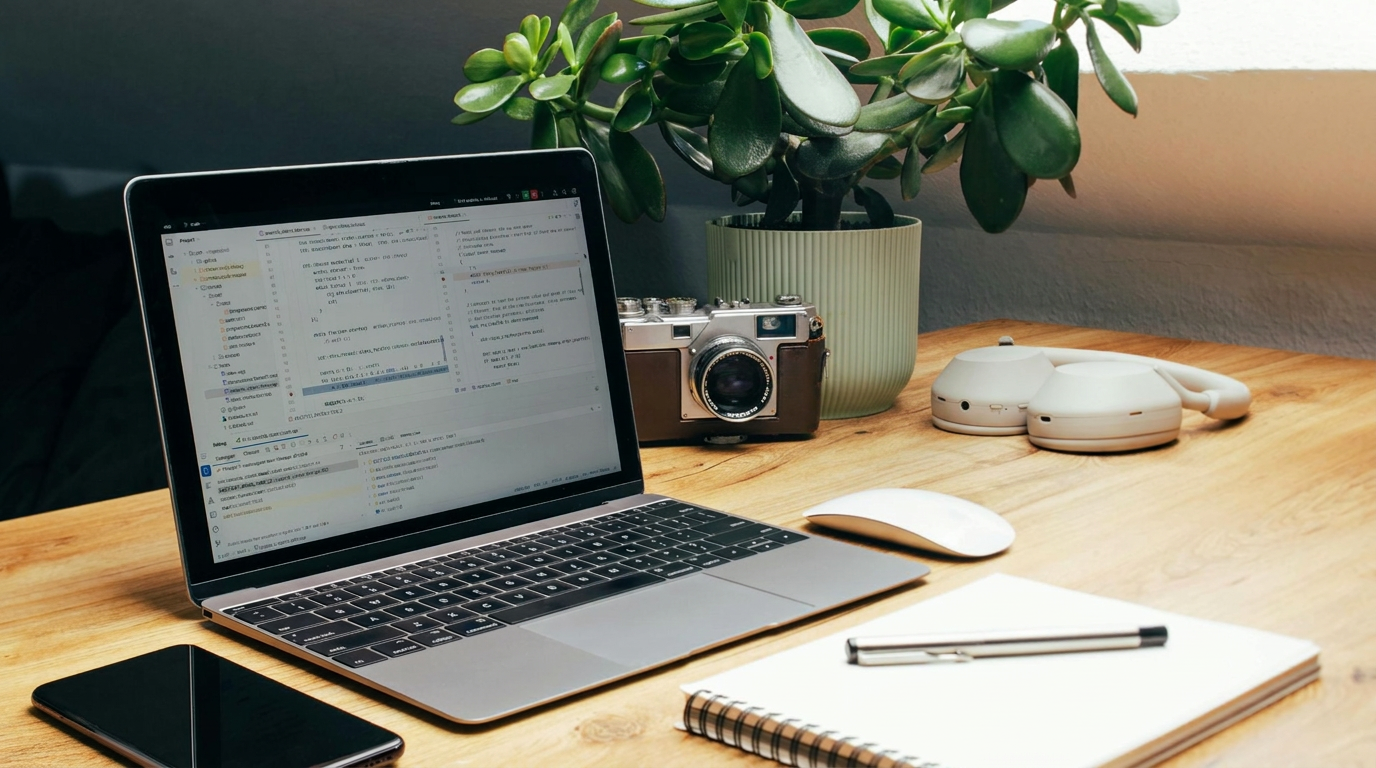
The same clean result, with the plant pot filled in naturally.
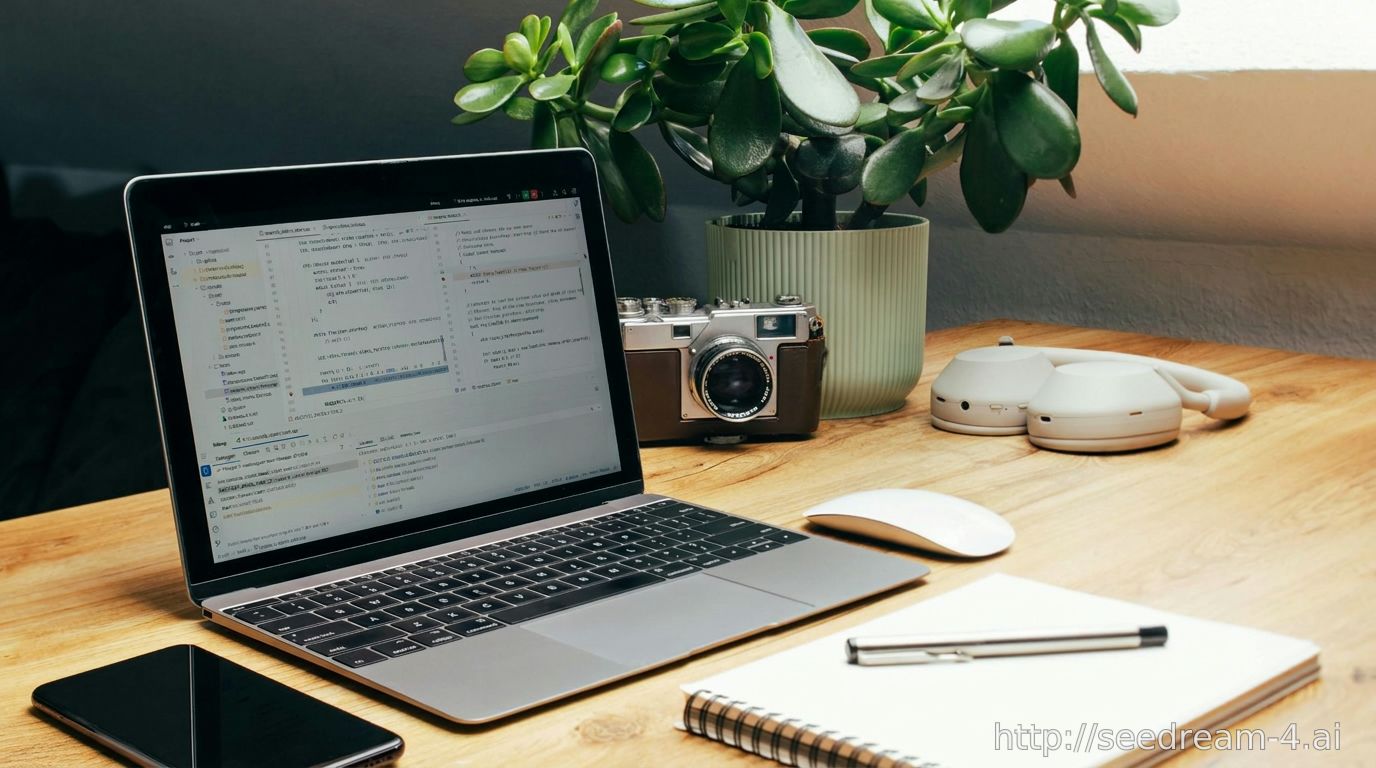
Equally clean, with a seedream-4.ai watermark bottom right.
Edit 2: swap the background for light gray
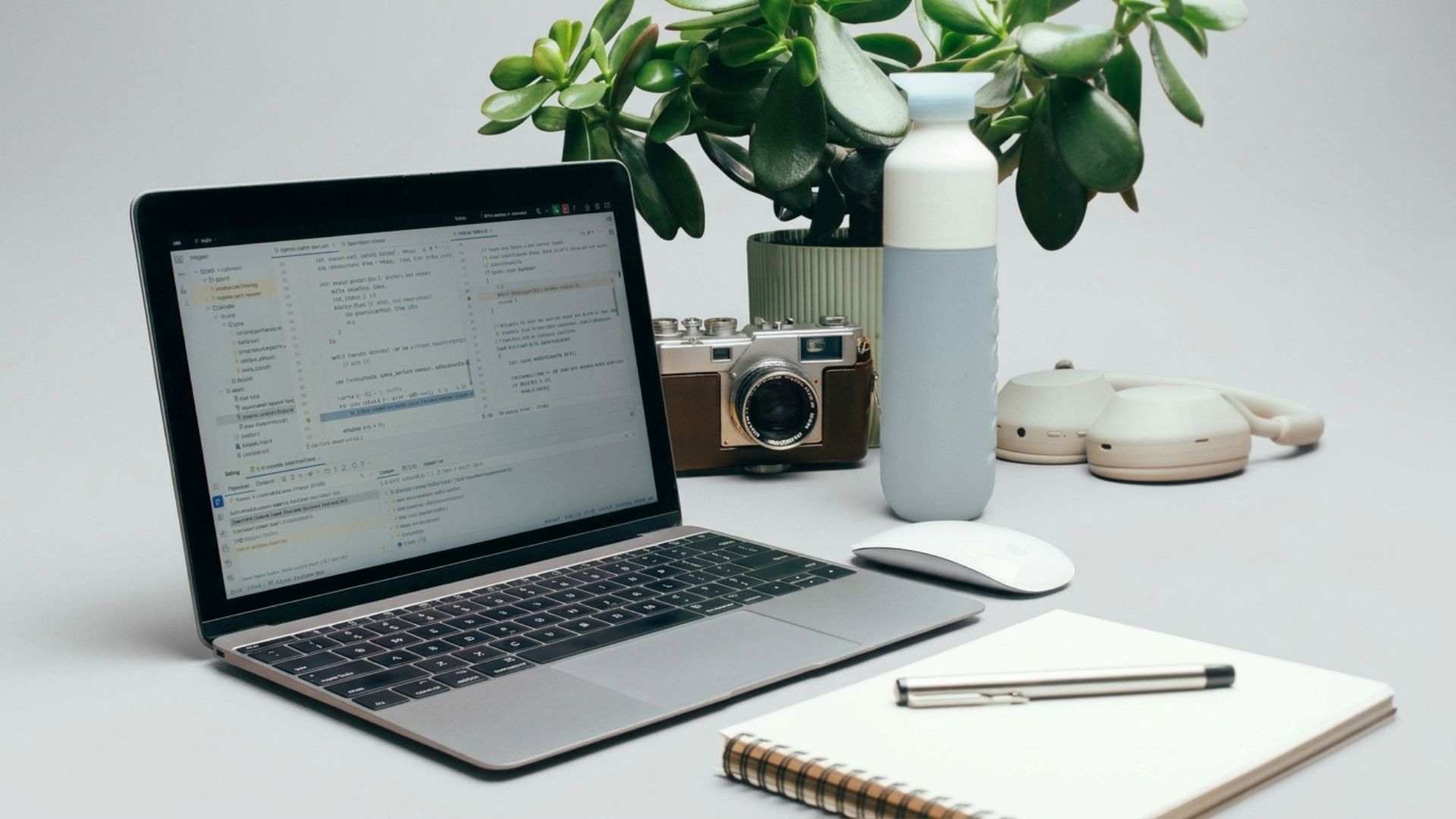
Clean gray backdrop, but the phone disappeared.
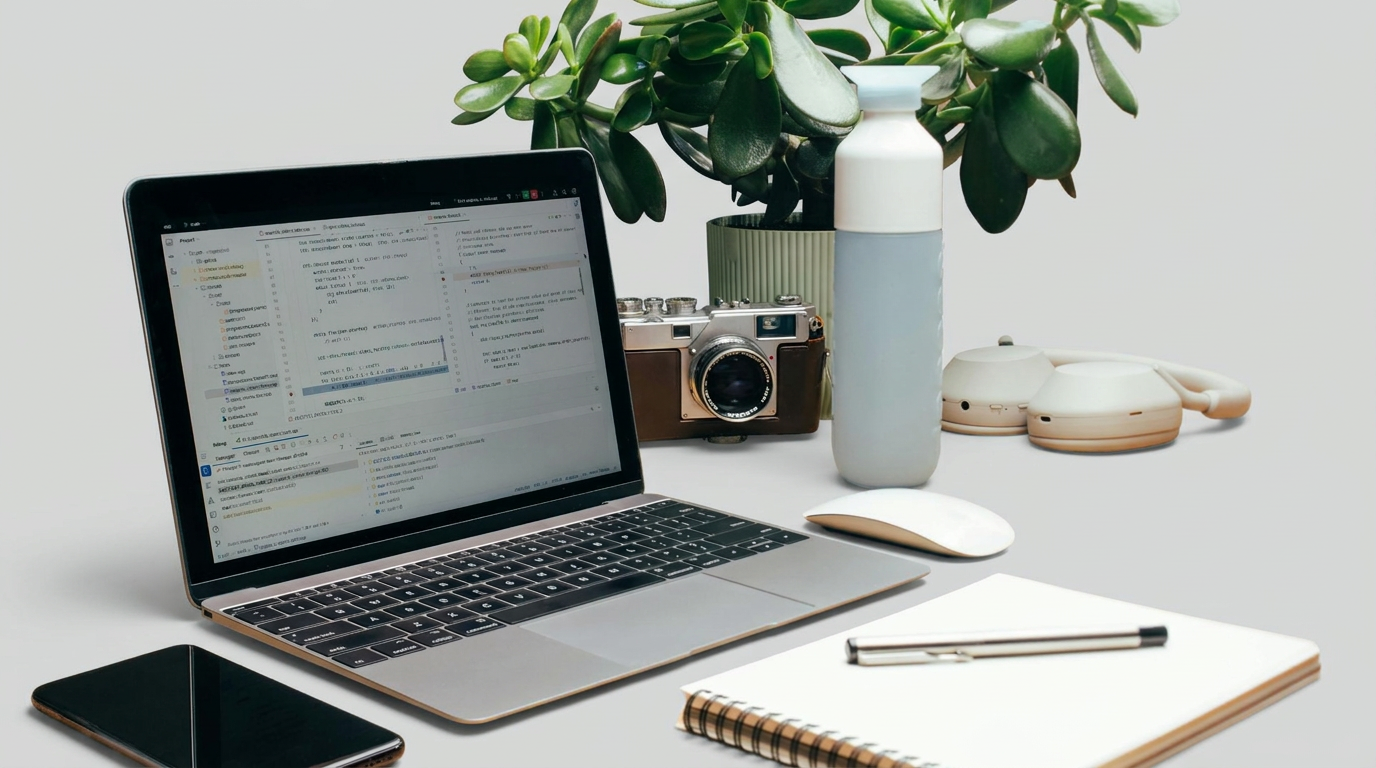
Every object stayed, phone included.
Edit 3: warm late-afternoon light
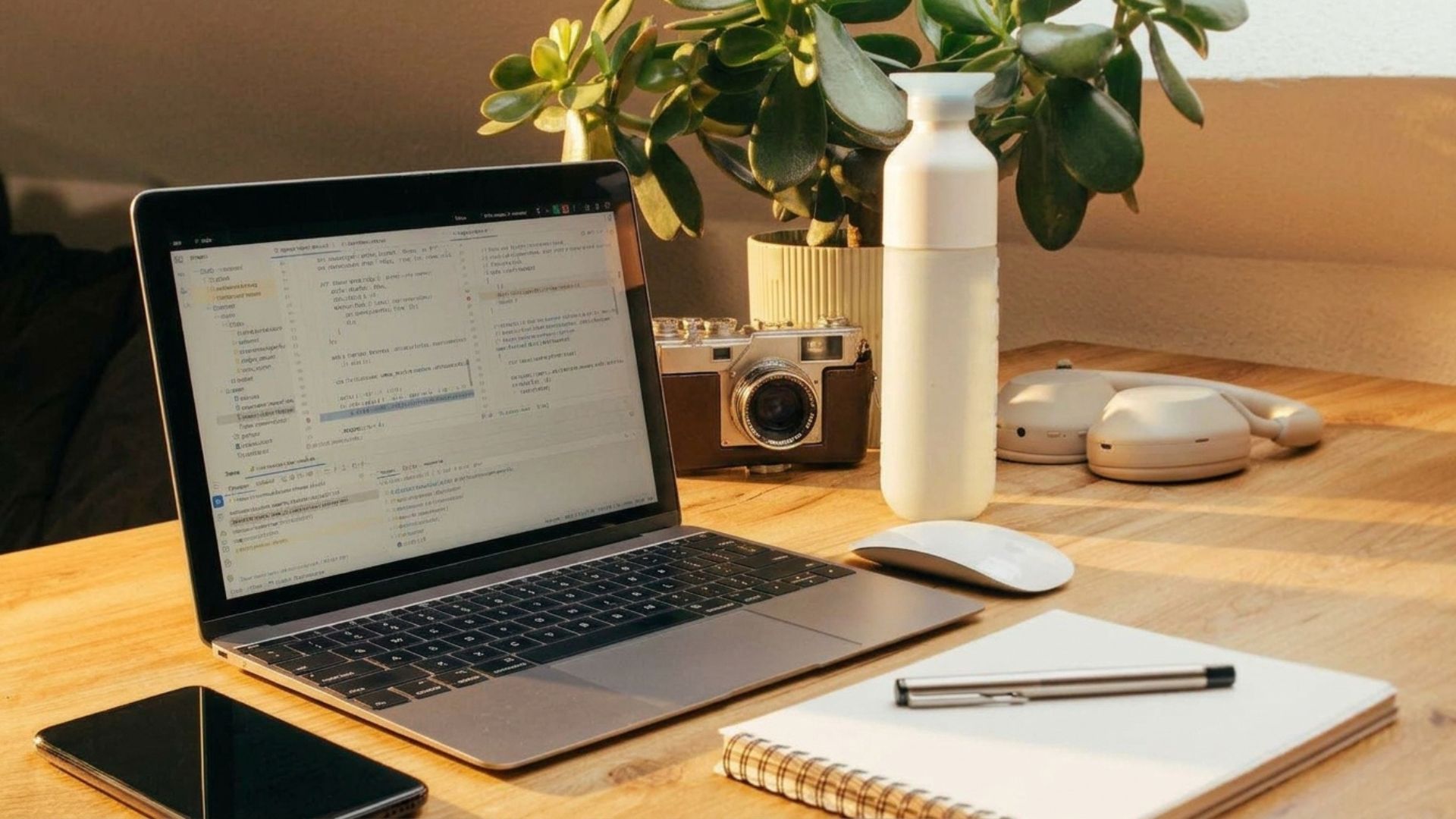
Warm and believable, but the blue bottle turned white and the green pot cream.
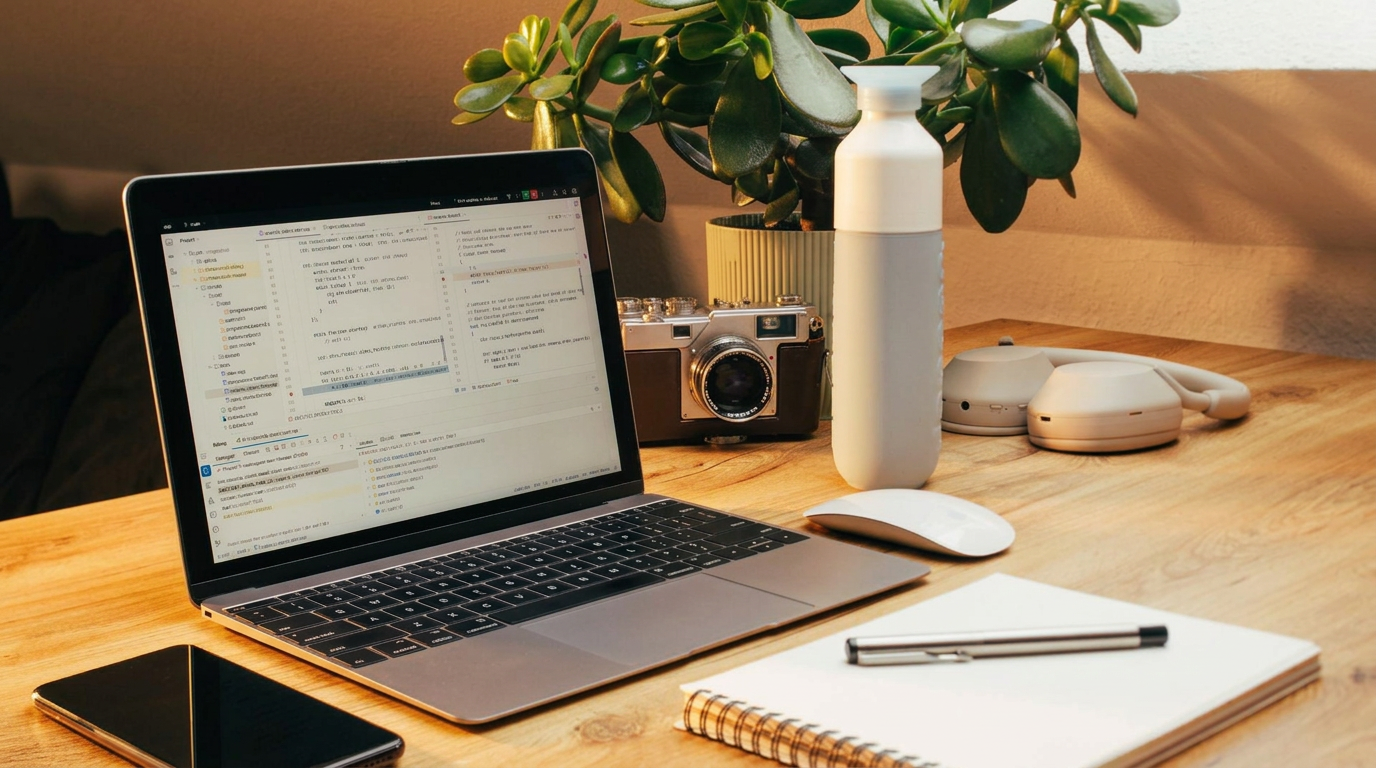
The same warm look and the same color shift on bottle and pot.
Edit 4: add a small plant
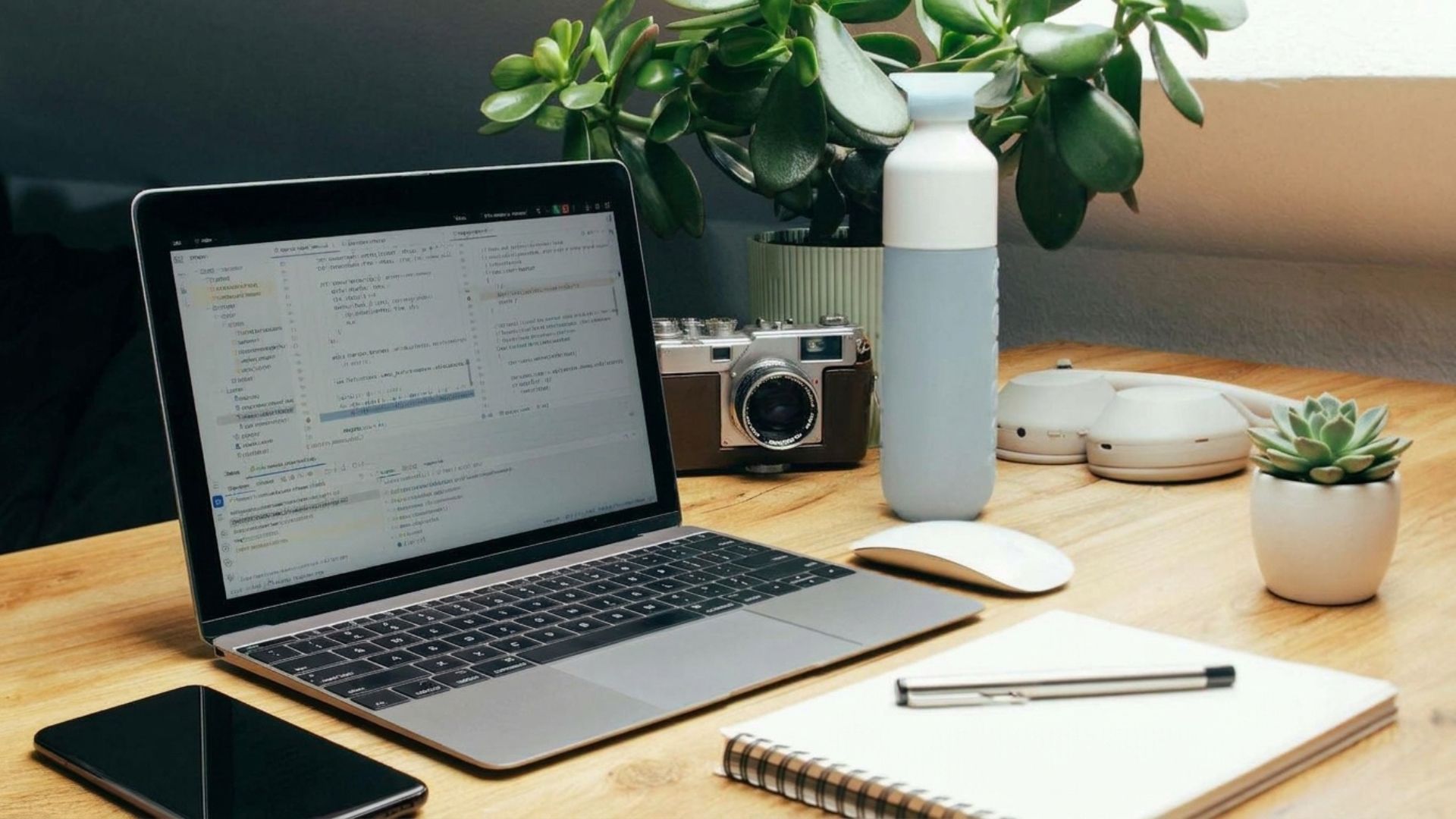
The plant matches the scene and nothing else changed.
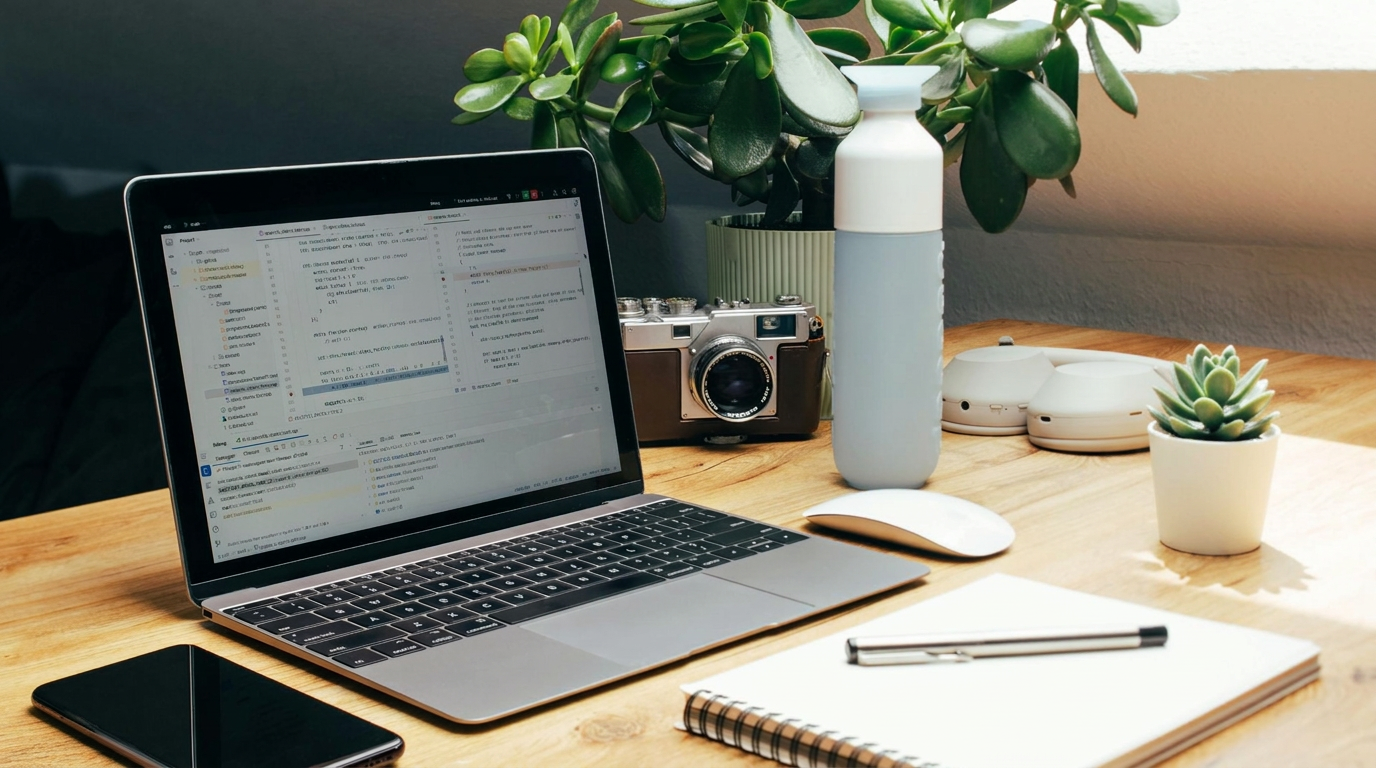
Equally clean, with the plant sitting naturally on the table.
| Edit | Gemini | Firefly | Seedream | Best result |
|---|---|---|---|---|
| Remove | Good | Good | Good | Tie |
| Background | Lost the phone | Good | Not run | Firefly |
| Light | Colors shifted | Colors shifted | Not run | Tie |
| Add | Good | Good | Not run | Tie |
| Output size | 1920×1080 | 1376×768 | 1376×768 | Gemini |
| Free-plan limit | None hit | 2 generations a day | 1 edit | Gemini |
Gemini was the most practical of these free AI image editors: I never hit a limit, and it was the only one to return the original 1920×1080 size. Its one miss was the background swap, where the phone vanished. Firefly handled that edit best, but its free plan allows 2 generations a day, so a four-edit session needs two days.
All three tools rewrote the laptop screen: the readable code in the original became soft, unreadable text. If a screen, label or logo must stay legible, zoom in on the result before you publish it. This is one photo and one run per edit, so treat it as a snapshot, not a benchmark.
What AI image editors cost, and where the free plan stops
| Editor | Free tier | Paid from (USD) | Cost per edit |
|---|---|---|---|
| Google Gemini | Daily limits | Google AI plans | Included in plan limits |
| Photoshop + Firefly | Firefly free daily credits | $9.99/mo Firefly Standard | 1 credit Firefly; ~10–40 partner models |
| ChatGPT Images | Limited | Paid ChatGPT plans | Included in plan limits |
| Canva AI | Small AI allowance | Canva Pro | Draws from monthly AI allowance |
| Photoroom | 250 watermarked exports | $7.99/mo Pro | Unlimited single exports on Pro |
| Topaz Photo AI | None | $199/year | Unlimited, runs on your computer |
| Seedream (Dreamina) | Daily credits | Paid credit plans | Shown before each generation |
| Higgsfield | 10 credits | $19/mo Starter | ~2 credits per Nano Banana Pro image |
If you already pay for ChatGPT or a Google AI plan, start with the AI image editors built into it: you may not need another subscription at all. Paying for several AI tools already? My AI subscription cost calculator totals them in a minute.
5 catches to check before you edit with AI
💧 Watermarks
Free Seedream and Photoroom exports are marked. Gemini adds an invisible SynthID watermark that survives cropping.
💼 Commercial use
Photoroom's free plan bans it outright. Read the terms before a client job.
📐 Resolution
Free downloads from AI image editors are often smaller than your original. In my test, Firefly and Seedream returned 1376×768 from a 1920×1080 photo.
🔒 Your uploads
Photos you upload to AI image editors can be stored or used to improve models unless you opt out.
🧑 Real people
Don't edit someone's likeness without consent, and never make misleading images of real people.
For the opt-out switches in Gemini, ChatGPT and other apps, follow my AI privacy settings guide. To check whether an image someone sent you was edited, my guide to AI watermarks shows how to read the labels.
Watch: picking a model inside Photoshop's Generative Fill
This 3-minute tutorial by Sebastian Burnell of BAD Marketing shows the model choice I describe above in action: expanding a canvas with Firefly, adding an object with Google's Gemini model, and removing distractions. It's the clearest short demo I found of how AI image editors now share models.

Video: “Photoshop Generative Fill in 3 Minutes (Now With Nano Banana)” by BAD Marketing. Watch on YouTube
Edit prompts that work in any AI image editor
Remove an object
Remove the [object] from this photo. Fill the space so it matches the surroundings. Keep everything else exactly the same: framing, colors, lighting and every other object.Swap the background
Replace the background with a clean light-gray studio backdrop. Keep the main subject exactly as it is, with the same angle and lighting on it, and add a soft natural shadow under it.Fix lighting
Make this photo look like it was taken in warm late-afternoon light from the left. Brighten the shadows a little. Do not move, add or remove anything.Add an object
Add a small green plant in a white pot on the right side of the table. Match the scene's light direction, shadows and perspective. Change nothing else.Product shot
Place this product on a light oak surface with soft window light from the left and a blurred neutral background. Keep the product's shape, color, label and text exactly as they are.Restore an old photo
Restore this old photo: remove scratches, dust and fading, fix the color cast and sharpen the faces gently. Keep every person's features, expression and clothing exactly as they are.If an edit drifts in any of these AI image editors, run it again with one change per prompt instead of three. When results look plastic or over-smooth, my guide to AI images that don't look fake has the fixes, and these 7 fixes cover error messages.
Step-by-step guides for each type of edit
This page compares the AI image editors; the guides below go deep on one job each, with full walkthroughs.
My verdict on the best AI image editors
🏆 Best free
Google Gemini
🎯 Most control
Photoshop + Firefly
📦 Product photos
Photoroom
🔍 Damaged photos
Topaz Photo AI
Start free with Gemini. For most photo fixes it's the fastest of the AI image editors I've used, and it kept my face when other tools redrew it. Move to Photoshop when you need masks and layers, to Photoroom when you sell products, and to Topaz when the photo itself is damaged.
Whichever of these AI image editors you pick, write the edit as one change plus a list of what must stay, and check the free plan's watermark and commercial terms before the image goes public.