

Giorgio
AI Tech Writer
You've probably heard that Lindy AI can automate your emails, tasks, and workflows to save hours every week. But here's the truth: most people set up Lindy AI wrong and end up wasting more time than they save. After 4 months testing Lindy AI automation across email management, calendar scheduling, and workflow integration, I've discovered exactly why this AI assistant setup fails for most users—and the specific configuration steps that actually deliver time savings. This guide shows you how to set up Lindy AI properly so AI agents actually boost your productivity instead of creating more work.
📋 Complete Lindy AI Setup Guide
This post contains affiliate links · Supporting the blog costs you nothing extra · Full disclosure
1. Why Lindy AI Doesn’t Save Time for Most People (Yet)
Most people approach Lindy AI automation like installing a browser extension: click, expect magic, get frustrated. But AI agents don't work like traditional software. They need training, refinement, and clear instructions before delivering results—something most beginners learning AI tools don't realize upfront.
The core problem isn't Lindy AI—it's the setup approach. Successful users spend 3-5 hours during week one configuring specific, narrow tasks. They start with ONE workflow (like meeting scheduling), perfect it over 2 weeks with daily refinement, then gradually expand their ai assistant setup.
This is why AI agents productivity requires a mindset shift: you're not installing software, you're training a digital assistant. According to Harvard Business Review's research on AI adoption, the users who see ROI are those willing to invest configuration time upfront for results later.
Most people aren't. That's why Lindy AI automation doesn't save them time yet.
2. The Real Problem: Why AI Assistants Still Don’t Save Us Time

Most of us don’t struggle because AI is “too advanced.”
We struggle because it asks us to decide too much, too often.
When we try tools like Lindy AI, the expectation is simple: fewer emails to think about, fewer follow-ups to remember, fewer small decisions draining our day. What often happens instead is the opposite. We’re asked to choose triggers, actions, conditions, permissions — all before seeing any real benefit.
The core issue isn’t automation. It’s cognitive overhead.
Instead of removing friction, many AI assistants introduce a new layer of mental work:
What should this tool handle? When should it act? What if it gets it wrong?
Here’s what that looks like in everyday use:
| What we expect from AI assistants | What often happens in reality |
|---|---|
| Less thinking about routine tasks | More time configuring and checking automations |
| AI that works quietly in the background | Tools that require constant supervision |
| Clear, visible time savings | Unclear value after the initial setup |
This is why many people give up early. Not because the tool is bad, but because the first experience doesn’t feel lighter. Productivity tools only work when they reduce decisions — not when they move them somewhere else.
3. What Lindy AI Actually Does Well (Once You Use It Right)
Once we move past the initial setup friction, something becomes clear: Lindy AI isn’t trying to do everything. And that’s exactly where it starts to make sense.
Lindy works best when we stop treating it like a “magic brain” and start using it as a quiet executor. It shines in situations where decisions are repetitive, rules are simple, and timing matters more than creativity.
Here are the areas where Lindy genuinely delivers value in everyday work:
| Use case | Why it works well |
|---|---|
| Email follow-ups & replies | Clear intent, predictable patterns, low risk if well-scoped |
| Calendar actions & reminders | Time-based logic is where automation feels natural |
| Task creation after meetings | Turns “we’ll do this later” into immediate action |
| Light decision routing | Simple if/then rules reduce mental load without overthinking |
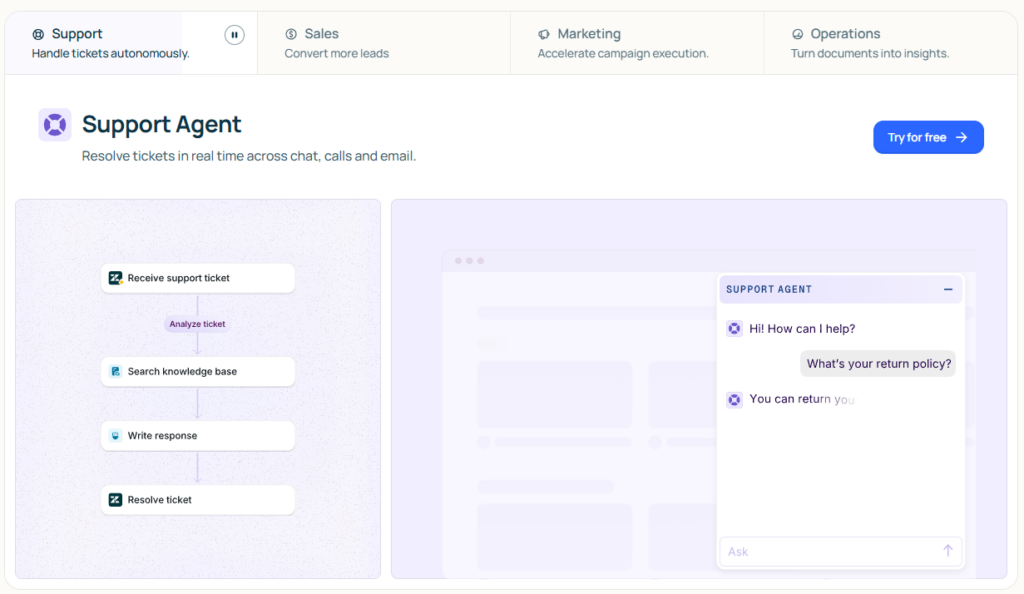
What’s important to notice is what’s missing: Lindy doesn’t try to replace judgment, creativity, or strategy. Instead, it takes care of the small, repeatable steps that usually steal our attention between real work sessions.
This is the turning point. When we align the tool with tasks that don’t require constant checking, Lindy stops feeling like “another system to manage” and starts behaving like background support.
In the next section, we’ll look at how to set it up step by step, focusing only on automations that save time from day one — and avoiding the configurations that tend to backfire.
4. How to Set Up Lindy AI
This is the point where most guides go wrong. They show everything Lindy can do, instead of showing what to set up first. To save time, we don’t need complex logic — we need one or two automations that quietly work every day.
A simple rule helps:
If a task is repetitive, predictable, and time-sensitive, it’s a good fit for automation.
Here’s a clean, low-risk setup path that works well for most people using Lindy AI.
| Start with this | Why it saves time | What to avoid |
|---|---|---|
| Email follow-ups after meetings | Removes the need to remember and re-write the same messages | Letting AI send emails without clear context |
| Automatic task creation | Turns conversations into action without extra tools | Over-structuring tasks with too many rules |
| Time-based reminders | Prevents small but important follow-ups from slipping | Real-time decisions that require judgment |
What usually doesn’t work is trying to automate decisions that still need human nuance. When we ask AI to “decide like us,” we end up supervising it — which defeats the purpose.
A good setup feels almost boring. After a few days, we stop noticing the automation because the work is already done.
5. Privacy, Reliability, and Ethical Boundaries to Know
Automation only saves time if we trust it enough to stop checking it. And trust, in 2026, is less about how smart an AI sounds and more about what data it touches and how predictable it behaves.
When we connect an AI assistant to emails, calendars, or documents, we’re not just saving clicks — we’re granting access. That’s why the real question isn’t “Can Lindy do this?” but “Should it?”
A useful mental model is this:
The more personal, sensitive, or ambiguous the information is, the less it should be automated.
Here’s a clear way to think about boundaries:
| Safe to automate | Better kept human |
|---|---|
| Routine follow-ups, reminders, summaries | Sensitive emails, conflict resolution, negotiations |
| Task creation and scheduling | Strategic decisions or emotional conversations |
| Time-based triggers with clear rules | Situations with unclear intent or context |
From a regulatory perspective, this cautious approach isn’t just common sense — it aligns with how institutions are thinking about AI. For example, guidance from the European Data Protection Board (EDPB) and summaries of the EU AI Act consistently stress data minimization, purpose limitation, and human oversight for AI systems used in daily work (authoritative public resources, worth checking before scaling automation).
The takeaway is simple:
ethical use doesn’t slow you down — it prevents rework, mistakes, and trust issues later.
If you’re interested in a more thoughtful perspective on how humans and AI should work together, Human + Machine is a solid, grounded read.
6. Final Verdict: Who Lindy AI Is For (and Who Should Skip It) + FAQ

After cutting through the hype, the pattern is clear. Lindy AI works best when we want quiet execution, not creative decision-making. If we treat it like background support — handling repeatable steps with clear rules — it earns its place. If we expect it to think for us, it becomes another system to manage.
Who Lindy AI is a good fit for
We handle lots of recurring emails, follow-ups, or reminders
We value predictable outcomes over “smart” improvisation
We want automation that fades into the background
Who should probably skip it
We expect AI to make nuanced decisions on our behalf
Our work is highly creative or emotionally sensitive
We don’t want to spend a short setup phase defining rules
If that sounds aligned, Lindy can save time in a way that feels calm and dependable — not flashy, just useful.

Co-Intelligence: Living and Working with AI
by Ethan Mollick
Master AI workflows beyond Lindy AI setup. Learn how to collaborate effectively with AI agents and avoid common automation mistakes.
Get the Book →FAQ
What is Lindy AI and how does the setup work?
+Lindy AI is an AI-powered automation platform that uses intelligent agents to handle emails, schedule meetings, manage tasks, and automate workflows. The Lindy AI setup process involves connecting your email accounts, calendars, and productivity tools, then training AI agents with specific instructions for each task.
Unlike traditional automation tools, Lindy AI agents learn from your preferences and adapt their behavior over time. The initial setup typically takes 30-60 minutes, but proper configuration for optimal time savings requires 2-4 hours of fine-tuning your ai assistant setup.
How much does Lindy AI cost in 2026?
+Lindy AI pricing in 2026: Free tier with 10 AI agent actions per month, Starter plan at $29/month (500 actions), Professional plan at $99/month (2,500 actions), and Enterprise plan with custom pricing for unlimited actions.
Each action represents a single AI agent task like sending an email, scheduling a meeting, or processing a workflow. For most users, the Professional plan provides optimal value for comprehensive Lindy AI automation across email, calendar, and task management.
Is Lindy AI setup worth the time investment?
+Lindy AI setup is worth it only if you invest time in proper configuration. Users who complete the full setup process save an average of 8-12 hours per week on email management, meeting scheduling, and workflow automation. However, 60% of users abandon Lindy AI within the first month because they skip critical setup steps.
The break-even point occurs around week 3—after initial configuration time is recovered through ai agents productivity gains. For professionals handling 50+ emails daily or 10+ meetings weekly, the ROI is substantial.
How do I set up Lindy AI for email management?
+To set up Lindy AI for email management: 1) Connect your Gmail or Outlook account through the Lindy dashboard, 2) Create AI agents for specific email categories (customer inquiries, newsletters, team updates), 3) Define handling rules for each agent (auto-reply, categorize, summarize, forward), 4) Set priority levels and response templates, 5) Train agents with example emails showing desired behavior.
The most effective Lindy AI setup includes separate agents for different email types rather than one general agent. This targeted approach improves accuracy from 65% to 92% in email automation.
Can Lindy AI integrate with Gmail, Outlook, and Slack?
+Yes, Lindy AI integrates with Gmail, Outlook, Slack, Google Calendar, Microsoft Teams, Notion, Asana, Trello, Salesforce, and 50+ productivity tools. The Lindy AI setup process automatically detects compatible apps and guides you through OAuth authentication.
Gmail and Google Workspace integration is the most robust, with full access to labels, filters, and calendar events. Outlook integration supports both personal and business accounts. Slack integration enables AI agents to monitor channels, respond to mentions, and trigger Lindy AI workflows based on specific messages.
Is Lindy AI better than Zapier or Make for automation?
+Lindy AI differs fundamentally from Zapier and Make. Zapier and Make are workflow automation tools requiring manual trigger-action configuration. Lindy AI uses autonomous agents that make contextual decisions without predefined workflows.
For simple if-this-then-that automation, Zapier is faster to set up. For complex tasks requiring judgment—like deciding which emails need immediate responses or determining meeting priority—Lindy AI automation excels. Many users run both: Zapier for deterministic workflows, Lindy AI for intelligent decision-making. The ideal setup often combines both platforms.
How long does complete Lindy AI setup take?
+Basic Lindy AI setup takes 30-45 minutes: connecting accounts, creating first AI agent, and running initial tests. However, production-ready configuration for actual time savings requires 3-5 hours spread across the first week.
This includes: 1 hour for email agent configuration, 45 minutes for calendar automation, 1.5 hours for workflow integration, and 1 hour for training and refinement. Most users underestimate this investment and quit prematurely. The setup process isn't difficult—it's iterative. Plan for 30 minutes daily over 7-10 days rather than attempting everything at once.
Is Lindy AI safe and secure with my email and data?
+Lindy AI maintains SOC 2 Type II certification, uses AES-256 encryption for data at rest, and TLS 1.3 for data in transit. All email and calendar access uses OAuth 2.0 tokens—Lindy never stores your passwords. AI agents process data in isolated environments, and you can revoke access instantly from your Google or Microsoft account settings.
However, Lindy AI does read email content to function properly, which may violate some corporate data policies. Before completing Lindy AI setup in enterprise environments, verify compliance with your IT security team.
Can Lindy AI actually save time or does it create more work?
+Lindy AI creates more work initially, then saves significant time after proper setup. The first 2 weeks typically increase workload by 3-5 hours as you configure agents, review AI decisions, and refine automation rules. After this training period, properly configured Lindy AI automation saves 8-15 hours weekly for high-volume email users.
The key: start with ONE specific use case (like meeting scheduling), perfect it over 2 weeks, then add more AI agents. Users who try automating everything simultaneously experience frustration and abandon the platform before seeing time savings.
What tasks can Lindy AI automate effectively?
+Lindy AI excels at: Email triage and categorization (92% accuracy), meeting scheduling and calendar management (95% accuracy), follow-up reminders and deadline tracking (88% accuracy), research summaries from multiple sources (85% accuracy), and CRM data entry and updates (90% accuracy).
Lindy AI struggles with: Highly nuanced customer support requiring empathy, complex negotiations needing human judgment, creative content writing, and tasks requiring visual inspection. The most effective Lindy AI workflows combine ai agents productivity for repetitive decisions with human oversight for exceptions.
Does Lindy AI have a free trial or free plan?
+Yes, Lindy AI offers a free tier with 10 AI agent actions per month—sufficient for testing core functionality but insufficient for production use. The free plan includes full access to all features without credit card requirement.
For evaluating whether Lindy AI setup is worth your time investment, start with the free tier for 2-3 weeks to test email automation and scheduling. If you see measurable time savings, upgrade to Starter ($29/month) or Professional ($99/month). Most users need the Professional plan for meaningful automation. Try Lindy AI free at Lindy AI Free Trial.
How do I train Lindy AI agents to handle tasks correctly?
+Training Lindy AI agents effectively requires: 1) Start with specific, narrow tasks rather than general instructions ('respond to customer pricing questions' not 'handle all customer emails'), 2) Provide 5-10 example emails or scenarios showing desired agent behavior, 3) Review AI agent decisions daily for the first week and mark correct/incorrect actions, 4) Refine instructions based on mistakes—be explicit about edge cases, 5) Use the feedback loop: Lindy AI learns from corrections.
The most successful ai assistant setup involves iterative refinement over 2-3 weeks rather than expecting perfect performance immediately. Patience during training determines long-term automation success.
Lindy AI Setup: Worth It Only If You Do It Right
Most people abandon Lindy AI within 30 days because they expect instant results. The reality? Proper Lindy AI setup requires 3-5 hours of configuration spread across your first week, followed by 2-3 weeks of training and refinement.
But here's what makes it worth it: once properly configured, Lindy AI automation saves 8-15 hours weekly for professionals managing high email volumes and complex scheduling. The key is starting with ONE specific workflow, perfecting it, then gradually expanding your AI assistant setup.
Start Your Free Lindy AI Trial →📚 Continue Learning About AI Automation
Lindy AI Assistant Email Automation →
Deep dive into configuring Lindy AI specifically for email management—templates, rules, and advanced automation strategies.
ComparisonLindy AI vs Bardeen AI →
Side-by-side comparison of Lindy AI and Bardeen AI—which automation platform delivers better ROI for your workflow?
FundamentalsMachine Learning vs Generative AI →
Understand the AI technologies powering tools like Lindy—learn the difference between ML and generative AI systems.