

📅 Published October 14, 2026 · 🔄 Updated October 14, 2026 · ⏱ 12 min read
Copilot PowerPoint prompt lists give you one-liners, but the sentence you type is only half of what Copilot reads. The other half is the file you point it at, and a Word outline built with heading styles tells Copilot where every slide starts. So I built a free kit: a prompt builder that writes the full prompt for six common decks, and a Word outline you download in one click.
Short answer
The best Copilot PowerPoint results come from two things together: a prompt that names the audience, slide count, goal and slide rules, and a Word file whose headings become the slides. Save the file to OneDrive, type / in the Copilot box to attach it, and fix the draft one follow-up prompt at a time.
🧰 What's in the free kit
Step 3
12 fix-up prompts
Titles, bullets, visuals and speaker notes, each with a copy button.
📋 What's inside
- What can Copilot do in PowerPoint?
- Which plan do you need?
- Free Copilot PowerPoint prompt builder
- I tested it: one-line prompt vs the kit
- Why a Word outline beats a longer prompt
- How to make a Copilot PowerPoint deck, step by step
- 12 prompts to fix a Copilot draft
- Why Copilot PowerPoint drafts look weak: 5 fixes
- No Copilot? The free alternative
- My verdict
- FAQ
🔍 How I built this kit
I built the six Copilot PowerPoint deck structures and the prompt rules from Microsoft's own Copilot in PowerPoint documentation and the newest feature notes, checked on October 14. Then I tested the kit myself in PowerPoint on a Microsoft 365 work plan with Copilot, against a one-line prompt; the screenshots below are from those runs. Plan names, credits and prices are linked to their sources below. The Word outline is generated in your browser, so nothing you type leaves your device.
Some links are affiliate links: if you buy through them I may earn a commission at no extra cost to you. It never decides what I recommend. Details
What can Copilot do in PowerPoint?
Microsoft's Copilot in PowerPoint FAQ lists the core jobs: creating a deck about a topic, creating one from a file, adding a slide, organizing the deck and adding an image. The table shows what each Copilot PowerPoint feature is for, plus the features that arrived this year.
| Copilot PowerPoint feature | What it does | Where |
|---|---|---|
| Create a presentation | Full draft from a prompt, with length, tone and style options | Windows, Mac, web |
| Create from a file | Builds slides from Word, PDF, TXT or Excel files saved to OneDrive | Windows, Mac, web |
| Create from PowerPoint Home | Starts a Copilot deck before you open a file | Rolled out from May |
| Add a slide / organize | New slide on a topic; groups slides into sections | Copilot pane |
| Text box pen icon | Writes a title, summary or caption from the slide's content | Blank text boxes |
| Review Presentation | One-click feedback on the whole deck | Web, Review tab |
| Visualize Slide | Turns a text-heavy slide into a visual one | Web, Design tab |
Microsoft's guide to creating a presentation with Copilot says you can reference up to five Word, PDF, TXT or Excel files on work plans. Home plans are less clear: the FAQ still describes one Word file at a time for home users, so I wrote the kit around a single Word outline, which works on every plan.
Which plan do you need for Copilot PowerPoint?
| Plan | Copilot PowerPoint access | Price (US) |
|---|---|---|
| Microsoft 365 Personal | Yes, 60 AI credits a month | See Microsoft's plan page |
| Microsoft 365 Family | Owner only, 60 AI credits a month | $12.99/month |
| Microsoft 365 Premium | Yes, extensive use | $19.99/month |
| Microsoft 365 Copilot (work) | Yes, up to 5 reference files | $30/user/month, annual |
| Personal or Family Classic | No Copilot in the apps | Lower, no AI |
Sixty credits sounds like a lot until you count retries. Office Watch's guide to AI credits notes they reset on the first of each month and that one is used each time you call Copilot, so ten attempts at one deck is a sixth of your month. That's the real case for a better first Copilot PowerPoint prompt: fewer redos.
Outside the US, prices differ: in Italy, for example, Personal costs €99 a year and Family €129. Copilot is in Personal and Family in most markets, but Microsoft says it can't be shared with other Family members.
Free Copilot PowerPoint prompt builder
Pick the kind of deck, add your topic and audience, and the builder writes a full Copilot PowerPoint prompt plus a Word outline with one heading per slide. It runs in your browser and stores nothing.
1. What kind of deck?
2. The details
I tested it: a one-line Copilot PowerPoint prompt vs the kit
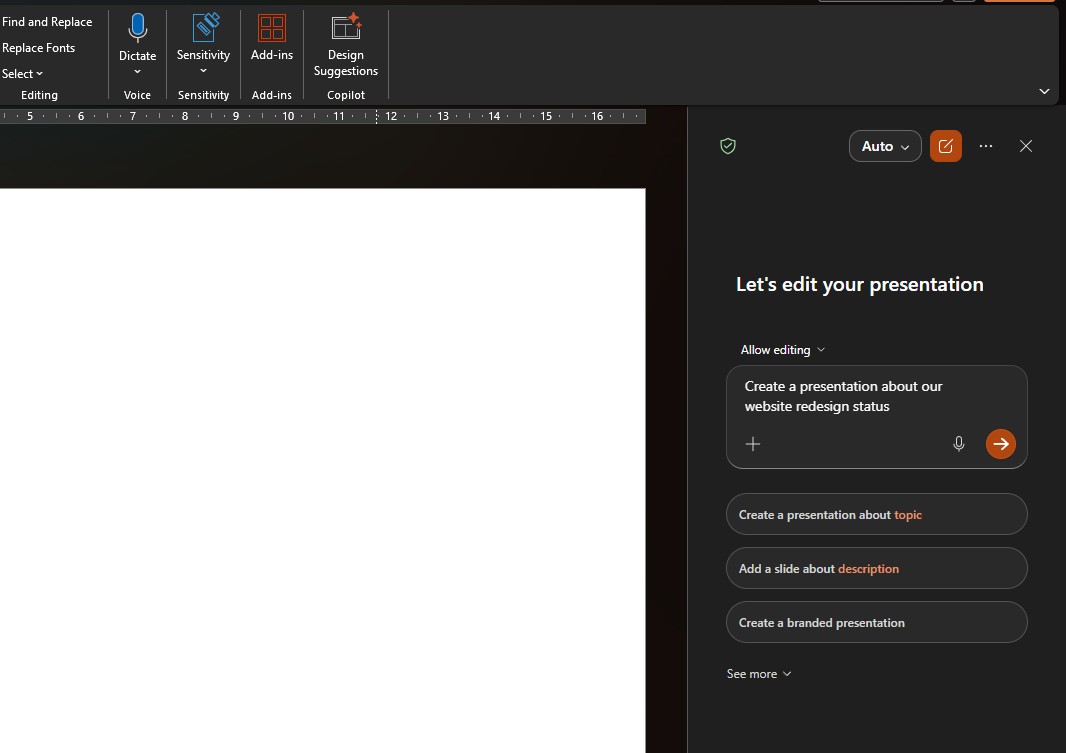
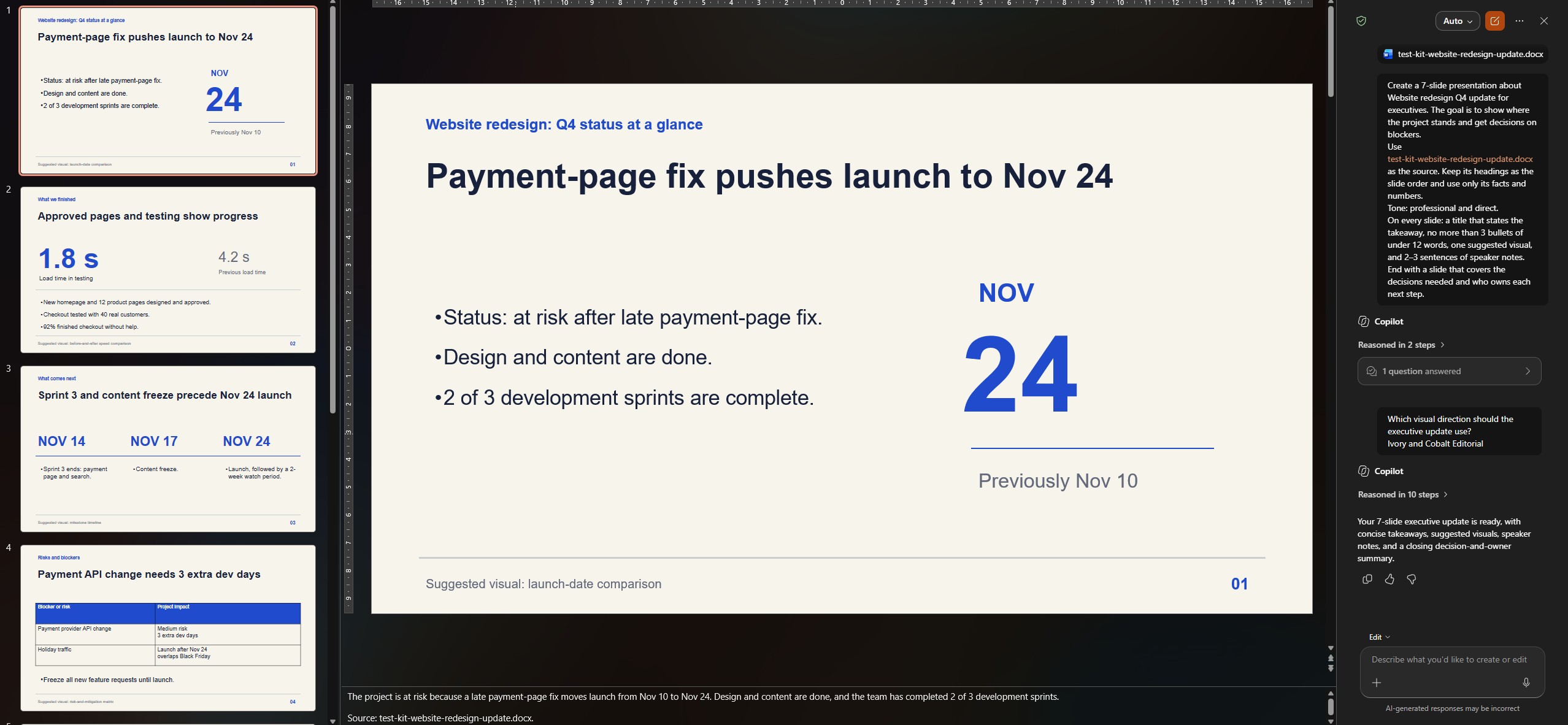
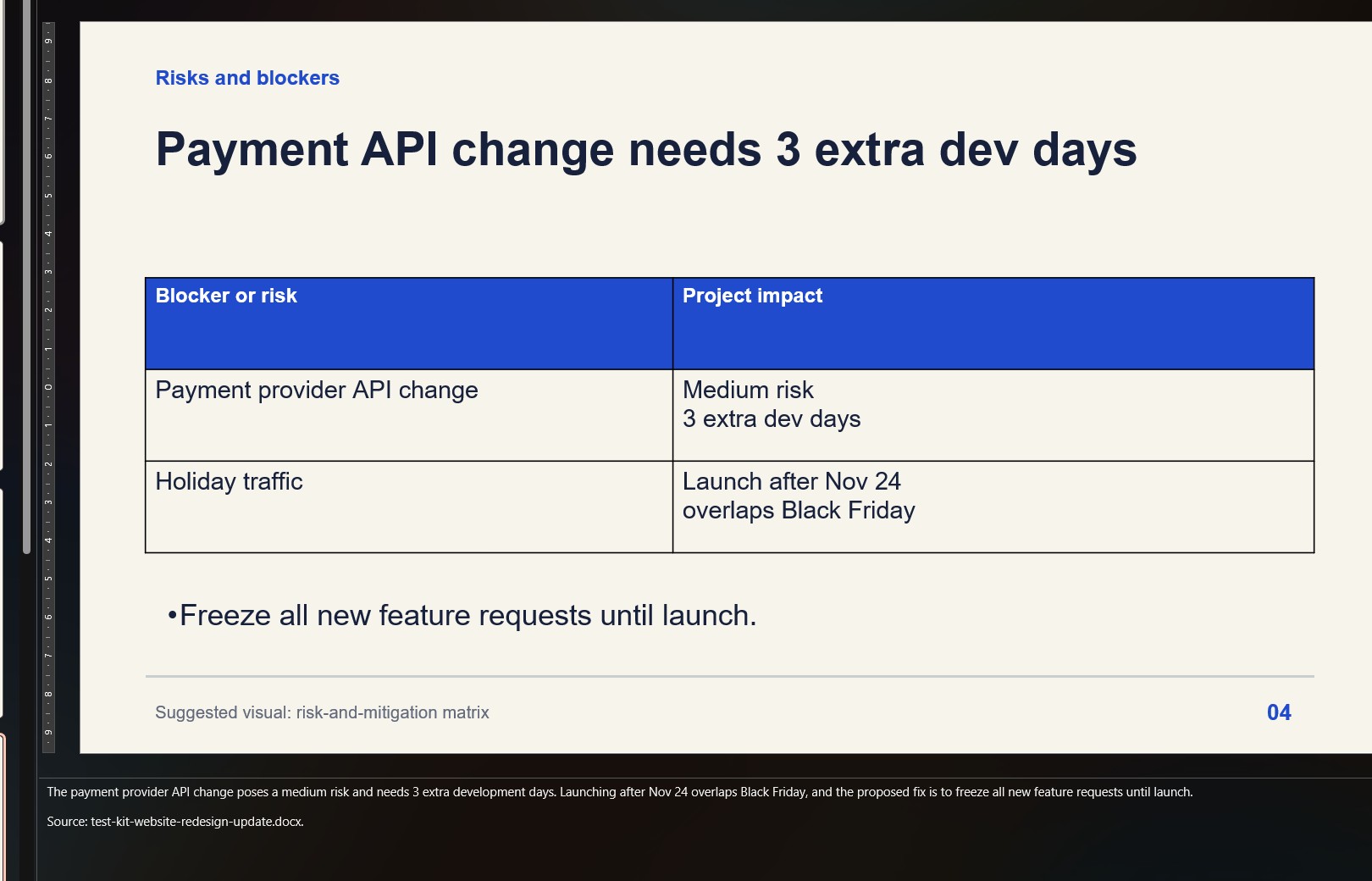
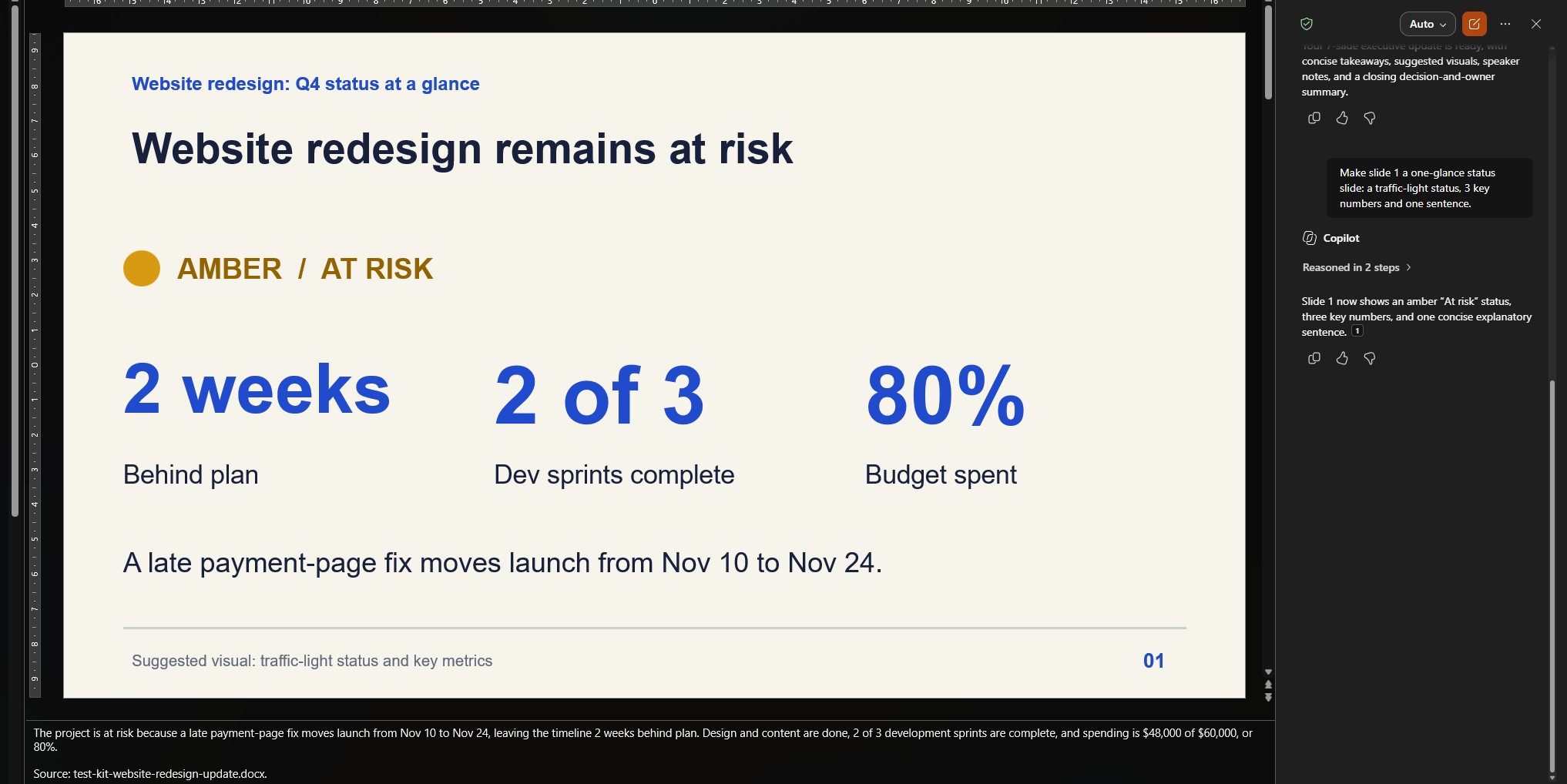
I ran both tests in PowerPoint on a Microsoft 365 work plan with Copilot, on the same topic: a website redesign status update for executives. Test A was a single sentence and no file. Test B was the builder's prompt with a filled-in Word outline attached.
| What I checked | Test A: one line | Test B: the kit |
|---|---|---|
| Slides | About 7 | About 7 |
| Invented numbers | Yes, fixed by hand | Still possible: check every one |
| Source to check against | None | The Word outline |
| Speaker notes | Not asked for | Asked for in the prompt |
The invented numbers are the real lesson. Copilot filled gaps with figures that looked plausible, and nothing on the slide told me which ones were made up. That's why every prompt from the builder says "use only its facts and numbers", and why I added a checking prompt below: it gives Copilot a clear job instead of leaving you to hunt for errors.
🔎 The number-check prompt
Compare every number, date and percentage in this deck with the source file. List each one in a table: slide, number on the slide, number in the file, match or no match. Do not change any slides yet.
Then fix only the rows marked "no match", either by hand or with a prompt like "On slide 4, replace the budget with $48,000 from the file." With a one-line prompt there's no file, so there's nothing to compare against. Want to see the raw output? Download my Test A deck (.pptx).
Why a Word outline beats a longer Copilot PowerPoint prompt
When everything sits in the Copilot PowerPoint prompt, two things go wrong. Long prompts hit the word limit Microsoft mentions in its FAQ, and Copilot fills gaps with generic text. Worse, it can invent numbers. When the facts live in a file, Copilot has a source to pull from, and you can tell it to use only that source.
Microsoft's own Copilot training gives three rules for the file: use Word Styles, keep images in the document if you want them on slides, and start from your organization's template. The outline from my builder handles the first rule for you: every slide title is already a Heading 1.
✗ Prompt only
- Copilot guesses the structure
- Gaps get filled with generic text
- Numbers can be invented
- Each retry costs another credit
✓ Prompt + Word outline
- Each Heading 1 becomes a slide
- Your facts are the source
- The prompt sets slide rules and tone
- The same file reruns on a new template
How do you make a Copilot PowerPoint deck, step by step?
- 1
Build the prompt and outline
Use the builder above. Pick the deck type closest to yours; you can rename any heading later.
- 2
Fill in the Word outline
Replace each grey hint with 2–4 short points and your real numbers. Keep the headings as Heading 1, and add any charts or photos you want on the slides.
- 3
Save it to OneDrive
Copilot attaches cloud files, so a copy that lives only on your desktop won't show up. At work, SharePoint works too.
- 4
Open PowerPoint with your template
If you have a branded template, open it first so Copilot uses your design. Then pick Create a presentation from the Copilot button, or from PowerPoint Home in newer versions.
- 5
Paste the prompt and attach the file
Paste your prompt, then delete the file name in it and type / to pick the outline from the list, so Copilot links the real file.
- 6
Review, then refine one change at a time
Check every number in the Copilot PowerPoint draft against your file. Then use one of the prompts below per request; on the web, the Review Presentation button gives a quick second opinion.

Using Copilot in Excel too? My Copilot Excel expense tracker tutorial uses the same idea: a clean source file first, then short prompts on top.
12 Copilot PowerPoint prompts to fix a draft
Send these one at a time after the first Copilot PowerPoint draft. Asking for five changes at once tends to change things you didn't ask for, and a single clear request is easier to undo.
🧱 Structure
- Organize this presentation into sections and add an agenda slide after the title.
- Add a closing slide with 3 key takeaways and one clear next step.
- Which slides repeat the same point? List them and suggest which to merge.
✍️ Text
- Rewrite every slide title as a full sentence that states the takeaway.
- Shorten the bullets on this slide to 3 points of under 10 words each.
- Rewrite this slide for executives with two minutes: lead with the decision.
🖼️ Visuals
- Turn the numbers on this slide into a simple chart or table.
- Add an image of a team planning around a whiteboard to this slide.
- Make this slide more visual: use icons or a simple diagram instead of bullets.
🎤 Delivery
- Add speaker notes to every slide: 2–3 conversational sentences I can say in under 45 seconds.
- Summarize this presentation in 5 bullets I can paste into the meeting invite.
- What questions is my audience most likely to ask, and which slide answers each one?
Select the slide before sending a "this slide" Copilot PowerPoint prompt, so Copilot knows which one you mean. For more general prompt habits that carry over to every AI tool, see my 7 daily ChatGPT prompts.
Why do Copilot PowerPoint drafts look weak? 5 fixes
⚠️ A one-line prompt
"Make a deck about our launch" leaves the audience, length and goal to chance. Name all three, as the builder does.
⚠️ Starting from a blank file
Copilot picks its own design on a blank deck. Open your branded template first, then ask Copilot.
⚠️ A file it can't see
A Word file saved only on your desktop won't appear when you type /. Move it to OneDrive first.
⚠️ A wall of text in Word
Without heading styles, Copilot guesses where slides start. Long files can also pass its word limit; point it at one section.
⚠️ Trusting the numbers
Microsoft warns Copilot's content can be inaccurate. Check every figure against your source before you present.
That last one matters most for any Copilot PowerPoint deck. If you want to know why AI tools state wrong numbers with confidence, my guide to AI hallucinations covers how to catch them.
No Copilot? The free alternative
If your plan doesn't include Copilot, or your credits ran out mid-month, the Copilot PowerPoint prompt from the builder still works elsewhere. Gamma is the AI presentation tool I'd try first: it has a free plan, builds a deck from a prompt or pasted outline, and exports to PowerPoint, so you can finish in the app you know.
🎨 Gamma: paste the builder's prompt and outline text, then export the result as a .pptx file.
Try Gamma free →My step-by-step Gamma presentation guide walks through the free plan, and Gamma storytelling shows how to structure a deck around one message. Comparing Copilot with other work assistants? See Superhuman vs Copilot vs Gemini.

Made to Stick by Chip Heath and Dan Heath
Copilot can fill slides; it can't decide which idea your audience should remember. The Heath brothers' six principles, starting with "simple" and "concrete", are the best test I know for a slide title, and they fit the takeaway-title rule in every prompt above.
Get the book →My verdict: the Copilot PowerPoint workflow worth your credits
Copilot is good at turning a clear source into a first draft, and weak at guessing what you meant. So spend your effort before the first click: a prompt that names audience, length, goal and slide rules, and a Word outline whose headings are the slides. That combination is the whole kit.
Choose the Copilot PowerPoint kit if you're on Microsoft 365 Personal, Family or a work plan and want the deck inside PowerPoint with your template. Choose Gamma if you have no Copilot credits left or want a free start, then export to PowerPoint at the end.
One better prompt beats five retries
Build my Copilot prompt →Free, runs in your browser, stores nothing.