
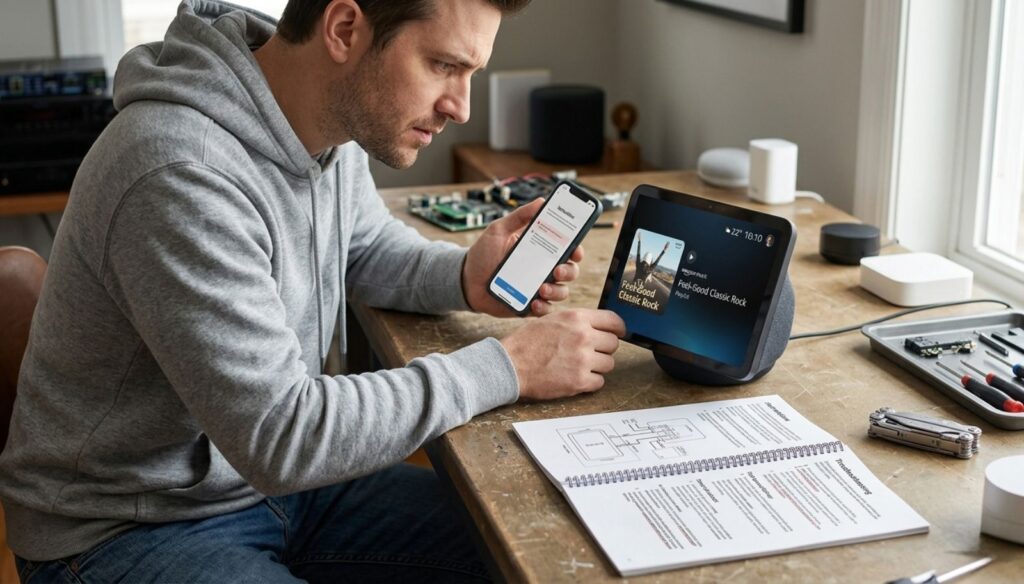
When a smart home hub setup fails, most guides tell you to switch your router from WPA3 to WPA2 because WPA3 "blocks Zigbee and Thread". It can't. Zigbee, Thread and Z-Wave never touch your Wi-Fi password, so the real fault is usually somewhere else: your phone, a missing border router, or a router setting that eats discovery traffic.
⚡ Short answerFind out which radio the failing device uses, then fix that layer. Wi-Fi gear needs a 2.4 GHz network in WPA2/WPA3 mixed mode with client isolation off. Matter and Thread devices need your phone on the same network plus a Thread border router. Zigbee needs plugs paired first; Z-Wave needs a device sold for your region.
Some links are affiliate links · they support this site at no extra cost to you · Full disclosure
Why does a smart home hub setup fail?
⚡ Short answerBecause three different networks have to agree at once: your Wi-Fi, the low-power radio mesh the device lives on, and the app on your phone that hands over the credentials. A hub setup fails at whichever of the three is misconfigured, and the error message rarely tells you which one.
The old version of this guide blamed everything on Wi-Fi bands and router encryption. Those matter for Wi-Fi gear, but a door sensor talking Zigbee or a lock talking Thread has its own radio and its own network key. Change your router password and it carries on regardless.
That is why I rebuilt the page around one question: which radio is the stuck device on? Answer that first and every hub setup problem narrows to three or four checks instead of twenty.
Bluetooth, location permission, the right network, the setup code
2.4 GHz band, WPA2/WPA3 mixed mode, isolation off, multicast allowed
Thread border router, Zigbee mesh, or a Z-Wave controller for your region
A hub setup error is a symptom, not a diagnosis. Identify the radio first, then troubleshoot only that layer.
Which radio is your device using?
⚡ Short answerCheck the logos on the box or in the manual. A Wi-Fi logo means your router; a Matter logo plus Thread means you need a border router; Zigbee or Z-Wave means you need a hub with that exact radio inside it.
Home Assistant's own Matter documentation gives the same advice: look for the Matter logo itself, because a Thread logo alone does not guarantee Matter support. Use these cards as your decoder before you change a single setting.
Needs: Phone and device on the same 2.4 GHz network
Usually fails on: Combined 2.4/5 GHz name, WPA3-only, client isolationGo to the fix → 🧩Logo: Matter + Wi-FiRadio: Your router, set up over Bluetooth
Needs: A Matter controller plus your phone on that network
Usually fails on: Phone on 5 GHz or a guest network, Bluetooth offGo to the fix → 🧵Logo: Matter + ThreadRadio: Thread mesh (IPv6)
Needs: A Thread border router and your phone holding its credentials
Usually fails on: No border router, or two vendors' separate Thread networksGo to the fix → 🕸️Logo: ZigbeeRadio: Zigbee mesh, 2.4 GHz
Needs: A hub with a Zigbee radio inside
Usually fails on: Still paired elsewhere, weak mesh, USB interferenceGo to the fix → 📡Logo: Z-WaveRadio: Sub-GHz, region-specific
Needs: A Z-Wave controller sold for your region
Usually fails on: US device with an EU hub, or the reverseGo to the fix →
If your box shows Zigbee and your hub is a HomePod mini or a Nest Hub, no amount of resetting will help, because there is no Zigbee radio to talk to. My smart home hub guide lists which radios each popular hub carries.
Matter is the language, not the radio. Two Matter devices can need completely different fixes.
Find your fix in 30 seconds
Pick the symptom closest to what you see. The finder lists the checks in the order that usually resolves a hub setup fastest, and links to the full section.
Hub or Wi-Fi device won't connect: how do you fix it?
⚡ Short answerPut your phone on the 2.4 GHz network the device will live on, set your router to WPA2/WPA3 mixed mode, and turn off client or AP isolation. Then restart the device into pairing mode and retry.
Give it a 2.4 GHz network it can see
Most cheap plugs, bulbs and cameras only have a 2.4 GHz radio, which is the root of most Wi-Fi hub setup failures. Many routers broadcast 2.4 and 5 GHz under one name and steer your phone to 5 GHz, so the app hands the gadget a network it cannot reach. During hub setup, either switch off 5 GHz for ten minutes or create a separate 2.4 GHz network name, and connect your phone to it before you open the app.
Use mixed security, not WPA3-only
Here is the grain of truth in the old advice. Router makers and user forums agree that some older Wi-Fi gadgets never see a WPA3-only network. WPA2/WPA3 mixed mode (often called transition mode) lets new devices use WPA3 and older ones use WPA2. A few stubborn devices still trip on mixed mode during hub setup; for those, a separate 2.4 GHz, WPA2-only network is the clean workaround.
Switch off isolation and avoid the guest network
Settings called AP isolation, client isolation or a guest network stop devices on the same Wi-Fi from seeing each other. That is exactly what your phone, hub and gadget need to do during hub setup. Put smart devices on your main network, or on a dedicated network your hub also sits on.
On Android, allow location access
Android hides the Wi-Fi network name from apps without location permission, and some hub setup apps quietly fail without it. Home Assistant's documentation asks for location set to "Allow all the time" for exactly this reason.
- A visible 2.4 GHz network
- WPA2/WPA3 mixed (transition) mode
- Client / AP isolation off
- Phone on that same network
- WPA3-only security
- One name that steers you to 5 GHz
- The guest network
- A VPN running on your phone
The device joins the network your phone is on. Fix the phone's connection first and most Wi-Fi hub setup errors disappear.
Matter device won't pair? Check these 5 things
⚡ Short answerKeep Bluetooth on and your phone close, make sure the phone is on the 2.4 GHz network the device will use, scan the setup code printed on the device, and check your router isn't filtering multicast. If the device is already in another app, share it from that app instead of resetting it.
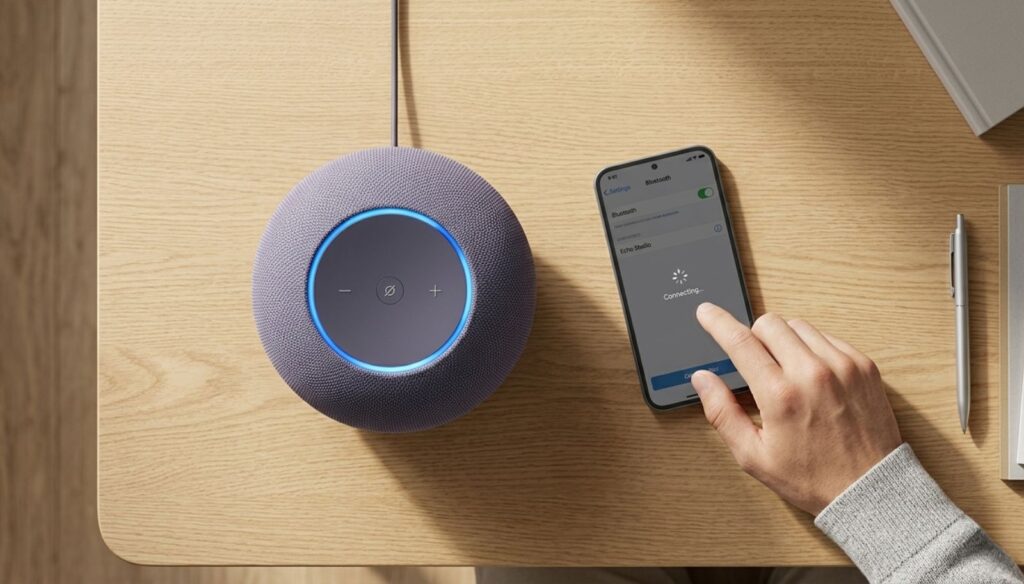
Matter adds devices through a process called commissioning, and it is where most modern hub setup attempts stall. Your phone talks to the new device over Bluetooth, hands it the network credentials, and then the device joins Wi-Fi or Thread. A hub setup that stalls at "Connecting" usually fails at one of these five points.
Already in Apple Home, Google Home or Alexa?
Don't factory reset it. Matter supports multi-admin: open the app that already controls the device, choose the option to share it or turn on pairing mode, and use the temporary code it generates in the second app. The standard asks every device to support at least five controllers at once, according to Home Assistant's Matter guide.
The printed setup code adds a new device; a shared code from your current app adds an existing one. Mixing them up is the most common Matter hub setup dead end.
"Requires a border router": how do you fix Thread pairing?
⚡ Short answerYou need a Thread border router on your network, near the device, and your phone needs that Thread network's credentials. Apple users get this from a HomePod mini or Apple TV 4K, Google users from a Nest Hub (2nd gen), Nest Hub Max or Nest Wifi Pro.
Thread devices sleep most of the time to save battery and cannot reach your Wi-Fi on their own, so a Thread hub setup always depends on one extra box. The border router is the bridge. Home Assistant lists these as known working border routers: Nest Hub (2nd gen), Nest Hub Max, Nest Wifi Pro and Nest Wifi, Google TV Streamer, HomePod mini, HomePod (2nd generation), and Apple TV 4K (2nd generation, or the 3rd generation Wi-Fi + Ethernet model).
The trap: two ecosystems, two Thread networks
Each brand still tends to create its own Thread network. Own a HomePod mini and a Nest Hub and you may have two separate meshes with different credentials, and devices can't roam between them. If a device pairs in one app but not the other, this is usually why. Commission it in the ecosystem whose border router sits closest, then share it to the other app over Matter.
Interference and the phone itself
Thread shares the 2.4 GHz band with Wi-Fi. If pairing fails repeatedly, restart your phone to clear stale Bluetooth and Thread routes, move the device closer to the border router for the first join, and check that your mesh Wi-Fi isn't filtering multicast.
Thread needs a border router the way Wi-Fi needs a router. No border router, no hub setup, whatever the app says.
Why won't a Zigbee device pair or stay connected?
⚡ Short answerFactory reset the device, pair your mains-powered plugs and bulbs before battery sensors, pair each device where it will live, and keep a USB Zigbee stick on a USB 2.0 extension cable away from USB 3 ports and your router.
A Zigbee device can belong to only one network at a time. If it was ever paired to another hub, removing it in the old app is often not enough; it needs a proper factory reset, following the maker's button sequence, before your new hub setup can see it.
Build the mesh before the sensors
Mains-powered Zigbee devices act as repeaters. Add plugs and bulbs first so battery sensors have a nearby parent to join. Then pair sensors in their final spot: Home Assistant's Zigbee documentation warns that pairing next to the hub and moving the device later can degrade the connection.
Kill the interference
- USB 3 is noisy at 2.4 GHz. Plug Zigbee sticks into a USB 2.0 port on a shielded extension cable, never straight into the computer.
- Fix your Wi-Fi channel. Wi-Fi channels 1, 6 and 11 overlap different Zigbee channels. Zigbee channels 15, 20 and 25 are the usual safe choice; changing the Wi-Fi channel is often easier than moving Zigbee.
- Fresh batteries. Some sensors refuse to pair on a low battery, even straight out of the box.
- Patience with Aqara. Some Xiaomi and Aqara sensors need several attempts over 10 to 20 minutes, and may not stay connected through certain third-party repeaters.
Zigbee is a mesh. A hub setup with no repeaters between the hub and a far sensor fails no matter how many times you reset it.
Z-Wave device won't join? Check the region first
⚡ Short answerZ-Wave frequencies differ by region: 908.42 MHz in the US and Canada, 868.42 MHz in Europe and the UK, 921.42 MHz in Australia and New Zealand. A device and controller from different regions can never pair.
This is the hub setup failure no reset can fix, and it catches anyone who buys on an overseas marketplace. Check the frequency on the device label or listing before you spend an evening on your hub setup. If it doesn't match your controller, return it.
If the region is right, run an exclusion from your controller first, even on a brand-new device, then include it again. For secure S2 devices, have the 5-digit PIN or QR code from the label ready, because the app asks for it mid-pairing.
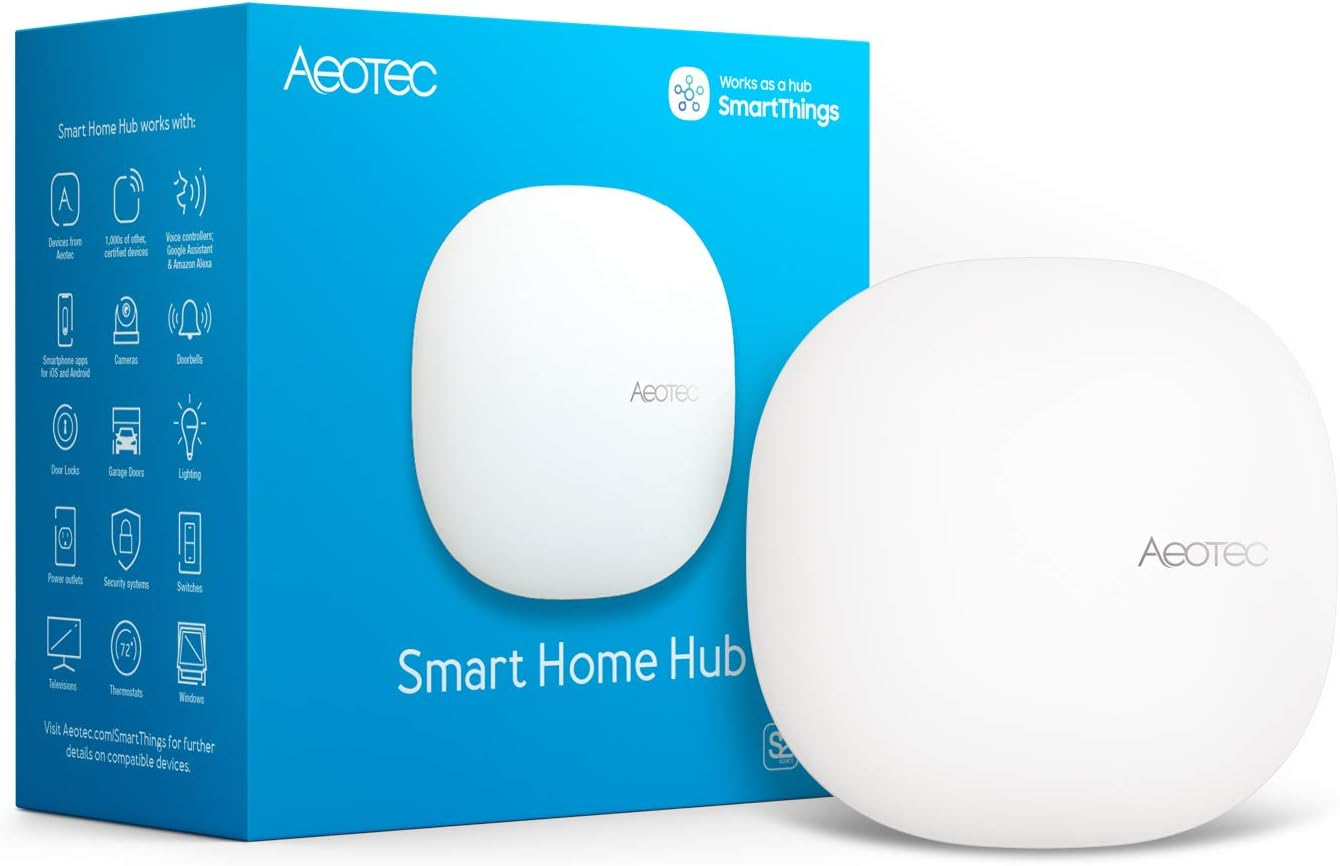
Z-Wave sits on its own sub-GHz band, which is why it ignores Wi-Fi congestion. It is also why a US device stays deaf to a European hub.
The 9-step hub setup sequence that prevents most failures
⚡ Short answerUpdate the hub and app, prepare your network, place the hub centrally, pair mains-powered devices before battery ones, add one device at a time in its final spot, name it at once, and back up the configuration. Expect about 30 to 45 minutes for a first hub setup.
Tap a number to tick it off · 0 of 9 done
When is it the hub, not your setup?
⚡ Short answerWhen the hub lacks the radio your device needs, when its app is no longer updated, or when every device works in another ecosystem but not this one. At that point a better hub setup means a different hub.
- Missing radio. A Zigbee sensor and a hub with no Zigbee, or a Thread lock and no border router.
- Abandoned software. No firmware update in a long time and Matter features never arrived.
- Cloud-only routines. Every automation dies when the internet drops, and that matters to you.
- One ecosystem keeps failing. The same device pairs in Apple Home or Home Assistant in minutes but never in this app.
If two or more of those fit, no amount of hub setup tweaking will help. I compared six hubs on the radios they carry and the real cost of a working setup in my best smart home hub guide. And if a new smart lock is what broke your hub setup, the picks in my best smart locks guide list the border router each one needs.
After it works: lock down your hub setup
⚡ Short answerTurn on two-factor sign-in, give housemates their own accounts, enable automatic updates, switch off voice or camera history you don't use, and prefer automations that run locally on the hub.
A working hub knows when you're home, when you sleep and which doors you open. Matter devices are designed to be controlled locally, which helps, but your hub account is still the key to the whole house. Treat its password like your email's.
For the settings worth changing on each brand, see my guides to AI home device privacy settings and stopping apps from reading your private data.
A hub setup is finished when it works offline and only the people you chose can reach it.