
Mirko
AI Tech Writer
You just spent $799 on the Meta Ray-Ban Display — not the $379 Ray-Ban Meta Gen 2 or the new $299 Meta Glasses — and now the Meta Ray-Ban Display setup process has stalled: the Neural Band won't pair, the display stays black, or the Meta AI app keeps crashing.
Most setup guides still tell you to open the Meta View app — but that app hasn't existed since April 2025, when Meta renamed it the Meta AI app. If you're stuck on step one because you can't find the icon, that's why. The other detail most guides skip entirely: the Display doesn't pair on its own. You're setting up two devices — the glasses and the Meta Neural Band wristband — and the second one is where most pairing failures actually happen.
One detail I'd flag from going through Meta's own current setup docs while refreshing this guide: the Neural Band needs to stay connected to its charging cable for the entire pairing process, not just before it — skip that, and the pairing step times out silently with no clear error.
This guide fixes Meta AI app pairing, Neural Band setup, and display errors in under 10 minutes — using the current app and hardware, not the outdated Meta View instructions still floating around most other guides.
🎯 Jump To Solution
Some links are affiliate links · you support this site at no extra cost · Full disclosure
1. Quick Fixes for Meta Ray-Ban Display Setup Problems
Before starting the full Meta Ray-Ban Display setup, try these fixes first — most pairing and AI feature problems trace back to one of the seven things below, and none of them require a factory reset.
📶 Restart Bluetooth + Wi-Fi
Toggle both off for 5 seconds. This clears connection conflicts that block Meta Ray-Ban Display setup from completing.
📲 Update the Meta AI App
This is the app that replaced Meta View back in April 2025 — if you're still looking for "Meta View" in your app store, that's the app you want. Outdated versions cause most pairing failures.
🔋 Charge Both Devices First
Low battery on the glasses or the Neural Band disables display and AI smart glasses features during setup. Charge both before retrying.
⌚ Re-Pair the Neural Band Separately
The band pairs on its own step inside the app, not automatically with the glasses. If setup stalls, check whether the band's LED is pulsing white — that means it's waiting to pair.
🗑️ Forget Old Bluetooth Devices
Previous Ray-Ban or Oakley Meta pairs cause conflicts. Remove them from Bluetooth settings, then re-pair fresh.
🔒 Enable All Permissions
Camera, microphone, and location access are required. Missing permissions block the entire setup process.
🚫 Disable VPN & Battery Saver
Both interfere with Bluetooth handshakes. Turn off temporarily to complete smart glasses setup.
If these quick fixes solved your problem, you're done. If not, continue to the complete Meta Ray-Ban troubleshooting guide below. For performance comparisons with competitors, see my Ray-Ban Display vs Oakley Vanguard analysis. Meta's official AI glasses support center also covers account-specific setup issues.
2. The Most Common Meta Ray-Ban Display Setup Problems
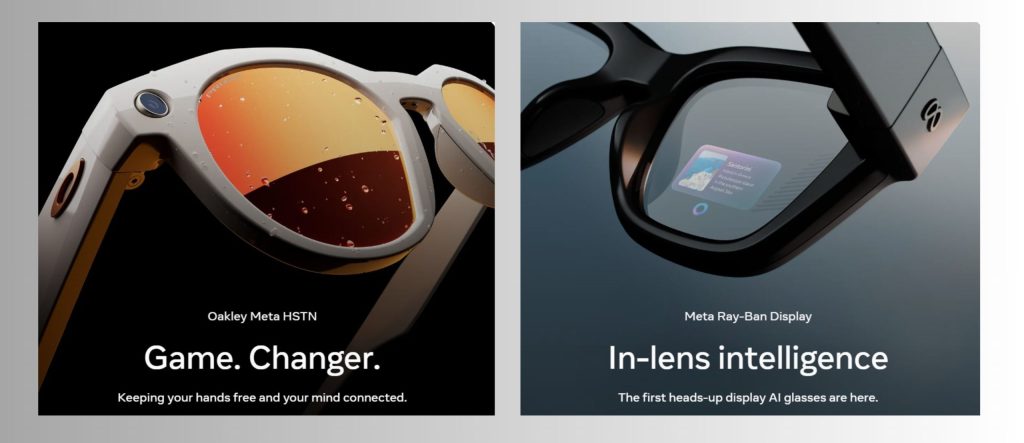
Understanding what actually fails during Meta Ray-Ban Display setup saves you hours of guessing. These six issues cover the vast majority of what shows up in Meta's community support forums and third-party troubleshooting threads.
Bluetooth Pairing Loop
Glasses appear in Bluetooth settings but won't complete smart glasses setup. Usually caused by firmware mismatch or cached connection data.
Neural Band Stuck on "Pairing"
The glasses pair fine but the band never connects. Almost always means the band disconnected from its charging cable mid-pairing — reconnect it and restart the band step.
Meta AI Not Responding
Voice commands fail or AI features are missing entirely. Requires specific permissions and account linking that the quick-start guide doesn't mention.
Black Screen During Display Test
Display powers on but shows nothing. This Meta Ray-Ban troubleshooting issue stems from outdated firmware or incorrectly positioned glasses.
Neural Band Gestures Unresponsive
Finger taps and swipes don't register on the HUD. Calibration resets after firmware updates, requiring you to recalibrate the band's EMG sensors in the AI smart glasses guide settings.
Meta AI App Crashes on Launch
App closes immediately when trying to connect. Reported most often on Android 14+ devices with strict background process limits.
3. Pre-Setup Checklist: What You Must Do Before Pairing
A smooth Meta Ray-Ban Display setup starts with a few checks most people skip — and the biggest one isn't about the glasses at all. You're pairing two separate devices, the glasses and the Meta Neural Band wristband, and most of the failed setups I run into trace back to people never touching the second one.
"If you only prep the glasses and skip the Neural Band, the app gets stuck asking for a gesture you have no way to make yet."
What to Check on Your Phone and the Meta AI App
One detail worth flagging from going through Meta's own current setup docs while refreshing this guide: they specifically say to keep the Neural Band on its charging cable for the entire pairing process, not just before it starts — a step most third-party guides skip, and the one that causes the most silent timeouts.
| What to Check | Why It Matters |
|---|---|
| Meta AI app installed and updated — not the old "Meta View" app, which Meta retired in April 2025 | The Meta AI app is what pairs, updates, and controls both the glasses and the Neural Band. |
| Your phone has the latest iOS or Android version | Old systems block Bluetooth handshakes and AI features. |
| Glasses and Neural Band both fully charged | Meta rates the glasses at up to 6 hours of mixed use and the band at up to 18 hours — start fresh off the charger, not mid-day. |
| Neural Band stays connected to its charging cable during pairing | Pairing can time out if the band loses power partway through setup. |
| Bluetooth + Wi-Fi enabled | Both are required for pairing and display streaming. |
| Previous Ray-Ban or Oakley Meta profiles removed from Bluetooth | Old connections from any prior pair — Gen 2, Vanguard, or Display — interfere with a new setup. |
| Camera, microphone, and network permissions allowed | Required for display previews, AI answers, and sync features. |
Quick Pre-Setup Steps (Do These Before Pairing)
- Clean the glass sensors gently to ensure accurate display activation.
- Power on the Neural Band first — hold its button for 2 seconds until the LED flashes white — before you even open the app.
- Disable VPNs, private DNS, or "Battery Saver" modes temporarily.
- Keep the glasses and the band within about 30 cm of the phone for the whole pairing process.
- If you're weighing whether a screen in the lens is worth it over a pendant-style AI wearable, I compared both approaches in Meta's AI Pendant vs Smart Glasses: Is the Era Over? — worth a skim before you commit to the Display's workflow.
- The Display isn't Meta's only current tier, either — there's now the sub-$300 Meta Glasses line and the sport-focused Oakley Meta Vanguard, both covered in Top AI Gadgets Trending: Smart Glasses, AI Earbuds & More, if this guide has you rethinking which model actually fits you.
You're now ready for the actual setup. Completing this checklist eliminates the two obstacles behind most first-time pairing failures: an outdated app and a Neural Band nobody remembered to charge. Next, I'll walk you through pairing both devices and turning on AI features step by step.
4. Step-by-Step Setup for Pairing, Apps, and AI Features
This complete Meta Ray-Ban Display setup takes about 8–10 minutes and covers both devices — the glasses and the Neural Band — plus AI activation. Follow each step in order.
Scan the QR Code in the Box
Both the glasses box and the Neural Band box include a QR code that takes you straight to the Meta AI app on the App Store or Google Play. Already have it installed? Scanning still drops you into the right setup screen.
Open the App and Tap "Set Up a Device"
Log into your Meta account — required for AI features and cloud sync. Tap "Set up a device" and select Meta Ray-Ban Display when prompted.
Pair the Glasses
Open the glasses arms and follow the on-screen Bluetooth pairing prompt. This part usually takes under a minute if Bluetooth and location are already enabled on your phone.
Pair the Neural Band — Don't Skip This
Keep the band on its charging cable. Press and hold its button for 3 seconds until the LED pulses white, then follow the app's on-screen instructions to finish pairing. This is the step most guides forget to mention exists.
Update Firmware on Both Devices
After pairing, the app checks for updates automatically — let both the glasses and the band finish before moving on. This step fixes most remaining Meta Ray-Ban troubleshooting issues on its own.
Calibrate the Neural Band Gestures
The app walks you through a short gesture calibration — pinch, swipe, and a wrist rotation. This teaches the band your specific muscle signals, which is why gestures feel off if you skip or rush it.
Activate Meta AI
Go to Settings → AI Assistant → Enable, and grant microphone permissions when prompted. Test it by saying "Hey Meta" while wearing the glasses — the LED should pulse blue.
Setup complete! Your glasses should now respond to voice commands, display notifications, and read gestures from the Neural Band. For the full AI command list, check Meta's official Ray-Ban Display product page.
5. Advanced Troubleshooting for Display, Gestures, and AI Responses
When basic fixes fail, these advanced Meta Ray-Ban troubleshooting methods resolve persistent display, gesture, and AI issues that standard support guides don't cover.
Display Lag or Flickering
Screen stutters or shows delayed notifications during Meta Ray-Ban Display setup.
Neural Band Gestures Not Registering
Pinches and swipes don't move the cursor on the HUD. On the Display model, gestures come from the wrist-worn Neural Band's EMG sensors, not from tapping the frame.
AI Commands Timing Out
Meta AI hears you but doesn't respond, or shows "Processing..." indefinitely.
Audio Delay in Calls
Voice calls have a 2–3 second lag between the AI smart glasses and your phone.
For hardware-specific issues like cracked lenses or charging port damage, contact Meta Support directly for warranty service or replacement options.
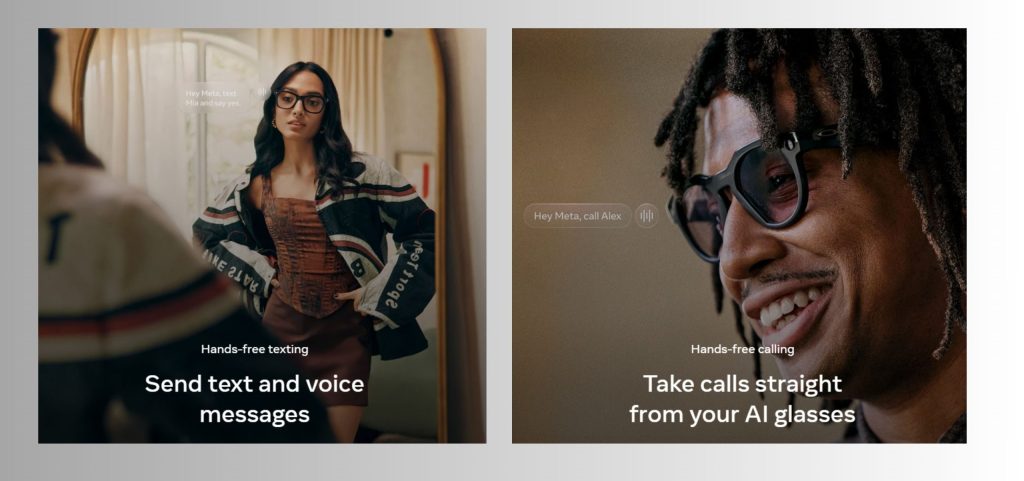
6. Smart Glasses Privacy and Ethical Use: What to Adjust First
Even with a perfect Meta Ray-Ban Display setup, smart glasses raise real questions about privacy, transparency, and responsible use in public spaces. The goal isn't to limit what the device can do — it's to make sure daily use respects the people around you and protects your own data.
| What to Adjust | Why It Matters |
|---|---|
| Camera & microphone capture LED | Shows when recording is active, keeping things transparent in public spaces. |
| Permissions inside the Meta AI app | After setup, disabling permissions you don't use reduces how much data the device collects. |
| Always-on AI listening features | Prevents accidental activation and unintentionally captured conversations. |
| Usage in sensitive environments | Gyms, clinics, schools, and offices often prohibit recording devices outright. |
| Secure storage for synced photos and audio | Protects your personal content and keeps long-term data management under your control. |
Reviewing these settings gets you the full benefit of the Meta Ray-Ban Display while staying aware of the people and environment around you. For more privacy-focused device guides, see Best AI Privacy Gadgets: Protect Your Identity.
7. Final Recommendations and Best Accessories for Better Performance
Once your Meta Ray-Ban Display setup is done, a few accessories cut down on the failure points that cause most re-setups. Worth knowing: at 69g, the Display frame is noticeably heavier than the 379-dollar Gen 2 glasses, so a case built for the standard Ray-Ban Meta won't always fit right.
🔌 Portable Charging Case
The glasses hold about 6 hours of mixed use; a spare charging case buys another 24 hours without needing an outlet.
🧼 Microfiber Lens Cleaner
A clean display means clearer AI responses — smudges over the HUD area reduce both brightness and touch accuracy.
🛡️ Protective Hard Case (Display-Sized)
Look for a case rated for the Display's slightly bulkier frame, not the slimmer Gen 2 — check the fit before buying.
Remember: it's an in-store demo purchase, not a standard online checkout.
See Product Details →
For lens protection recommendations, check Ray-Ban's official care guide. Proper maintenance prevents most display and sensor issues before they start.
FAQ: Meta Ray-Ban Display Setup, Fixes, and AI Features
How long does Meta Ray-Ban Display setup take?
+Complete setup takes about 8–10 minutes when you pair both devices in order — the glasses first, then the Neural Band.
Most people who think they've finished setup skip the Neural Band pairing entirely, since the app doesn't force you through it the way it forces the glasses step.
Why won't my Meta Ray-Ban Display glasses pair with my phone?
+The usual culprits: Bluetooth or location off, a battery below 15%, or an old Ray-Ban or Oakley Meta pair still saved in your Bluetooth list.
Turn Bluetooth off for 5 seconds, forget any old devices, charge to at least 50%, then restart pairing from the Meta AI app.
Do I need to pair the Meta Neural Band separately from the glasses?
+Yes — it's a separate pairing step, not an automatic add-on to the glasses pairing.
Keep the band on its charging cable the whole time. If it disconnects mid-pairing, the process times out and you'll need to start that step over.
Do I need a Meta account for Ray-Ban Display smart glasses?
+Yes. The account enables cloud sync, the Meta AI assistant, and display notifications, and you can create one right inside the Meta AI app during setup.
Without an account, the glasses work only for basic photo and audio capture — no AI, no display features, no backup.
Why is Meta AI not responding on my smart glasses?
+Usually microphone permissions are off, firmware is behind, or your phone has no signal. Enable the AI Assistant in the Meta AI app and grant every permission it asks for.
Then update firmware and say "Hey Meta" — the LED should pulse blue if it's working.
Can I use Meta Ray-Ban Display glasses without the app?
+Only for the basics — photo capture and Bluetooth audio work without it.
The display, gesture calibration, AI features, firmware updates, and Neural Band pairing all require the Meta AI app at least once.
How do I fix Meta Ray-Ban Display lag or flickering?
+Set the refresh rate to 60Hz in Settings → Display, then clear the Meta AI app's cache (Settings → Apps → Meta AI → Clear Cache on Android).
On iPhone, delete and reinstall the app instead, and confirm firmware is current before retesting.
What phones are compatible with Meta Ray-Ban Display?
+iOS 15.2 or later, or Android 10 or later, with Bluetooth and a few gigabytes of free storage.
Older phones can sometimes pair but often struggle to run the display and gesture features smoothly.
How do I factory reset Meta Ray-Ban Display glasses?
+Fold both arms, press the capture button 5 times rapidly until the LED turns orange, then press and hold until the LED flashes.
This erases everything and unpairs the glasses. The Neural Band has its own separate reset — check Meta's official Neural Band guide rather than guessing, since resetting it wrong can leave it locked to your old account.
Where can I buy Meta Ray-Ban Display and how much does it cost?
+It costs $799 and includes the Neural Band — check current details here.
It's sold in-store only at select Best Buy, LensCrafters, Ray-Ban, and Verizon locations, not through a standard online checkout, and demo slots can book out in advance.
👓 Ready to Explore More AI Wearable Tech?
Your meta ray-ban display setup is complete — now discover what else AI-powered wearables can do. From fitness trackers that predict your health to smart home systems that actually understand you: